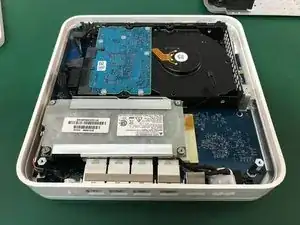
Einleitung

  1. KQAeJNIvdlpfV23F
    KQAeJNIvdlpfV23F
    fsVjGRMO2XdGIFsc
    QMjASJtHGFeSv1vN
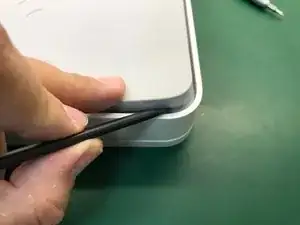
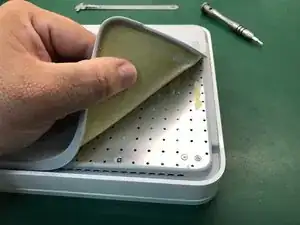
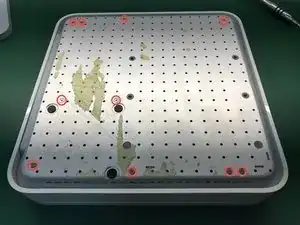
    • Wir legen das Gerät mit der Vorderseite nach unten und nehmen die untere Gummiabdeckung ab. Es ist besser, an einer Ecke zu beginnen.

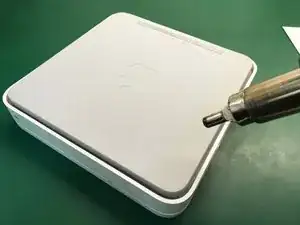
    • Wir erhitzen den Deckel, um ihn abnehmen zu können. Es braucht viel Klebstoff unter der gesamten Oberfläche. Seien Sie geduldig und sehr vorsichtig.

    The rubber tears real easy with age so carefully work your way inwards from each corner.

    AndreasT -

    Just happen to me :/

    Ben Capehart -

  2. aJjpOhVcUvTKADOk
    aJjpOhVcUvTKADOk
    J3OanBkVnRRxqm1P
    hY1Zt2cDQKQJfC2e
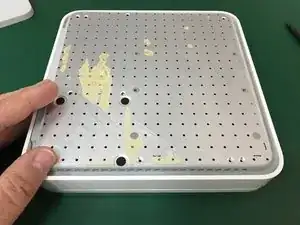
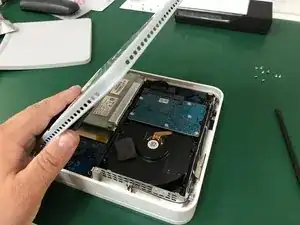
    • Wir entfernen die 10 Kreuzschlitzschrauben #00, die die untere Metallstütze der Time Capsule halten.

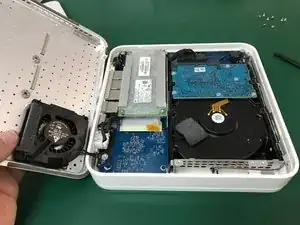
    • Wir öffnen nach links und lassen die Netzwerkanschlüsse auf dieser Seite. Nicht ganz öffnen, damit das Lüfterkabel nicht beschädigt wird.

    thanks for doing this guide.

    1. remove hash sign (#) before the 10. “Remove the 10 Phillips...

    2. second bullet - “Do not open all the way to avoid…

    Brian McNiff -

    I agree!

    Good Job!

    Ben Capehart -

  3. unywhdvB2nALZmrK
    unywhdvB2nALZmrK
    ZfKe1PqetIZKuxFB
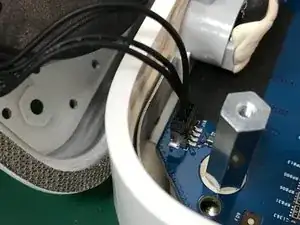
    • Löse vorsichtig mit der Spudgerspitze den Lüfteranschluss und entferne die metallene untere Abdeckung.

  4. mNNWHLuGvhMZIhUF
    mNNWHLuGvhMZIhUF
    HlHicyNmh6gihWKy
    rCWxwJ3UCM5bJZKp
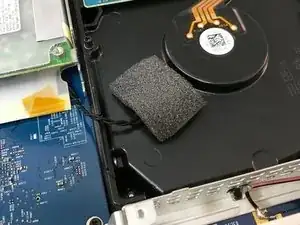
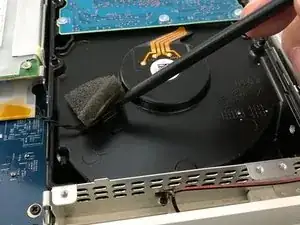
    • Wir können den Temperatursensor auf der Oberfläche der Festplatte beobachten.

    • Wir ziehen vorsichtig das Klebeband ab, das den Temperatursensor bedeckt.

  5. wpgoqgLPFfQYiVUo
    wpgoqgLPFfQYiVUo
    6FyUqNnLPghjhUoT
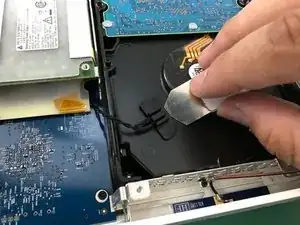
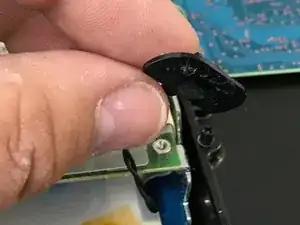
    • Wir nehmen den Clip ab, der den Temperatursensor hält, und entfernen beide.

  6. MfB1jNiGjOiuDjPS
    MfB1jNiGjOiuDjPS
    Nv3C2WUxH3xQ53hA
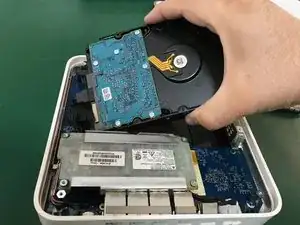
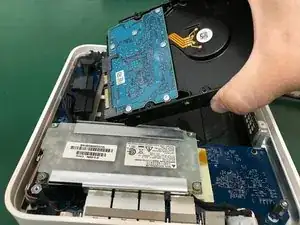
    • Wir heben die Festplatte ein wenig an, ohne zu stark zu ziehen, um die Strom- und Datenanschlüsse der Festplatte nicht zu beschädigen. Wir entfernen den Stromanschluss von der Festplatte

    • Wir entfernen den Datenstecker von der Festplatte.

  7. 4CVnxkRJXJNevBEU
    4CVnxkRJXJNevBEU
    UCsJxtCIxfSWDbgu
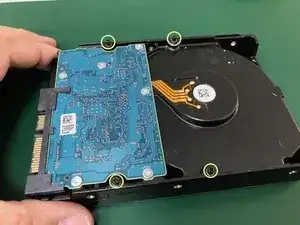
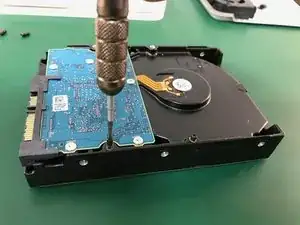
    • Sobald wir die Festplatte aus der Time Capsule haben, entfernen wir die 4 Säulen mit Phillips #00 Köpfen und legen sie in die neue Einheit.

    A #1 Philips works a lot better on these

    Heath Kehoe -

    Not gonna lie, I used a eye glasses repair kit screwdriver.

    kilereeds -

    Wow worked perfect! Thanks! But funny thing is I wanted to remove the hard drive to upgrade my Windows 11 Home PC and I just used dos kill disc to wipe it to 0’s

    kilereeds -

    Hello there, is this SATA II or SATA III HDD?

    Tomas Fiala -

    the #00 philips wouldn't turn the 4 screws in the hard drive (step 7) and I ran the risk of stripping either the head of the screws or the screwdriver itself, but the work around was use a pair of pliers to turn the screws from the outside first, loosening them enough you can use the screw driver. Torx screws would be a lot better here

    Matt Cowan -

Abschluss

Befolge die Anweisungen in umgekehrter Reihenfolge, um dein Gerät wieder zusammenzusetzen.

David Medrano

Mitglied seit: 22/12/13

1732 Reputation

15 Kommentare

I replaced a dead drive in about 30 mins following these instructions. The steps are clear, straight forward and the photos were extremely helpful. Many thanks as I now have a renovated AirPort Time Capsule.

Peter Long -

I just replaced the 2 TB WDC Green with a WD Red Pro 4 TB with this guide in less than 30 min. Except for the fan cable it was a cake walk.

Alex Senger -

Successfully upgraded my A1409 to a Western Digital - WD100PURZ - 5400 RPM Class SATA 6 Gb/s 256MB Cache 3.5. There are two additional steps: (a), there is a rubber strip around the original drive that reduces noise and protects the drive, gently remove from the original drive and place on the new drive; (b) once the rubber strip is on the drive, it is hard to get into place, angle the drive towards the connector side, and press in.

Brunob00 -

12 TB WD RED (inbuilt version WD120EMAZ) just confirmed for 1409 (G4 version).

you are welcome

AD G -

Hola. Reemplacé el disco con toda facilidad pero, desgraciadamente, la Utilidad AirPort no lo está reconociendo ni consigue borrarlo para activarlo. El HD nuevo es un WD Red de 10 TB. Si alguien puede ayudarme a resolver el problema, agradezco mucho.

I MM -

Hi. Is it possible to upgrade this to an SSD?

Bobby Barbour -

Yes, you could also use an SSD, just follow the same procedure.

Idrees -

How to Clone or Copy data to a new hard drive?

Ben Capehart -

4 TB WD Green drive replacement. 30 minutes start to finish, backup just started after formatting the disk. DO NOT forget to format the disk first. Disk format can be done from within the Airport Utility. Don't forget to remember that password!

jay Snoke -

It's not formatting the installed WD Red WD101EFAX which I've installed. Any help or suggestions?

Evgeny Kozlov -

Take it out then Try formatting it on Mac and then re-install it and try formatting again.

Ben Capehart -

This was super helpful. I used the microwaveable ifixit gel opener to loosen the glue on the rubber pad. Starting from one side and wedging a metal pry tool underneath as I moved about 1-2 inches at a time, reheating every few inches. Worked perfectly, no rips or tears on the rubber.

I mounted an SSD with VHB tape left over from another project, it holds drive securely against the side of the drive mount.

During reassembly, the glue on the back is still tacky enough to hold the rubber on, but a few small pieces of VHB tape in the corners helped.

It’s actually useful again, and very handy for my legacy Macs. Thanks for posting this!

Daniel PCRR -

Any guide / advice on the largest HDD that has been used, want to upgrade my 2Tb one... probably 4-8Tb

Anthony Clarke -

Thank you for the guide. I have replaced faulty hard drive to the new one with no problems.

Artur Pędziwilk -

Do you think an SSD could speed up the backup, or is it better to maintain an HDD with 5400 RPM or 7200 RPM? Is there a limit to the SATA buffer speed?

riccardo delfanti -