Einleitung
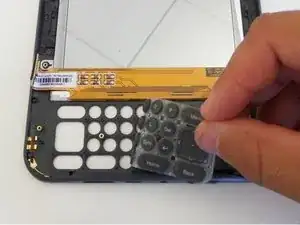
Diese Anleitung zeigt, wie das Kindle 3 zerlegt wird, um das Display auszutauschen.


-
-
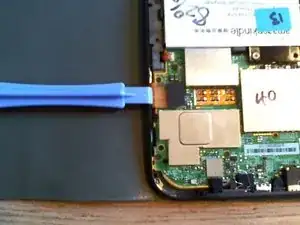
Lege das Gerät mit der Unterseite nach oben. Setze ein Hebelwerkzeug zwischen die beiden Gehäuseteile ein.
-
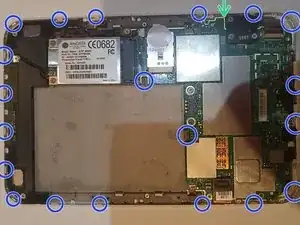
Schiebe das Werkzeug rund um die Kanten herum, bis alle achtzehn Clips gelöst sind. Setze das Werkzeug nicht zu tief ein, damit keine Bauteile im Inneren beschädigt werden. Die Clips befinden sich sowieso nur an der Außenkante. Beachte, dass der Clip an der Einschalttaste besonders groß und kräftig ist.
-
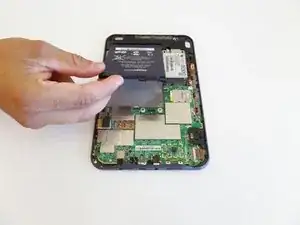
Ziehe die Rückseite ab. Die beiden letzten Clips in der Mitte sind überraschend schwer zu lösen. Sie zeigen beide in die gleiche Richtung, ziehe nicht einfach nach oben. Schiebe stattdessen die Abdeckung ein wenig zur Oberkante des Gerätes hin, bis sie sich lösen.
-
-
-
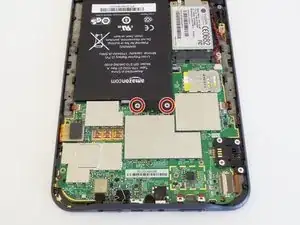
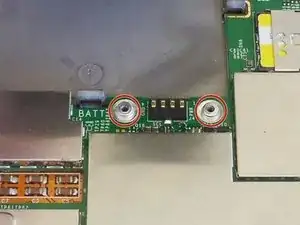
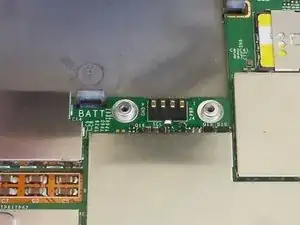
Entferne die beiden silbernen 4 mm Kreuzschlitzschrauben, mit denen der Akkustecker befestigt ist.
-
Lege die Schrauben zur Seite, damit sie keinen Kurzschluss verursachen können.
-
-
-
Hebe den Akku aus dem Akkufach, fange an dem durch die Schrauben gesicherten Ende an.
-
Achte auf die beiden unregelmäßig geformten silbernen Unterlegscheiben unter dem Akkustecker (Bild 2). Sie sind wichtig, damit die elektrischen Kontakte beim Festziehen der Schrauben gut passen.
-
-
-
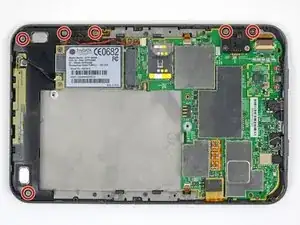
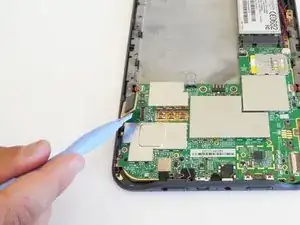
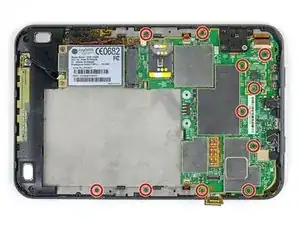
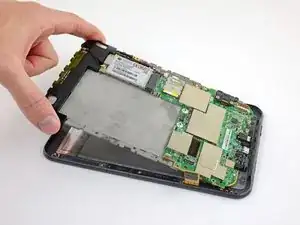
Hebe die Hauptplatinen-Mittelrahmen-Baugruppe an der Oberkante hoch, ziehe sie von der Unterkante weg und entferne sie.
-

Um dein Gerät wieder zusammenzubauen, folge den Schritten in umgekehrter Reihenfolge.

4 Kommentare
It works, but seriously overdoes the dismantling required . I just did this on a wifi 3g version (serial number started with B00A) and it took less than 30 minutes.
Steps 2,3 and 4 .You don't need to remove the silver screws holding the battery, the 3g unit or the inner ones on the black bit at lower right. None of them hold the board to the case, but ALL the grey screws do.
Step 5 You only need to undo the ribbon cable to the screen (marked orange) - the others don't need disturbing and are hard to put back correctly.
Steps 6 & 7 - Skip these.
Step 8 - the whole board lifts out - start at the top and be gentle - in case you've missed a screw or two.
Rebuilding - best to test before putting all the screws back, and refit the back starting at the switch end rather than the top or sides.
Dave -
Thanks for the guide. Used to strip down a device saturated with suntan lotion. Per Dave’s comments I skipped detaching the extra ribbon connectors, but needed to take out most of the silver screws to get the main boards apart. I also wanted to detach the battery before wading in with contact cleaner and baby buds. Now back working a treat. Daniel
This guide no longer includes any extra/unnecessary steps—the above comments refer to an old version of the guide.
Ah, I put it on in the wrong order, then figured out that starting at the bottom works best. I did the bottom, top and corners and then the sides, because I already had the top done.
kwood -
BE VERY CAREFUL HERE!! 15mm below the "next page" button was directly where the flex cable was. And it is an extremely fragile cable, even for flex cables. Which means I, of course, tore right through it without knowing until I got the cover off. So don't do that. Start 15mm above the lower corner, if anything, or start on the opposite side. Starting on the side with a single-point-of-failure is a really risky choice. The opposite side has basically nothing up against the edge, so you're free to poke it.
The other thing that isn't stated here is that the flex cable is inherently tied into the screen. Which means that if you, like me, damage that cable, the entire screen now broken and needs replacing. And if you, like me, was just trying to replace the battery or the motherboard, now it just makes sense to replace the entire device, both environmentally and financially. Whomp whomp.
bhurwitz -
As is, the guide sets you up SPECIFICALLY to DAMAGE THE SCREEN by prying into its very delicate ribbon cable.
A Kenny -
Apart from the buttons, are there any other specific places where we shouldn't pry, because it would damage something?
okojoijohoij -
There are clips a several centimeters from the edge of the Kindle across from the page-turning buttons. Undoing these clips was the most difficult part of opening the back of the Kindle. Be careful and take your time here.
It's a good idea to start on at the left page-turning button to help minimize risk of damage to the flex cable.
John Thoreson -
I've submitted an edit clearing up where to start the pry tool. Please folks, if you encounter something like this don't hesitate to remove bad information! With the contradictory instructions here I ended up starting on the left and piercing the cable like so many before me, which is very frustrating.
Jakob C -
Die Anleitung sollte in diesem Punkt wirklich überarbeitet werden. Das ist die absolut gefährlichste Stelle, das Gerät zu öffnen. So habe ich das Flex-Kabel eines funktionierenden Displays zerstört. Ich schreibe dies auf Deutsch und bitte darum, die englischen Erläuterungen zu lesen, wo man besser öffnet.
Kajetan Hinner -
I submitted an edit adding that the corners are another good place to start (it's how I just opened mine with no trouble) and moved the ribbon cable warning up to make sure people see it.
Neal Sofge -
Regarding two last (central) clips, it helps to know they both are facing the same way and after releasing the outer clips you can slide the back cover slightly towards the top of device to release them.
Konrad Grzegorzewicz -