Einleitung

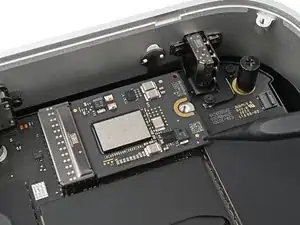
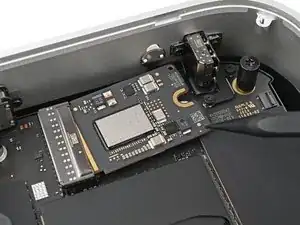
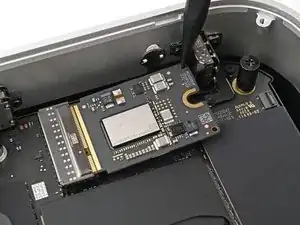
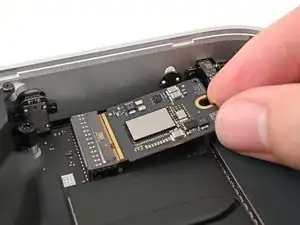
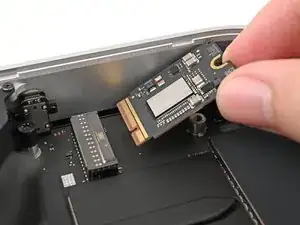
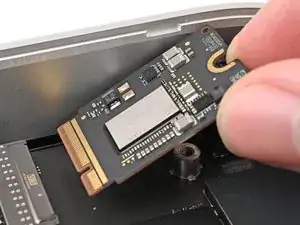
Verwende diese Anleitung, um die SSD oder das Flash-Speichermodul in deinem Mac mini (2024) auszutauschen.

Diese Anleitung wurde für einen Basis-M4-Mac-mini geschrieben. Obwohl die SSD für die M4-Pro-Version länger und an einer anderen Position ist, ist das Demontageverfahren das selbe.

Während die SSD des Mac mini wie eine normale M.2-SSD aussieht, fehlt ihr ein Speichercontroller. Apple integriert die Speichercontroller in das Apple Silicon SoC, was bedeutet, dass normale M2-SSDs nicht kompatibel sind.

Diese Anleitung dient lediglich als Anleitung zum Austausch der SSD durch eine andere desselben Typs.

  1. 2AOCDRumFYCwLHDo
    2AOCDRumFYCwLHDo
    oPNVEBC3oT2PmroR
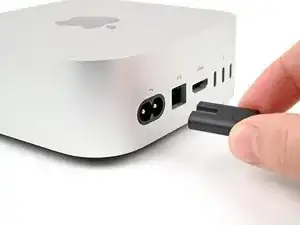
    • Fahre deinen Mac mini vollständig herunter und stecke alle Kabel ab.

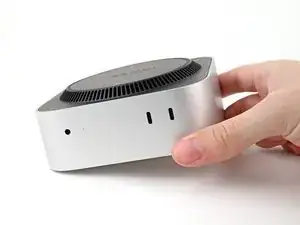
    • Drehe deinen Mac mini um und lege ihn auf eine saubere, flache Oberfläche, um Kratzer auf dem Gehäuse zu vermeiden.

    Den Mac vorm ausschalten noch vom Account trennen. Sonst kann es zu Schwierigkeiten bei der Neuanmeldung kommen.

    MacGyverModeOn -
  2. GAqAsFlbHCjSAv5v
    GAqAsFlbHCjSAv5v
    CRy6ImTIPFvNigGN
    XCXS3xLkfcRUsRMF
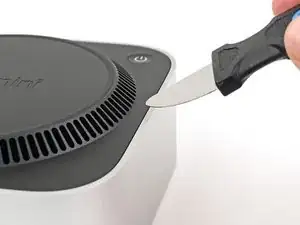
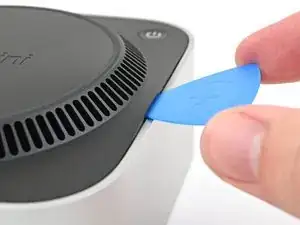
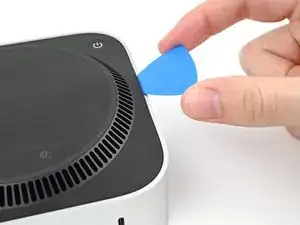
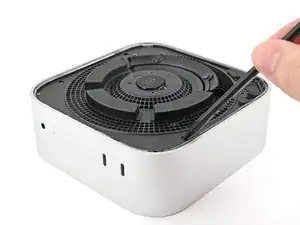
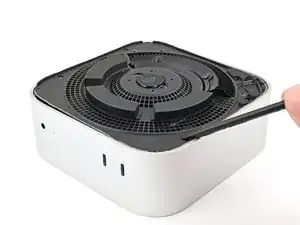
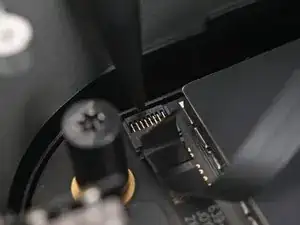
    • Ein Jimmys oder ein anderes Metallwerkzeug kann das Aluminiumgehäuse zerkratzen, funktioniert allerdings für diesen Schritt sehr gut. Folge der alternativen Anleitung um das Zerkratzen zu vermeiden.

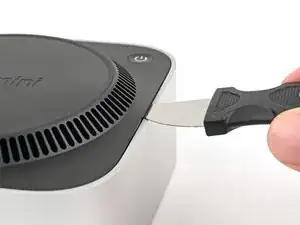
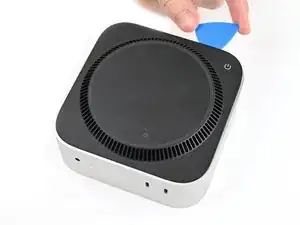
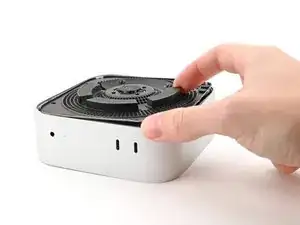
    • Setze einen Jimmy in die Naht zwischen der Bodenplatte und dem Gehäuse ein.

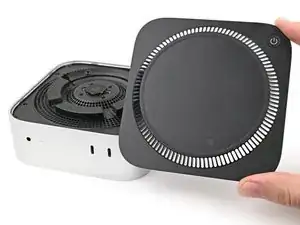
    • Heble die Bodenplatte nach oben, bis ein Spalt entstanden ist.

    • Alternativ kannst du auch einen Spudger in einen Lüftungsschlitz stecken, so dass eine Lücke entsteht, die groß genug für ein Plektrum ist.

    • Lasse den Jimmy unter der Bodenplatte stecken.

    It is much easier to get the plastic "pick" under the cover by inserting it UNDER the metal blade (between the blade and the aluminum case) while the blade is more vertical, then bringing the blade down on top of the pick, forcing the fan cover edge up higher. From that position, the pick can easily be pushed in further under the cover and to one side. In other words, instead of putting the pick in OVER the metal blade as shown, put it UNDER. This also protects the aluminum from damage marks of the blade.

    SteveTheMonk -
  3. oIn1d3q2dsgFbK4P
    oIn1d3q2dsgFbK4P
    HqjtQvKCBFw2J4PR
    GqIosShyLUtCj1nG
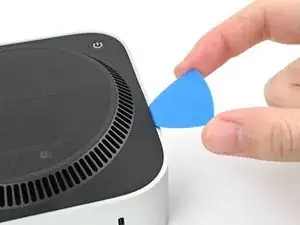
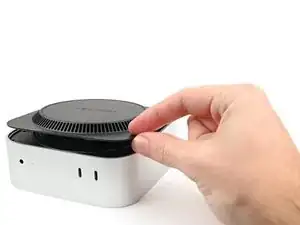
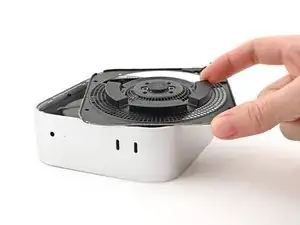
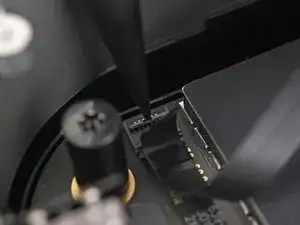
    • Setze ein Plektrum in den eben erzeugten Spalt ein.

    • Entferne den Jimmy.

  4. a1s5oNAhMIPhEdZF
    a1s5oNAhMIPhEdZF
    OjcPUDbawZTxsBPI
    3iNDpG2UcdWeM3Wp
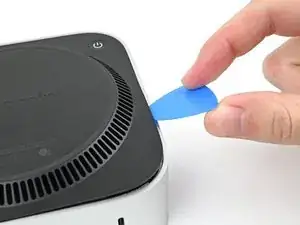
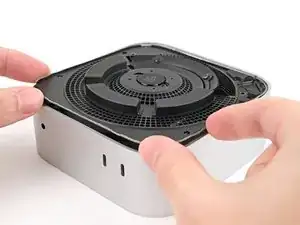
    • Schiebe das Plektrum an der Bodenplatte entlang, bis du spürst, dass es an einem Stift hängen bleibt.

    • Es gibt insgesamt vier Stifte—einen in jeder Ecke der Bodenplatte.

    • Verdrehen das Plektrum, um den Stift aus seiner Öffnung zu lösen.

  5. cOUhCJYM1rcSehRM
    cOUhCJYM1rcSehRM
    UdUOJBvlO1sVS62f
    RdtnPQiopAujHrbS
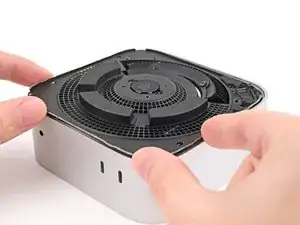
    • Fahre mit dem Plektrum weiter um die Bodenplatte herum, um alle Stifte zu lösen.

    • Setze das Plektrum nicht tiefer als etwa 2,5 cm ein, wenn du es in der Nähe der Einschalttaste entlang führst, du könntest sonst das Kabel beschädigen.

    • Drücke beim Zusammenbau fest um den Rand der Bodenplatte herum, bis du spürst und hörst, dass alle vier Stifte eingerastet sind.

    "Don't insert the pick more than an inch near the power button" is incorrect wording.

    I think you mean "Don't insert the pick less than an inch from the power button".

    David -

    Hi David!

    For that warning, it's about not inserting the pick too deep under the bottom cover that you risk hitting the cable as you work around the perimeter. The wording is confusing though, so I'll change it!

    Alex Diaz-Kokaisl -

  6. vZyG2Wn2rE61iQM2
    vZyG2Wn2rE61iQM2
    hBV4exmuJXURVt5B
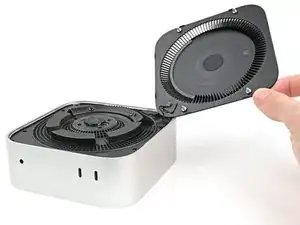
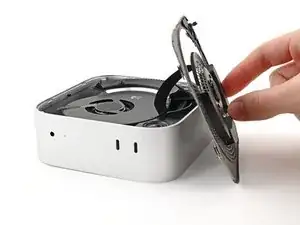
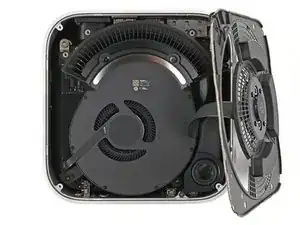
    • Entferne die Bodenplatte nicht, sie ist immer noch mit einem Kabel am Mac mini angeschlossen.

    • Hebe die Bodenplatte an der Kante gegenüber der Einschalttaste hoch und klappe sie um, damit das Kabel zur Einschalttaste zugänglich wird.

    There are three electrical connectors in this disassembly operation. Having experienced the fragility of these connectors on previous macs, I chose to NOT DISCONNECT any of them, and it actually SAVES TIME fiddling with them.

    IT IS NOT ESSENTIAL to disconnect ANY of these connectors. And it is safer, particularly if you are not experienced. Just take your time and be gentle moving the cover and fan out of the way and resting to the side to get to the SSD screw. It REALLY IS UNNECESSARY TO DISCONNECT ANY CONNECTORS.

    SteveTheMonk -

  7. OMZdwUb1RCYfr43I
    OMZdwUb1RCYfr43I
    P2UWtvWdIv1Y1FXJ
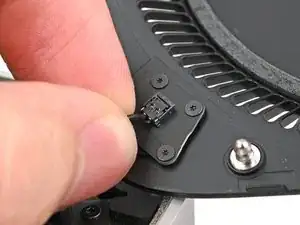
    • Das Kabel zur Einschalttaste ist sehr empfindlich. Du musst es nicht abtrennen, um an innere Bauteile zu gelangen, du musst aber die Bodenplatte gut abstützen.

    • Um das Kabel abzutrennen und die Bodenplatte zu entfernen, folge den nächsten beiden Schritten.

    • Wenn du das Kabel nicht abtrennst, dann stütze die Bodenplatte ab, damit das Kabel nicht zu stark angespannt wird und überspringe die nächsten beiden Schritte.

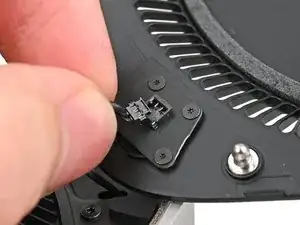
    • Fasse das Kabel der Einschalttaste nahe am Ende an, ziehe es aus dem Anschluss heraus nach oben hin (nicht nach hinten sonst reißt der Stecker ab) und trenne es ab.

    It's not necessary to remove the power connector and remove the bottom cover (the next step), just flip it over gently to take out the 3 screws underneath (in Step 9).

    James -

    Skip this step, really fragile connector

    Ravire -

    it tore open immediately. DO NOT TRY THIS.

    Chad Prestridge -

    Nicht notwenig man kann den Bodenteil einfach "überlegen"

    Christian Studer -

    Change these instructions, I also damaged my connector.
    This one is different from other connectors, pull up, not along the length of the cable.

    Or even better just move it aside or use the 4 Torx to remove it.

    James -

    How did you fix the connector afterwards? I‘ve the same problem. I broke the connector…

    Christof -

    Please change these instructions I just ripped the cable out before reading the comments

    Sully -

    And one more connector just died!

    Johannss -

    Sorry, what do you do if the connector pulls apart? Utterly evil design. This step needs a rewrite and a serious warning on it!!!!!

    Adam P -

    Achtung, den Connector auf keinen Fall lösen. Bei mir ging dieser kaputt - hoffe, ich kann ihn noch reparieren!

    Christof -

    another wrecked connector come on fix it change this step

    Donald Gillis -

    Broke mine as well. DON'T DO THIS STEP!!!!!!!!!!!!!!!!!!!!!

    djdubcom -

    The 13 comments on this step should've tipped me off, but alas, another one bites the dust. On the bright side, I can see this as a grand opportunity to DIY my own power button and glue it onto a sensible place instead of the underside like a psychopath lol

    Davis Diercks -

    I didn't see the comments at first... was consternated about the direction "...pull it away from it's connector", which isn't clear. As others have said: don't pull it sideways/along the wire, lift it upward, towards your face. Like a Lego block. I was lucky - I didn't break my connector, but was using a small tool to lightly help pry it up.

    JFixIt -

    Another broken connector! Really bad instruction.

    Jon Hutton -

    Hätte ich nur die Kommentare gelesen! One more broken connector...

    raimund.kirchschlager -

  8. kIgBGpKoOr1RhIMk
    • Entferne die Bodenplatte.

    The power button is better to be completely unscrewed then to pull at the connector as it shattered in a 8th of a second.

    Chad Prestridge -

  9. pXYTV41FfjgAvBuR
    pXYTV41FfjgAvBuR
    DcQJCakPCYwAQHYv
    • Halte während der Reparatur die Schrauben gut geordnet und achte darauf, dass jede an ihren angestammten Platz zurück kommt.

    • Im Mac mini werden Torx Plus Schrauben verwendet, aber Standard Torx Bits passen. Achte darauf, dass du beim Herausdrehen fest nach unten drückst, damit der Schraubenkopf nicht beschädigt wird.

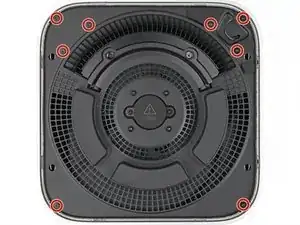
    • Nimm einen T5 Torx Schraubendreher und entferne die acht 3,4 mm langen Schrauben, mit denen die innere Platte befestigt ist:

  10. DaRruNxTSRSMoPrJ
    DaRruNxTSRSMoPrJ
    xIvW2Ga1HDNfAqAh
    tkhfWhrlXPqIFKhB
  11. dB3mwJYHa2qhHlEE
    dB3mwJYHa2qhHlEE
    gDjuFpfSeZEIJMDH
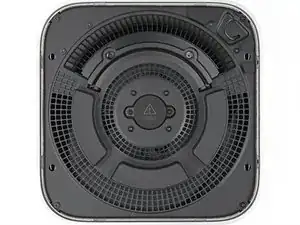
    • Ziehe die innere Platte vom Gehäuse weg, so dass sie unter der Lippe am Kühlkörper herauskommt.

    • Schiebe die innrer Platte beim Zusammenbau wieder zurück unter den Kühlkörper und drücke sie rundum fest, um sie im Gehäuse zu befestigen.

  12. XYYwMHq5K2hCJAry
    XYYwMHq5K2hCJAry
    rAL1IFZlPGjS2Ewn
    kJKtXidJXeqJ3QEI
    • Entferne die innere Platte nicht, sie ist immer noch am Mac mini mit einem Kabel angeschlossen.

    • Hebe die innere Platte hoch und klappe sie über die Gehäusekante. Stütze sie am Gehäuse ab.

  13. QSSeS4dMBT1b2KDI
    QSSeS4dMBT1b2KDI
    qulvXcfhHAoL4Bk6
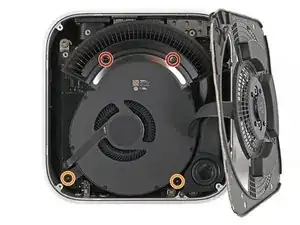
    • Entferne die vier Schrauben, mit denen der Lüfter befestigt ist:

    • Zwei 2,4 mm lange 3IP Torx Plus Schrauben.

    • Zwei 7,9 mm lange 5IP Torx Plus Schrauben.

  14. TkBdTdSO5OKVi6KH
    TkBdTdSO5OKVi6KH
    qSGEhettScmNIOVh
    IArAIGWHrgrQVZDX
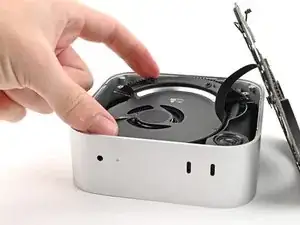
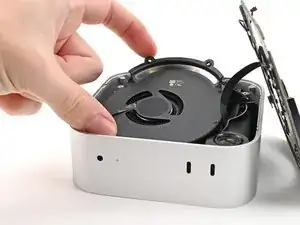
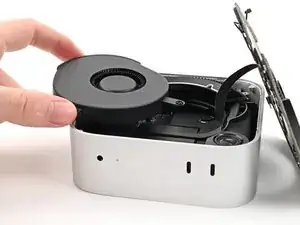
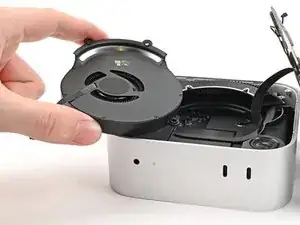
    • Hebe den Lüfter aus seiner Vertiefung im Gerät heraus und drehe ihn herum, um an das Kabel und den Stecker zu gelangen.

    • Lasse den Lüfter auf dem Gerät und dem Kühlkörper liegen.

  15. 6VD4VxVAWWj4wnBF
    6VD4VxVAWWj4wnBF
    mQSqdGWIx3WBoqXt
    6iOpruRCkqnUJEUm
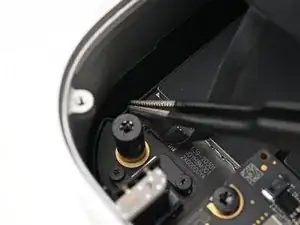
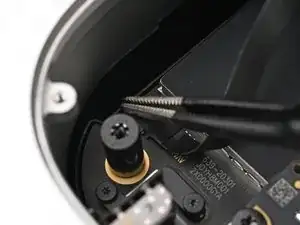
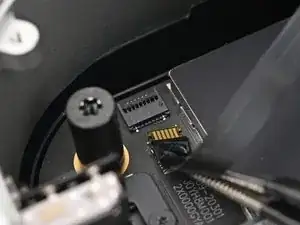
    • Ziehe den Aufkleber auf dem ZIF-Anschluss des Lüftersteckers mit einer Pinzette zurück.

    Absolutely not needed, you can just put the fan aside!

    James -

    It is NOT required to remove the fan

    Peter van Heerebeek -

  16. CgRfNEYmAO4ahLqw
    CgRfNEYmAO4ahLqw
    ngIKZdCGwySJnW6n
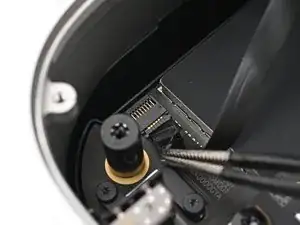
    • Klappe den Sicherungsbügel am ZIF-Anschluss des Lüftersteckers mit der Spudgerspitze oder deinen Fingern hoch.

  17. xNACdsMKXGRkrXtV
    xNACdsMKXGRkrXtV
    EYyUZsqOhJIxcDUb
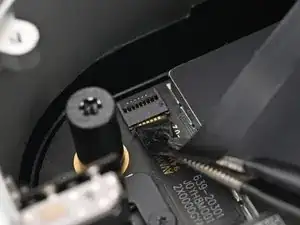
    • Schiebe den Stecker des Lüfters mit den Fingern oder einer Pinzette aus seinem ZIF-Anschluss heraus.

  18. Sj6lWsKdX6LDLbvr
    • Entferne den Lüfter.

  19. Hgthxvt4LFOvG2fe
    Hgthxvt4LFOvG2fe
    dWlFvSAhBhGoIwHW
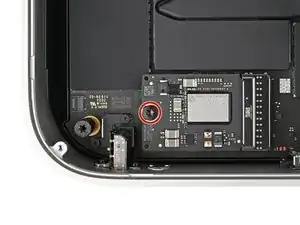
    • Nimm einen Torx Plus 8IP Schraubendreher und entferne die 4,1 mm lange Schraube, mit der die SSD befestigt ist.

  20. BePMMPk4qNGeGJZp
    BePMMPk4qNGeGJZp
    mAL3MNOey5piHIHG
    GA2BI2LPTib4vBiT
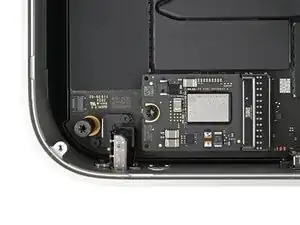
    • Setze einen Spudger mit der Spitze in eine der Öffnungen an der Unterkante der SSD.

    • Drücke die SSD mit dem Spudger vom Sockel weg, wenn nötig abwechselnd auf beiden Seiten, bis sie ganz abgetrennt ist.

  21. kTPXuUsrcpOEIKGQ
    kTPXuUsrcpOEIKGQ
    R5wqDWeRaluYc1NM
    • Fasse die SSD an der Ecke an, kippe sie gegen die Kopfhörerbuchse und hebe sie aus dem Sockel heraus.

    • Setze die SSD beim Zusammenbau schräg ein und schiebe sie wackelnd an ihren Platz, bis sie flach auf dem Logic Board sitzt.

    I appreciate the guide, it is very thorough and well laid out as one would expect from iFixit. I did notice that it was not necessary to unplug the fan in my case. That jack that is directly behind the SSD is kind of a pain if you do not pull the drive the right way.

    Benjamin McGill -

    Great. But... where to find compatible SSD?

    Aristóteles Benício -

Abschluss

Um dein Gerät wieder zusammenzusetzen, befolge diese Anweisungen in umgekehrter Reihenfolge.

Entsorge deinen Elektromüll sachgerecht.

Hat die Reparatur nicht ganz geklappt? Versuche es mit ein paar grundsätzlichen Lösungen, ansonsten findest du in unserem Mac mini (2024) Forum Hilfe bei der Fehlersuche.

Alex Diaz-Kokaisl

Mitglied seit: 16/01/22

168562 Reputation

20 Kommentare

"Apple's unique SSDs aren't sold by Apple and aren't currently available by a third party." is no longer correct. https://expandmacmini.com has tested options to upgrade SSD to 2TB.

Alpha -

Fixed! Thank you!

Alex Diaz-Kokaisl -

Thanks, as always, for such a wonderful job in explanation and photos as to how this disassembly and upgrade of the M4 Mac Mini. I and many others thank you for this work that you do so well. I have just purchased an M4 Mini with only 256 GB internal drive, although, I did opt for an upgrade of the RAM to 32 GB; but, as everyone knows, and extra $500 as a charge from Apple for this much extra RAM makes for quite an expensive addition to the cost. But, now that I have an option to upgrade the internal drive to 2 TB, my Mini will be really powerful, with lots of room to spare!

Bruce -

After the installation, (or prior to?) how does one install the OS? Thank you

Jim Willett -

You need to use the DFU tool to get the system to recognize the new/replaced storage before you can perform an OS install.

dragon788 -

Is it possible to install the OS one the new drive without the need for another Mac mini?
if yes, how can I do this?

DJT -

Hi, I'm looking at tools I need to do this. In the What You Need section, above, it says a Torx Plus 8IP Screwdriver and TR8 Torx security is needed. However, iFixit only has the TR8 Torx Security screwdriver available. I want to know if the TR8 Torx Security screwdriver will remove the single screw holding the SSD in place in the M4 mac mini?

John -

Hello!

Yes, the TR8 Torx security screwdriver will fit the screw holding the SSD! While the screw itself is technically a T8 Torx Plus, a normal screwdriver of the same size will work. Just remember to apply enough downward force to prevent stripping the screw.

Alex Diaz-Kokaisl -

Hi can you tell me what is the right fixit tool kit with all the right bit for this operation. I don’t find any Torx Plus 3ip or 5ip listed in a fixit kit

Daniel Meloche -

The iFixit Minnow or Manta would include the selection of Torx bits required (as mentioned elsewhere, Torx Plus IP are compatible with regular Torx of the same size.

dragon788 -

Two risky steps are not needed:

You don't need to remove the plug from the power button (highly likely you damage it), you can just put the cover aside.

You don't need to remove the sticker and plug from the fan (difficult to put back without damaging), you can just put the fan aside.

James -

Thanks James. Was wondering if those two steps are unnecessary.

Jame Dunkt -

I confirm, I just replaced my 256GB SSD with a 2TB one without removing the power plug nor the fan plug.

eRudy -

Can Ifixit team upgrade the internal SSD of my M4pro? How much will you charge for that?

Attizzoso Dissaldato -

M4 Mini Pro SSD replacements are not yet available. Only M4 Mini SSDs as of now (2 April).

Jame Dunkt -

Thanks for the guide! It was not necessary to remove the fan cable to remove the SSD.

Peter Schneider -

Have you attempted the same operation with the ‘Studio’?

AlaskaJaxx -

Absolut great work. Nice photographed, well described, it was a joy to do the installation... thx a lot.

marcus -

Warning!!! Do not remove the fan cable. I ruined my Mac Mini M4 by removing the fan cable. When I lifted the cable off with a spludger the socket for the cable came off the circuit board. This would be impossible to repair. I'm still using the Mac Mini without an operational fan but I keep a close tab on the CPU and GPU temperatures with a third party app that monitors the temperatures. It's a good thing I don't do any demanding work like editing videos or this computer would be toast.

stulef -