Einleitung

Meine Lautsprecher machten ein knackendes Geräusch und es machte mich wahnsinnig. Ich hoffte, dass die Garantie noch greifen würde. Ich ging also zum Apple Store und sie sagten, die Garantie greift nicht, aber sie könnten eine Reparatur für 1037 € durchführen. Ich suchte im Internet, konnte jedoch keine einzige Reparaturanleitung und auch kein Video zum Ersetzen der Lautsprecher bei einem MacBook 16" finden. Es scheint eine herausfordernde Aufgabe zu sein, aber ich dachte mir, lass es uns versuchen, um anderen in Zukunft zu helfen.

Es stellt sich heraus, dass es überhaupt nicht kompliziert ist; ich war in 20 Minuten fertig. Man muss im Grunde nur das untere Gehäuse entfernen, den Akku abklemmen und dann die Lautsprecher abklemmen und entfernen. Der einzige Nachteil ist, dass die Lautsprecher eingeklebt sind, sodass die alten Lautsprecher beim Ausbau wahrscheinlich brechen werden. Das bedeutet auch, dass der Prozess etwas heikler ist, aber es lohnt sich auf jeden Fall!

Ich hoffe, diese Anleitung hilft dir :)

  1. dXUNYLtqlUGDNbfc
    dXUNYLtqlUGDNbfc
    BrVvBKrxTJ1dNOeg
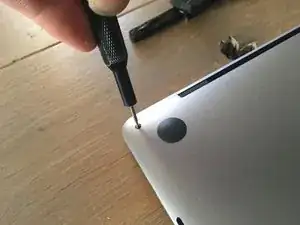
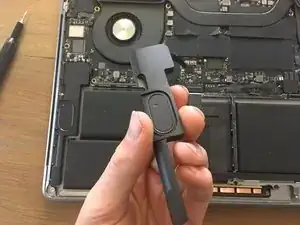
    • Zuerst muss das MacBook geöffnet werden. Dieser Schritt ist überraschend knifflig. In diesem Video siehst du, wie es geht. Schaue dir auch die weiteren Anleitungen von iFixit dazu an.

    • Tipp: Die Bodenplatte muss nach vorne gezogen werden.

  2. rXRPaLPUxqJD21o4
    rXRPaLPUxqJD21o4
    LwcgDSbRQO3PQTBL
    qVfCLxxS6tN2ILl5
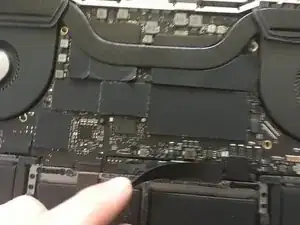
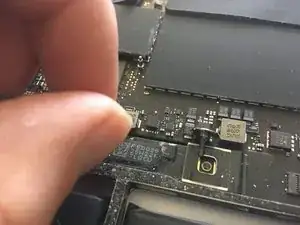
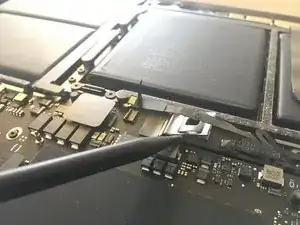
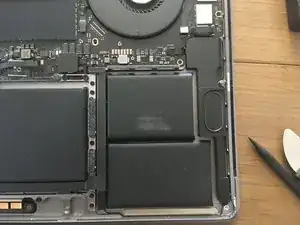
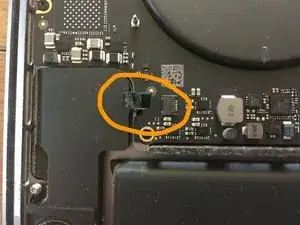
    • Entferne das Kabel und die große Schraube. So wird sichergestellt, dass kein Strom fließen kann.

    Use this screwdriver T5 Torx Screwdriver

    Luca Doehling -

  3. VPAPpIXeJCrxcIuV
    VPAPpIXeJCrxcIuV
    gpA5RTxJyDJwHgKM
    • Besorge dir die passenden Ersatzteile.

  4. f1FhPNbjmcRKsmCn
    f1FhPNbjmcRKsmCn
    U5Mhc6QuPNDJB13R
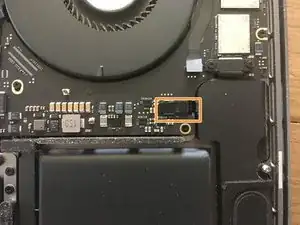
    • Löse die Lautsprecherkabel auf beiden Seiten ab.

  5. 3lFYfMpml2ZZIHJh
    3lFYfMpml2ZZIHJh
    UpBW4KcLlwDqu5JO
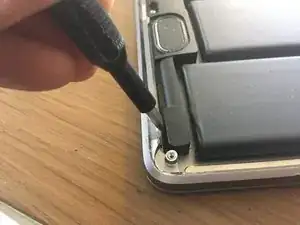
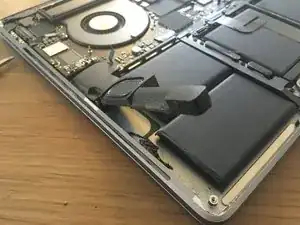
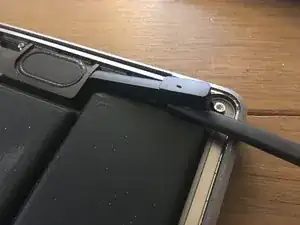
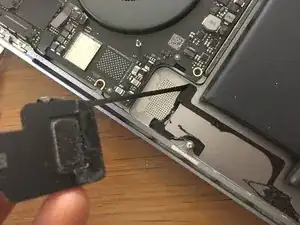
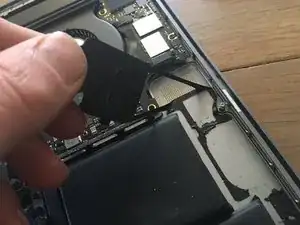
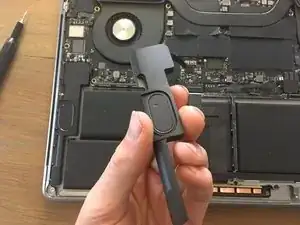
    • Der Ausbau der Lautsprecher ist schwierig, weil sie stark verklebt sind. Wenn du die Lautsprecher nicht weiterverwenden willst, kannst du grob vorgehen, anderenfalls musst du vorsichtig sein.

    This is great info. I'm going to try some heat on mine when I do it to try and soften the adhesive.

    DeeGee -

  6. apXirCwwKh5AtNgd
    apXirCwwKh5AtNgd
    RWVbhjEBbaCDICNK
    • Entferne den anderen Lautsprecher auf die gleiche Weise. Zwänge das Werkzeug unter den Lautsprecher und heble ihn heraus.

  7. lAKIFpQSrFUFjeMD
    lAKIFpQSrFUFjeMD
    PP2NTP35mLW4NqcD
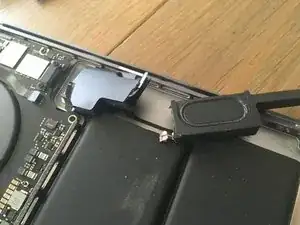
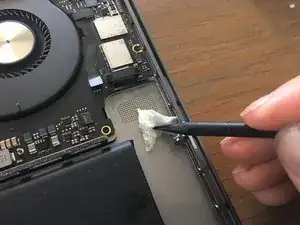
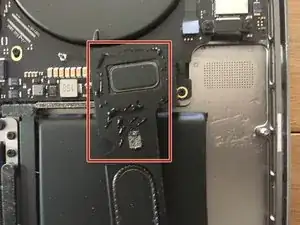
    • Der Kleber kann leicht abgezogen werden. Eventuell musst du ihn vorsichtig mit einem Werkzeug abschaben.

  8. bTqlfQiEWqIvKTLB
    • Beseitige die Kleberreste mit hochkonzentriertem Isopropylalkohol und einem fusselfreien Tuch.

    • Lasse die Klebefläche gut abtrocknen.

  9. JGTy6j3DXINZmW3F
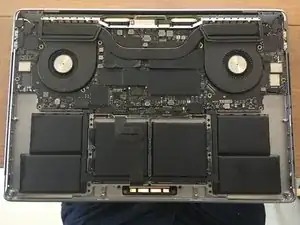
    • So sollte das MacBook nach dem Ausbau der beiden Lautsprecher aussehen.

    • Die Klebeflächen müssen sauber und trocken sein.

  10. iBHk2xpSAosLfmJT
    • Wenn dein Ersatzteil nicht mit Klebestreifen versehen ist, musst du welche anbringen.

    • Trage den Kleber sparsam an den Außenseiten des Lautsprechers auf.

    • Verwende einen für Computer geeigneten Kleber, z.B. diesen hier.

    Has anyone had any luck with this tape? Tesa 61395 Tape

    Luca Doehling -

Abschluss

Um dein Gerät wieder zusammenzubauen, folge diesen Anweisungen in umgekehrter Reihenfolge.

Dave Hakkens

Mitglied seit: 03/01/16

1042 Reputation

10 Kommentare

I just created an account to thank you,

I bought the speakers from ifix it, and I did follow your guide, and it worked perfectly.

so I joined here to thank you.

your guide helped me a lot. I appreciate the effort.

ALAA ALMAATOUQ -

appreciate that. Happy to hear its useful :)

Dave Hakkens -

This was very helpful... I managed to successfully replace mine... but unfortunately on step 5 I made the mistake of scuffing the battery, revealing the aluminum layer inside and it gave off a sweet smell (which i now understand is dangerous)
Painfully had to have the battery replaced for about 300$ (I'm in Nairobi, Kenya)

Maybe update the steps to avoid the nearby battery which is really sensitive.

Cheers

leemalu -

Thank you for this! I broke my speaker when following a different iFixIt guide, but your instructions saved the day. $49 is even for the replacement speaker from iFixIt is even cheaper than the deductible on my insurance plan through GetAkko, so this one was a no-brainer. Thank you, internet stranger!

Peter -

What are the tools that I’ll need to do this? Are they available on iFixit? Thank you!

[deleted] -

thanks A lot I just cleaned the loudspeaker and all the sound crackles whent away with the small metal dust.
I did not break the loudspeakers thanks to your good guide thanks for this !!!

no need to buy loudspeakers just clean the old ones with kapton tape . kiss my friends <3

Leo Etcheverry -

My clip to fasten the connector for the speaker broke. Is there an alternative way to ensure a solid connection to the speaker?

nick fruth -

I found a better way to remove the speakers (& batteries I guess?) without damaging them.

Usual warnings (re: batteries & components) apply.

"Tools":

- A blow dryer with a fast/high temp setting [a].

- 2 blue iFixit plastic picks [b].

Process:

1. Remove all of the sensitive components near the speakers. I removed the logic board for the right speaker, but left the batteries alone.

2. Heat up the top part of the UCA [c] just above the speaker.

3. Separate the speaker from the UCA starting from the top, i.e., the widest area of the speaker body (NOT the longest) with plastic picks. This helps prevent damage to the speaker. Trying to remove from the skinny portion or the length of the component WILL damage the speaker.

4. Repeat 2. & 3. until the speaker is free & clear. I did this 3x.

References:

a. Example: https://www.amazon.com/Conair-1875-Shine...

b. iFixit Opening Picks (Set of 6)

c. MacBook Pro 16" (2019) Upper Case Assembly and Battery

Enji Cooper -

A couple other things (ran out of characters in the comment above...):

1. With the picks I used a seesawing motion getting directly under the speaker, separating it from the UCA. Think of the picks like a pair of scissors cutting the glue connecting the speaker to the case.

2. Be patient and apply just enough force to separate the speaker from the UCA. If you apply too much force, it will damage the speaker. I know because I "yarded" the left speaker pretty hard with the metal pick (it was busted), and it broke pretty easily when I applied enough directed pressure.

Enji Cooper -

Same issue here. As the output of the sound I just tested Proxy Audio Device as the sound output and the sound is perfect again (but with a lot lower volume so I need to crank it up). So no need to order parts & fix it since it could be software related! Switching back to build in MacBook Pro speakers giving me the static sound again.

Robin Groenevelt -