Einleitung
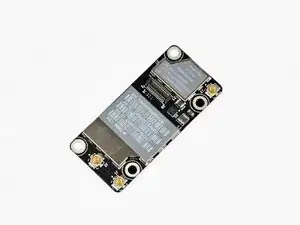
Probleme mit der kabellosen Verbindung? Benutze diese Anleitung, um eine defekte Airport/Bluetooth Platine zu ersetzen.


-
-
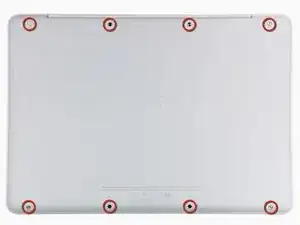
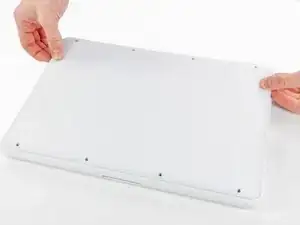
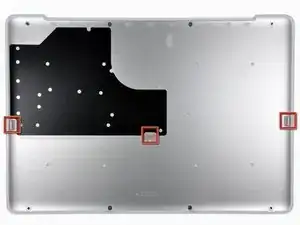
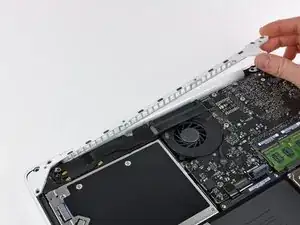
Hebe die untere Abdeckung vorsichtig in der Nähe der Lüftungsöffnung an.
-
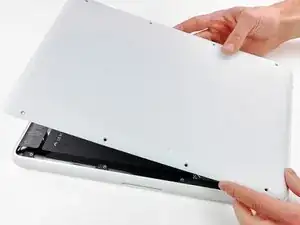
Öffne den Spalt weiter mit den Fingern, bis sich die Abdeckung von den verbleibenden Clips löst.
-
-
-
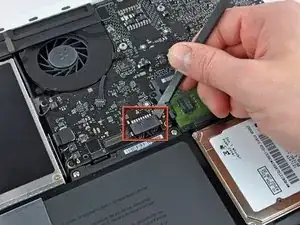
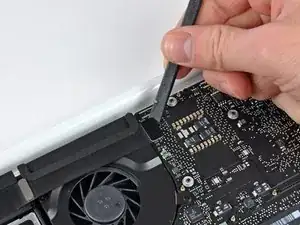
Hebe den Akkuanschluss mit dem flachen Ende des Spudgers aus seinem Sockel auf dem Logic Board.
-
-
-
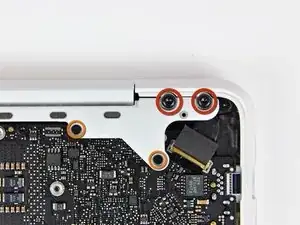
Entferne die folgenden Schrauben auf der Seite mit dem optischen Laufwerk am hinteren Lüftungsgitter:
-
Zwei 10 mm Torx T8 Schrauben
-
Zwei 5,2 mm Kreuzschlitzschrauben
-
-
-
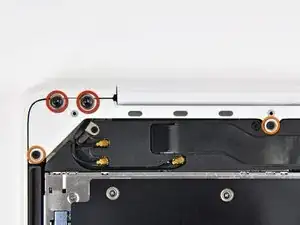
Entferne folgende Schrauben von der Seite mit den Anschlüssen am hinteren Lüftungsgitter:
-
Zwei 10 mm Torx T8 Schrauben
-
Zwei 5,2 mm Kreuzschlitzschrauben
-
-
-
Benutze das flache Ende eines Spudgers, um den Stecker des AirPort/Bluetooth Kabels vom Logic Board abzuhebeln.
-
-
-
Entferne folgende Schrauben, mit denen die rechte Lautsprechereinheit am oberen Gehäuse befestigt ist:
-
Eine 12 mm Kreuzschlitzschraube.
-
Eine 3 mm Kreuzschlitzschraube.
-
-
-
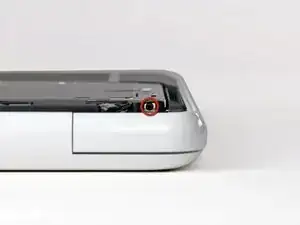
Entferne die einzelne 2,2 mm Kreuzschlitzschraube. Sie ist horizontal in die Seite des optische Laufwerk eingesetzt.
-
-
-
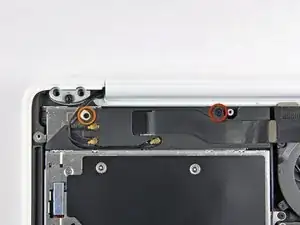
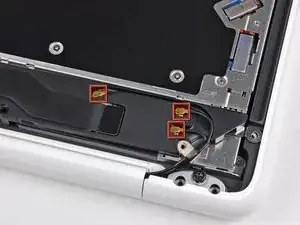
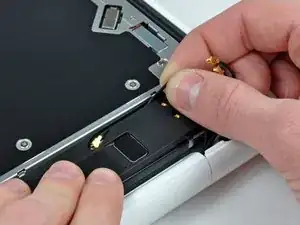
Heble die AirPort und Bluetooth Antennenanschlüsse (insgesamt drei) von der AirPort/Bluetooth Karte.
-
Entferne die lange Antenne aus ihrer Führung im Gehäuse des rückwärtigen Lautsprechers.
-
-
-
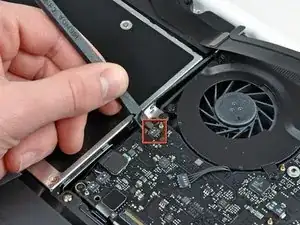
Benutze das flache Ende eines Spudgers, um den Stecker des rückwärtigen Lautsprecherkabels vom Logic Board abzulösen.
-
-
-
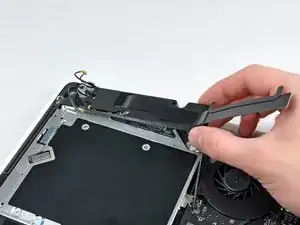
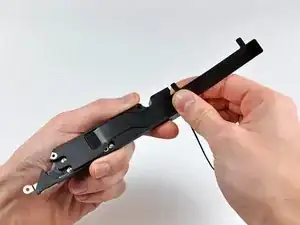
Löse das AirPort/Bluetooth Kabel vorsichtig aus seiner Führung in der rückwärtigen Lautsprechereinheit heraus.
-
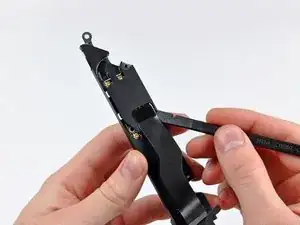
Benutze ein flaches Ende eines Spudger, um das AirPort/Bluetooth Kabel vom rückwärtigen Lautsprecher abzuhebeln.
-
-
-
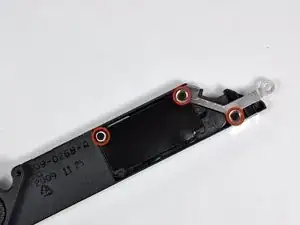
Entferne die drei 3 mm Kreuzschlitzschrauben, mit denen die AirPort/Bluetooth Platine an der rückwärtigen Lautsprechereinheit befestigt ist.
-
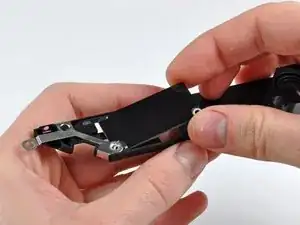
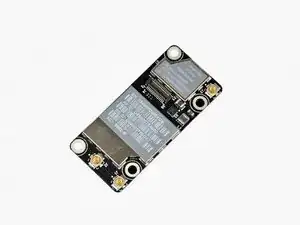
Um dein Gerät wieder zusammenzubauen, folge den Schritten dieser Anleitung in umgekehrter Reihenfolge.

3 Kommentare
Terrific guide; no problems, at all! Don't forget you need to add the Wi-Fi service back to the list of services:
1. Go to System Preferences → Network and click the + button to add a service.
2. Select Wi-Fi as the Interface and provide a service name.
For more info, please see http://apple.stackexchange.com/questions....
At Step 11 I accidently pulled the connector off the board incorrectly and it won't fit back on. What is the difficulty level of resoldering this back onto the logic board or should I take it to a professional?
gregpif -
Hello!
Does anyone know where I could find this bt card but with Bt 4.0 LE in order to get handoff and continuity to work on this A1342 Macbook?
Thanks!
According to this page http://support.apple.com/kb/HT1651?viewl..., the 8 screws are not identical.
Can anybody tell me where each kind of screw is supposed to go?
Gregoire -
They are all 100% Identical. You were probably looking at a different model, or Apple has entered the wrong information... Hey, It happens...
Owen Davies -
The screws on the Late 2009 are identical. The blue lock compound might make tightening some require a little more effort.
svenaustx -
Can I replace it with a SATA 3 cable?
nm -
A1342 macbook does not have the right controller to support sata III
Owen Davies -
hi, i just got back from the apple store and they are really keen for me to upgrade to a new laptop since my battery is old and the screen is cracked, so glad i found ifixit i would love to upgrade this puppy! gonna make it a real sleeper! styler hall wrote about sticking 16 gb of ram in his a 1342 ? is this a simply mather of ordering 3 4gb sticks ?aslo i currently have 4 gb and would like to upgrade to 8 ( or indeed 16) does that mean i need to buy all new sticks or can i continue to use the old one and stick a new one next to it ?
thanks again mick van aar, perth western aus.
michelvanaar -
The A1342 will take up to 16 GB of RAM, however, there are only two RAM slots, so use two 8-GB RAM modules. Other World Computing (OWC) is a great reference source for info on exactly which RAM to use with which model; prices are usually much better on EBay though. Add an SSD from OWC and your machine will really scream!
I hope that helps!
gdesbrisay -
Gregoire is right. The 8 screws are absolutely NOT identical, I’m looking at them right now, weeowey weeowey.
John Guzman -
I just wanted to say that, in 2020, i used these instructions to replace the magsafe socket on my A1286, mid-2012, pre-Retina MacBook Pro. The internal layout is not quite the same but close enough for me to do the job. I skipped the steps of fully disconnecting the fans and speakers because of what others had said about breaking the sockets. it just meant I had to be extremely careful when lifting up the main board so that I did not tear and break the connections. I was able to disconnect the old magsafe socket with the board flat and in situ, but there was no where near enough room to be able to aline and press home the new par home. Reluctantly i had to lever up the board. This was difficult as there is a tapped post that holds a screw in the way close to where the USB sockets are, that prevented the board lifting up and out. I had to be quite forceful to manouevre the sockets out from the edge of the case.
Paul Burridge -
Gregoire的话确实没有问题,这八个小螺丝是五长三短,不是完全一致的
米酒喵qwq -