Einleitung
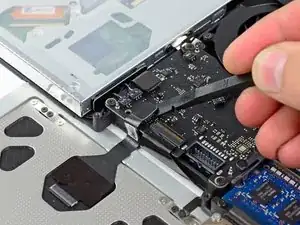
Ersetze das Trackpad in deinem MacBook Unibody Modell A1342.


Ersatzteile

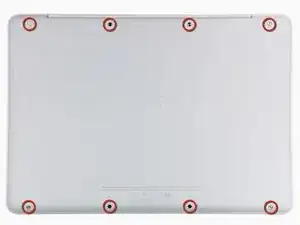
-
-
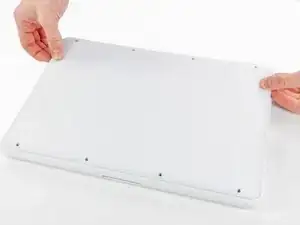
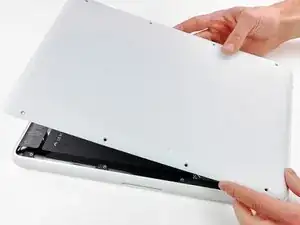
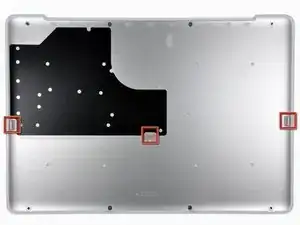
Hebe die untere Abdeckung vorsichtig in der Nähe der Lüftungsöffnung an.
-
Öffne den Spalt weiter mit den Fingern, bis sich die Abdeckung von den verbleibenden Clips löst.
-
-
-
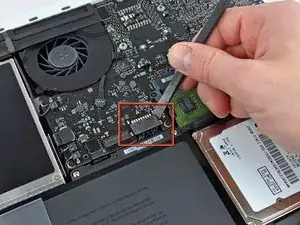
Heble den Verbinder des Akkus vorsichtig mit einem Spudger von seinem Anschluss auf dem Logic Board.
-
-
-
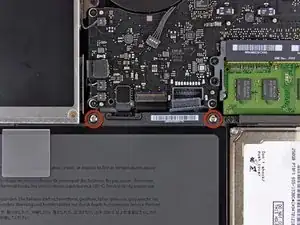
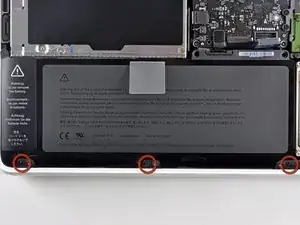
Entferne die beiden 5mm Tri-point-Schrauben, mit denen der Akku am oberen Gehäuse befestigt ist.
-
-
-
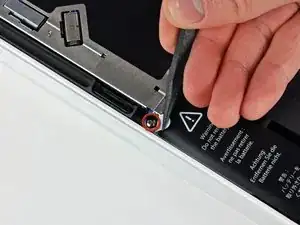
Benutze die Spitze eines Spudgers, um vorsichtig die Ecke des Warn-Aufklebers umzubiegen. Dahinter befindet sich eine Tri-point-Schraube.
-
Entferne die 5 mm Tri-point-Schraube, mit der der Akku am oberen Gehäuse befestigt ist.
-
-
-
Entferne die drei 3.1 mm Kreuzschlitzschrauben, die den Akku nahe der Kante des oberen Gehäuses befestigen.
-
-
-
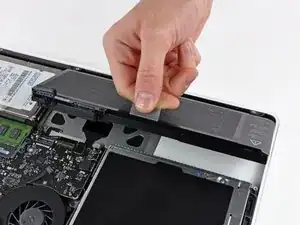
Hebe den Akku an der Plastiklasche an und nimm ihn aus dem oberen Gehäuse.
-
Lade ihn auf 100% und lasse ihn mindestens zwei weitere Stunden am Ladegerät. Ziehe den Stecker und benutze dein MacBook normal, um den Akku zu entladen. Wenn die Ladeanzeige am Minimum ist, dann speichere ab und lasse den Laptop an, bis er von selbst ausgeht. Warte wenigstens 5 Stunden und lade dann ohne Unterbrechung auf 100% auf.
-
-
-
Benutze das flache Ende eines Spudgers, um den Stecker des Trackpad-Flachbandkabels vom Logic Board hochzuhebeln.
-
-
-
Entferne die vier 1,3 mm Kreuzschlitzschrauben, mit denen die obere Kante des Trackpads am oberen Gehäuse befestigt ist.
-
-
-
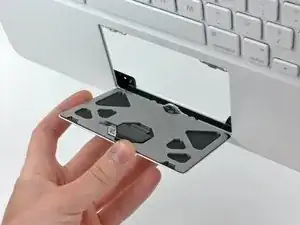
Ziehe das Trackpad von seiner Öffnung im oberen Gehäuse weg, um die beiden Befestigungslaschen an seiner unteren Kante freizugeben.
-



19 Kommentare
Guide is very helpful...makes the replacement of this part easy. Thanks.
My track pad was working intermittently and having a mind of it's own. Instead of going to a repair shop for a pricey fix, I followed this guide and removed the track pad, cleaned it up and hey presto it's fine now! Thanks for the guide, very easy to follow!!
How did you clean the track pad? Did you just clean the connector. I'm also having similar issues, my tack pad starts having a mind of its on randomly after few minutes/hours.
dirt can get trapped around or under the trackpad, causing touch malfunctions. removing this dirt usually fixes touch issues and maybe sometimes a click issue if dirt is under the trackpad
Does anyone have anymore information on the adjustment screw mentioned by John Tipton on Nov 6? I have made some adjustments to it and found tightening it actually locks out the ability of a USB external mouse from operating, and does not correct the problem of the internal track pad click function failing to operate. I suspect adjusting it properly may fix some of our track pad issues, but I have not discovered the proper way of making this adjustment.
Some models (2009) don’t have inertial scrolling. What model do you have?
According to this page http://support.apple.com/kb/HT1651?viewl..., the 8 screws are not identical.
Can anybody tell me where each kind of screw is supposed to go?
Gregoire -
They are all 100% Identical. You were probably looking at a different model, or Apple has entered the wrong information... Hey, It happens...
Owen Davies -
The screws on the Late 2009 are identical. The blue lock compound might make tightening some require a little more effort.
svenaustx -
Can I replace it with a SATA 3 cable?
nm -
A1342 macbook does not have the right controller to support sata III
Owen Davies -
hi, i just got back from the apple store and they are really keen for me to upgrade to a new laptop since my battery is old and the screen is cracked, so glad i found ifixit i would love to upgrade this puppy! gonna make it a real sleeper! styler hall wrote about sticking 16 gb of ram in his a 1342 ? is this a simply mather of ordering 3 4gb sticks ?aslo i currently have 4 gb and would like to upgrade to 8 ( or indeed 16) does that mean i need to buy all new sticks or can i continue to use the old one and stick a new one next to it ?
thanks again mick van aar, perth western aus.
michelvanaar -
The A1342 will take up to 16 GB of RAM, however, there are only two RAM slots, so use two 8-GB RAM modules. Other World Computing (OWC) is a great reference source for info on exactly which RAM to use with which model; prices are usually much better on EBay though. Add an SSD from OWC and your machine will really scream!
I hope that helps!
gdesbrisay -
Gregoire is right. The 8 screws are absolutely NOT identical, I’m looking at them right now, weeowey weeowey.
John Guzman -
I just wanted to say that, in 2020, i used these instructions to replace the magsafe socket on my A1286, mid-2012, pre-Retina MacBook Pro. The internal layout is not quite the same but close enough for me to do the job. I skipped the steps of fully disconnecting the fans and speakers because of what others had said about breaking the sockets. it just meant I had to be extremely careful when lifting up the main board so that I did not tear and break the connections. I was able to disconnect the old magsafe socket with the board flat and in situ, but there was no where near enough room to be able to aline and press home the new par home. Reluctantly i had to lever up the board. This was difficult as there is a tapped post that holds a screw in the way close to where the USB sockets are, that prevented the board lifting up and out. I had to be quite forceful to manouevre the sockets out from the edge of the case.
Paul Burridge -
Gregoire的话确实没有问题,这八个小螺丝是五长三短,不是完全一致的
米酒喵qwq -