Einleitung
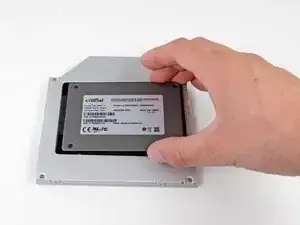
Der Einbau einer zweiten Festplatte in dein Notebook hat viele Vorteile: höhere Geschwindigkeit, mehr Speicherplatz und weniger Ärger bei der Installation neuer Software. Mit dieser Anleitung kannst du eine Festplatte mit unserem Festplattengehäuse mit optischem Einschub installieren.


-
-
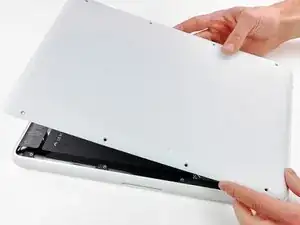
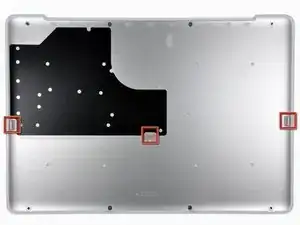
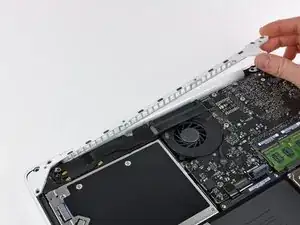
Hebe die untere Abdeckung vorsichtig in der Nähe der Lüftungsöffnung an.
-
Öffne den Spalt weiter mit den Fingern, bis sich die Abdeckung von den verbleibenden Clips löst.
-
-
-
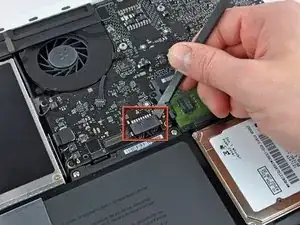
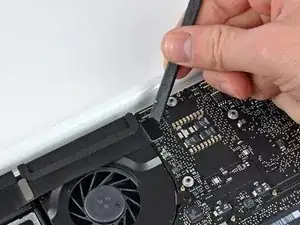
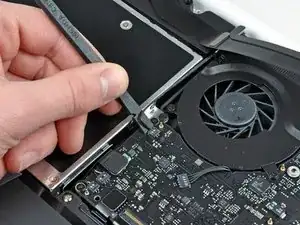
Hebe den Akkuanschluss mit dem flachen Ende des Spudgers aus seinem Sockel auf dem Logic Board.
-
-
-
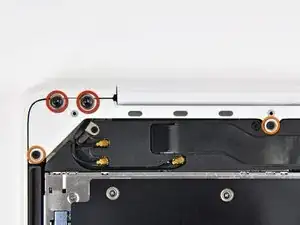
Entferne die folgenden Schrauben auf der Seite mit dem optischen Laufwerk am hinteren Lüftungsgitter:
-
Zwei 10 mm Torx T8 Schrauben
-
Zwei 5,2 mm Kreuzschlitzschrauben
-
-
-
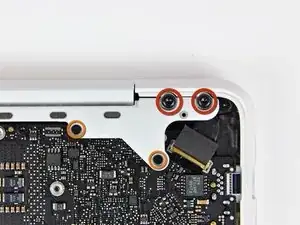
Entferne folgende Schrauben von der Seite mit den Anschlüssen am hinteren Lüftungsgitter:
-
Zwei 10 mm Torx T8 Schrauben
-
Zwei 5,2 mm Kreuzschlitzschrauben
-
-
-
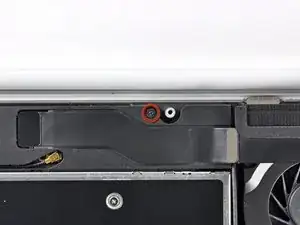
Entferne die einzelne 12 mm Kreuzschlitzschraube, mit der die Oberseite des rückwärtigen Lautsprechergehäuses am oberen Gehäuse befestigt ist.
-
-
-
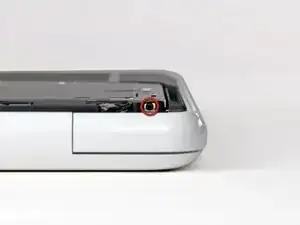
Entferne die einzelne 2,2 mm Schraube, die horizontal in die Seite des optischen Laufwerks eingesetzt ist.
-
-
-
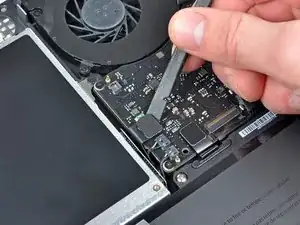
Verwende das flache Ende eines Spudgers, um den AirPort / Bluetooth-Flachbandkabelstecker vom Logic Board abzulösen.
-
-
-
Verwende das flache Ende eines Spudgers, um den rückwärtigen Lautsprecheranschluss vom Logic Board abzulösen.
-
-
-
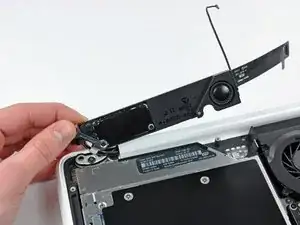
Drehe die rückwärtige Lautsprechereinheit (mit noch angeschlossenen AirPort- / Antennenkabeln) vorsichtig aus dem unteren Gehäuse.
-
-
-
Verwende das flache Ende eines Spudgers, um den Stecker des optischen Laufwerks vom Logic Board abzulösen.
-
-
-
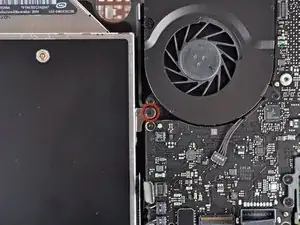
Entferne die einzelne 4,5 mm Kreuzschlitzschraube, mit der die Halterung des optischen Laufwerks am oberen Gehäuse in der Nähe des Lüfters befestigt ist.
-
-
-
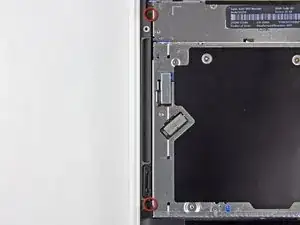
Entferne die zwei 2,5 mm Kreuzschlitzschrauben, mit denen das optische Laufwerk am oberen Gehäuse in der Nähe der Öffnung des optischen Laufwerks befestigt ist.
-
-
-
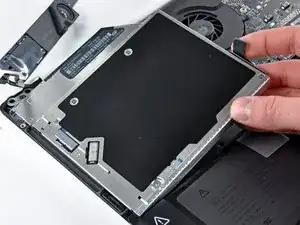
Hebe das optische Laufwerk nahe an seinem Anschluss an und ziehe es vom oberen Gehäuse weg, um es aus dem Computer zu entfernen.
-
-
-
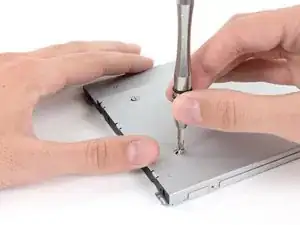
Entferne die beiden schwarzen Kreuzschlitzschrauben #0, mit denen die kleine Metallhalterung befestigt ist. Bringe diese Halterung an deinem neuen optischen Laufwerk oder Festplattengehäuse an.
-
-
-
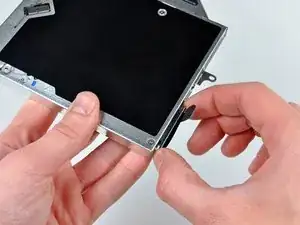
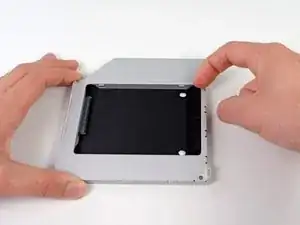
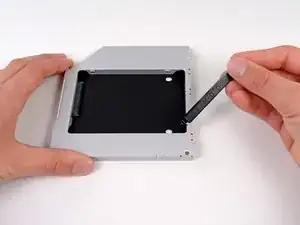
Entferne den Abstandhalter aus Plastik aus dem Gehäuse des DVD-Laufwerks, indem du auf einer der beiden Seiten die Plastiklasche eindrückst und den Abstandhalter nach oben herausnimmst.
-
-
-
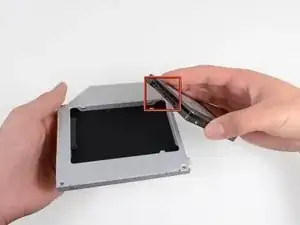
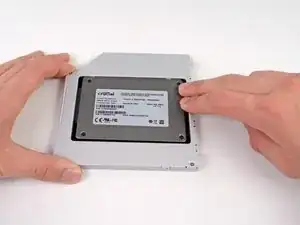
Achte darauf, dass die Anschlüsse für die Festplatte nach unten zeigen, bevor du die Festplatte in das Gehäuse setzt.
-
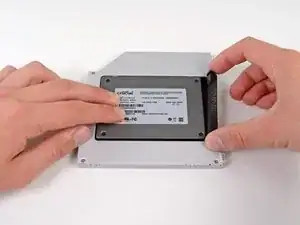
Setze die Festplatte vorsichtig in den dafür vorgesehenen Platz in dem Gehäuse.
-
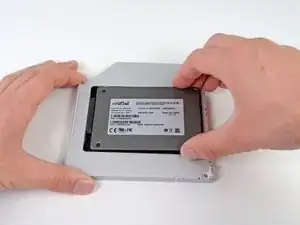
Halte das Gehäuse mit einer Hand fest und drücke die Festplatte mit der anderen Hand in die Anschlüsse im Gehäuse.
-
-
-
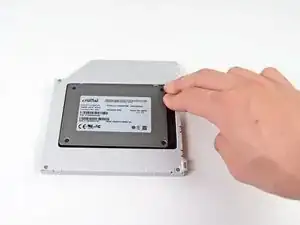
Wenn die Festplatte im Gehäuse sitzt, halte sie mit einer Hand fest und setze den Abstandhalter wieder in das Gehäuse ein.
-
-
-
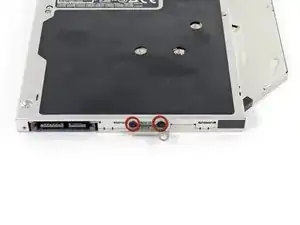
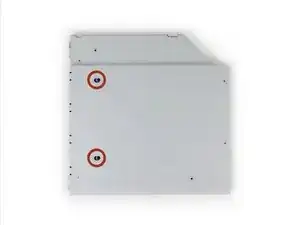
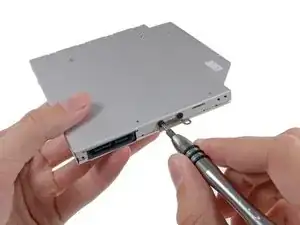
Befestige die Öse vom DVD-Laufwerk mit zwei #0 Kreuzschlitzschrauben am neuen Gehäuse.
-
Verbinde alle Kabel, die du vom originalen DVD-Laufwerk entfernt hattest, mit dem neuen Gehäuse.
-
-
-
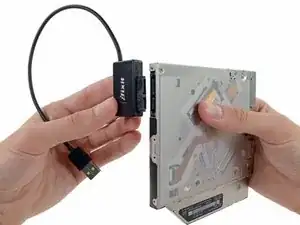
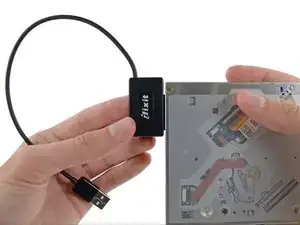
Richte den SATA Anschluss des Kabels mit dem Anschluss am Laufwerk aus und stecke ihn ein.
-
Stecke den USB Anschluss in deinen Laptop und das Laufwerk ist bereit zur Verwendung.
-
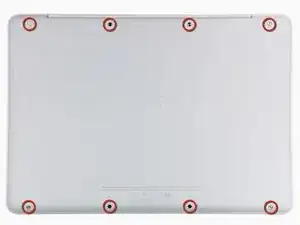
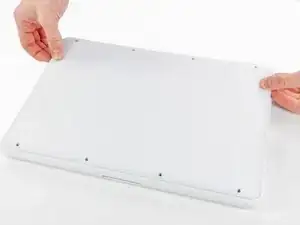
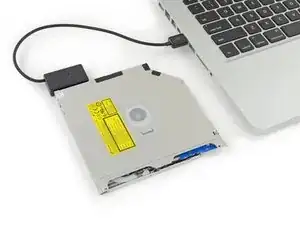
Um dein Gerät wieder zusammenzubauen, folge den Schritten dieser Anleitung in umgekehrter Reihenfolge.

10 Kommentare
when i did i have a gray screen and in the middle i have a question mark in a file and it flashing
You haven't installed and software on the new hardrive. Install some using a boot disk or USB
Hi! I have a big problem... I have MB unibody 09. After install the hdd the MB doesn't switch on, so I reinstall the dvd unit and after try sometimes the laptop starts and at the status bar appears there has no a battery and the fan works very hard.
I find an area near the switch battery ( in the mainboard), that I unplugged to install the hdd, where there is an small chip that takes a very high temperature when I plug the batery connector... So what could be the problem, and what can I do?
I followed step by step so I Don't know where can be the problem... Some help please!
Is it possible to remove the optical drive and connect a sata extension cable where it was connected to the motherboard? The sata extension cable would stick out thru the cd entry. this way one could had a sata port to connect external hard drives faster than by the usb 2.0 ports! I don't understand much about electronics so I'm sorry if it's a stupid question.
According to this page http://support.apple.com/kb/HT1651?viewl..., the 8 screws are not identical.
Can anybody tell me where each kind of screw is supposed to go?
Gregoire -
They are all 100% Identical. You were probably looking at a different model, or Apple has entered the wrong information... Hey, It happens...
Owen Davies -
The screws on the Late 2009 are identical. The blue lock compound might make tightening some require a little more effort.
svenaustx -
Can I replace it with a SATA 3 cable?
nm -
A1342 macbook does not have the right controller to support sata III
Owen Davies -
hi, i just got back from the apple store and they are really keen for me to upgrade to a new laptop since my battery is old and the screen is cracked, so glad i found ifixit i would love to upgrade this puppy! gonna make it a real sleeper! styler hall wrote about sticking 16 gb of ram in his a 1342 ? is this a simply mather of ordering 3 4gb sticks ?aslo i currently have 4 gb and would like to upgrade to 8 ( or indeed 16) does that mean i need to buy all new sticks or can i continue to use the old one and stick a new one next to it ?
thanks again mick van aar, perth western aus.
michelvanaar -
The A1342 will take up to 16 GB of RAM, however, there are only two RAM slots, so use two 8-GB RAM modules. Other World Computing (OWC) is a great reference source for info on exactly which RAM to use with which model; prices are usually much better on EBay though. Add an SSD from OWC and your machine will really scream!
I hope that helps!
gdesbrisay -
Gregoire is right. The 8 screws are absolutely NOT identical, I’m looking at them right now, weeowey weeowey.
John Guzman -
I just wanted to say that, in 2020, i used these instructions to replace the magsafe socket on my A1286, mid-2012, pre-Retina MacBook Pro. The internal layout is not quite the same but close enough for me to do the job. I skipped the steps of fully disconnecting the fans and speakers because of what others had said about breaking the sockets. it just meant I had to be extremely careful when lifting up the main board so that I did not tear and break the connections. I was able to disconnect the old magsafe socket with the board flat and in situ, but there was no where near enough room to be able to aline and press home the new par home. Reluctantly i had to lever up the board. This was difficult as there is a tapped post that holds a screw in the way close to where the USB sockets are, that prevented the board lifting up and out. I had to be quite forceful to manouevre the sockets out from the edge of the case.
Paul Burridge -
Gregoire的话确实没有问题,这八个小螺丝是五长三短,不是完全一致的
米酒喵qwq -