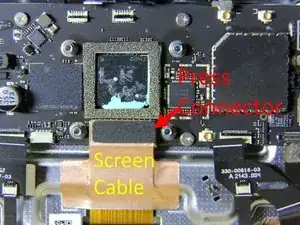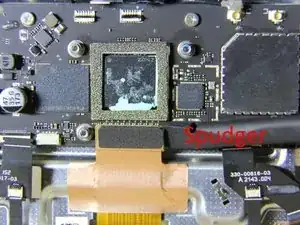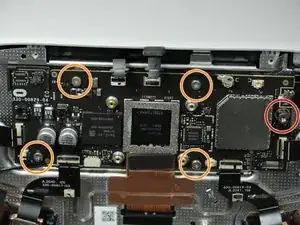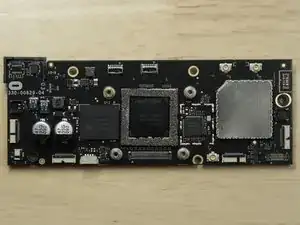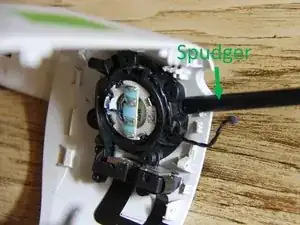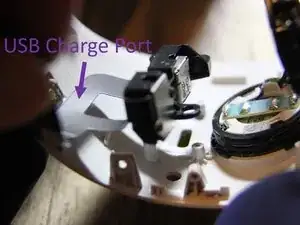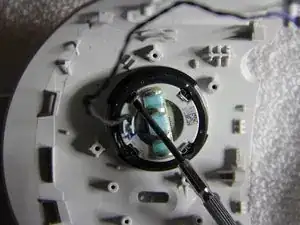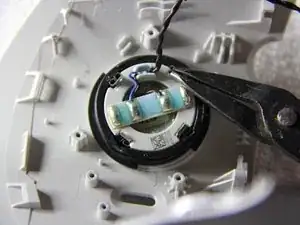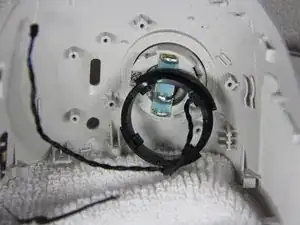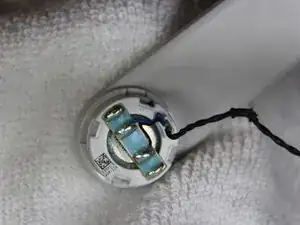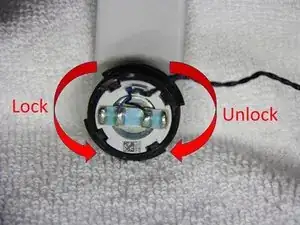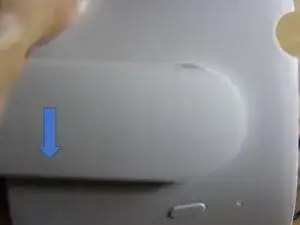
Einleitung

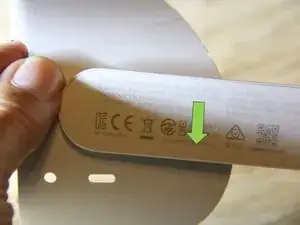
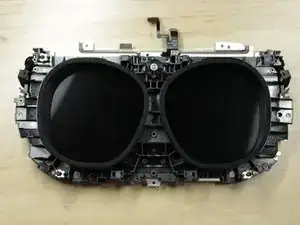
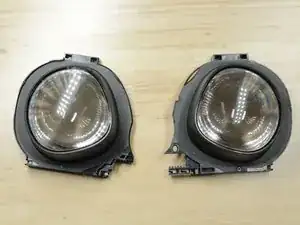
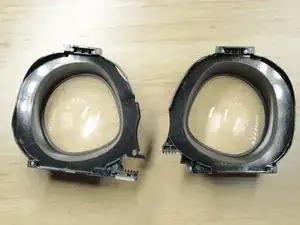
Das Oculus Quest 2, auch Meta Quest 2 genannt, ist ein von Facebook (ehemals Oculus) entwickeltes VR-Headset und die zweite Iteration des ursprünglichen Quest. Das Quest 2 kann als eigenständiges Headset oder in Verbindung mit einem Computer betrieben werden, wenn es entweder über ein USB-Kabel oder Wi-Fi angeschlossen wird. Das Headset läuft mit einem Qualcomm XR2 und 6 GB RAM. Es bietet eine Auflösung von 1823 x 1920 pro Auge. Achte darauf, dass du alle Schrauben im Auge behältst, denn dieses Headset hat eine Menge davon.

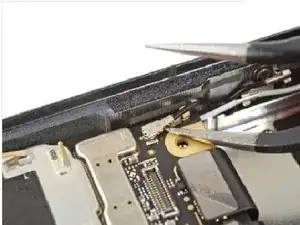
Mehr Informationen zu den Steckern und ihren Anschlüssen findest du in der Anleitung: "Erkennen und Trennen von Kabelverbindungen".

Schritt-für-Schritt-Anleitungen findest du hier.

  1. 5nBAEY5oAZogqQIl
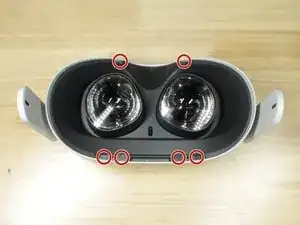
    • Entferne die sechs T2 Schrauben, die das Futter des Headsets fixieren.

    It’s actually 6x T3 screws. A T2 driver is smaller than the groves of the T3 screws, will slip and strip.

    Steven -
    It may depend on your bit manufacturer. I used an ifixit T2.

    Daniel Yoder -
    What screw size are these? I need to replace one but I don't know what to search for

    Michele Bright -

    I have T2 on mine as well

    weiwei.e.sun -

    What if one of the screws strips? We are using a t3 and it got all screws out but one. Now we cannot get that last screw out

    AliD -

    Not much you can do except drill it out.

    Kmic -

    how would you go about drilling it out?

    starrrayne -

  2. GW4Wr2kpyKGcaSlG
    GW4Wr2kpyKGcaSlG
    hMQTJQ2S3OOLRnZO
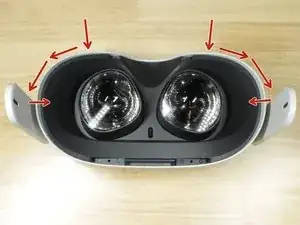
    • Setze nacheinander ein Plektrum auf jeder Seite in der Nähe der Nasenauflage ein, schiebe es zur Seite und heble hoch.

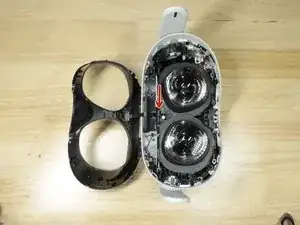
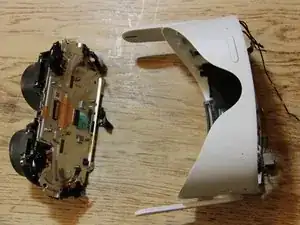
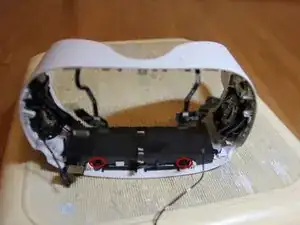
    • Wenn beide Seiten gelöst sind, dann hebe die Abdeckung vorsichtig heraus und klappe sie so, dass sie außerhalb des Headsets liegt.

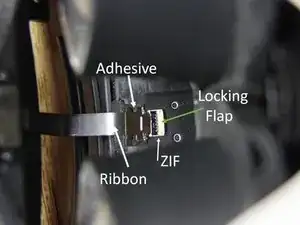
    • Der Näherungssensor ist immer noch angeschlossen, achte auf das Flachbandkabel und beschädige es nicht.

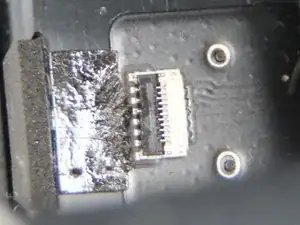
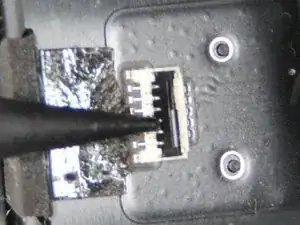
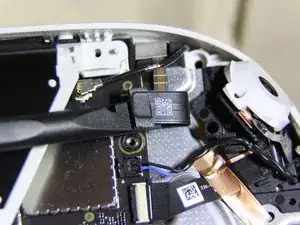
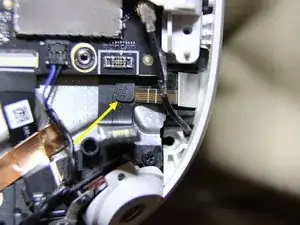
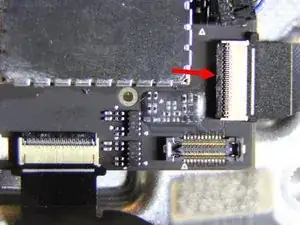
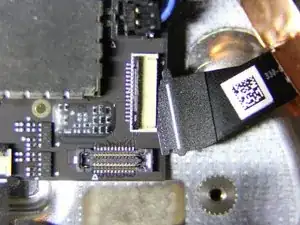
    • Löse die kleine schwarze Raste des ZIF-Verbinders und ziehe das Flachbandkabel ab.

    • Das Kabel ist leicht angeklebt, sei vorsichtig, wenn du es abziehst.

    • Achte beim Zusammenbau auf die richtige Position des Kabels. Es darf nicht schwer gehen, die kleine schwarze Raste wieder zu befestigen. Wenn dieses Kabel nicht richtig angeschlossen ist, dann kann der Bildschirm schwarz bleiben und das Gerät schaltet sich nach kurzer Zeit von selbst aus.

    Hard as rock, day 2

    Antonio Rico Torres -

    I’m going to do this in about 2 month and this part seems difficult any tips?

    Someone -

    Shove your prying tool right in the sides (right and left, where the two arrows pointing inward are) and it pops right out (don't push too fast, just keep pushing until it pops out, i suggest using the flat end of a normal Ifixit spudger)

    Kmic -

    I REALLY wish this step had some better close ups. I thought I connected the cable correctly but I'm getting the black screen silly stuff going on. Boo!

    Infinimitsu -

    You have to push the connector in a bit, and then the black clip will latch down. I'm using a lighted magnifier, myself.

    Shayne Cameron -

    Bouta throw this thing across the room trying to open it

    Possum -

    The zip part ruined everything for me, the screen appears black, it no longer holds, I think I'll use glue to make it stay fixed

    perrtio XD -

    las letras en rojo deberian ir al principio imbéciles....

    Julio cesar roa silva -

  3. 2MJhN6G4THIeIpZw
    2MJhN6G4THIeIpZw
    hWKcX3GDVY6SH2ol
    1whSSV5pFPQZWyMU
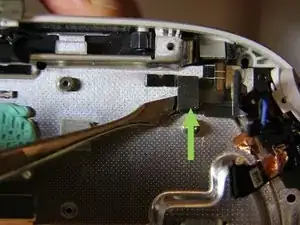
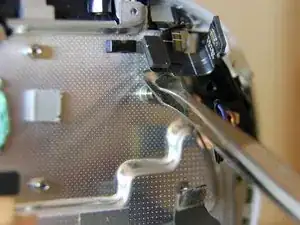
    • Das Flachbandkabel ist leicht am Headset festgeklebt und das Kabel ist mit einem ZIF-Anschluss verbunden. Schaue in Schritt 1 der Anleitung: "Erkennen und Trennen von Kabelverbindungen" für mehr Informationen.

    • Klappe den Sicherungsbügel hoch und trenne das Kabel ab. Schaue dir Bild 2 und 3 an.

    • Das Kabel ist leicht mit dem Headset verklebt, sei also vorsichtig.

    • Achte beim Zusammenbau darauf, dass das Kabel richtig sitzt. Du solltest nicht viel Kraft brauchen, um den Sicherungsbügel zu schließen. Wenn das Kabel nicht richtig angeschlossen ist, bleibt das Display im Headset dunkel und das Gerät schaltet sich nach wenigen Sekunden wieder aus.

  4. DqVs3EPLeIataFyh
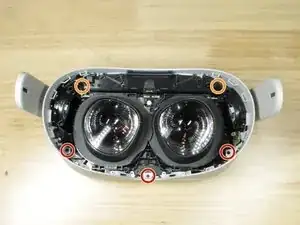
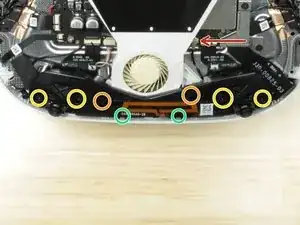
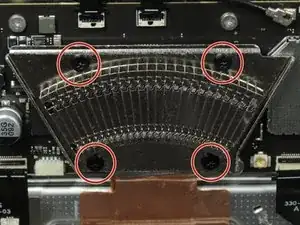
    • Entferne die drei Kreuzschlitzschrauben #0

    • Entferne die beiden Kreuzschlitzschrauben #0

    • Die beiden orangenen Schrauben oben sitzen sehr tief und benötigen vielleicht einen Schraubendreher mit längerem Schaft.

    Does iFixit have a set with a screwdriver for accessing the left top screw shown here? The space there is very narrow.

    S-ed -

    The correct size for these five screws is P000, not P0.

    Matthew Foreman -

    where can I look up the naming scheme for that screw size you’r etalking about?

    is that the same as the phillips PH000?

    is that describing the thread dimensions or the head of the screw, or both?

    I’ve looked up the screw dimensions / where I can get spares but can’t seem to find consistent results for this one,

    I want to know the screw’s head and thread measurements so I can recreate a custom oculus shell in CAD and have the proper screws and parts all fit back together properly.

    _latch_key_ -

    The ph screw driver was wrong and I stripped one of the screws thanks a lot ifixit

    gavilanesadan@yahoo.com -

    Of note; the screws are PH000 and they are especially soft and easy to strip.

    Alexander Owen -

    For those like me that do not have the Marlin screwdrivers or any other thin extension to reach the two deep screws, but if you do have an iFixit kit with bits: I used the normal PH00 bit and the 4mm nut driver as a DIY extension. However, they do not magnetize so this may require some extra finesse to ensure they don't fall apart.

    MINK -

    The ifixit kit comes with several ph sizes. There is ph000 ph00 and ph0 among others. It is printed on the side of the bits. They are definitely ph0 screws. The regular screwdriver in the ifixit kit can’t reach the two top screws. You will need an extension.

    Brian Krygier -

    it is PH00 screws for sure, I tried with the PH0 bit from iFixit kit and it does NOT fit

    iampi -

    I tried the screw bit that yall told me to use, but one of the screws got stripped. How can i remove it?

    lastunio -

    Stupid &&^&^$^ guide. Stripped all three screws. Waste of 3 hours. Whoever made this, go &&^& yourself.

    streetle -

    Stupid Retards

    streetle -

    OK but how do you put it back on

    Ernie Padilla -

  5. cfwynVxBZJQTZ6Kn
    cfwynVxBZJQTZ6Kn
    3L4jcILpJJdEsoxM
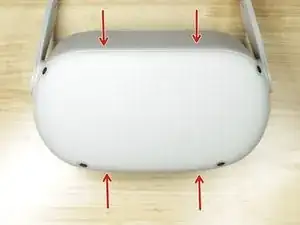
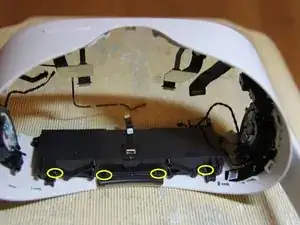
    • Um die Rasten zu lösen, muss an die vier Stellen ein Pick (Plektrum) eingesteckt werden.

    • Entferne die vordere Abdeckung von der Oculus Quest 2.

    I found it best just to gently pull it off from the side with my finger nails. There is nothing connected to this cover, yet be careful enough not to break the plastic clips.

    Padraic Hoselton -

    I don’t need to go to any further steps because I’m only replacing the front shell but still it is a good thing I found out about this tutorial or else I would be a mess right now

    Someone -

  6. GX5fBpUBbbwkdGCD
    • Trenne die WiFi Antenne ab, wie in Schritt 5 dieser Anleitung beschrieben. Schiebe dazu ein dünnes ESD-sicheres Werkzeug oder Pinzette unter das metallene Ende des Steckers und hebe ihn von der Hauptplatine weg.

    • Entferne die Kreuzschlitzschraube #0

    • Entferne die beiden Kreuzschlitzschrauben #0

    After I remove bracket I found that battery cable already disconnected.After connect it my problem of quest 2 not charge after drop is fix. Thank you for helpful guide.

    Korakot Ano -

    If the problem of it not charging persists it is a motherboard issue

    Kmic -

    Do you have the lengths for these color codes? I sorted mine but the cat knocked the bin over mixing the screws, most I remember. The bt antenna and the front housing screws are all I have left to sort

    bilmenendez -

    Same thing happened to me, I unplugged my battery wire and put it back on and now it's working. If you dropped your headset as well, this would probably help

    Luis Benitez -

    When reassembling, pay attention to the bottom left part of the metal bracket. It has to go under the main board.

    ibrobr -

  7. VBwF2QkIncT4JyvG
    VBwF2QkIncT4JyvG
    SceTO4hKqm6Xjt33
    • Trenne den Akku ab, wie in Schritt 4 der Anleitung beschrieben. Heble den Stecker mit dem Spudger gerade nach oben heraus.

    • Denke beim Zusammenbau daran, das Flachbandkabel zum Akku teilweise unter das Logic Board zu legen.

    The second picture is not aligned with the first.

    Mark Caldwell -

  8. LQIAVYDKDKSFFNjq
    LQIAVYDKDKSFFNjq
    DPpDvIGtVdO3jPTM
    6XeeDctZIeCd5wMT
    • Entferne zwei Kreuzschlitzschrauben #0

    • Entferne vier Kreuzschlitzschrauben #0

    • Entferne zwei Kreuzschlitzschrauben #0 - diese sind länger als die anderen Schrauben

    • Der Pfeil zeigt zur Bluetooth-Antenne. Trenne sie ab, mit Hilfe der Anleitung, Schritt 5, Bild 2. Um den Stecker abzutrennen, musst du mit einem Spudger oder einer ESD-sicheren Pinzette unter das metallene Ende fahren und gerade nach oben hebeln.

    • Bild 3 zeigt, wie die Antenne vom Headset gelöst wird.

    Note the inner and outer yellow screws are different sizes.

    Steve Mackie -

  9. rpbyJhgWZmmVJGqK
    rpbyJhgWZmmVJGqK
    xNMJDFEDTkFIDv5j
    NJa1NMjrbUBrSRbO
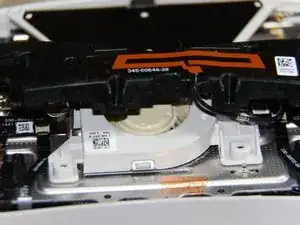
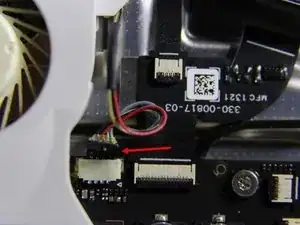
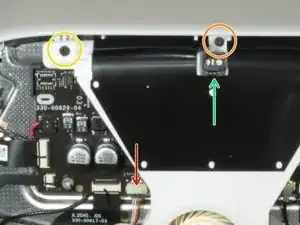
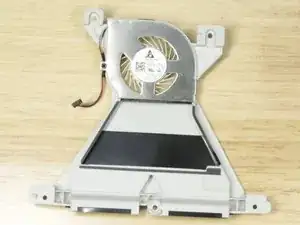
    • Ziehe den Stecker vom Lüfter.

    • Eine T2 Schraube

    • Eine Kreuzschlitzschraube #0

    • Entferne die vordere LED der Oculus Quest 2.

    • Entferne den Lüfter von der Oculus Quest 2

    Holas, quien me dice que es la parte negra del centro de las gafas, que es como una cinta negra grande

    Jhon Hoyos -

    If you have trouble lifting the plastic fan assembly, check the ledge above the orange T2 screw. It might help to bend the plastic case a bit away from the screw (up) so the fan assembly has a bit more space and isn't held down by the ledge anymore.

    ibrobr -

    To remove the led, you can insert a pick or tweezers under a mini metal plate directly under the black wire. If you apply a little pressure it should pop out

    jay -

  10. gqBdTifF6cCPotFf
    • Vier Kreuzschlitzschrauben #0

    • Entferne den Kühlkörper.

    Thermal Paste Present

    saulcutting -

    Do I have to remove this if I am only planning to clean debris off the inside of the eye cups / lens?

    Rod Gonzales -

    Yes, if you are trying to get inside the lenses you have to remove everything.

    Kmic -

  11. 1SISbNXEOCad6Z1l
    1SISbNXEOCad6Z1l
    dHF6xPEDdiklgOso
    dVZ1YamjAUQRIOnl
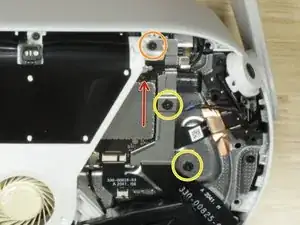
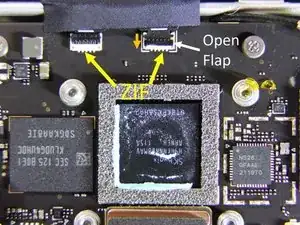
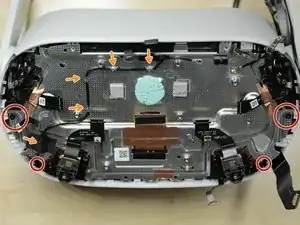
    • Oben an der Hauptplatine sind zwei ZIF-Anschlüsse. Der Sicherungsbügel am rechten Anschluss ist schon geöffnet. Er muss dazu in Richtung des orangenen Pfeils gedrückt werden.

    • Öffne die beiden ZIF-Anschlüsse und trenne die Kabel ab. Diese Kabel führen zu zur vorderen LED, zum IPD-Sensor und zum Nahrungssensor.

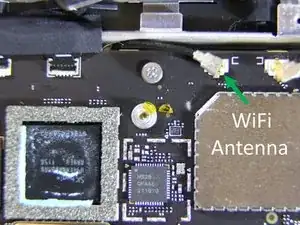
    • Trenne den seitlichen WiFi-Antennenanschluss ab. Siehe dazu Schritt 5 der Anleitung. Um das Kabel abzutrennen, musst du ein dünnes, ESD-sicheres Hebelwerkzeug unter das metallene Ende am Stecker schieben und gerade nach oben von der Platine abheben.

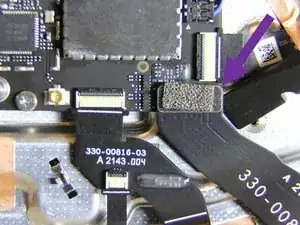
    • Trenne das Kabel zum USB-C-Anschlusse und zur Kopfhörerbuchse ab. Siehe Schritt 4 der Anleitung. Heble den Druckstecker mit einem Spudger gerade nach oben ab.

    If you're planning on removing the midframe later on, peel the black tape above yellow arrows off of the two cables it tapes together, because the left cable goes with the midframe and the right one must stay. The cables might twist when you remove the midframe and it'll get uncomfortable to peel it off in that position.

    ibrobr -

  12. oJqwsSb3lBDSAYBM
    oJqwsSb3lBDSAYBM
    31fNo2LROwKVVWTq
    now3BWp34VDZ55io
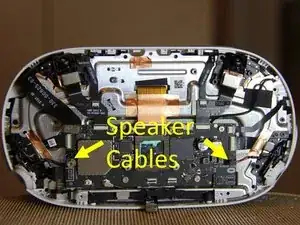
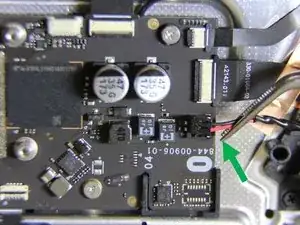
    • Die Lautsprecher sind mit zwei Kabeln an der Hauptplatine angeschlossen.

    • Ziehe die Kabel heraus und trenne die Lautsprecher ab.

  13. I4XilIYy6XYGfmNn
    I4XilIYy6XYGfmNn
    vaLFigMaP2EUBiXu
    aaFruysZ2dQujKg6
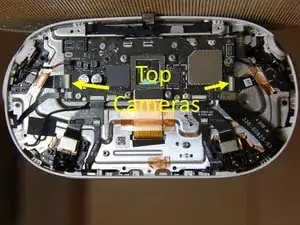
    • Trenne die ZIF-Verbinder für die oberen Kameras auf.

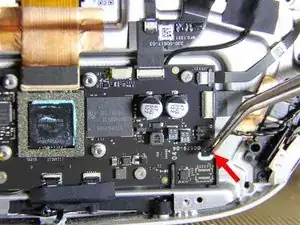
    • Der ZIF-Anschluss ist im zweiten Bild mit einem roten Pfeil markiert. Drücke den Sicherungsbügel mit einem Spudger hoch.

    • Wenn der Bügel offen ist, ziehe das Flachbandkabel heraus.

    • Wiederhole das Ganze für den zweiten Kameraanschluss.

    • Achte beim Zusammenbau darauf, dass die Kamerabdeckungen jeweils nur auf eine der beiden Seiten passen. Die Öffnungen in den Abdeckungen müssen nach oben zeigen und sich an der richtigen Stelle befinden.

  14. ehCQ2WBYH1dDEWlK
    ehCQ2WBYH1dDEWlK
    N5DG5Y36GSs6AYjL
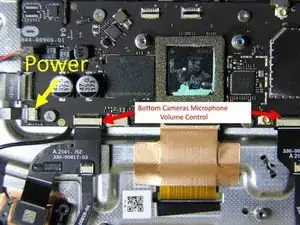
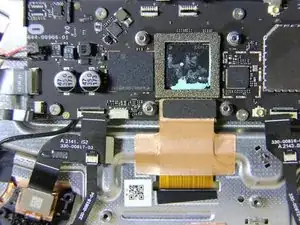
    • Öffne die Sicherungsbügel an drei ZIF-Anschlüssen und trenne die Flachbandkabel ab.

    If you're planning on removing the midframe later, the cables from two press connectors near the bottom cameras must be detached as well. One connector is visible on provided images in the bottom left corner. It's not in the guide yet, it seems, but the connectors must stay on the midframe (with the cameras) and the black upper cables are connected with components on the case. The connector itself is glued to the copper foil under it, so carefully pry from the bottom of the upper cable. If you pry from left or right, you can accidently unglue the connector.

    ibrobr -

    Another option for the midframe removal is to detach the cables from 2 more ZIFs (the smaller ones) below the "bottom cameras" ones pointed to by red arrows. It makes the total of 5 ZIFs for this step.

    ibrobr -

  15. Mt6DsBk5IwBCNoxi
    Mt6DsBk5IwBCNoxi
    um6HPHaFxxcwwnbB
    • Das Displaykabel ist mit einem Druckstecker angeschlossen.

    • Heble den Druckstecker gerade nach oben und trenne ihn ab. Vergleiche mit Schritt 4 dieser Anleitung.

    What is mm of thermal pad

    댕댕이 -

  16. CjSJdC2aPnZfBKcK
    • Entferne folgende Schrauben:.

    • Eine 3,5mm Sechskantschraube.

    • Vier Kreuzschlitzschrauben #0.

    • Diese Schrauben sind nicht magnetisch.

    • Entferne die Hauptplatine.

    The "P0" (P000, actually) screws here are non-magnetic! Be careful not to lose them!

    ibrobr -

  17. kNJD1gb4Gog5LyrG
    kNJD1gb4Gog5LyrG
    vWbFrgY5tULMjLZS
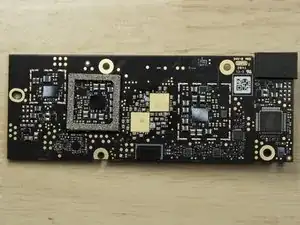
    • Nahaufnahme der Hauptplatine.

    Any chance to list all chips on board?

    ksazazel -

    it looks like there is a 64gb sandisk chip that might come off with some hot air :)

    (but this board look completely different than the quest 2 boards offered on eBay....)

    nitrous dude -

    I don't know exactly but when I replaced my board this is what it looked like

    Kmic -

    Amigos, saben que pasta termica se utiliza ahi en la placa base

    gafas 1 -

  18. clximJUscCNNjSDn
    clximJUscCNNjSDn
    w3Jbd1EJ22iUQlJW
    WZdn6DbEdnxoeASP
    • Entferne die vier Kreuzschlitzschrauben #0.

    • Fädle das seitliche WiFi Antennenkabel aus.

    • Der Mittelrahmen wird durch dieses Kabel vom Akku mit Strom versorgt. Das Kabel hat ein Metallpad an der Unterseite und ist am Mittelrahmen festgeklebt. Trenne das Metallpad auf der Unterseite des Steckers vom Mittelrahmen ab.

    On the upper right hand side of this image next to the first WiFi antenna you unplug, there is a ribbon cable that is held down with a STRONG adhesive that is very difficult to get off. I had to heat up the plastic tool I was using and the cable itself to soften it enough to pull of. Be very careful with it.

    Gavin Alton -

    There is a metal plate glued to the bottom of the cable. It is easier to get a tool under the metal plate and separate it from the midframe than to unglue the cable from the plate. prying against the plate provides some protection for the cable.

    Ben Klopfenstein -

    Amigos quien de ustedes saben que pasta termica es la que se utiliza en la placa board

    gafas 1 -

    The two bottom screws here are P00 (and are slightly longer!), the two top ones are P000.

    ibrobr -

    About the green part: do not pry under the foam and above the metal plate! There's a ZIF I accidentally broke this way (thinking it's a press connector with a cable that must be detached - no, it may be left in place). Unglue the metal plate under the cable, don't do anything with the connector.

    ibrobr -

  19. jXUIjIWDt4oEDdUM
    • Entferne den Mittelrahmen. Der Zugang zum Akku wird frei.

  20. ec2eIQccDLyOxsOs
    ec2eIQccDLyOxsOs
    jPHFAllqPFIxsHL3
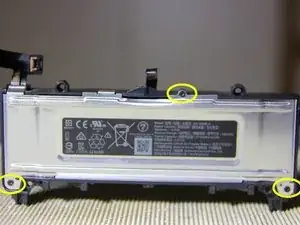
    • Der Akku ist mit zwei Kreuzschlitzschrauben #0 vorne am Gehäuse befestigt.

    • Der Akku ist mit vier Kreuzschlitzschrauben #0 hinten am Gehäuse befestigt.

  21. tAc1GFuijoHBi6qh
    tAc1GFuijoHBi6qh
    aSbnUARF3aaBOpD2
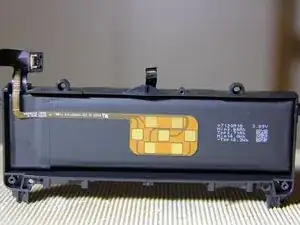
    • Die Abdeckung des Akkugehäuses ist mit drei Torx T2 Schrauben befestigt. Entferne die drei Schrauben.

    • So sieht der Akku aus, wenn die Abdeckung entfernt ist.

    • Der Akku des Quest 2 hält etwa 2,5 Stunden durch bei etwa 5,6 Watt.

    Hi would yo happen to know what the battery cable socket is called and anywhere I could find an extension cable to move the battery to a different location at the back of my head I have my quest in a motorbike helmet and want to ballance the weight better around my head without adding extra counter wights.

    Dan Marshall -

  22. NUA1Hm5OVsyjg4cM
    NUA1Hm5OVsyjg4cM
    5IfYaUZftwVUhAAI
    ArJHSYfHEEUbJNdE
    • Löse das Lautsprecherkabel vom Halter ab.

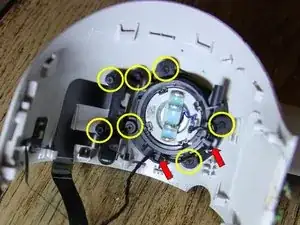
    • Entferne die sieben Kreuzschlitzschrauben #0 vom Halter und USB-Anschluss.

    • Stelle den Halter mit einem Spudger frei.

    • Löse den USB-Ladeanschluss und den Halter ab.

    Can someone please elaborate on how to remove the metal clips on the arms/speakers?

    Is there a special tool or technique?

    Fixxif -

    Same here. I can’t figure out how to remove the clips.

    Colin Harris -

    anyone tell me how to can remove this arms speaker? :(

    thang tan -

    I would like to know how too! I need to replace my speaker but i doesn't find the technic for metal clip. Thank you

    Patrick Potvin -

    its easy enough to use tweezers to remove the clips.

    Ben Klopfenstein -

    I am having trouble removing the screws. Any tips how to get them out.

    AJ Sandoval -

    for anyone still struggling, you need to squeeze in a small flathead screwdriver deep under the metal tab. that way it releases it properly. if you look a pictures of the springs you can see the little latch there on the side with the tab

    Imya Familiya -

  23. oPwnofi5ZbPa4ZOV
    oPwnofi5ZbPa4ZOV
    wCpNokRDfiWpbrwP
    • Kippe die Laschen an den Federn mit einem kleinen Schraubendreher nach oben.

    • Entferne die Federn mit einer Spitzzange.

    Merci pour ton tuto. Pour info les "ressorts" sont vraiment difficile à retirer.

    Tadig SA -

  24. VjbsKTeqxqfFSp6G
    VjbsKTeqxqfFSp6G
    KXu6eXr2eGTqQv4L
    kgtxfsaqtIyLrXaU
    • Der Halter und der Lautsprecher werden durch das Headset geführt und mit dem Gummihaltering fixiert.

    • Laschen am Gummiring führen durch die Schlitze im Arm. Dies sind die Schlitze, die zuvor die Federn hielten. Der Ring wird gedreht, um den Halter zu ver- oder entriegeln.

  25. Ou6ZH3UbnN2GVoN1
    Ou6ZH3UbnN2GVoN1
    ZXh3YUeTpnXAG6UX
    xCrMv4qnU3ZHwYbI
    • Je nachdem, an welchem Halter du arbeitest, musst du den Haltering auf verschiedene Weise anfassen.

    • Wenn du an dem Halter nahe bei der Einschalttaste arbeitest, musst du die Hand durch das Teil des Headsets führen, der normalerweise zum Gesicht hin zeigt. Greife den Haltering. Drücke dann den Halter in die auf dem zweiten Bild gezeigte Richtung.

    • Wenn du an dem Halter nahe beim USB-Anschluss arbeitest, musst du die Hand von vorne durch das Headset führen, um den Haltering zu greifen. Drücke dann den Halter in die auf dem dritten Bild gezeigte Richtung.

  26. bfqULQhRQ2LLtIIL
    bfqULQhRQ2LLtIIL
    gLNsqUM4WDnPxSIS
    LWVQZIWWuovPosnI
    • Die Linsen gleiten auf Schienen, die von kleinen Metalllaschen gehalten werden. Das Entfernen der Schienen legt den Bildschirm frei.

    • Der Bildschirm ist durch eine Plastikfolie geschützt. Achte auf Staub und zerkratze nichts.

    What do the screens look like under the lenses? How and where do the cables transmitting the image and power to the screens?

    radgesaidor -

    Can you add a bit of information about the charging port. I need to replace but not sure best way to access.

    Catherine Kendrick -

    You have to remove the assembly from the shell first, i.e. everything up to step 12.

    After that you have 4 screws to pull out, 2 of which also hold in the speaker assembly.

    Jheremya Kinsel -

    If you've removed the lens, when placing them back make sure they can snap in 3 positions, not 4. I initially hadn't notice mine snapped in 4 positions somehow (1, 1.75, 2.5, 3). I assembled the helmet, put it on and the lens immediately felt slightly misaligned. The software, of course, supports only 3 positions, it felt a bit dizzy, and I was able to see the edge of the screen. So had to disassemble all the way down again.

    Apparently, the gear might have the wrong "phase", so you may have to manually rotate it to find the right initial position when replacing the lens. The easiest way, of course, is to pay attention to lens position in which you took them off, so you can replace them exactly the same way.

    ibrobr -

    It's easier to replace the lens in the closest IPD position (1), not the widest (3), as the lens apparently shouldn't go to the very end of the rail, i.e. they shouldn't touch the outer plastic in position 3, there's a small gap.

    Also don't be surprised with double vision on the logo during the first boot, since the system boots with the last IPD it has seen (and you might've changed it when it was turned off). It should be gone shortly.

    ibrobr -

    can you remove the lenses with just the first cover removal or is full disassembly necessary?

    Brett Holden -

    Is there any better/more direct way to replace the "arms" besides completely disassembling the entire unit? Apparently dogs love to chew these arms up...

    Dan Shultz -

sctanf

Mitglied seit: 12/01/21

2568 Reputation

87 Kommentare

Thank you so much to me for making this guide. Helped me a lot!

It is worth emphasizing that this device has 2! WIFI antennas.

Anyone who wants to disconnect WIFI from their device must disconnect both.

Their connection to the motherboard, is right next to each other, but the right connection is immediately revealed while the left connection next to it is hidden under the black cover and requires a number of additional disassembly steps.

Alternatively, anyone who wants to disconnect WIFI from their device can disconnect the wires in the area where they connect to the antenna stickers on the right and left sides of the eyepieces of the glasses, thus saving all the disassembly of the front cover.

שמחה גרשון בורר -

Thanks!! this really helped me, I have already customized mine with an official custom filter, but this will add an additional layer of Kashrus.

Leib Felberbaum -

If you just need to replace a camera… it’s 14 screws. You need a T2 and a PH0 (not a P0…) Pretty easy once you get the front cover off and not covered here. It’s pretty easy to see what you do once you get in there though. Good luck!

Chris Madson -

PH0 and P0 are the same :)

Lylo -

Bravo pour ces informations. Un grand merci

Guidemann Christophe -

где запчасти то покупать на данное устройство. выломали порт usb, а заменить нечем.

Alexandr Freelan -

вы можете купить это на FixMyOculus.com

Kmic -

Un grand merci pour ce tuto qui m’a permis de sauver mon casque suite à une grande rasade de vin blanc .

Gérard leroy

gerardleroy78480 -

This guide is overall great however just as some feedback some of the clour lables are not taged to anything as well as it would be great to see some images of where the battery is located as well as how to get it out.

Pwarrow88 -

Where is the hard drive located? Is it possible to upgrade the hard drive if you disassemble it far enough?

Ben Stout -

Can’t say for sure, but it’s VERY likely that the SSD is soldered to the main board and not replaceable without considerable skill and expensive tools

matthew wallace -

The storage device is the large flash chip on the main board labeled “SanDisk.” It is not user-upgradable (well, without considerable effort and maybe a little software hacking).

Aidan Lawrence -

I’m trying to replace the Aux/power port on the mid frame part on the oculus, is it necessary to remove the mainboard in order to gain access to the part I’m trying to replace?

Rizal Antipuesto -

I’m wondering if you had any luck with this as the brand new headset I got was damaged over Christmas and now the charge port is incredibly loose.

Ryan Hill -

Yes, the port is hidden by the lense/screen assembly

Kmic -

Has anyone confirmed whether or not the Quest 2 has an internal SD card reader? Someone on Facebook claims there is one, but I can’t find anything online that backs it up.

William Cousert -

Is a full disassembly necessary to remove the lens assembly, or is it simple as just removing the rear cover and swapping it out?

Colten -

Thank you for this guide, I would like to replace the microphone with an output from a hardware vocoder would this be possible?

Joao Lee -

Were you able to determine where the microphone is located? I'm replacing the LCD that went bad, but I'd like to fix the microphone while I'm in there.

Drew -

how would go about getting to the power button If I just want see if it’s not damaged because that is the only problem I am having. Is to turn it on

Brandxn -

Need more detail on how to the clip of the first proximity sensor is removed/replaced.

Anthony Rossi -

oh. nice article rellyy hlpdddesbdyf rgoofnv thought hhbdj cbbjhnnsndvxc

Soren Nordgren -

any idea where can i get replacement parts?

laz -

ebay or fixmyouclus.com, Aliexpress too

Kmic -

what is the weight of battery? it's possibile turn on without battery but with cable connected? i think the best solution for future quest it's battery swapping.

patrikmeneguot -

Battery weight is 63g - I tested and you are not able to use the quest 2 with the battery removed and a power cable connected. The meta logo will appear for ~.1 seconds, then a battery with a slash through it image will appear on the screen.

d__g -

Agradezco mucho la información es una gran ayuda ya que tengo que desarmar totalmente el aparato que es de mi sobrino y lo dejo en el suelo y se le metieron hormigas sin está ayuda no creo haber podido hacerlo gracias

warner bermudez -

Hay in step 2 removing the rear cover I accidentally cut the ribbon connecting to the rear cover (proximity ribbon) does any1 know where I can get a replacement?

Jerrett Luedy -

Id try eBay to find a used one as i doubt if Oculus, Facebook or Meta will just sell you the part outright!

Matthew Reed -

So far so good waiting for my replacement screen dam hope for my girls sake i get it back together .hate to file a missing person report.

April Webb -

Do I need to remove everything to replace the lens and LCD?

David Tompsett -

The LCD screen shouldn't need changing just change the lens. But if you need both just by a new unit as the Lens is about $80 and the LCD is about the same so for the cost of the parts its probably just easier to buy new!

Matthew Reed -

Is it possible to remove the lenses on early stages?

ozan uygan -

No you have to remove the screen assembly

Kmic -

I just swapped the mainboard into a new headset piece (speakers power button etc) and the unit works for about 2 minutes and then goes to a black screen. I can hit the power button again and get the device to display three dots, then the screen goes dark again.

Anyone have any ideas? This repair went very smoothly so Im not sure if its overheating now or what.... I did try disabling the prox sensor as well and that did not help.

Chase Gober -

Probably needed to replace the thermal past that was compromised when your disassembled it.

larstaylor -

You Might have damaged your proximity sensor ribbon cable or connector as it wont work if it cannot detect if its on your face or not. Disabling the prox sensor will for SURE cause that error 100%! It cannot be disabled. That's why I think its the prox sensor ribbon cable or a bad connector that the cable goes into. Try replacing both the sensor and its connector ribbon cable if thats thats possible.

Matthew Reed -

Hi has anyone try swapping a 64gb mainboard for a 128 gb or 256gb to increase the storage?

Dimase -

I did and it worked great, but the teardown to swap the board is tedious and very very delicate work!!

Matthew Reed -

I don’t know why people are praising this guide. It is terrible, incomplete. Lacks detail. Hand waives critical steps and instructions.

It is a terrible guide, one of the worst on this site.

I have been trying to figure out how to “life the front led away from the headset” for two hours. Each gentle attempt risks destroying it. Worst and most clear instruction I have ever seen.

And that is after trying to deduce what the OP meant multiple times, each with an intuitive leap of faith; rather than clear instructions.

larstaylor -

if you are still trying a year later, the front LED is held to the fan assembly with some adhesive below the LED, you can just either pull it off or use a pry tool to get it off

Coliflower185 -

It would have been nice of the OP had mentioned that you don’t need to take the %#*@ motherboard and heat sink off to dissemble the main body.

And mentioned that you will need to have thermal paste available to replace the thermal paste you ruined by removing a motherboard and heat sink you’d hit even need to remove.

larstaylor -

Does replacing the mainboard is plug and play ?

Do i need to do something on the software side to get it to work ?

Asking before ordering part , answer will be very appreciated.

Kobi -

Yes you can swap motherboards! I did it in mine to get better memory, but if you have a warranty I wouldn't recommend it as this will void your warranty! I replaced my motherboard from a 64GB board to a 128GB one, the Oculus unit booted right up easily, then it gets its updates over the internet so just connect it to your wifi and it will update itself to the newest latest automatically! Now the teardown is tedious and if your not good with electronics I wouldn't attempt it!! As its very easy to damage things!

Matthew Reed -

Hello. After replacing the motherboard, how to pair the old controllers?

Roman Doga -

Definitely one of the most unnecessarily complex devices I've ever disassembled.

Ended up having to take apart everything just to replace that one fried USB port, even accidentally snapped off the latches from two ribbon cable ports in the process (though the latter is entirely my fault in handling teeny tiny pieces).

But at least my Quest 2 is no longer a paperweight now. Thanks OP.

muhdizrin -

Can You help me? I try to reject the wifi modules and bluetooth modules but ı dont know which one is the wifi and which one is the bluetooth. Thank you for help.

Ahmet Hakan Yıldırım -

The wifi is in on the top right of the motherboard (pic 5) and the bluetooth antenna is required for it to work, but is attached to the black piece at the bottom (pic 6)

Kmic -

Where is wifi chip? Can I remove it? if I success to remove it, quest 2 works well without wifi?

Antti Silvast -

Just buy a whole new mainboard, ebay is selling the mainboards really cheap!! Just swap mainboards its easy, but make sure you unpair and factory reset your oculus before you do so, then when you pair the new board to your account its as easy as pie!

Matthew Reed -

Mainboard image must be fake as SK Hynix doesn't make the Qualcomm Snapdragon CPU for the Oculus Quest 2, where the heck did that image come from??

Matthew Reed -

Hi someone got over excited and dropped my quest now it works for approximately 5 min then the left screen turns off...can this be fixed?

TIA

Si

Jubehasit -

Sounds like it needs a new screen.

Kmic -

Hola a todos, tengo un problema con mis oculus, no me funciona el Wifi y lo reinicié con los parametros de fabrica pero ahora no puedo completar las opciones de inicio del sistema, hay alguna forma de saltarse la configuración de Wifi ???????

Sergio Salazar -

Where would I buy a replacement fan and heatsink

Tyler Smith -

Ebay or a website called fix my oculus

Kmic -

Hola a todos, de casualidad alguno sabe dónde comprar el Flex que va a uno de los sensores superiores de las Oculus quest 2

Jhon Hoyos -

Where the heck do I buy a Oculus 2 headset battery in Australia?? I have been looking & can't find anything like it???

suewatson939 -

Thanks for your guidance

Biswajit Nandi -

Does anyone have any idea how far into the disassembly is necessary to just do a shell swap? The speaker arms are damaged on both sides and it sounds like a shell swap would be easier than replacing the arms.

Headset Shell Frame

Rygel Fievel -

You have to remove everything, sorry.

Kmic -

Has anyone had to replace a broken speaker arm/headband.

carrollshepard -

Something worth noting for anyone doing this is first time many of the cables will be held down with adhesive tape, so you will need to remove the tape before some of the steps, mainly removing the midframe.

also my quest didn't have the 3.5mm hex screw for the motherboard in it for some reason.

Coliflower185 -

The left lens on my headset completely stopped working recently. It used to turn back on if I slapped my headset but that has since stopped working. I would assume that it is either a faulty or loose connection to something, but I don't know for sure. How would I go about checking/possible fixing something like that?

Beegeeloo -

It needs a new screen altogether

Kmic -

Any idea why one would stay white with blue lines in on the screen

Brittany Lemons -

It means that the screen is broken.

Kmic -

Savez-vous si le port USB peut être changé ? Le mien a grillé. Le casque fonctionne, mais je ne parviens pas à recharger.

Christian Bredin -

Oui, vous pouvez changer le port USB-C, mais cela demande beaucoup de travail

Kmic -

Danke fürs Zeigen.

Mich würde interessieren, ob man die beiden Objektive so montieren kann, dass der Augenabstand nicht symetrisch ist. Eines meiner Augen ist 3,5mm weiter vom Zentrum als das andere Auge.

Gruß

Martin

Martin -

Es gibt nur drei Anpassungen für die Augen, ohne das Oculus zu verändern, ist das nicht möglich.

Kmic -

Has anyone an idea where to get a spare battery?

Hornbrille -

You can find one on ebay or there is a website called fix my oculus

Kmic -

used this to mod a vent hole in the front. guide helps quite a lot! thank you!

test subject -

If i wanted to swap the headset shell can i remove the entire assembly or do i remove everything bit by bit. Thanks.

Roland Long -

Everything comes out a little bit at a time because of cables. Hope this helps

Kmic -

Muchas gracias

Mauricio Rodriguez -

I accidentally unplug the 3rd sensor! Where do I plug it back it at ????????? And do I need a special cord to charge it? I bought it off a friend of some sort but I cant get it to charge or turn on either they ripped me off or I have the wrong cord please help

Richie -

Considering it can't charge (I had the same problem) it needs a motherboard replacement. You don't need a specific cord to charge it, but i recommend the one that comes with the headset. As for the sensor is it the top left, top right, bottom left, or bottom right?

Kmic -

I have black screen when turn on it, and I can reboot, and do factory reset but the black screen still. I don´t know if is the proximity sensor. Any idea?

Emanuel Alejandro JG -

What kind of connector does the display use, is it proprietary or a standardized connector? I want to know i could buy a non working quest 2 and adapt the screen directly to hdmi or display port for use not as a vr headset

Riley Parker -

Thank you so much for the guide! I was able to fix my noisy broken fan thanks to this guide!

Alexander de Jong -

So if anyone is considering doing this, DONT. Because for some reason of malarchy the focal sensor and any zif attachment like it DOES NOT reseal, fun init?

Arteson-mec -

So it need a reseal

LinenYTStudio -

A lot of people have stripped their screws because this guide says to use a P0 screwdriver... it's well known in the industry that Meta Quest 2 headsets use P000 screws.

I have corrected this in this guide, but we will need to wait until my changed are verified by somebody who knows this before they will be visible.

Michael Ratcliffe -

Shame the usb replacement needs nearly all these steps

chris tippet -

Bonjour
Usine a gaz ! J'ai une tache noire sur mon optique gauche ! je ne sais pas comment elle est apparue ? D'un jour a l'autre !!
C'est une tache ovale irisée sur le bord. Je ne sais pas si je peux l'enlever si j'arrive à démonter mon Quest 2 jusqu’à l'écran ????
Le démontage est tres fastidieux pour un particulier ...... si quelqu'un a des renseignement sur cette tache, Merci

JPolo -