Einleitung

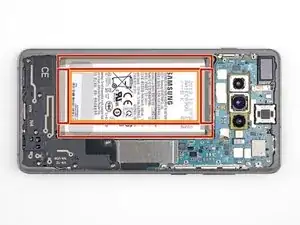
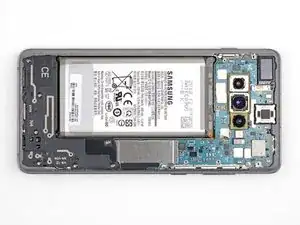
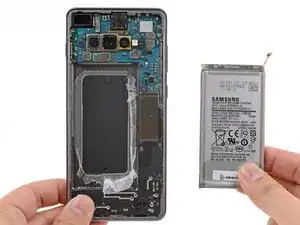
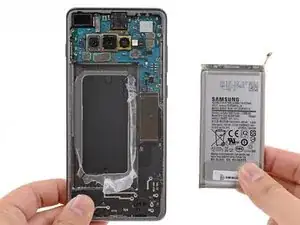
Diese Anleitung zeigt, wie der Akku eines Samsung Galaxy S10+ entfernt und ausgetauscht wird.

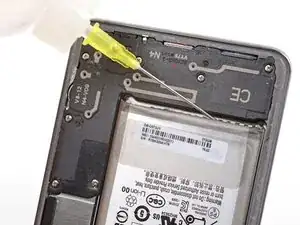
Der Akku ist sehr fest verklebt. Daher vereinfacht die Anwendung von hochkonzentriertem (über 90%igem) Isopropylalkohol den Ausbau des Akkus.

Wenn dein Akku aufgebläht ist, musst du entsprechende Vorsichtsmaßnahmen treffen. Vermeide es in diesem Fall, dein Smartphone zu erwärmen.

Entlade den Akku aus Sicherheitsgründen auf unter 25%, bevor du mit der Reparatur anfängst. Das reduziert das Risiko, dass sich der Akku entzündet oder explodiert, falls er versehentlich während der Reparatur beschädigt wird.

  1. VNJWOk5uXsFsKQ4r
    VNJWOk5uXsFsKQ4r
    Eh4FYYLoEXlTnWZJ
    IYUva6oJxZJVSgXc
    • Ziehe das Ladegerät raus und schalte das Smartphone aus, bevor du anfängst.

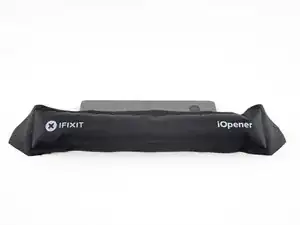
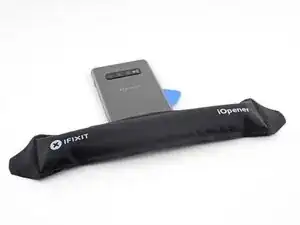
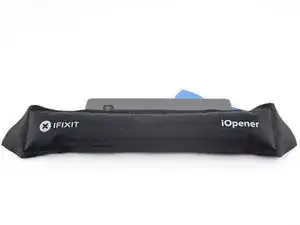
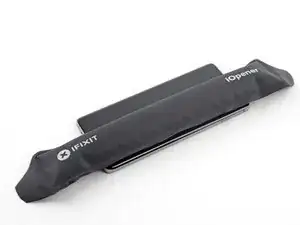
    • Erhitze einen iOpener und lege ihn zwei Minuten lang auf die rechte Kante der Rückabdeckung.

    • Du kannst auch einen Fön, eine Heißluftpistole oder eine Heizplatte benutzen, sei aber sehr vorsichtig, um das Gerät nicht zu überhitzen. Sowohl das Display als auch der Akku im Inneren sind sehr hitzeempfindlich.

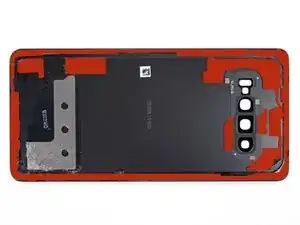
    • Schaue dir, während der Wartezeit, das Bild der entfernten Rückabdeckung an, um zu sehen, wo genau sich der Kleber befindet.

  2. Qfu3LmrkWkCATpCU
    Qfu3LmrkWkCATpCU
    MgLKHx2ww2ApNlPq
    5bjWvEiyhNRGk6iP
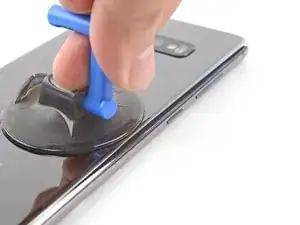
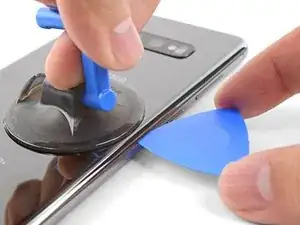
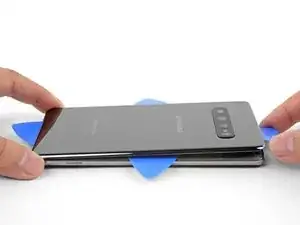
    • Setze einen Saugheber auf die Rückseite des Smartphones, und zwar so mittig auf die rechte Kante wie möglich (hier ist der Kleber am dünnsten).

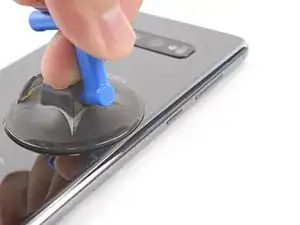
    • Ziehe gleichmäßig und fest am Saugheber, um einen Spalt zwischen Rückabdeckung und Rahmen zu erzeugen.

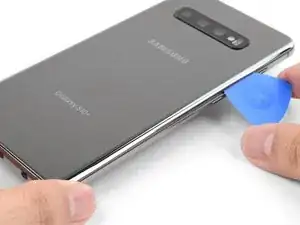
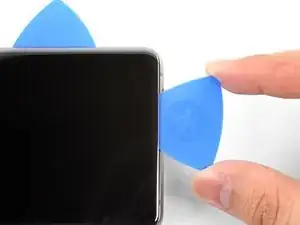
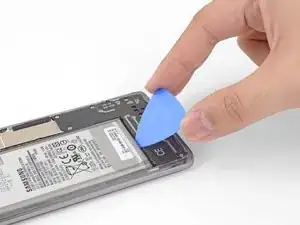
    • Setze die Spitze eines Plektrums in den Spalt.

    • Diese beiden Bauteile sind sehr eng aneinander angepasst, du musst es wahrscheinlich mehrfach versuchen.

    • Falls du Schwierigkeiten dabei hast, einen Spalt zu erzeugen, ist es am Besten, die Kante erneut zu erhitzen und es nochmal zu versuchen.

    • Du kannst auch ein paar Tropfen Isopropylalkohol auf die Fuge träufeln, um den Kleber etwas aufzuweichen.

    • Wende mit dem Plektrum nicht zu viel Kraft auf, da sonst das Glas der Rückabdeckung brechen kann.

    I can’t get the back cover to seperate, I’ve been trying for several hours now, it just stays with the rest of the phone. I’m fairly certain my phone is hot enough as I touched the back and I can’t place my hand there for more than a few seconds at a time. It’s just not coming off and I’m so frustrated! Any help?

    fiona Xie -
    Hi Fiona,

    The back adhesive can be very difficult! Have you tried the suggestions in step 3? It may take a few heat cycles to weaken the adhesive. You can use a hairdryer to heat it pretty hot along the edge.

    Arthur Shi -
    My back cover glass is shattered but not coming apart! What do I do?

    Otto Plutoonium -

    I was able to use my fingernails first (with the assistance of the suction cup) to get in the gap, and then, with my fingernails still in the gap there was enough room to put in the pick. I couldn't get the pick in there by itself even after 10 minutes of warming and suction cup prying... but my fingernails could get in, and then I used them to hold the space open and pull a little more so the pick could be inserted.

    Alan Miller -

  3. RgT1qlOnx2TouXUg
    RgT1qlOnx2TouXUg
    PAUGMI6QiCLoVDTF
    NYVAKADcHXBGobws
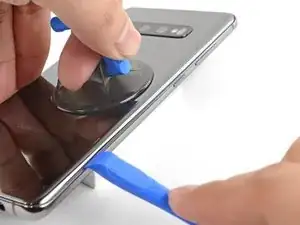
    • Lege etwas unter die erwärmte rechte Kante des Smartphones, das etwa 13 mm (0,5") dick ist. So ist es einfacher, das Öffnungswerkzeug einzusetzen.

    • Halte die linke Kante des Smartphones mit deinen Fingern fest, sodass das Smartphone nicht abrutscht. Ziehe kräftig am Saugheber.

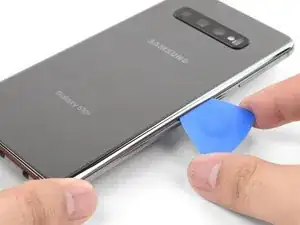
    • Drücke die Kante eines Öffnungswerkzeug in die Fuge zwischen Rückabdeckung und Rahmen.

    • Schiebe das Öffnungswerkzeug ein paar Mal an der Fuge hin und her.

  4. xCBSghGY4CSckGdE
    xCBSghGY4CSckGdE
    qwD1B5HKVSckdbTE
    iYOuZuRvE6ICSBBy
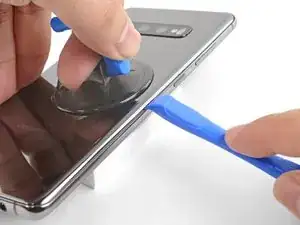
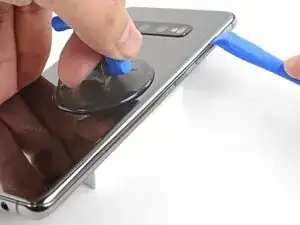
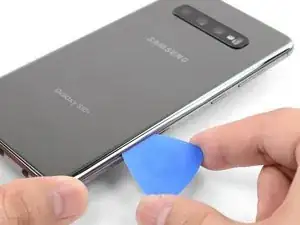
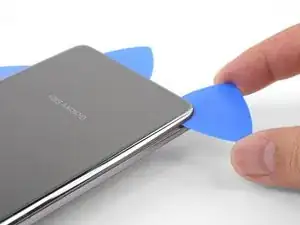
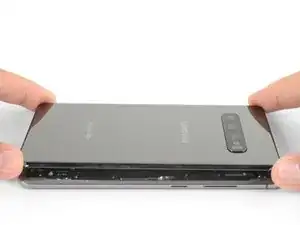
    • Schiebe das Plektrum an der Kante des Smartphones entlang und durchtrenne den Kleber.

    • Versuche auf keinen Fall, den Kleber in den Ecken zu durchtrennen, bevor du sie erwärmt hast. Sonst riskierst du es, die Rückabdeckung zu brechen.

    • Lasse ein Plektrum in der Fuge stecken, damit sich der Kleber nicht wieder verbindet.

  5. JxVkdPKwLoItHKbF
    • Lege einen erwärmten iOpener zwei Minuten lang auf die Unterkante des Smartphones.

  6. VORcDx1rpGPbuVuI
    VORcDx1rpGPbuVuI
    uPqEVKnBUVdqFYxZ
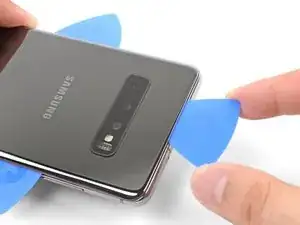
    • Setze ein Plektrum in die rechte Kante nahe der unteren rechten Ecke ein.

    • Schiebe das Plektrum vorsichtig um die Ecke herum. Schneide an der Unterkante entlang weiter und um die linke untere Ecke herum.

    • Wenn es schwierig wird, zu schneiden, erwärme die Kante erneut, bevor du weitermachst.

    • Lasse ein Plektrum stecken, damit sich der Kleber nicht wieder verbindet.

  7. o3kSUBvmJbya3T1K
    o3kSUBvmJbya3T1K
    oa1Bi6qICOxAccYB
    jDglUsgfHSkbXHVu
    • Arbeite dich so um das ganze Smartphone herum.

    • Wenn du den Kleber an den Ecken durchtrennst, achte darauf, dass die Ecken gut erwärmt sind.

  8. LhrFfWLYlXAudNsv
    LhrFfWLYlXAudNsv
    GprId5rHaoj5VRSn
    O36i5VnLAZlJ46mm
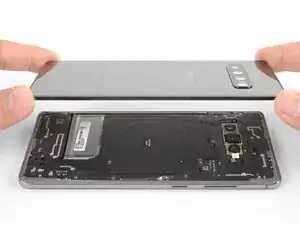
    • Wenn du dich um das ganze Smartphone herum gearbeitet hast, verdrehe ein Plektrum in einer der Ecken, um die Rückabdeckung vom Rahmen abzulösen.

    • Hebe die Rückabdeckung langsam an. Benutze Plektren, um den restlichen Kleber zu durchtrennen.

    • Entferne die Rückabdeckung.

    • Bei Wiederzusammenbau ist es vor dem Befestigen der Rückabdeckung eine gute Idee, dein Smartphone einzuschalten, um zu testen, ob die Reparatur funktioniert hat. Achte darauf, dein Smartphone wieder ganz auszuschalten, bevor du weiterarbeitest.

    • Folge dieser Anleitung, um die Rückabdeckung anzubringen, die Kameraeinfassung zu übertragen und den Kleber wieder zu befestigen.

  9. qCcSJyviYRDGPiIu
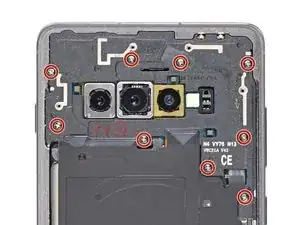
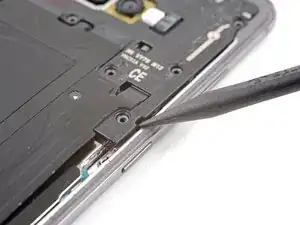
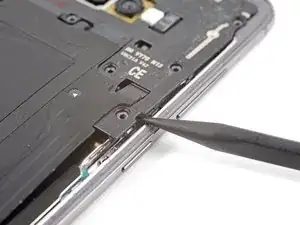
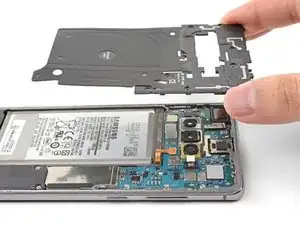
    • Entferne die neun 4 mm Kreuzschlitzschrauben, mit denen der obere Mittelrahmen am Smartphone befestigt ist.

  10. AisYk1QSSSFnCucJ
    AisYk1QSSSFnCucJ
    fuQGavMuhv4HtXjW
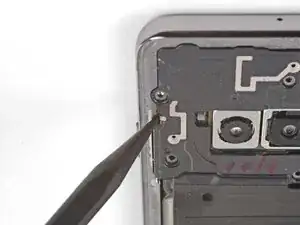
    • Der Mittelrahmen ist zusätzlich mit ein paar Plastikklammern um die Kanten herum befestigt.

    • Setze die Spitze eines Spudgers in die Kerbe in der rechten Kante des Mittelrahmens in der Nähe der Bixby-Taste.

    • Heble nach oben, um den Mittelrahmen vom Smartphone abzulösen.

  11. wL2v2OWWaIPENNSw
    wL2v2OWWaIPENNSw
    2E6cYHQBhovu3T6N
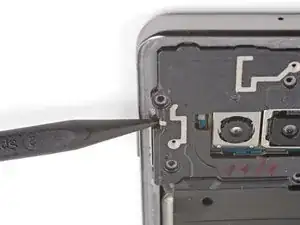
    • Setze die Spitze eines Spudgers in die Kerbe auf der linken Kante des Smartphones, nahe der Einschalttaste.

    • Heble nach oben, um den Mittelrahmen vom Smartphone abzulösen.

  12. sDQoNqHPwIBiBuAt
  13. DjdhNZYNVrsBAZlB
    DjdhNZYNVrsBAZlB
    6N5dlcWWbIjZEhRD
    MJuMHYGCEAaq2HOH
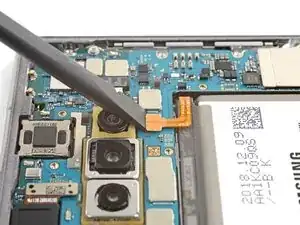
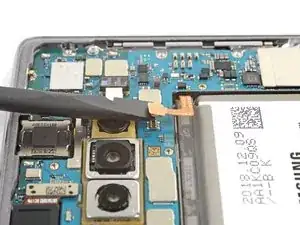
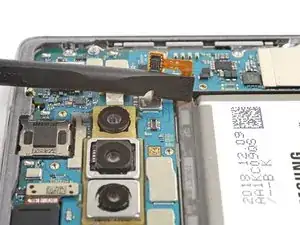
    • Setze das flache Ende eines Spudgers unter den Akkustecker, der unterhalb der Rückkamera mit dem Motherboard verbunden ist.

    • Heble den Stecker nach oben, um ihn aus seinem Anschluss zu lösen.

    • Wenn du Stecker wie diesen trennst, musst du aufpassen, das du keine der kleinen SMD-Elemente, die sich um den Anschluss herum befinden, beschädigst.

    • Schiebe das Flachbandkabel des Akkus vorsichtig vom Anschluss auf dem Motherboard weg, um einen versehentlichen Kontakt zu vermeiden.

  14. VD3lteNIO2LKaZsb
    VD3lteNIO2LKaZsb
    FrwMLGNfETABeEvZ
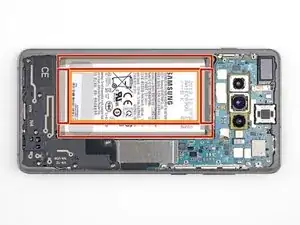
    • Der Akku ist sehr fest verklebt. Achte besonders auf folgende Bereiche:

    • Der Rahmen, wo der Akku sehr stark verklebt ist.

    • Ein Ausschnitt im Rahmen, unter dem sich die empfindliche offenliegende Displayeinheit befindet. Sei vorsichtig, wenn du in diesem Bereich hebelst, damit die Displayeinheit nicht beschädigt wird.

  15. pEBSpVPIWaMTIYnp
    pEBSpVPIWaMTIYnp
    TRY6dmS5sC4qUKuw
    NSBsdxnb5uQNl3yL
    • Etwas hochkonzentrierter (mehr als 90%) Isopropylalkohol vereinfacht das Entfernen des Akkus erheblich.

    • Hebe die Unterkante des Smartphones an und halte das Smartphone schräg.

    • Träufle 1 - 2 Tropfen Isopropylalkohol in den Spalt zwischen dem Akku und dem unteren Mittelrahmen des Smartphones.

    • Zu viel Alkohol kann das Display beschädigen.

    • Halte das Smartphone eine Minute lang schräg, damit der Isopropylalkohol den Kleber erreicht.

    • Alternativ kannst du auch einen iOpener erhitzen und zwei Minuten lang auf die rechte Vorderseite des Smartphones legen.

    Probably do use the iOpener in this step. Actually waited for an hour for isopropyl alcohol to actually loosen the adhesive barely enough to rip the battery out.

    Kipras Bielinskas -

  16. ly1R2rsRSNBPDQhR
    ly1R2rsRSNBPDQhR
    W4dE2MGXekEfxQBu
    1vkUVRwWyyRvLtwb
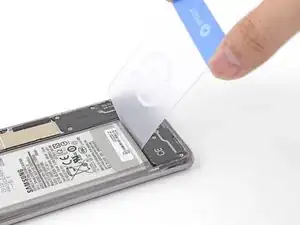
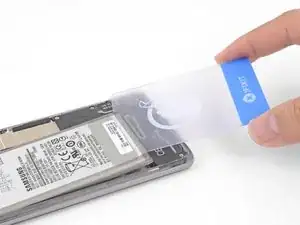
    • Setze die Ecke einer Plastikkarte in den Spalt zwischen Akku und unterem Mittelrahmen.

    • Heble den Akku fest und gleichmäßig aus seiner Vertiefung heraus.

    • Wenn sich der Akku nicht bewegt, ist der Kleber nicht ausreichend aufgeweicht.

    • Benutze ein Plektrum, ein Öffnungswerkzeug oder einen Spudger, um den Akku herauszuhebeln. Verwende keine Metallwerkzeuge.

    • Wiederhole die Anwendung von Isopropylalkohol und versuche es erneut.

    • Versuche, den Kleber mehr mit dem iOpener zu erwärmen, damit er weich wird.

  17. 6QxVBGJc1xEnSp2K
    6QxVBGJc1xEnSp2K
    rTKlpfpioYDrUuB1
    QLYciZvRFAMiLm1b
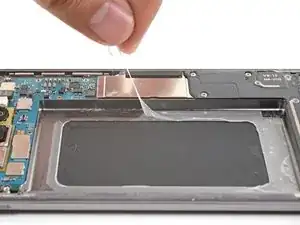
    • Entferne den Akku.

    • Benutze den Akku nach dem Ausbau nicht mehr, da dies ein potenzielles Sicherheitsrisiko darstellt. Ersetze ihn durch einen neuen Akku.

    • Wenn du Isopropylalkohol verwendet hast, dann warte zehn Minuten, bis er komplett verdunstet ist.

    • Benutze diese Anleitung, um den Kleber am Akku zu ersetzen.

    • Verbinde den Akku zeitweise mit dem Motherboard, bevor du ihn definitiv festklebst. Somit wird sichergestellt, dass der Akku richtig positioniert ist.

    • Klebe zuerst vorgestanzte Klebestreifen oder doppelseitiges Klebeband auf den Rahmen, bevor du den Akku in die Vertiefung hineindrückst.

    • Es darf kein Kleber auf die offenliegende Rückseite des Displays kommen.

    Does the back panels adhesive needs to be replaced or its good to reassemble on old one?

    Nand Patel -

    Yes! If you don’t want to use new adhesive, remove any large chunks of adhesive that might prevent the back cover from sitting down flush, heat the back cover, and apply pressure to secure it. It won't be waterproof, but the leftover adhesive is usually more than strong enough to hold.

    Carsten Frauenheim -

    It’s a little confusing going through the battery removal for the Samsung S10+ and then being sent to the Samsung S10 installation process instead of the Samsung S10+ install. Although moderately intuitive, it would be nice to have a specific article for a specific phone that identifies the actual process with the physical parts involved since The S10 and the S10+ are not the same back covers and the same parts involved.

    Additionally, the inner wireless connector plate NEEDS to be connected to validate a connection otherwise the battery will not power the phone. This is a Requirement on the S10+.

    stevechlopecki -

    Please address the adhesive issues in the instructions! Add some discussion of how much of the old adhesive to remove (if any) and how to do it. Also there is no mention of how to apply the new adhesive, either to the battery compartment or to seal the back plate with.

    Alan Miller -

    Hi Alan,

    Thanks for pointing this out! I'll add some links to general adhesive guides to help alleviate this issue.

    Arthur Shi -

    My new battery came without new adhesive. Now what?

    Mistah Moh -

    My new battery came without new adhesive. Now what? I guess I was supposed to order the custom-cut battery adhesive separately, right? I should have known this from the start, now all the parts are just lying around... and it seems, I can't even buy it form your shop. Thanks for the insanity.

    Mistah Moh -

    I also have received new battery without the new adhesive

    Markéta Novotná -

    Make sure you connect the battery correctly and test the charging system by plugging it in. I plugged it in and I got an overheating icon on my screen. I disconnected the battery and reconnected it and put firmly put it in place and tested it again and it charged successfully.

    Christopher M -

Abschluss

***Um dein Gerät wieder zusammenzubauen, folge den Schritten dieser Anleitung in umgekehrter Reihenfolge.

***

Folge dieser Anleitung, um einen Akkuzyklus-Reset durchzuführen und den neuen Akku zu kalibrieren.

Entsorge deinen Elektromüll fachgerecht.

Lief die Reparatur nicht wie geplant? In unserem Antwortenforum findest du Hilfe bei der Fehlersuche.

Arthur Shi

Mitglied seit: 03/01/18

296783 Reputation

16 Kommentare

The hardest part was actually getting rid of all the adhesive residue everywhere. That step took the longest. The battery removal went very quickly, surprisingly so.

isely -

Worked great to replace my swollen battery, and thanks to it being swollen I could actually skip the steps to pry open the back cover. Anyway, from my experience everything is correct, the only downside is that I used a little more than a few drops to loosen the battery and after the whole annoyance of removing the glue and placing the new battery I turned on the phone to check everything was working and my back cameras were blurry.... yeah, too much alcohol, had to clean them up very well.... but the sad part is that some of the alcohol made it's way to the front cameras... now they are both blurry.

Brian -

لم استطيع أشحن البطارية خارج أمريكا اذاً ما الفائدة ؟

Omar Al -

I agree with isely - the toughest part was removing all the left over adhesive. Removing the battery was a bit of a pain as well, even with isopropyl alcohol. I recommend using heat to remove the battery.

To get rid of the excess adhesive, I recommend using a heat gun and peeling it up with your thumb. As long as it's malleable, you can slowly peel it up to create a ball of adhesive and hopefully get most of it off at once. I was trying Q-Tips with isopropyl alcohol and that mostly just spread around the adhesive and got fluff from the Q-Tip over the phone.

Finally, I recommend buying a precut adhesive card to glue it back in place. It took me quite a while to cut a bunch of strips with my 2mm double sided tape.

Geoff Johnston -

And my phone is ruined because, presumably, the alcohol leaked somehow and destroyed the lens. Gonna have to get a new phone now anyway. Please add proper precautions to the instructions to avoid wrecking the lens. I didn't make any careless splashes or drips.

Alan Miller -

Would I need to replace the water-resistant seal with another to retain IP68 water resistance?

First1 Gamer -

In my case, the old Galaxy 10+ battery swelled up. Getting the back off was simple as the battery expansion pushed the back off for me. Getting all the glue off was a bit of a pain though.

Replacement battery is vastly different from original (no surprise there), but no instructions were given on how to stick the new battery down. A sheet of pre-cut adhesive strips [which were almost impossible to use] came with the kit. I improvised to make my own battery stick-down strips.

The new adhesive for the back plate was a bit daunting to get set "just right". Ended up with a little bit of the material sticking out the side of the back. Some careful use of a single-edge razor blade took care of that.

iFixit guys - good instructions, now tie the bow on it by showing how to secure -your- replacement battery in the phone and how to apply -your- backside adhesive. You've only covered 1/2 of the job in these instructions.

Otherwise, I'm pretty happy with the repair. Resurrected my old Galaxy S10+.

Mitchell Carson -

i got sort of lucky and was able to skip straight to step 9 because the glue holding the back on had melted due to a house i used to live in not having a functional AC and it hitting 85F+ inside(that was the main reason i wanted this at first), the battery turning into a forbidden capri sun and warping my case made me pull the trigger(it also might have made me needing needing the iso a moot point).

Chad Behr (Behrking) -

Total time: 4 hours . Took a lot of time scraping/wiping away glue residue. And the battery was soaking in isopropyl alcohol for a whole hour to be barely loos enough to be ripped out. Use the iOpener for the battery removal.

Kipras Bielinskas -

Total time: 4 hours . Took a lot of time scraping/wiping away glue residue. And the battery was soaking in isopropyl alcohol for a whole hour to be barely loos enough to be ripped out. Use the iOpener for the battery removal.

Kipras Bielinskas -

Just finished an install and I must say this went way smoother than I had expected. Had zero issues and everything (including cameras) all still functioning. Thank you Ifixit team for making it possible to change the battery with ease.

Knight Wolf -

una volta, quando eravamo tutti cretini, si apriva il coperchio si estraeva la batteria e ne infilavamo una nuova, ma che cacio !!!

postafer -

ancora ? quando eravamo imbecilli, bastava aprire il coperchio, gettare la batteria e inserirne una nuova.

postafer -

Unfortunately this guide has broken my phone screen, i assume i used too much 100% isopropyl alcohol (probably in excess of 10mL) when removing the battery and it leaked and damaged the screen somehow. Now the screen only works at certain brightness' and has a green tint. Disappointed as there was no warning about using too much alcohol, plus I assumed alcohol was not damaging for electronics... will need to buy a new phone now :(

Lachie Shewring -

Everything went well, the only missing part is a guide to use the tesa tape. Quick tip: if you want do test the phone if it's working before reassembling everything, make sure to reconnect the NFC coil only, otherwise the phone won't turn on.

Ikus -

I got this done within an hour. The hardest part was getting the battery out and I didn't want to damage it with the picks or the spudge tool. I also replaced my camera lens while I was at it since it broke. I'm amazed that this phone considered waterproof with how little insulation this thing has. I'm going to be very cautious with any phone that says it's good underwater for a short period of time cause there's very little between water and the electronics of the phone.

Christopher M -