
Einleitung
Lesen: Ich habe bestätigt, dass diese Schritte auch für Windows 10 und Windows 11 gelten, ohne dass sich der Prozess ändert. Dieser Leitfaden wurde jedoch im Jahr 2018 verfasst, so dass zu diesem Zeitpunkt Windows 10 verwendet wurde. Daher gibt es mehrere "End-of-Life"s:
Windows 10:
- Anleitung wird unterstützt bis (Windows 10): 1.1.2024 (Datum überschritten)
- Ende der Autorenunterstützung (Windows 10): 1.1.2025(Datum überschritten)
- Microsoft EOL: 14.10.25
Windows 11: TBD, kein EOL von Microsoft zu diesem Zeitpunkt festgelegt. Könnte etwa 2030 sein.
Wenn du einen originalen XBox Wireless Receiver für Windows gekauft hast und du Probleme hast, ihn in Windows 10 zu nutzen, wird dir diese Anleitung zeigen, wie man den Treiber manuell installieren kann, wenn die Installation nicht automatisch anläuft. Während diese älteren Adapter in der Regel unter Windows 10 nicht so häufig Probleme haben (es kommt vor, aber viel seltener), kann unter Windows 11 etwas manuelle Hilfe erforderlich sein, da ich einige Fälle beobachtet habe, in denen es nicht so "Plug and Play" war, wie der Empfänger unter Windows 10 ist.
Hinweise zur Anleitung
- In den meisten Fällen wird Windows 10 "einfach funktionieren". Wenn der Treiber nicht automatisch erkannt und installiert wird, kann eine manuelle Installation erforderlich sein. Diese Verbesserung ist das Ergebnis davon, dass Microsoft die Kompatibilität des Xbox-Zubehörs in Windows 10/11 berücksichtigt hat und nicht nachträglich hinzugefügt hat, wie es in 7/8.x der Fall war (was die Ursache für die meisten Probleme bei der Installation älterer Treiber war).
- Windows 11 hat manchmal Probleme mit diesem Adapter und benötigt Hilfe von Windows Update. Dies ist wahrscheinlich auf sein Alter und den Fokus auf den "schlanken" Adapter (sowie die BT-Unterstützung in 10/11) zurückzuführen, wodurch dieser Adapter entweder weniger im Fokus steht oder auf Computern mit Windows 10/11 mit Bluetooth nicht mehr benötigt wird. Abgesehen davon gibt es keine anderen Probleme, die ich sofort erkennen kann.
- Windows 7/8.x Benutzer: Siehe Windows 7/8.x-spezifische Anleitung (wird nicht mehr unterstützt oder aktualisiert, da EOL abgelaufen ist). Die Schritte sind zwischen diesen beiden Anleitungen aufgeteilt, da die Schritte in 10/11 und 7/8.x so unterschiedlich sind, dass sie in eine zweite Anleitung aufgeteilt wurden.
- HINWEIS: Ich habe keine Aufforderung zur Erstinstallation erhalten und weiß nicht, wie ich sie erneut auslösen kann. Da ich diesen Laptop als Test benutzt habe, ist die Meldung nicht erschienen, kann aber bei dir angezeigt werden. Ich weiß nicht, wie ich das Fenster für die Erstinstallation manuell auslösen kann.
-
-
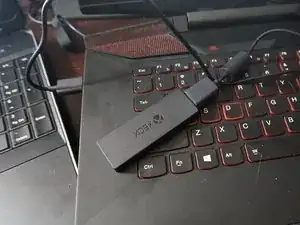
Stecke deinen Xbox Wireless Receiver in deinen PC. Wenn die Installation fehlschlägt, fahre hier fort:
-
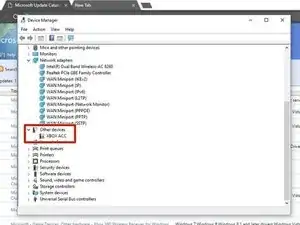
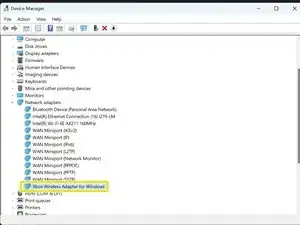
Suche nach "Andere Geräte". Wenn kein Treiber installiert ist, wird der Receiver hier angezeigt.
-
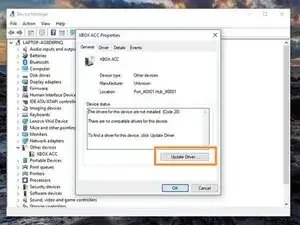
Führe einen Doppelklick auf XBOX ACC aus. Kontrolliere, ob Code 28 (Treiber nicht vorhanden) angezeigt wird. Klicke auf Update Treiber. Es erscheint ein Fenster mit zwei Auswahlmöglichkeiten.
-
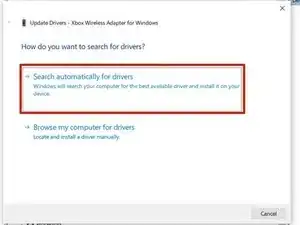
Bevor du den Treiber von Hand installierst, wähle erst die Option für Neuen Treiber automatisch installieren an. Wenn das nicht klappt, dann musst du von Hand installieren.
-
-
-
Im Gegensatz zu Windows 7/8.x ist dies in der Regel kein Problem; Windows 11 benötigt jedoch manchmal Hilfe von Windows Update, wenn die automatische Suche im Gerätemanager fehlschlägt.
-
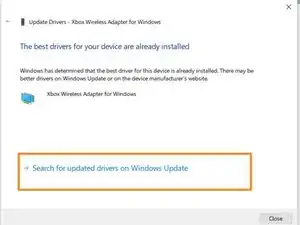
ANMERKUNG: AUF DIESEM COMPUTER WIRD ER NICHT ANGEZEIGT, DA ER IN DER VERGANGENHEIT AUF ANHIEB FUNKTIONIERTE. Klicke auf Suche nach aktualisierten Treibern auf Windows Update. Sobald dies geschehen ist, wird der Treiber installiert und der Adapter sollte funktionieren.
-
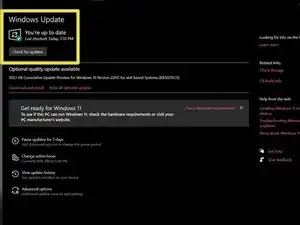
Klicke auf Nach Updates suchen, um sicherzustellen, dass der Treiber heruntergeladen wird, falls das System nicht reagiert hat. Sobald dies geschehen ist, sollte der Empfänger funktionieren.
-
-
-
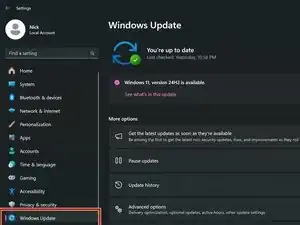
Klicke auf Windows Update
-
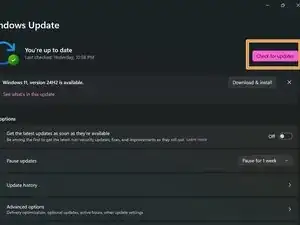
Nachdem du deinen Empfänger an deinen PC angeschlossen hast, klicke auf Nach Updates suchen. Der Empfänger wird angezeigt und lädt den richtigen Treiber herunter.
-
Überprüfe nach der Installation des Treibers, ob der Empfänger im Geräte-Manager korrekt angezeigt wird.
-
-
-
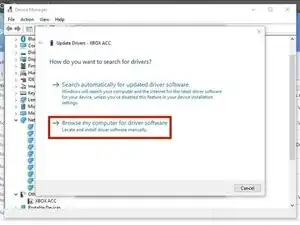
Wähle Auf dem Computer nach Treibersoftware suchen.
-
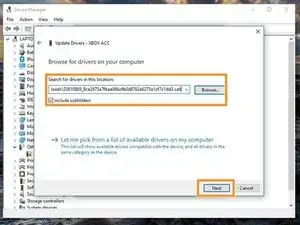
Gehe zu dem Verzeichnis, in dem der heruntergeladene Treiber ist und wähle Kopiere Adresse als Text. Füge den Pfad in die Box unter Suche Treiber an folgendem Ort: und klicke Weiter.
-
-
-
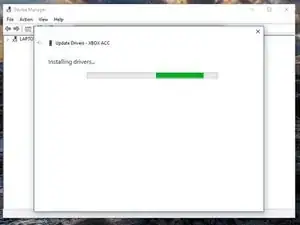
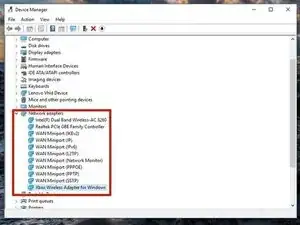
Zum Überprüfen, ob der Treiber korrekt installiert wurde, schaue nach, ob der Receiver jetzt unter Netzwerkadapter aufgeführt wird. Wenn der Treiber korrekt installiert wurde, sollte er hier angezeigt werden.
-

49 Kommentare
Hi Nick,
This is a great guide. It seems to be a common issue and many people have offered similar solutions, but this one is the clearest and most well-explained.
However, it didn’t work for me - and from comments I’ve seen around, I know I’m not the only one. I wonder if you have any thoughts on this?
At the end of Step 3 (“Click Next and install the driver”), the window flashes to something like “Searching location…” for less than a second and then I get:
Windows was unable to install your XBOX ACC
Windows could not find drivers for your device.
If you know the manufacturer of your device, you can visit their website and check the support section for downloadable drivers.
I’m using Win 10 64-bit, fully updated.
I’ve tried the other drivers on the Update Catalog with the same result.
Is it possible to manually force the drivers to be installed?
Thanks,
Eryn
You can actually download the driver manually to force the installation. To force the installation, you will need this driver for Win10: Microsoft driver update for Xbox Wireless Adapter for Windows (18.31.1.43)
If the issue is installation, you need to unzip the folder and put the files in a normal folder. The .cab folder from the download site doesn’t work as-is. I should have clarified this, but it’s corrected.
Nick -
Thanks, but that wasn’t my issue.
I figured out that you can use the “Have disk…” option in the driver update dialog to force the install, but that still didn’t fix it - Device Manager correctly identified the device as “Xbox Wireless Adapter”, but it showed error code 10 and still failed to work.
—
What actually fixed it was a NEWER, entirely different (and deceptively named) driver in the Update Catalog.
—
For 64-bit systems:
Title: Xbox - Net - 7/11/2017 12:00:00 AM - 1.0.46.1
Products: Windows 10 Anniversary Update and Later Servicing Drivers,Windows 10 S and Later Servicing Drivers
Classification: Drivers (Networking)
Last Updated: 7/11/2017
Version: 1.0.46.1
Size: 217 KB
—
For x86 systems:
Title: Xbox - Net - 7/11/2017 12:00:00 AM - 1.0.46.1
Products: Windows 10 Anniversary Update and Later Servicing Drivers,Windows 10 S and Later Servicing Drivers
Classification: Drivers (Networking)
Last Updated: 7/11/2017
Version: 1.0.46.1
Size: 194 KB
—
I really hope this helps anyone else out there with the same issues as me.
Eryn
I did it on a W10 Build 1708 system with deferred updates and the throttled internet connection option enabled. I think 1708 is the Anniversary update, so there’s a chance that system had an older build at the time.
Nick -
Yeah, that makes sense.
I also just realised that your guide is for the original Wireless Adapter - whereas I’ve got the new (smaller) one. Maybe add a note that owners of the newer adapter will also need the newer driver?
None of the other guides I’ve seen out there include this info either, and yours is still the easiest to follow… so you’re still winning :)
I added it to step 1 as a note and made it bold. Hopefully that works to make this issue more prominent.
I’m sure I could modify the driver and use the new one by adding the VID to the old W7/8.x driver but I’d rather just have the one that works. I still use W7, which is why. If I had a Windows 10 system, I might be willing to try that and see.
I didn’t add the driver information for the one you have because I made this guide for the old one and labeled the device page accordingly. This wasn’t an oversight but an issue that came up later on.
Nick -
Oh yeah, I totally agree Nick - this guide is for a specific issue with a specific device and you provide the best solution for that issue. I think the note you added to Step 1 is perfect and should tell anyone who comes here with the same problem as me everything they need to know.
—
Ultimately, apart from releasing a device that commonly fails to interact correctly with their own ecosystem (and then updating the hardware without solving a problem from 2015), Microsoft screwed up by not meaningfully differentiating between the original version of the adapter and the slim update.
So we have 2 devices with different model numbers (1713 vs 1790)… but the same name, same MS support page, same issue - and different solutions.
Which is a problem for people just searching “xbox wireless adapter “xbox acc””! But hopefully they come here first instead of going to all the Reddit & Steam posts that don’t include your note.
The only thing the adapter you own does is remove W7/8.x compatibility by changing the VID. I think it’s existence is stupid, but they still released it. Changing the VID isn’t sufficient to fix the issue - they should have changed the device name and VID to make it easier to differentiate.
The fat one isn’t as pretty (and needs an extension on most laptops) but I’d rather maintain native 7/8.x compatibility.
Nick -
Thanx! My hero !!!
Eryn you are an absolute lifesaver - your help has meant I didn’t have to send back my dongle. I really appreciate your guidance, I was slowly going insane!
Zoe
No problem, Zoe.
I actually replaced mine once before I ended up here (but not until after I’d wasted half of videogame night trying to get the first one to work because I’d assumed an MS device would work just fine on an MS operating system - so glad one of the girls brought her Xbox just in case). When the second one had the exact same issues I decided it was time to start actively posting about it and I ended up here… my success is the result of downloading every Xbox-related driver on the Update Catalog and force-installing them one by one in total desperation.
Just really glad it’s already helped someone!
Eryn
I have a small Xbox One wireless receiver and I downloaded the driver Xbox - Net - 7/11/2017 12:00:00 AM - 1.0.46.1 and installed it, but when de installation finish it show me “The software for this device has been blocked because it is known to have problems with Windows (Code 48) “
Strange - that driver worked for @erynmillennial. I had to take her word for it when I added that note to the guide and I trust she’s right since she got it working with that driver. I don’t have the new receiver like her (partially because I STILL use Win7 and 8.x and don’t own ANY Win10 hardware) so I can’t go in and figure out which driver works.
Code 48 means the driver has known compatibility issues. Are you using the new driver on the “fat” adapter? That’s the wrong driver for that receiver and ONLY applies to the small one she mentioned. You need to use the one I mentioned in Step 3. I may have to end up making a guide just for that receiver if this happens again.
For everyone else, I’ve updated my warning to clarify this.
Nick -
I also had this problem, but I noticed that there are actually 4 variants of the 1.0.46.1 driver. I had to pick the third one, so maybe try out the other variants, it may depend on your windows version. All in all I find it outrageous that a microsoft product needs this much effort to work.