


-
-
Schalte das iPhone aus, bevor du es zerlegst.
-
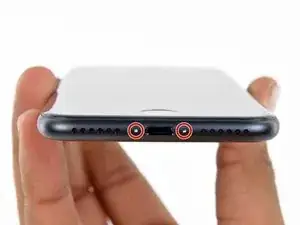
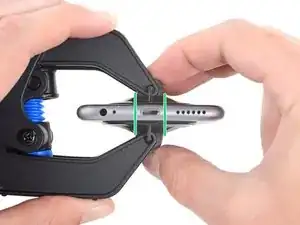
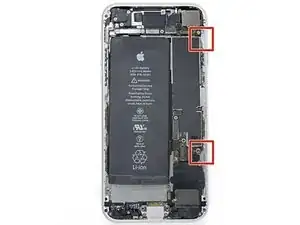
Entferne die zwei 3,4 mm Pentalobe Schrauben an der Unterkante des iPhones.
-
-
-
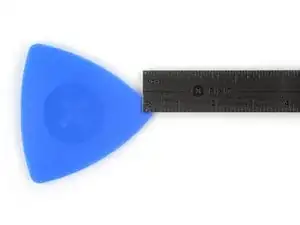
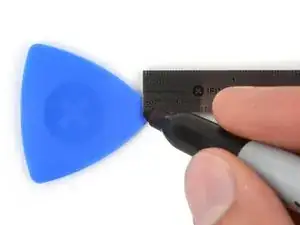
Zeichne mit einem Permanentmarker 3 mm von der Spitze des Plektrums entfernt einen Strich.
-
-
-
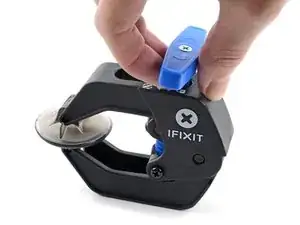
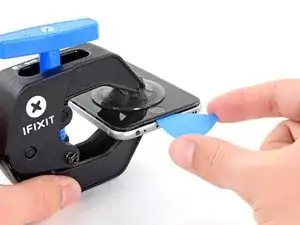
Wir haben die Anti-Clamp entwickelt, um Geräte sicher zu öffnen. Die nächsten drei Schritte zeigen die Benutzung der Anti-Clamp. Wenn du sie nicht verwenden willst, überspringe die nächsten drei Schritte und folge einer anderen Methode.
-
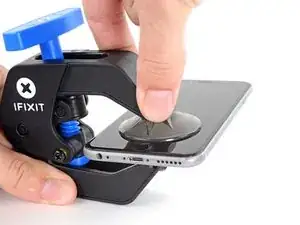
Drücke den blauen Griff zurück, damit die Arme der Anti-Clamp frei beweglich werden.
-
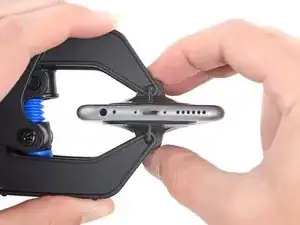
Schiebe die Arme entweder über die linke oder die rechte Kante des iPhones.
-
Bringe die Saugheber am unteren Rand des iPhones direkt über dem Home Button an, einen auf der Vorderseite, den anderen auf der Rückseite.
-
Drücke die Saugheber zusammen, so dass sie auf den Oberflächen haften.
-
-
-
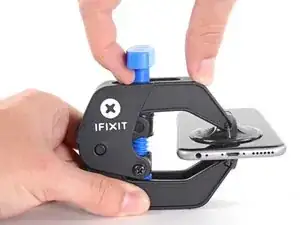
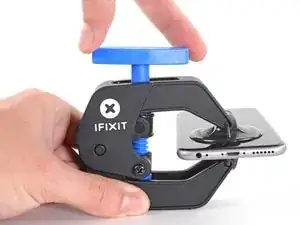
Drücke den blauen Griff vorwärts, damit die Arme wieder fest sind.
-
Drehe den Griff eine volle Umdrehung im Uhrzeigersinn, oder bis du merkst, dass sich die Saugheber dehnen.
-
-
-
Führe einen erwärmten iOpener durch die Arme der Anti-Clamp.
-
Forme den iOpener so, dass er auf der Unterkante des iPhones liegt.
-
Warte eine Minute, damit sich der Kleber lösen und ein Spalt entstehen kann.
-
Wenn die Anti Clamp einen ausreichend großen Spalt erzeugt hat, setze ein Plektrum unter das Display ein.
-
Überspringe die nächsten drei Schritte.
-
-
-
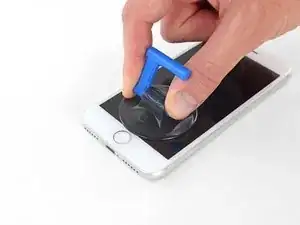
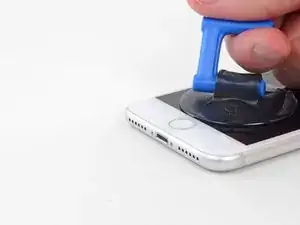
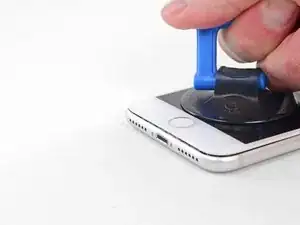
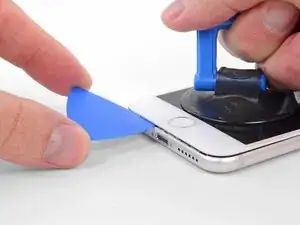
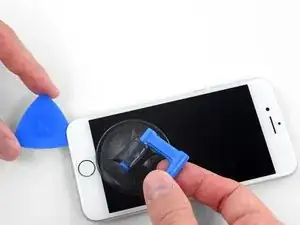
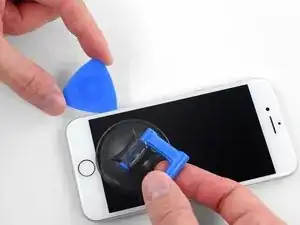
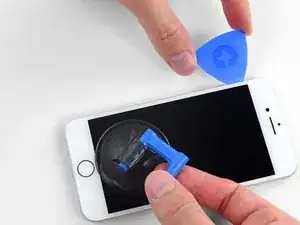
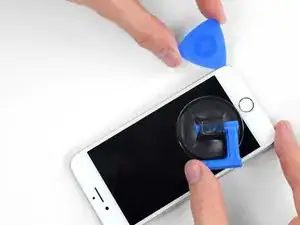
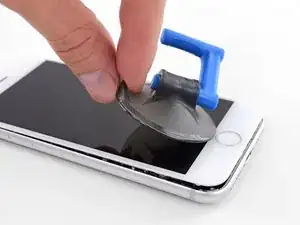
Ziehe gleichmäßig und fest am Saugnapf. Es sollte sich ein kleiner Spalt zwischen Display und Rahmen bilden.
-
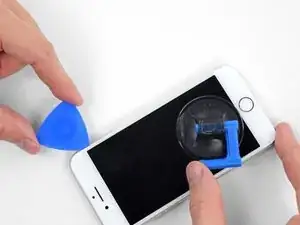
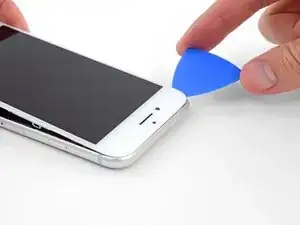
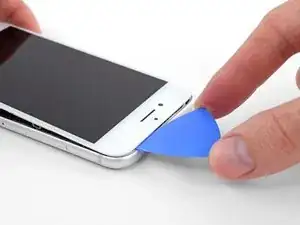
Setze ein Plektrum in den Spalt ein.
-
-
-
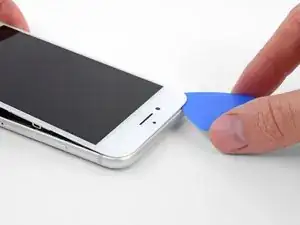
Schiebe das Plektrum entlang der linken Kante von der unteren Ecke an nach oben in Richtung der Tasten für die Lautstärkeregelung und des Stummschalters. Trenne so die Klebeverbindung des Displays auf.
-
Halte vor der oberen linken Ecke an.
-
-
-
Setze das Plektrum an der rechten unteren Ecke ein. Schiebe es um die Ecke herum, dann entlang der rechten Kante nach oben. Trenne dadurch die Verklebung.
-
-
-
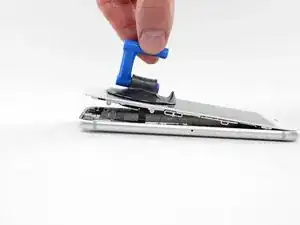
Hebe vorsichtig den Saugnapf an und mit ihm den unteren Teil des Displays.
-
Ziehe an der kleinen Lasche am Saugnapf, um ihn vom Front Panel zu lösen.
-
-
-
Schiebe das Plektrum unter das Display um die obere linke Ecke und die Oberkante entlang, um die letzte Klebeverbindung zu trennen.
-
-
-
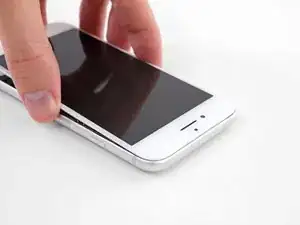
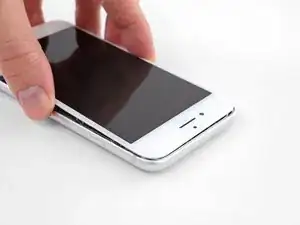
Schiebe die Displayeinheit leicht nach unten, weg von der Oberkante, um die Clips zu lösen, mit denen sie am Rückgehäuse gehalten wird.
-
-
-
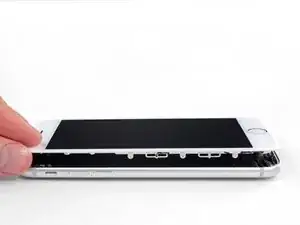
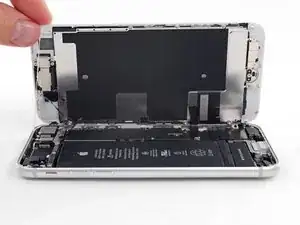
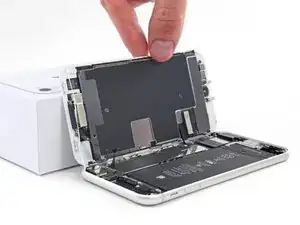
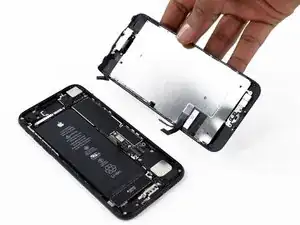
Öffne das iPhone, indem du das Display von der linken Seite her umklappst, so wie wenn du ein Buch öffnest.
-
Lehne das Display an einen geeigneten Gegenstand, um es gut zu stützen, während du weiter am iPhone arbeitest.
-
-
-
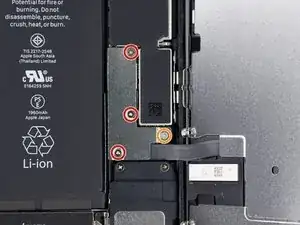
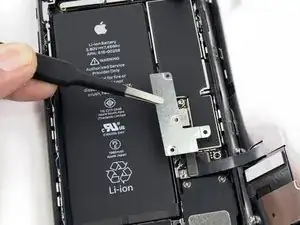
Entferne die vier Tri-Point Y000-Schrauben, die die Abdeckung der unteren Anschlüsse befestigen, sie haben folgende Längen:
-
Drei 1,2 mm Schrauben
-
Eine 2,4 mm Schraube
-
Passe während der ganzen Reparatur gut auf die Schrauben auf und sorge dafür, dass sie genau an ihren alten Platz zurück kommen, sonst kann das iPhone beschädigt werden.
-
-
-
Mit der Spitze eines Spudgers kannst du den Stecker der Batterie vom Anschluss auf dem Logic Board heben.
-
-
-
Nutze das Flache Ende deines Spudgers oder deinen Fingernagel, um die Anschlüsse des Flachbandkabels am unteren Ende des Displays zu lösen.
-
-
-
Entferne die beiden 1,3 mm Kreuzschlitzschrauben #000, mit denen die Abdeckung über dem Stecker der Frontsensoreinheit befestigt ist.
-
-
-
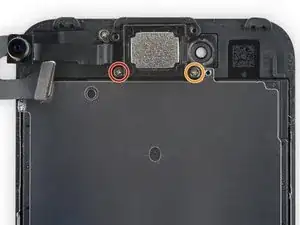
Löse die drei Kreuzschlitz Schrauben, welche die Abdeckung des Ohrhörer-Lautsprechers mit dem Display verbinden
-
Zwei 2,6 mm Schrauben
-
Eine 1,7 mm Schraube
-
-
-
Entferne die beiden Kreuzschlitzschrauben, welche den Ohrhörer-Lautsprecher am Display befestigen:
-
Eine 1,9 mm Schraube
-
Eine 2,5 mm Schraube
-
-
-
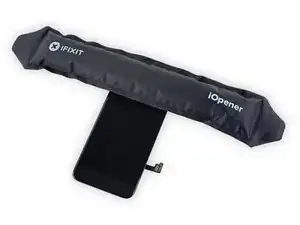
Erhitze erneut deinen iOpener und lege ihn auf den oberen Rand der Display Einheit, um den Kleber zu lösen, welcher die Frontkamera und die Sensoreinheit fixiert.
-
-
-
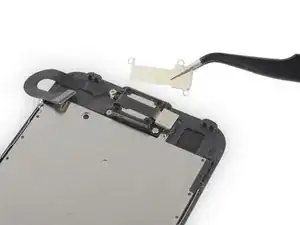
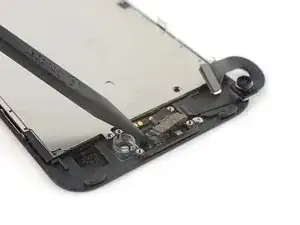
Verwende einen Spudger, um den Umgebungslichtsensor vorsichtig aus seiner Vertiefung auf dem Front Panel herauszuhebeln.
-
-
-
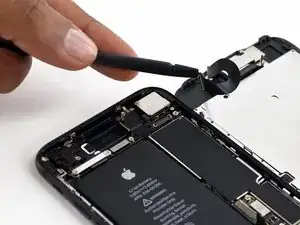
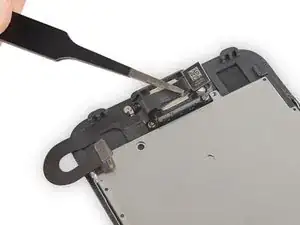
Schiebe nun das Plektron Richtung Kameragehäuse und trenne so den Kleber, der das Kabel am Front Panel festhält. Stoppe kurz vor dem Gewinde.
-
-
-
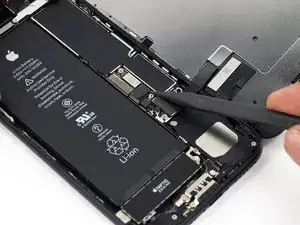
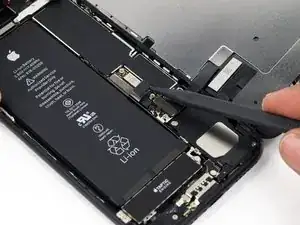
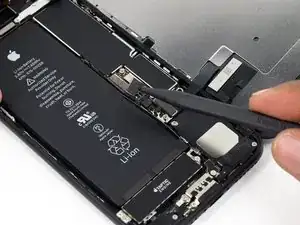
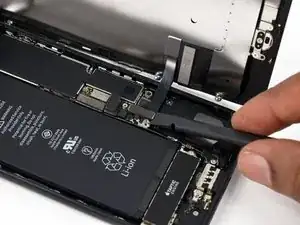
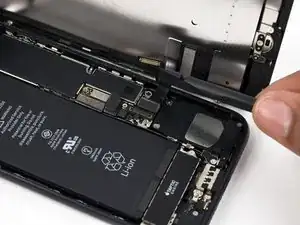
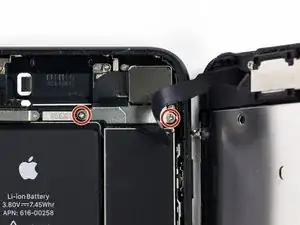
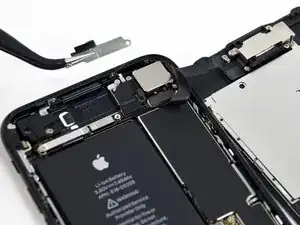
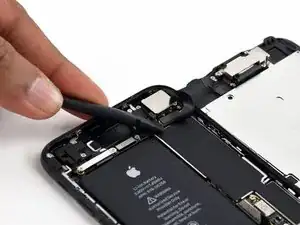
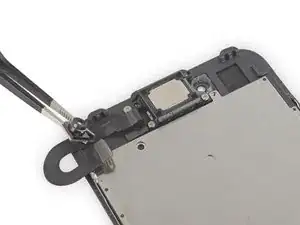
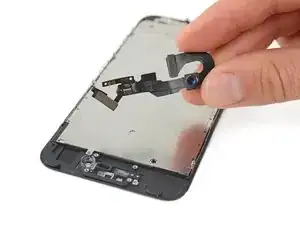
Nutze nun das Plektron, um das Kamerakabel von den beiden Kunststoffnippeln auf dem Front Panel zu lösen und es von den letzten Kleberesten zu befreien.
-











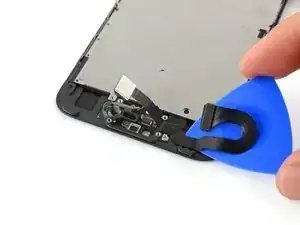
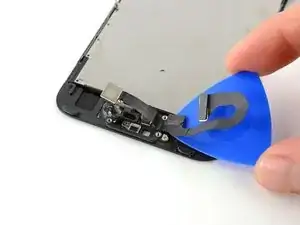

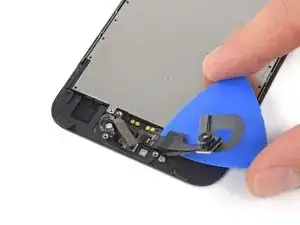
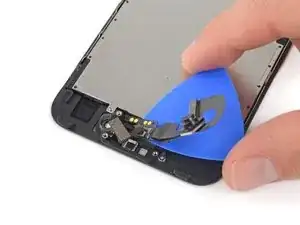
Um dein Gerät wieder zusammenzubauen, folge dieser Anleitung in umgekehrter Reihenfolge.

20 Kommentare
Question ..... I have a clear square plastic piece (open in the center) with a tab on one side. What is that for?
Holds the lens in place.
No that is for the ambient light sensor. LCD replacements come with it already installed on em’, so you can toss it if you see it on the replacement already. The larger, circular plastic piece is for the lens.
Does the iPhone 7 plus Front Camera and Sensor Cable Replacement has to do anything with the earpieces speaker? i have replace my iphone 7 plus screen and front camera and sensor cable replacement and speaker and it still doesn’t work. what could really be wrong with my iphone 7 plus?
Awesome tutorial, thank you! I couldn’t have replaced my camera without this! Well I could have but not the right way!!
Can anyone confirm 7/7P's pentalobe screws have a ring of seal near the screw head?
Cooper Chase -
Confirmed, the screws have a black ring seal around the head.
rcheing -
Can’t get the display front
Bernadette Pfeifer -
From personal experience, I highly recommend before doing this procedure or any other, that you do a backup of your phone (preferably local) in case your procedure goes south.
ballina5ny -
I purchased the repair tools with the replacement battery from iFixit. The tools include a screw driver and three heads none were labeled 3.4 mm. I think the one that fit the pentalobe screws was labeled Y000. The guide should identify the screw driver head supplied by the kit not 3.4mm.
Mark Lieberman -
in the iphone 7 replacement battery kit from iFixit, the screwdriver that fits the 3.4 mm pentalobe screws is labeled P2 (and not Y000)
Jan-Tijn Oppermann -
3.4 mm is the height of the screw and is not related to the screw driver code.
Ahmad Vaziri -
the screwdriver PH000 does not work i wasted two screws and now they dont have the 4 cross mark they are now a circle, i buyed it all from Paraguay and it doesnt work, had to assembly back the parts because i got stuck like i mention with some screws, well im just going to send to a professional to install, thanks
Martin Frutos, Nuñez -
The bottom screws are Pentalobe, not Phillips.
Bram Driesen -
Before starting, I would recommend backing up your Iphone’s data just in case.
Jon Moylan -
If you managed to make it to this section, just send the phone into apple for 50 + 6 dollars shipping. The ribbon cables on the screen are designed to break. I can literally twist on the rest of the cable and it won’t fall apart but there is a diagonal section where it snaps. This is the fault of apple and the fault of ifixit for misrepresenting the fragility of the cables.
Ryan Huebert -
Had to reheat it a few times for a minute each with a hairdryer to get the seal to break after pulling and rocking the suction
Cynthia Lamb -
I’m technically challenged. Is there a premier national service who can professionally install a replacement battery got my 7 +?
Richard -
Do the screws come out in total?
YVES THEUGELS -
They may come out or may not. If you loosen as much as you can and they don't come out you should still be able to pry open the bottom. Once you get the screen off you can then push the screws out from the inside.
Anthony Falabella -
Is it the P2 you should use for the bottom??
YVES THEUGELS -
I heated the bottom of the phone with a hairdryer and then used a syringe to put a couple of drops of acetone directly into the bottom two screw holes. I GENTLY pulled on the screen with the suction cup and used the pry tool to GENTLY separate the screen. The sealant is applied around the entire display so be very careful pulling it off so you don’t break the fragile display cables.
Anthony Scaminaci -
At first it was very difficult to open, per instructions. I used a heat/ice pack and nuked it for 1 minute. The pry tool wasn’t working so I carefully used my pocket knife to wedge the cover open. The rest of the procedure went well until I cracked the glass while trying to get the top right corner to pop off. Other than that mistake, all went well. Tip: before setting the new battery, attach the battery connector first and leave enough room for the taptic engine, or better yet, place the taptic engine before adhering the replacement battery. This way you’ll have a small gap between the two, whereas mine barely fit. Good job on hosting the video, Gwendyl.
Klaus Preiss -
I love the fact that the screw bit and shaft are magnetic! I almost lost a screw and found it attached to the magnet.
I used a heat/ice pack and nuked it for 1 minute. At first the display cover was very difficult to open with the pry tool, per instructions. The pry tool wasn’t working so I carefully used the blade of my pocket knife to wedge the cover open. The rest of the procedure went well until I cracked the glass while trying to get the top right corner to pop off. Other than that mistake, all went well. Tip: before setting the new battery, attach the battery connector first and leave enough room for the taptic engine, or better yet, see the taptic engine in place before adhering the replacement battery. This way you’ll have a small gap between the two, whereas mine barely fit because I placed it almost too low.
Good job on hosting the video, Gwendyl.
Klaus Preiss -
I replaced the lightning connector assembly and reassembled. The old one did not 'click' into the cable and had corrosion inside, it needed the cable to be placed in a specific way to charge. The new part - does not recognize that a charger is plugged in at all.
I backtracked the assembly - took it apart, put it back again - and find that every thing on the part works - the mic, speakers, taptic engine.
The original problem with the cable still persists. Any ideas?
H K -
get a new batt to replace whilst you 're at it
Graham Sargerson -