Einleitung

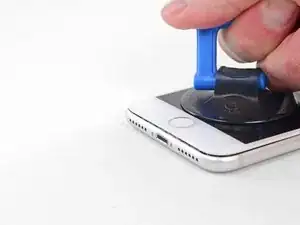
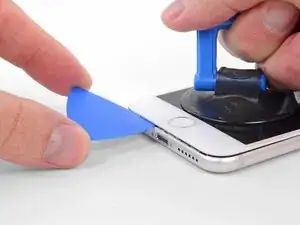
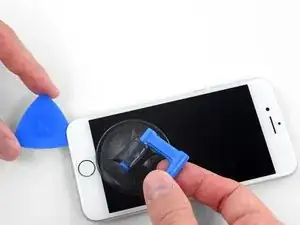
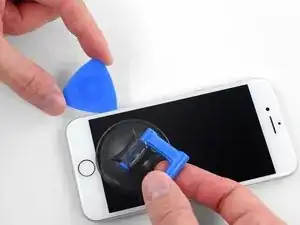
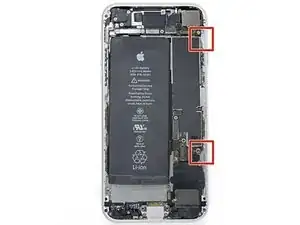
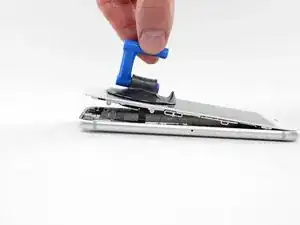
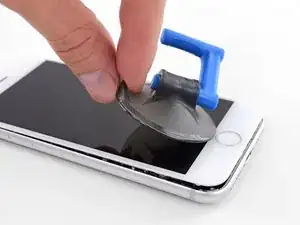
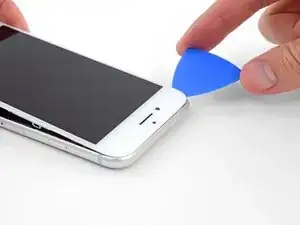
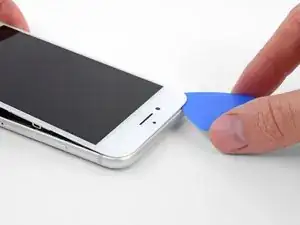
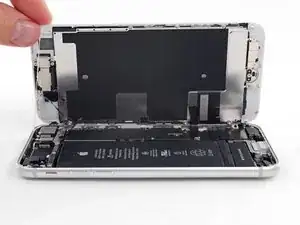
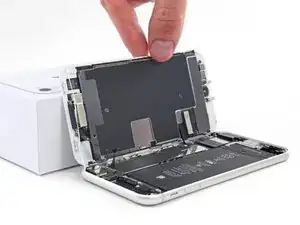
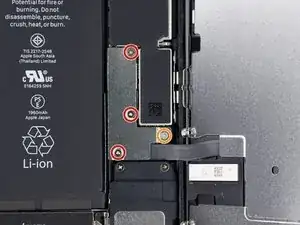
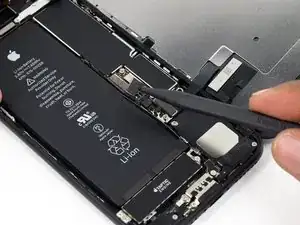
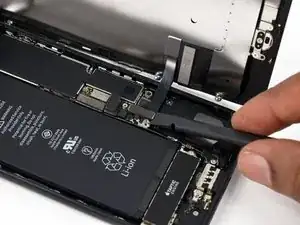
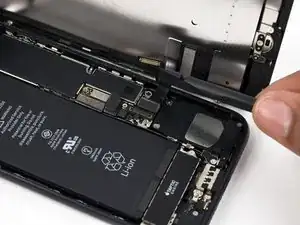
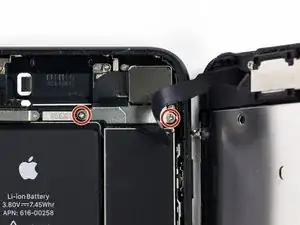
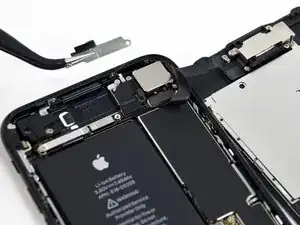
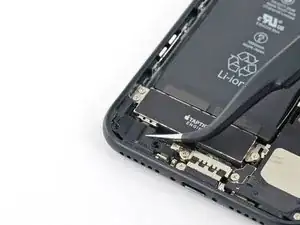
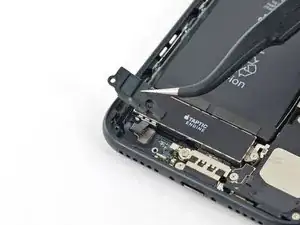
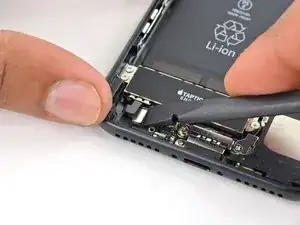
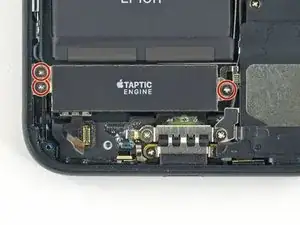
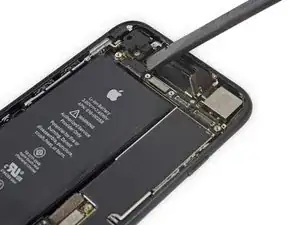
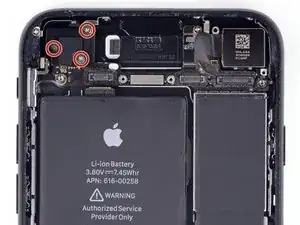
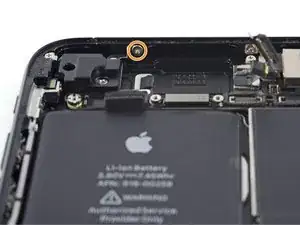
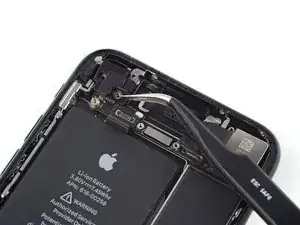
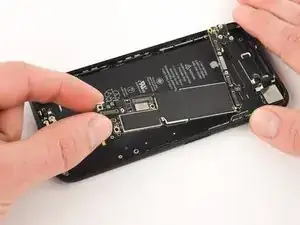
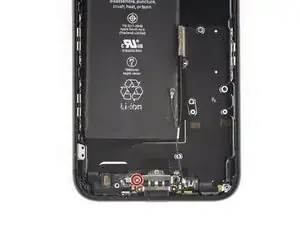
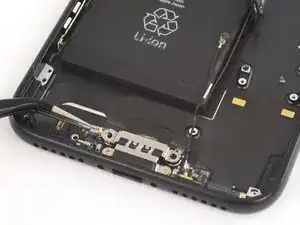
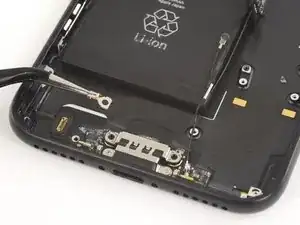
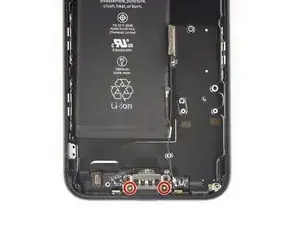
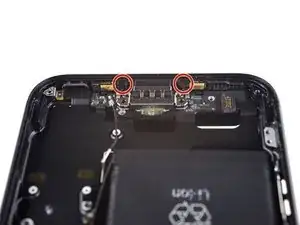
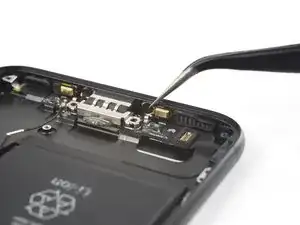
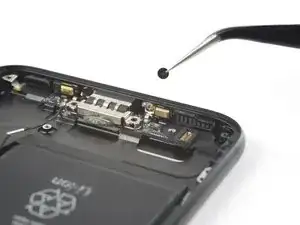
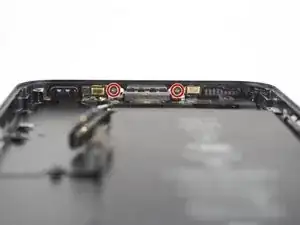
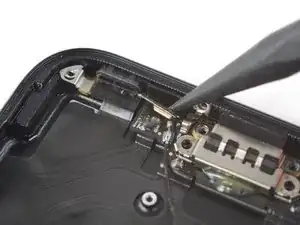
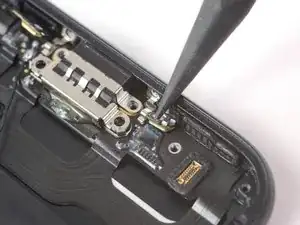
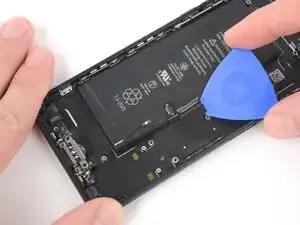
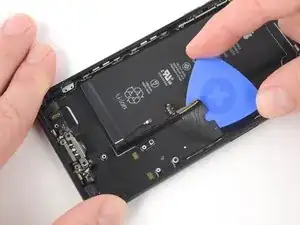
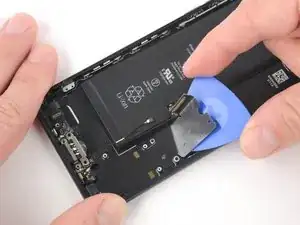
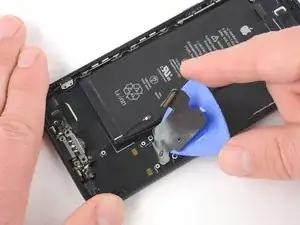
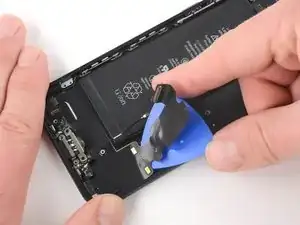
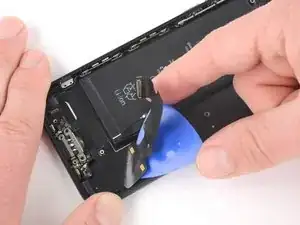
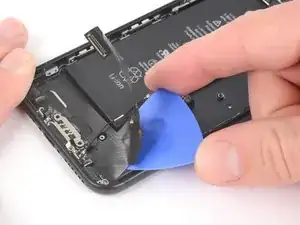
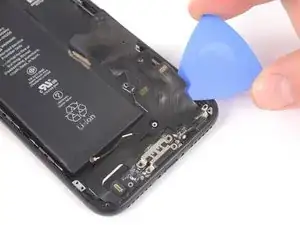
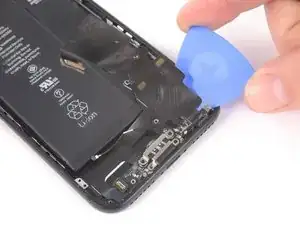
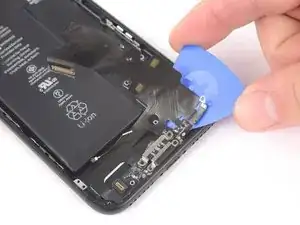
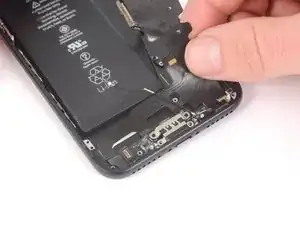
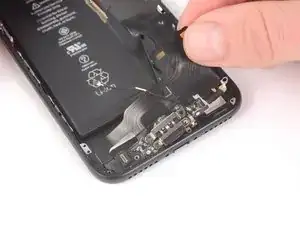
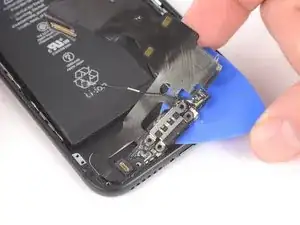
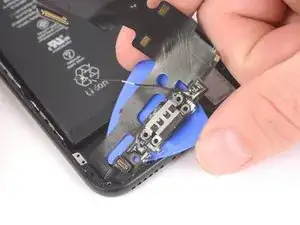
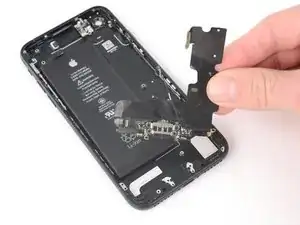
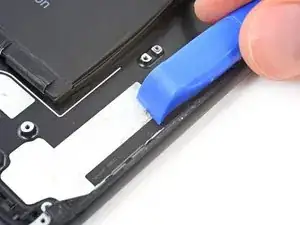
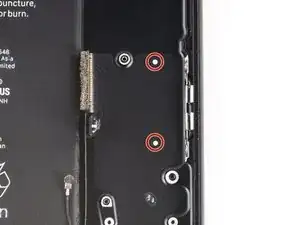
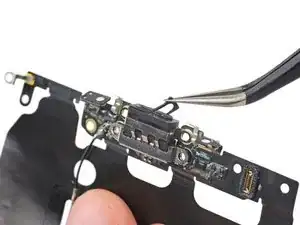
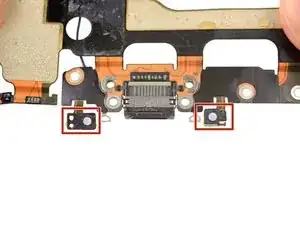
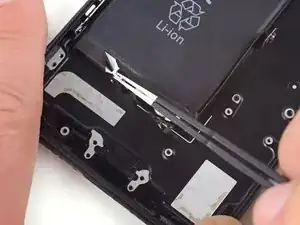
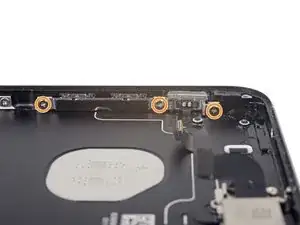
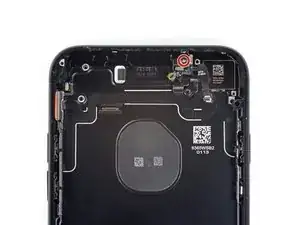
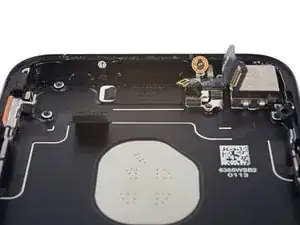
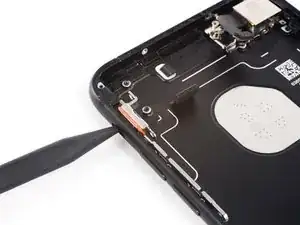
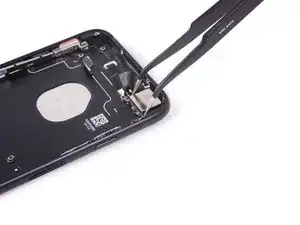
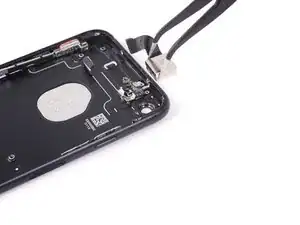
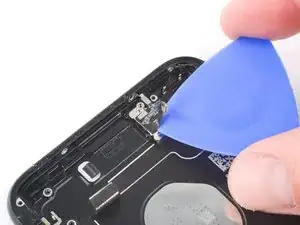
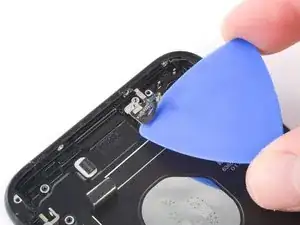
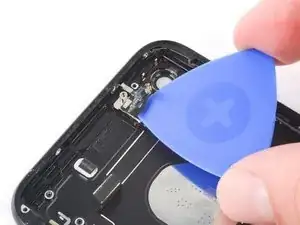
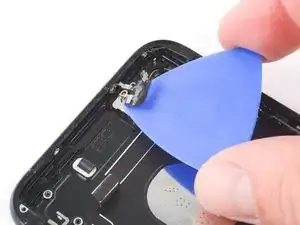
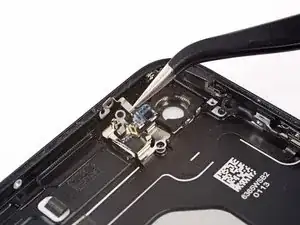
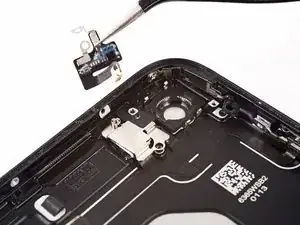
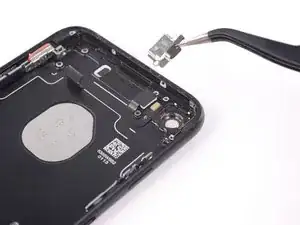
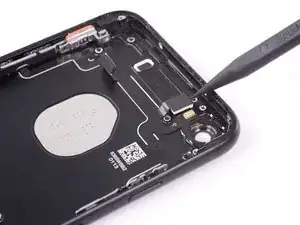
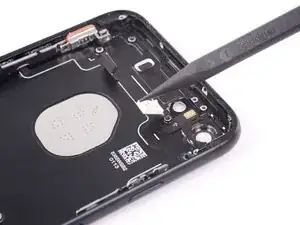
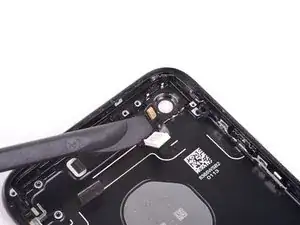
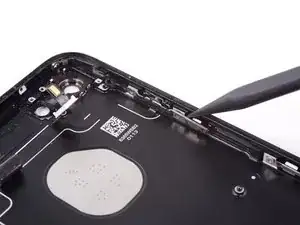
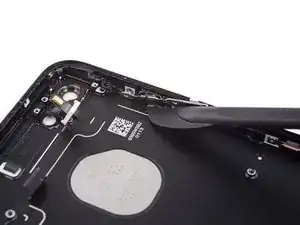
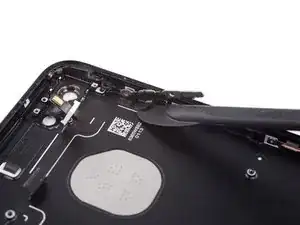
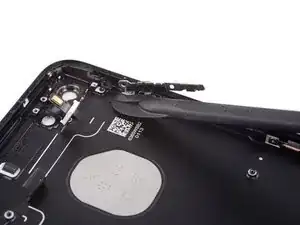
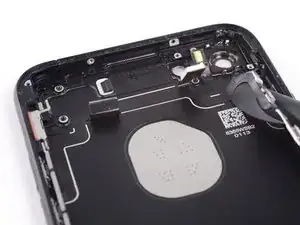
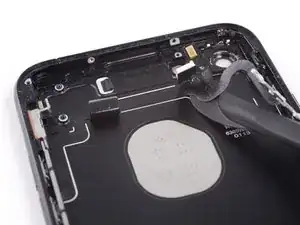
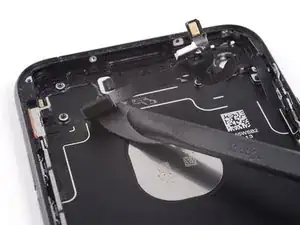
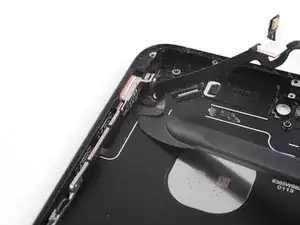
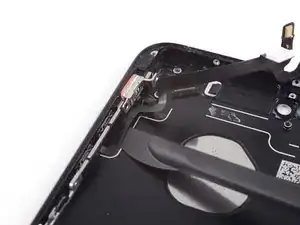
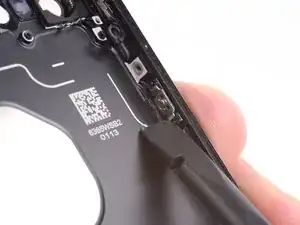
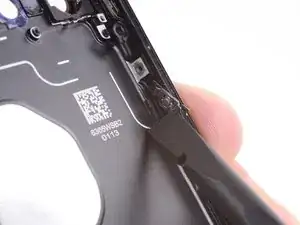
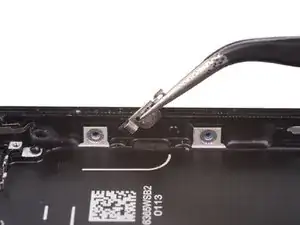
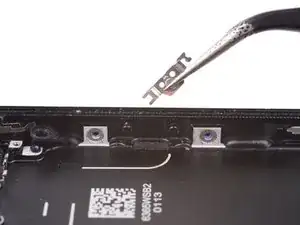
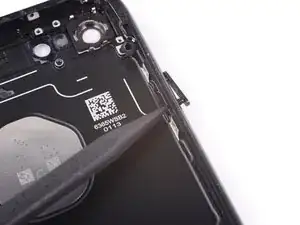
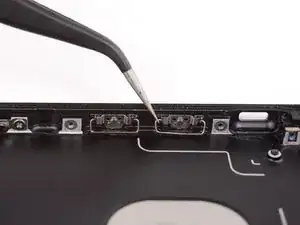
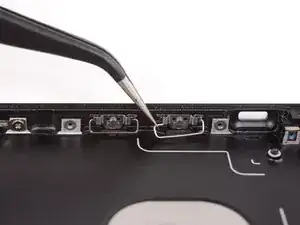
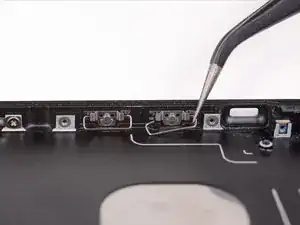
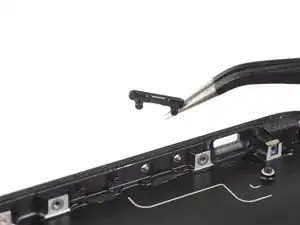
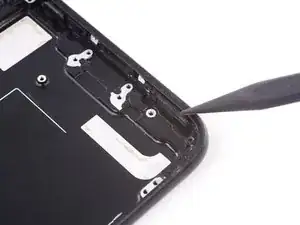
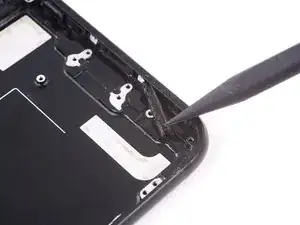
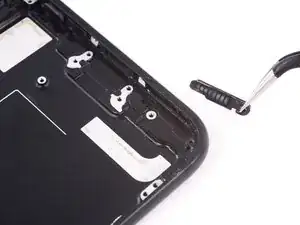
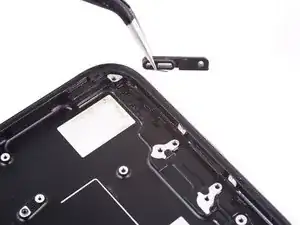
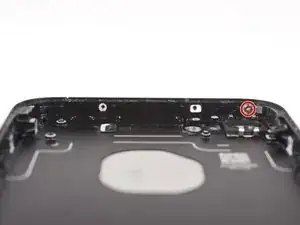
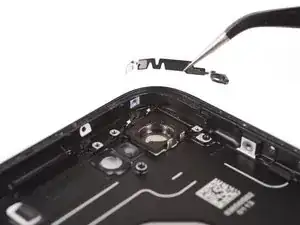
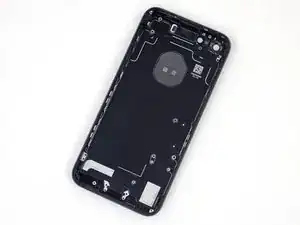
Benutze diese Anleitung, um alle Bauteile vom Rückgehäuse deines iPhone 7 zu entfernen. Diese Anleitung zeigt, wie du die Lautsprecheröffnungen, Tastenkabel und die Tastenabdeckungen selbst entfernen kannst, um so ein verbeultes oder verbogenes Gehäuse zu ersetzen.

  1. ELMlFSUOebPWtXjT
    • Vor dem Beginn sollte der Akkuladestand des iPhones unter 25 % liegen. Ein geladener Lithium-Ionen Akku kann bei Beschädigung Feuer fangen oder explodieren.

    • Schalte das iPhone aus, bevor du es zerlegst.

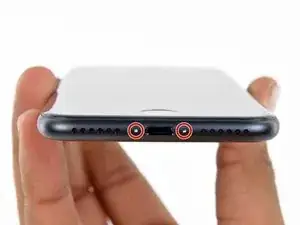
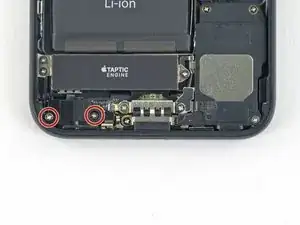
    • Entferne die zwei 3,4 mm Pentalobe Schrauben an der Unterkante des iPhones.

    • Beim Öffnen des Gerätes werden die Dichtungen für den Spritzwasserschutz beschädigt. Halte Ersatzdichtungen bereit, bevor du fortfährst. Wenn du diese nicht ersetzt, ist dein Gerät nach der Reparatur nicht mehr gegen Spritzwasser geschützt.

    Can anyone confirm 7/7P's pentalobe screws have a ring of seal near the screw head?

    Cooper Chase -

    Confirmed, the screws have a black ring seal around the head.

    rcheing -

    Can’t get the display front

    Bernadette Pfeifer -

    From personal experience, I highly recommend before doing this procedure or any other, that you do a backup of your phone (preferably local) in case your procedure goes south.

    ballina5ny -

    I purchased the repair tools with the replacement battery from iFixit. The tools include a screw driver and three heads none were labeled 3.4 mm. I think the one that fit the pentalobe screws was labeled Y000. The guide should identify the screw driver head supplied by the kit not 3.4mm.

    Mark Lieberman -

    in the iphone 7 replacement battery kit from iFixit, the screwdriver that fits the 3.4 mm pentalobe screws is labeled P2 (and not Y000)

    Jan-Tijn Oppermann -

    3.4 mm is the height of the screw and is not related to the screw driver code.

    Ahmad Vaziri -

    the screwdriver PH000 does not work i wasted two screws and now they dont have the 4 cross mark they are now a circle, i buyed it all from Paraguay and it doesnt work, had to assembly back the parts because i got stuck like i mention with some screws, well im just going to send to a professional to install, thanks

    Martin Frutos, Nuñez -

    The bottom screws are Pentalobe, not Phillips.

    Bram Driesen -

    Before starting, I would recommend backing up your Iphone’s data just in case.

    Jon Moylan -

    If you managed to make it to this section, just send the phone into apple for 50 + 6 dollars shipping. The ribbon cables on the screen are designed to break. I can literally twist on the rest of the cable and it won’t fall apart but there is a diagonal section where it snaps. This is the fault of apple and the fault of ifixit for misrepresenting the fragility of the cables.

    Ryan Huebert -

    Had to reheat it a few times for a minute each with a hairdryer to get the seal to break after pulling and rocking the suction

    Cynthia Lamb -

    I’m technically challenged. Is there a premier national service who can professionally install a replacement battery got my 7 +?

    Richard -

    Do the screws come out in total?

    YVES THEUGELS -

    They may come out or may not. If you loosen as much as you can and they don't come out you should still be able to pry open the bottom. Once you get the screen off you can then push the screws out from the inside.

    Anthony Falabella -

    Is it the P2 you should use for the bottom??

    YVES THEUGELS -

    I heated the bottom of the phone with a hairdryer and then used a syringe to put a couple of drops of acetone directly into the bottom two screw holes. I GENTLY pulled on the screen with the suction cup and used the pry tool to GENTLY separate the screen. The sealant is applied around the entire display so be very careful pulling it off so you don’t break the fragile display cables.

    Anthony Scaminaci -

    At first it was very difficult to open, per instructions. I used a heat/ice pack and nuked it for 1 minute. The pry tool wasn’t working so I carefully used my pocket knife to wedge the cover open. The rest of the procedure went well until I cracked the glass while trying to get the top right corner to pop off. Other than that mistake, all went well. Tip: before setting the new battery, attach the battery connector first and leave enough room for the taptic engine, or better yet, place the taptic engine before adhering the replacement battery. This way you’ll have a small gap between the two, whereas mine barely fit. Good job on hosting the video, Gwendyl.

    Klaus Preiss -

    I love the fact that the screw bit and shaft are magnetic! I almost lost a screw and found it attached to the magnet.

    I used a heat/ice pack and nuked it for 1 minute. At first the display cover was very difficult to open with the pry tool, per instructions. The pry tool wasn’t working so I carefully used the blade of my pocket knife to wedge the cover open. The rest of the procedure went well until I cracked the glass while trying to get the top right corner to pop off. Other than that mistake, all went well. Tip: before setting the new battery, attach the battery connector first and leave enough room for the taptic engine, or better yet, see the taptic engine in place before adhering the replacement battery. This way you’ll have a small gap between the two, whereas mine barely fit because I placed it almost too low.

    Good job on hosting the video, Gwendyl.

    Klaus Preiss -

    I replaced the lightning connector assembly and reassembled. The old one did not 'click' into the cable and had corrosion inside, it needed the cable to be placed in a specific way to charge. The new part - does not recognize that a charger is plugged in at all.

    I backtracked the assembly - took it apart, put it back again - and find that every thing on the part works - the mic, speakers, taptic engine.

    The original problem with the cable still persists. Any ideas?

    H K -

    get a new batt to replace whilst you 're at it

    Graham Sargerson -

  2. 6UPwoloGBO4tmVoS
    6UPwoloGBO4tmVoS
    BmSYPJmOy6dbHipF
    3EOdQPAGOmiuhoKU
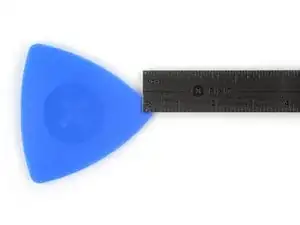
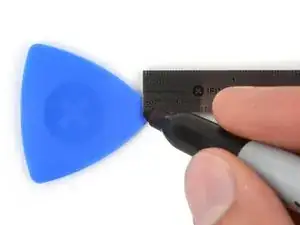
    • Wenn du ein Plektrum zu tief einschiebst, kann das Gerät beschädigt werden. Dieser Schritt zeigt, wie du eine Marke am Plektrum anbringen kannst, damit das nicht passiert.

    • Zeichne mit einem Permanentmarker 3 mm von der Spitze des Plektrums entfernt einen Strich.

    • Du kannst die anderen Ecken ebenfalls mit Strichen in verschiedenen Abständen markieren.

    • Du kannst auch eine Münze so mit einem Klebeband auf das Plektrum kleben, dass sie einen Abstand von 3 mm zur Spitze hat.

    Got to step 2 and realized the fix kit doesn't include an opening pick! Looks like a guitar pick, and I have those lying around. Is that expected? Looks like the pick is used in many steps below. There's a little blue crowbar that isn't mentioned in the instructions. Perhaps that replaces the opening pick?

    Sloan Looney -

    Hi! I can't see which guide you were using when writing this comment. Can you reply here with which guide and fix kit you used?

    Clay Eickemeyer -

    I see you posted this in Meta. I hope it's resolved soon! In the meantime, a guitar pick may work well enough for your repair.

    Clay Eickemeyer -

    what fix kit?

    Meow Purr -

    My fix kit didn't include an opening pick either

    WILLIAM HARRIS -

    Make sure you check inside the black boxes after emptying them. My pick was stuck inside one of the boxes.

    AndyF -

    My AliExpress refurbished screen came with a pick that has a coin-like circle that pops out, so no modification was necessary

    Gijs Leegwater -

    the picture shows 3 cm but the description says 3 mm's. Which one is it?

    John Pena -

    That is a misunderstanding. It is a ruler with a scale for cm, it shows 0.3 cm, i.e. 3 mm.

    VauWeh -

    Oh, come ON!

    Big Ed -

    It will ALWAYS be millimeters on a phone, but this step is ridiculous, skip it!

    Leif DeWolf -

    @leifdewolf I wouldn't skip it for a first repair.

    Gabriel-Science -

    It's not an Ifixit KIT if it doesn't include everything. You'll need to order the opening pic separately. Or head to Walmart like myself and look for guitar pics. Hopefully, this will work just as well.

    Jaleeljb97@icloud.com -

    No pick in mine as well. It’s really not clear that you have to order this separately when ordering an IPhone SE 202/2022 screen repair kit. Is this the case?

    Jackson Castiglione -

    Frustrated, I ordered a compact package where everything was encapsulated. Useless suction tools could not separate the screen. If it is unable to decouple the screen, then why sucking suction tools you have provided.

    Shourob Datta -

    For my kit the triangle pick was stuck inside the box with the screen not with the other tools maybe it's also there for you

    Henry Scheibehenne -

    Y’all are getting far, FAR too detailed with some of this stuff…. Measuring and marking the pick that you won’t actually use to open the device?!? lol that’s kinda funny. Just heat it up, grab a spudger, and the back just pops right off! The iFixit tech need to stick to the KISS method more often, you know KEEP IT SIMPLE STUPID!!! Like l, for reals, I’ve been doing this stuff for YEARS and using iFixit guides regularly and this is just ridiculous at this point!

    Leif DeWolf -

    Will the phone still work if the sensor assembly on the back of the screen is damaged?

    Mutshidzi Rambau -

    I don't have a pick, but how much better are these picks than an old credit card for opening an iPhone 13 mini?

    mike eng -

    The pick in my iFixIt kit was packed with the battery, not with the rest of the toolkit.

    Tony Houlihan -

  3. uSKuDUqkPXShJGIe
    uSKuDUqkPXShJGIe
    VcewaYwFWPodicdm
    UuEMr1v4SuV4fLE3
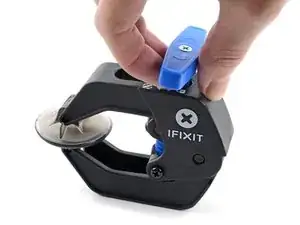
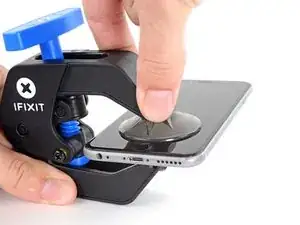
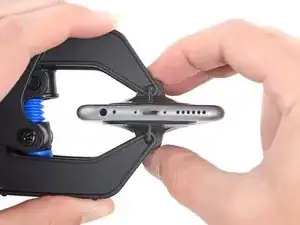
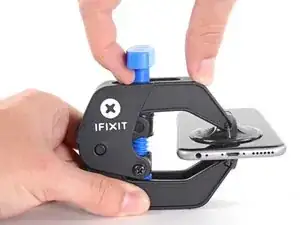
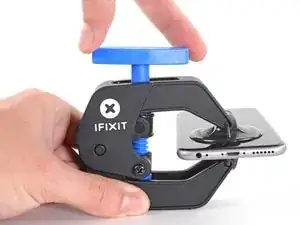
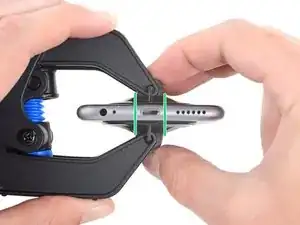
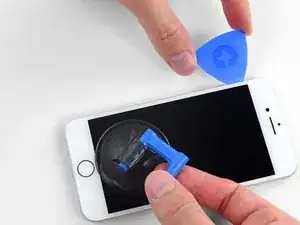
    • Wir haben die Anti-Clamp entwickelt, um Geräte sicher zu öffnen. Die nächsten drei Schritte zeigen die Benutzung der Anti-Clamp. Wenn du sie nicht verwenden willst, überspringe die nächsten drei Schritte und folge einer anderen Methode.

    • Genaue Anweisungen, wie die Anti-Clamp benutzt wird, findest du hier.

    • Drücke den blauen Griff zurück, damit die Arme der Anti-Clamp frei beweglich werden.

    • Schiebe die Arme entweder über die linke oder die rechte Kante des iPhones.

    • Bringe die Saugheber am unteren Rand des iPhones direkt über dem Home Button an, einen auf der Vorderseite, den anderen auf der Rückseite.

    • Drücke die Saugheber zusammen, so dass sie auf den Oberflächen haften.

    • Wenn die Saugheber nicht gut auf den Oberflächen des iPhones haften, dann kannst du die beiliegenden Stücke aus Klebeband verwenden, um eine griffigere Oberfläche zu schaffen.

  4. TWCRek6KAd4BXPEo
    TWCRek6KAd4BXPEo
    5bA1wXPF4DYK1xqZ
    WBMxwmobsDvHpXqL
    • Drücke den blauen Griff vorwärts, damit die Arme wieder fest sind.

    • Drehe den Griff eine volle Umdrehung im Uhrzeigersinn, oder bis du merkst, dass sich die Saugheber dehnen.

    • Achte darauf, dass sich die Saugheber weiterhin gegenüber stehen. Wenn sie sich nicht mehr gegenüber stehen, dann löse die Saugheber ein wenig ab und schiebe sie in die richtige Position.

  5. 1UMWDAgvEgkQkwPM
    1UMWDAgvEgkQkwPM
    5SG2UIItrZgdZEa4
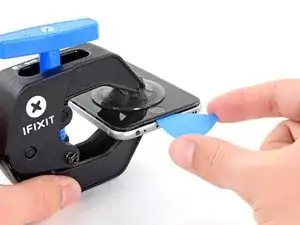
    • Führe einen erwärmten iOpener durch die Arme der Anti-Clamp.

    • Forme den iOpener so, dass er auf der Unterkante des iPhones liegt.

    • Warte eine Minute, damit sich der Kleber lösen und ein Spalt entstehen kann.

    • Wenn die Anti Clamp einen ausreichend großen Spalt erzeugt hat, setze ein Plektrum unter das Display ein.

    • Wenn es nicht gelingt, mit der Anti-Clamp einen ausreichend großen Spalt zu erzeugen, dann erwärme die Stelle nochmals und drehe den Griff eine viertel Umdrehung im Uhrzeigersinn weiter.

    • Drehe den Griff jeweils nicht mehr als eine viertel Umdrehung weiter und warte jedes Mal eine Minute lang. Gib der Anti-Clamp Zeit, ihre Arbeit zu erledigen.

    • Überspringe die nächsten drei Schritte.

    it looks like a....

    Gergely Soki -

  6. HWFBtehBMjCQcFAc
    • Die nächsten drei Schritte zeigen, wie das Display mit einem Saugheber abgelöst werden kann.

    • Es ist leichter das iPhone zu öffnen, wenn du das untere Ende erwärmst, so werden die Verklebungen aufgeweicht.

    • Du kannst das untere Ende des iPhones mit einem Haartrockner oder einem iOpener etwa 90 Sekunden lang erwärmen, dann sollte der Kleber weich genug sein.

    No hair dryer so GENTLY heated over stove burner

    John Toth -

    Hello,

    What temperature is suitable for removing the front display ? I bought i-Fixit ProTech which is not include the heating "roller" . Thanks for help

    Jiří Sítko -

    I was about to ask the same Question...

    Enno Winch -

    Ich habe eine heiße Wärmflasche verwendet. Das hat gut funktioniert :-)

    Moritz Hartges -

    I laid my phone face-down on my 3D printer’s heated bed, and set the temperature to 60 C. After a few minutes, it was ready to loosen.

    Nate B -

    Hey, that's smart !

    Gabriel-Science -

    If you don’t have an “iOpener” or heat gun, try using an electric heating pad. I have a small $11 pad I got at CVS for my knee. On medium heat it worked fine for removal and with the “pennies” for setting the new seal.

    Pete P -

    I used a heated tea kettle and a tea towel, it worked!

    Adam Yavner -

    I put on the furnace vent for 10 minutes to get it warm to the touch but not hot.

    terrelldoc -

    I attached it to the after burner of my rocket ship and that worked.

    Matt Brown -

    I'm holding mine just above an erupting volcano but I'm still waiting to see if it has worked. How long does it need?

    Paul Aron -

    It won't work if you don't throw it in the lava.

    Gabriel-Science -

    I used a water-filled ziploc bag, heated it in microwave. fast, cheap, worked.

    John Barker -

    Hairdryer works fine for this step. No issues.

    tripmusic -

    Agree! Just did it for 2 times to make sure I didn't overheat the phone.

    André Lopes -

    The most effective way to heat up the glue is to leave the phone in full sun - if it's available. In fact I would always wait for a sunny day to repair any glued together Apple device. The heat will be very even and the phone was probably designed to survive anything the sun can throw at it - although it can get very warm. (I'm in the UK) If you leave the phone turned on it will give a warning if it goes near the temperature limit.

    John -

    I'm sorry but I tried both the hair dryer (for 3 minutes!) and the eye opener (also 3 minutes) and no luck. Not even a hint of loosening the adhesive holding down the display!! Do I send this kit back for a refund or what??!!

    John Noble -

    No luck, guys. 3 minutes of hair drying and 3 minutes heating up the iopener. What next?

    John Noble -

    Okay, a half hour later i finally got the screen loose, but not after super heating it for at leat 10 minutes with a hair drying and burning my hand trying to pry it open. Also, watch out for the power button because it inadvertently keeps switching the phone back on while you wrestle with it. More later . . .

    John Noble -

    . . . and now I need to buy a new phone!!! the cable broke as I was trying to unscrew one of the top screws, so thanks! I FIXed IT but Good!!!!

    John Noble -

    Nate B's advice was key. I couldn't get the temperature of the display hot enough to break the seal with a hair dryer. A heat gun set to low speed and 550F (287C) got the display up to just over 130F, close to the 60C Nate mentioned.

    Matt C -

    This part was actually much easier than I thought. I used a hair dryer on max for 2 minutes on each side of the phone, less than half an inch away from the phone, just on the bottom half. It was hot! Screen came right out!

    Nuno Lopes -

    I used a tube sock full of about 1 cup of white rice. Tied a knot in the top of the sock. Put the sock of rice in the microwave on 60% power for 1 minute. Kept doing this until the temp felt right. Put the sock of rice down, put bottom edge on sock, then covered w/ other half of the sock/rice. Put a piece of paper towel between phone and sock/rice to absorb any moisture. When lifting up on front panel, I rested the phone on the sock/rice. Worked nicely once I got the temp of the rice high enough.
    (threw the rice away later :-) )

    Burning Sensation -

    “Threw the rice away later” has to be the best advice here. I wrapped my phone in a small heating pad and turned it up to 6 of 8. Worked great in 5 min or less! No need for water bottles, microwaves, heat guns, volcanoes, …. I kept the heating pad later ; )

    dantegd -

    I popped my iPhone under a desk lamp with a 60w filament light bulb in it, switched it on, (See this photo) then read the iFixIt instructions and comments. By the time I’d done that, the glue had softened enough to start work. I managed to do the whole process, slowly and methodically, without incident. The iPhone even worked after I’d put it all back together. So we’ll done iFixIt. Another satisfied customer!

    Tony Houlihan -

  7. VRy3fVrOovwUCabE
    VRy3fVrOovwUCabE
    A5IlSaM3n1xvayKW
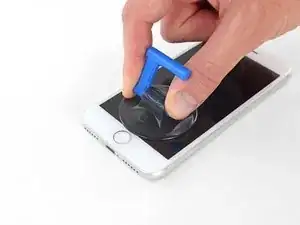
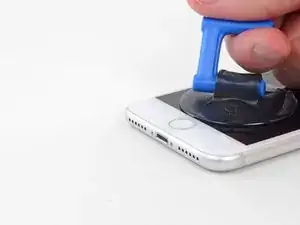
    • Setze einen Saugnapf auf die untere Hälfte der Vorderseite , direkt über den Home Button.

    • Passe dabei auf, dass der Saugnapf den Home Button nicht bedeckt, sonst kann der nicht mehr dicht abschließen.

    Even with using high heat from a blow dryer, I had to put the suction cup over the home button or the bottom edge wouldn’t lift at all. That waterproof adhesive is incredibly strong.

    Aaron Soderholm -

    As others have said, this part really stinks, but it’ll work if you keep trying. Agree with multiple rounds of hair dryer on high (did about 60-90s each time), and with having to out the suction cup over the home button. You don’t need a big gap to pry it open - it’ll be slight …

    Johnny Emrica -

    Patience is the key here. Expletives and patience. Like previous comments say, putting the suction cup over the home button (I used packing tape to maintain the seal) will allow you to apply force to the proper location to separate the screen. Good luck!

    J Rawlinson -

    Get a suction cup pliers. It’ll make this part fun

    Bradley Steiner -

    iSclack EVO opened the iPhone easily even without heating with no fear of accidentally over-opening it like with a simple suction cup.

    Matti Haveri -

    If you don't have the anti-clamp device, to prevent the screen from tearing open when suctioning it, I suggest some layers of tape around it and the back of the phone (the tape has to be stretchy enough to just minimise the momentum when separating the screen), or some big rubberbands

    Raziocinjo -

    This was the time consuming part. I’d recommend having a thin bladed knife or similar to get things going. I used the small blade on my Swiss Army knife, but be careful. When it goes, it can be unexpectedly sudden. I also used a strong rubber band to stop any excessive opening of the screen.

    Tony Houlihan -

  8. PnYJMHrBqA2Jh22u
    PnYJMHrBqA2Jh22u
    5BxGfRPfmCqCLMOc
    xYlJ5IgLFMxCDZ2B
    • Ziehe gleichmäßig und fest am Saugnapf. Es sollte sich ein kleiner Spalt zwischen Display und Rahmen bilden.

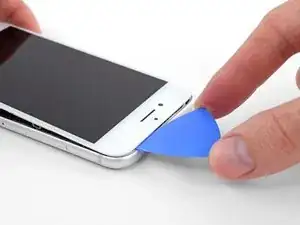
    • Setze ein Plektrum in den Spalt ein.

    • Die wasserdichte Verklebung am Display ist sehr stark. Um den Spalt zu öffnen, musst du recht viel Kraft aufbringen. Wenn du Schwierigkeiten hast, solltest du nochmals Wärme anwenden und dann die Scheibe vorsichtig hoch und runter ruckeln, um so die Klebeverbindung zu schwächen, bis du genug Platz hast, um dein Werkzeug einzuführen.

    The screen on my phone was so broken, a suction cup did not work, so I softened the adhesive with a blow dryer and used a Jimmy to carefully pry open the phone from the bottom just enough to slip a pick in.

    charguy -

    Just completed a smashed screen replacement, this is probably the most time consuming part. Used packing tape to cover the screen to help create a suction surface (had to replace it a couple times because it pulls away after a purple good pulls ) Used consistent heat for about 5 minutes, then stuck a pick in the tiniest opening… and pry pry pry!

    Brian Gill -

    I failed at this step. No amount of heating, pulling, and rocking opened up enough of a gap to slip in even a knife let alone the blue plastic tool. That's with a phone that has an undamaged screen - just trying to replace the battery. Apple won this round :(

    Michael Sherman -

    Be really careful here. I placed a sucker to the front and rear to help lever off the screen. However, the whole thing came away much easier than I anticipated and I ripped the front part completely away from the rear, tearing all three connector cables. New iPhone required.

    Chris Wood -

    Note that the opening pick they show here does not appear to come with the kit, which is a bummer! The plunger, the mini blue crowbar thing, these are too thick. I ended up using a really thin guitar pick.

    Johnny Emrica -

    Following careful methods can mostly preserve the seal and reusable. Won’t be as water tight but probably still pretty good.

    Bottom edge is pull up with suction + separating tool. Use small precision scissor to cut any tape that gets overly stretched upon initial opening.

    - For the 2 long edges, use an exacto knife to separate the seal from the screen. This keeps the tape on the chassis. Go slow along the long sides. Becareful to avoid scratching the paint on underside of the screen’s edge.
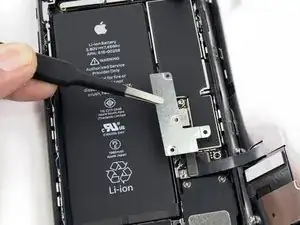
    - Top corners have a thick sealed tape. Best to just use separating tool to twist it open.
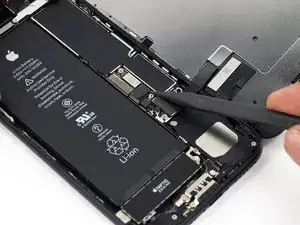
    In summary, top and bottom edge use separating tool. Side long edges can use exacto knife to gradually gently separate the seal from underside of the screen’s edge.

    Howard -
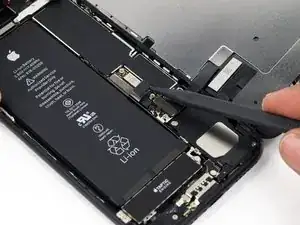
    4 picks and an exacto knife, plus 45 minutes later, I finally got it to open! Thanks tor the tip!

    Cat -

    Intact screen, check. Tool kit, check. Hair dryer hot enough to make the phone too hot to touch, check. Following all instructions, check. Screen still in place and refusing to come off, check.

    I heated, reheated, pulled and pulled. I simply could not get it off. Worked at it for an hour and a half, and I’m not a small guy. Yes it is hard to hold, but could get a grip. Just could not get it to budge. Off to the iPhone repair shop tomorrow. Anybody want to buy a repair kit and replacement battery?

    Jim Meyers -

    After struggling for 30m, I looked up some alternate methods and found this helpful:

    https://www.youtube.com/watch?v=25zAK5mG...

    - I used a utility knife and pried up right under the home button
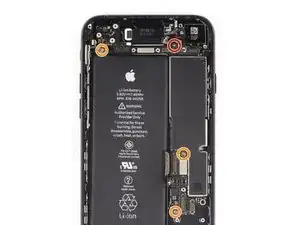
    - the angle matters! I was trying to go too far down before going in. The top surface of the phone is rather thin, so you go in after barely getting under the chassis lip
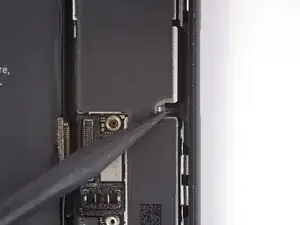
    - tilt utility knife left to right once you’ve got it under to work it in
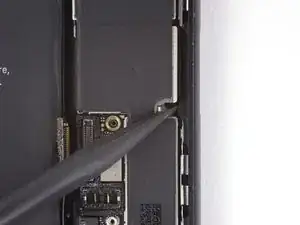
    - leave the utility knife in, and now add that pick

    Jared Wilk -

    Pro-tip: don't be an idiot like me. Instead, remove the screen protector you have on the phone before applying the suction cups. Derp.

    hunter.geofizz -

    I struggled with a hair dryer at first and a singular suction cup. However, I tried putting packing tape on the spot where I put the suction job (even though my screen isn't cracked) and I was able to do it first try with ease. Definitely recommend packing tape.

    Alessio Toniolo -

    Suction cup pliers. Dead easy

    Bradley Steiner -

    After successful screen replacement, returning to give my thanks here. Excellent tips from you all - if you’re using force, you’re doing it wrong. Heat, very very gentle exact-o knife barely down then fully under the screen below the home button … perfect. Slow and patient around the upper corners, and don’t forget to heat there as well! Thank you all!

    dantegd -

    The problems with this step are (1) not having three hands and (2) managing to hold the phone in a way that doesn't put reverse pressure somewhere else on the screen. Exacto knife was the best tip. It's a little dangerous. On a misstep you may scratch the screen or jab yourself, but it's what got me in.

    thewrytstf -

    sorry, could not lift off the display any nano-meter even after applying enough force I think and heating it up. need to visit a store.

    Andi Tony -

    I used a razor blade and plenty of heat, and it somehow worked like a charm at the cost of me cutting myself. Definitely be careful when doing this, I used the razor blade on the left side of the iphone then wedged in a small screwdriver and then used the pick to cut the rest of the material away.

    Sharaf Kazi -

  9. 2QPL6xQ1bKKTHEE2
    2QPL6xQ1bKKTHEE2
    Scr2EQgs2BWhSj3N
    KyO5DVLoiSXnDh2Z
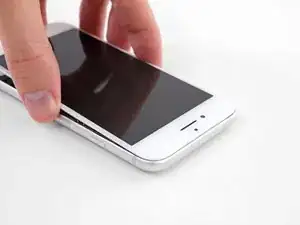
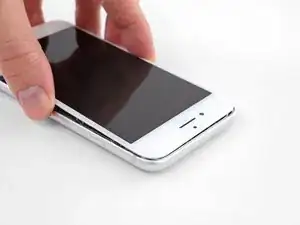
    • Schiebe das Plektrum entlang der linken Kante von der unteren Ecke an nach oben in Richtung der Tasten für die Lautstärkeregelung und des Stummschalters. Trenne so die Klebeverbindung des Displays auf.

    • Halte vor der oberen linken Ecke an.

    • Versuche nicht, die Oberkante des Displays vom Rückgehäuse wegzuhebeln, denn hier halten Plastikclips die Teile zusammen. Die Clips könnten abbrechen.

    My Plektrum worked ok, but the edges broke off a bit towards the end

    griffin.weber -

  10. g1bJoLynAKeivqUm
    • An der rechten Seitenkante verlaufen empfindliche Kabel. Setze das Plektrum an diesen Stellen nicht ein, die Kabel könnten beschädigt werden.

    I was trying to replace my battery, and accidentally cut one of the cords on my screen. I marked my pick, so i don't know how it happened.

    Gib Jeffries -

  11. bYHHQWBLX2SbZ4ZM
    bYHHQWBLX2SbZ4ZM
    oWPIhKQUMFLQKwJF
    VbhlSMqUKVaR3i4t
    • Setze das Plektrum an der rechten unteren Ecke ein. Schiebe es um die Ecke herum, dann entlang der rechten Kante nach oben. Trenne dadurch die Verklebung.

    • Setze das Plektrum nicht tiefer als 3 mm ein, du könntest sonst die Displaykabel beschädigen.

    No pick in the kit you sent me.

    Ted Cooper -

  12. JsELGeLj2sULj4Rl
    JsELGeLj2sULj4Rl
    1Q5TB6TXChTQrCSO
    • Hebe vorsichtig den Saugnapf an und mit ihm den unteren Teil des Displays.

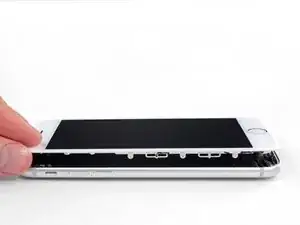
    • Hebe das Display maximal 15° an. Du könntest sonst die Flachbandkabel des Displays überdehnen und beschädigen.

    • Ziehe an der kleinen Lasche am Saugnapf, um ihn vom Front Panel zu lösen.

  13. 1wx6fuMwGlVmTVwg
    1wx6fuMwGlVmTVwg
    L5DvjVj5xMJAlXg4
    y6nMrARZIGjH4KZO
    • Schiebe das Plektrum unter das Display um die obere linke Ecke und die Oberkante entlang, um die letzte Klebeverbindung zu trennen.

    I did end up using just a smidge of IFIXIT adhesive remover along the edge before opening and that seemed to really help

    Karen Flowers -

    I have been using the pointed tweezers to pull the adhesive strands apart and out as the display comes off.

    Adam Yavner -

    This bit was awkward as to get a good grip I kept inadvertently switching the %#*@ phone on!

    wendyhoward -

  14. pmOBsioPu6PHdocL
    pmOBsioPu6PHdocL
    wCWsnncFGO1Jy1KT
    • Schiebe die Displayeinheit leicht nach unten, weg von der Oberkante, um die Clips zu lösen, mit denen sie am Rückgehäuse gehalten wird.

    I had trouble sliding down the display and found I hadn't separated the stop enough.

    Jeffrey Anderson -

    When you are pulling the display downward, be very careful! I pulled a little too hard and the display cables tore from the downward (toward home button) motion. Now I have to replace the display! 😭

    So Munch Love -

  15. XaJPKiESSbHGIDqx
    XaJPKiESSbHGIDqx
    TKsLuMfvlLBnsdMa
    uyGD4MIvBrhLyuiO
    • Öffne das iPhone, indem du das Display von der linken Seite her umklappst, so wie wenn du ein Buch öffnest.

    • Versuche noch nicht, das Display ganz zu trennen. Verschiedene empfindliche Flachbandkabel verbinden es noch mit dem Logic Board.

    • Lehne das Display an einen geeigneten Gegenstand, um es gut zu stützen, während du weiter am iPhone arbeitest.

    Nach RECHTS klappen - nicht nach links!

    Manfred Wachtel -

    Als ich das Flachbandkabel auf der rechten Seite sah, hab ich mich auch gefragt, ob die das mit nach Links klappen ernst meinen, und das „Buch“ lieber auf japanische Art nach rechts aufgeklappt. Das sollte dringend in der Anleitung korrigiert werden!

    Sebastian Plickert -

    “Up from the left” means lift up the left side.

    Which is the same as folding to the right.

    “Like the back cover of a book” explains it even more clearly.

    Maybe it gets lost in translation?

    Nick Shtangey -

    Fold to THE RIGHT - not to the left!

    Jim Glenys -

    When I saw the ribbon cable on the right side, I also wondered if they were serious about folding it to the left, and the "book" would rather be opened to the right in the Japanese way.This should be corrected urgently in the manual!

    Jim Glenys -

    Hi Jim, the display opens from the left side, toward the right side. It should look like the back cover of a book. Hope this helps. Good luck with the repair!

    Adam O'Camb -

    DO NOT LAY THE TWO HALVES FLAT!!! There is a reason why the third photo shows the screen half leaning against a box! This really needs to be a warning in addition to the one about not separating the display.

    Mangled Jargon -

    If you're skipping the screen and taptic engine removal like I did, I suggest you tape the back of the phone to the table, and also tape the screen to the vertical object it lays on, so it stays still. That way you will avoid having to constantly readjust it because of the sliding of the housing of the phone when you're working on it. Be careful where you're putting the tape on the screen though, if you're doing it on the internal components.

    Raziocinjo -

  16. QVGa5KTCal3B6epN
    • Entferne die vier Tri-Point Y000-Schrauben, die die Abdeckung der unteren Anschlüsse befestigen, sie haben folgende Längen:

    • Drei 1,2 mm Schrauben

    • Eine 2,4 mm Schraube

    • Passe während der ganzen Reparatur gut auf die Schrauben auf und sorge dafür, dass sie genau an ihren alten Platz zurück kommen, sonst kann das iPhone beschädigt werden.

    Ahhh shoot! accidentally ordered tri-wing vs tri-point (must have just looked for y000).. It seems they only did this to annoy repair folks because not everything is tri-point on the phone...

    Steve -

    These screws just spin for me. They don't back out, but the heads aren't stripped either. I've tried applying backpressure to help lift the screws, but no luck

    Jeff Hurst -

    The Y000 took out one of the screws but not the other 3. I even tried the PH000 as suggested but nothing.

    dbright -

    What driver do I need to remove these screws i’m stuck

    Nasser Nader -

    i cant use, the Y000 it isnt working.

    joscarlos91 -

    What if I stripped a screw what do I do??

    Jacob Ramos -

    Yep, only the 2.4mm came out, other 3 won’t budge, and worried I’ve stripped the heads. Anyone got any ideas?

    Stephen Babbage -

    It’s the screwdriver bit that is the problem. I had the same issue with 2 Y000 bits not grabbing the screw properly. I fixed it by using a small 3 sided file to slightly grind the groves in the Y000 bit just a bit deeper. Then the bit worked like a charm on these screws.

    Jim Staples -

    Use Y000 on all 4. U have to be very sensitive on the 1.2mm screws. Put the bit in the screw, put the left pointing finger on top of the screwdriver and turn the driver carefully to the right until you feel a “bump”, thats the trick :-), then you are able to screw the screw out.

    Magne Eivindson -

    For me the key here was a LOT of downward pressure to ensure the Y000 bit caught in the screw. Not sure i can describe how much exactly, but is was significant. Otherwise the bit would not catch.

    Erik Fredriksen -

    What do I do if I Stripped one of them?

    Adam Corral -

    Can’t get them removed what to do ?

    cowling_luke -

    Managed to get the central one out. The upper one won't move, the lower one I've popped out with some force. This allows you to rotate the cover enough to unplug the various bits. Not ideal, but works. I've tried applying a lot of pressure, using the tighten/ loosen method, but the heads have just got mashed… no wonder Samsung are now No1, sigh…

    jimpoolio -

    You need to be careful when just rotating the cover as you can accidentally slice through the two black antennas! You only need to nip them…As you can tell I have done this in the past :/

    Kyle Webb -

    The first, longer screw came out fine, but the other three wouldn’t budge, regardless of more/less pressure or a slight angle or anything. I finally filed down the tip of the Y000 bit ever so slightly, and then it worked. Hope this helps someone.

    Harmony -

    Filing down the bit worked for me. The tip about putting an index finger on the end of the screwdriver handles and then turning gently until it clicks into place was very helpful! Using these 2 tips I didn't need much downward pressure. Screws are out in a few turns.

    Chris Bennett -

    If you can’t get the bit to grip the screw properly, you can use a little bit of the water-proof sealing between the bit and the screw. That worked for me. Hope this helps anyone.

    jvalaamo -

    Mine came out easily. I placed the screws in the area where the bit goes in my kit so I can keep track.

    Gina Torres -

    I used a bunch of medicine cups to track my screws. You need like 12 if you want them all in cups. I ran out. There are so many different sizes that literally vary by 1mm. The tolerances on these things are tight.

    Ray Bieze -

    I use a 28 day pill box and keep every screw separate and reburn to exact slot because they all vary in length, width and can really damage u phone if too long and nt secure if to small.  use a magnetised screwdriver,  or make the cheap freebees magnetic for a short period by rubbing it up an a magnet. lol

    scallyteacher -

    Absolutely ridiculous had to go get a different one just stupid

    mark golling -

    I couldn’t get the lowest one out and just turned the metal bracket out of the way and replaced battery.

    qwerty77x -

    Was able to get the outer bracket screws out using fine needle nose pliers 90 degrees straight down for the outer ones by pressing down a little and using medium gripping force. Had to take these out first before i could use tweezers on the middle one, for which I had to use tweezers to hold the screw, then rotating the bracket (not the screw) counter clockwise a few mm many times over to slowly unscrew it 1/32th of a turn at a time, repeat. (this loosened middle screw). Think ‘rotating bracket 3minutes/degrees counterclockwise at a time while holding screw in place.) You are gonna need really small/fine pliers and tweezers for this because the heads are countersunk into the bracket.

    Galen Wollenberg -

    The top screw in the step was much longer than 1.2mm. It has the same head as the 1.2mm, but different than the 2.4mm. It’s good to keep track of where they came from.

    All are so small that I thought I’d lost one, when it was still sitting in the phone.

    Mark -

    To help tell if the screw is turning, put a small dot from a marker on the head of the screws.  This helped me to know I wasn't just stripping the head.

    Darren Thibodaux -

    try heating the iPhone with a hairdryer or a bag of rice or about 60 degrees in an oven for 3 minutes . It has worked for me. If the screws don’t come out while hot the will come out as the iPhone cools.

    David Howard -

    A small tapered triangle file using moderate pressure did the trick for me.

    Jack -

  17. G1PuHnw2PiNeAdMC
    • Entferne die Abdeckung der unteren Anschlüsse.

    my battery cable connector was stuck to the bottom of this metal bracket plate so be careful when you lift it off

    Josh Martin -

    This may have been intentionally done by Apple to make sure the battery gets disconnected before any other connector is disconnected. So always make sure to disconnect the battery before disconnecting and reconnecting the connectors for the display.

    Oscar Moreno -

    So…I forgot to put this bracket back on when reassembling. Now I’ve adhered the display to the case and don’t have another adhesive strip…so I’m wondering: what purpose does this bracket serve? The phone is powering on and seems to work okay.

    Am I going to run into trouble with this bracket missing?

    Ian Fritz -

    Well, that didn’t last long. The phone shuts down without warning. So I guess that plate is important…

    Ian Fritz -

    I also forgot to put the battery shield in, and adhered the display. I’m tempted to leave it like that. However, your negative experience is a good data point telling me to not be cheap.

    Ordered a new adhesive , under $2 shipped from eBay.

    Yishai Sered -

    Thanks, Josh Martin! Mine was stuck too, so I lifted carefully.

    Cynthia Lamb -

  18. kagyl1qcW4AtoBlf
    kagyl1qcW4AtoBlf
    ewZDHDrtMTUxnlnK
    NUEP2PSRVV54cedx
    • Mit der Spitze eines Spudgers kannst du den Stecker der Batterie vom Anschluss auf dem Logic Board heben.

    • Biege das Kabel leicht nach unten, um zu verhindern, dass es mit dem Anschluss in Berührung kommt und das Telefon mit Strom versorgt.

    Was kann passieren wenn man diesses Kabel vergessen hat zu entfernen `?

    Julian Eltrich -

    Reconnecting the battery poorly can cause the iPhone to appear to be properly powered and functional, but then suffer a reboot loop.

    I had difficulty after a screen replacement, and the Console app on my Mac showed that the ‘thermalmonitord’ process was throwing lots of errors from not getting any sensor readings from the battery. It would never charge past 1% and just kept rebooting.

    The contacts on this conector looked fine so even though I had reseated this connector several times already, I reconnected it very firmly using my thumb and a spudger to really press all the corners and middle and really gave it a good massage and then finally it showed the normal dead battery screen and started properly charging and eventually booted back up to normal functionality.

    It seems the battery has to be able to transmit data to the phone to say it’s not overheating or iOS will not allow any current into the battery to recharge it, and the kernel will panic from the null readings and just reboot over and over again.

    jason -

    In my case, the battery connector was attached to the bracket. We just left it connected bracket when we pryed it up.

    Dave Miller -

    Reconnecting the battery connector was a bit difficult in my case. The cable that comes out of the battery was a tiny bit too long, or that I placed the battery a bit too high (i.e., too close to the top of the phone). It took me several frustrating minutes of fiddling with the connector for it to sit right into the socket. I was not sure if that was connected correctly but, alas, the phone came back to life when it was turned back on.

    Tomoharu Eguchi -

    VERY IMPORTANT NOTE: Please READ the reply here by jason.

    It is very easy to knock off or nudge the little pins near the battery socket, see https://guide-images.cdn.ifixit.com/igi/... and https://guide-images.cdn.ifixit.com/igi/....

    Those pins are the data lines to extract battery info: temperature, charge, etc. If you accidentally nudge/knock off them the phone could appear to work normally, even for a few days. But then you will start getting wrong battery reads and then after that it may suffer a reboot loop. If you enter settings > privacy > analytics & improvements and you scroll down you will find panic errors from thermalmonitord that there are missing sensors (TG0B or TGXXX) and you will have to micro solder them. DO NOT NUDGE THEM and double check the socket connector when reconnecting the battery.

    PJM -

    After successful screen replacement, returning to give my thanks here. Excellent tips from you all! Careful removing the lower bracket - mine was stuck to this battery connector, which came up with the bracket. Luckily no cable or connector damage. Be careful. Thank you all!

    dantegd -

    after installing new ifixit battery kit, note the foam on the new battery is thicker than old apple one, managed to remove the old foam and swap to new battery connector, sheild plate now level

    Neil Mills -

  19. aMorTfedGgH3rI5R
    aMorTfedGgH3rI5R
    j6YutYie6sBNvKB2
    DTNCSTyuPgJxNIkh
    • Bevor du in diesem Schritt ein Kabel ablöst oder wieder verbindest, musst du den Akku abtrennen.

    • Nutze das Flache Ende deines Spudgers oder deinen Fingernagel, um die Anschlüsse des Flachbandkabels am unteren Ende des Displays zu lösen.

    • Um die Stecker wieder zu verbinden musst du diese unbedingt erst an einer Seite, dann an der gegenüberliegenden herunterdrücken. Drücke nicht in der Mitte, da sie sich verbiegen und im schlimmsten Fall funktionsunfähig werden können.

    • Wenn du nach dem Zusammenbau deines Smartphones ein leeres Display, weiße Streifen, teilweisen oder kompletten Ausfall des Touchscreens hast, dann versuche nochmals diese beiden Kabel abzutrennen und sorgfältig wieder anzuschließen. Achte darauf, dass sie wirklich fest sitzen.

    To be honest you don’t really need to disconnect the display cables in step 15 or 16 to get the battery out. Just keep the suction cup on the screen to keep it propped up and to give the cables some slack. The only reason to take these cables off is that it’s a pain to apply the replacement display adhesive with those cables in the way. If you’re not re-waterproofing your phone just leave these attached.

    Austausch der iPhone Display Klebestreifen

    minimalist -

    MAKE SURE you hold the top screen when dislodging the cable connections. I let the screen lie flat down and ended up tearing one of the cable connections, now my touch ID does not work at all! I’m going to have to order a whole new screen.

    Arjun Nagarajan -

    Don’t miss that SECOND CONNECTOR like I did. It will break very easily if not disconnected :(

    garrett peek -

    An earlier comment said to re-apply the suction cup to the right side of the display so that it acts as a stand when the phone is partially opened. That’s a great idea, and helps a lot for this step and the next.

    Mark -

    Hey – I broke one of these flex cables and I cant find them to purchase anywhere. Can somebody help me? It’s the LCD connector first and what is the second flex cable for? Thanks!

    Chan Ty -

    I broke the second (smaller) display connector flex cable.

    1) Is it replaceable or repairable?

    2) Where can I get the replacement?

    Ben Blom -

    Same happened to me. What solution did you find? Could you replace a part to make it work? Thank you!

    Viktoria -

    I replaced the screen and have ended up with a blank screen. Touch control seem to work (touch button works and I can shut down the phone by pressing power button for some seconds and then swipe left to right in the upper part of the screen). But the screen is blank. I’ve tried to disconnect and connect the two connectors in step 16 but with the same result (blank screen). What do I need to do?

    Thanks for advice!

    Bjorn -

    this point is the most important in the whole manual.

    Please pay attention not to strain the flex cables or they will end up breaking

    Jose Joaquín Sanz Iniesta -

    I should have been more careful - the second cable tore off.

    My own fault after having done this replacement about four times previously without any issues, I clearly got cocky and didn’t pay enough attention.

    Be VERY CAREFUL and remember to unplug those cables. Don’t skip steps.

    I’ve now had to order a replacement screen.

    Stuart -

    Echo minimalist’s comment here. Prop the display up and skip to step 19 to save time and remove risk.

    .A. -

    If you replace the screen and there is no display apply io propyl alcohol 99.9 & purse to both connectors on the screen and on the iPhone with a clean toothbrush and let them dry for 45 minutes and then fit the screen and reassemble the iPhone..

    It works for me . when I get a new screen I do t5his before fitting it.

    David Howard -

    I tried to save time by not removing the screen during battery replacement as some comment here, HOWEVER, I ended up having to use a little force to remove the battery and in the process broke the second, lower smaller cable, resulting in loss of home button function and needing to get a new screen. Next time I will follow these steps and completely remove the screen during a battery replacement

    chrislacey -

    I removed the screen and cable still got ripped during reassembling :(

    Viktoria -

    There is a critical fact missing from the steps here, for reassembly: That bottom (underlying) cable is longer than it should be. Loads of people are reporting that the Home button is dead after this repair, but the cables aren't torn. I'm pretty sure this is why. Here is a picture of the problem.

    When reassembling the phone, you must poke this cable back into the body of the phone while you bring the halves together, or you will crush, crimp, and destroy the cable.

    Gavin Stokes -

    I’m only reading your very useful comment now, after the exact thing happened to me and my cable got ripped during reassembling phone. Would you be able helping me naming this part, so I can look for a new one? Thank you very much!

    Viktoria -

    thanks gavin. ifixit should have included this piece of info.

    soupamanx -

    Can somebody help me with the name of the part that these cables belong to? The bottom one got ripped during my battery replacement, I need a new one but unsure what to look for.

    Viktoria -

  20. bmgfPpWHNVhhLV2o
    bmgfPpWHNVhhLV2o
    krsGsMngtAk6HqyE
    XC5yVbnZluTweVIj
    • Entferne die beiden 1,3 mm Kreuzschlitzschrauben #000, mit denen die Abdeckung über dem Stecker der Frontsensoreinheit befestigt ist.

    • Es können auch Y000 Schrauben sein. Apple hat etwa in der Mitte der Produktionszeit auf Y000 umgestellt.

    Has anyone had trouble getting these two screws off? I’ve been working on these for about 10 minutes and the LEFT screw wont spin. It seems like the little PH000 screwdriver bit won’t even grip it. (The one of the right comes off, no problem)

    It looks like I’ll have to pick this project up again with a screwdriver that will actually take off this piece.

    Makana Sylva -

    If you’re having trouble removing these screws;

    the screw on the right goes into a standoff screw that is screwed into the frame.The left one goes into the logicboard.

    If your phone is used most likely it has been repaired in the past and the person that repaired it put the screws in way too tight.

    If your phone is brand new And you know 100% it is then the problem is your screwdriver.Stop before you strip it completely and buy a better screwdriver (EBAY).

    If you already stripped the screw head take the phone to a shop before you break it.

    there are ways to get them out but truthfully it’s extremely dangerous and sometimes your better off quitting while you are ahead.

    Vegeta Barrett -

    The right screw kept spinning, tried different levels of force but didn’t work. I left the screw on and bent the shield to get to the cable.

    s h -

    I used a #1 flat head tip to loosen.

    Peter Pearson -

    I couldn’t get the two screws out either—used the correct screw tip and everything. Stripped the screw. Will now attempt to just keep the cable attached…..

    Therese Peffer -

    Use the PH000 and apply a little more force before spinning, should come right out!

    Sierra Scolaro -

    ^To anyone having trouble, this is the correct answer. Put the phone on a firm surface, align your driver carefully, press down hard, and twist. As long as your driver is approximately the right size, it’ll come out.

    Jeff Suovanen -

    the two screw i have are stripped and i have n way of getting either screws off whats my next bet

    Alexis Marie Colon -

    The PH000 bit is to large. I can’t get the screws out either which really sucks…now I have to put everything back together, find another bit that will work and try this again another day. Not impressed with IFIXIT’s attention to detail so far :-(

    Ryan Welborn -

    Using iFixit’s driver kit, I prefer a PH00 for this, which is larger than the PH000. If you think the PH000 is too big, something is wrong.

    Jeff Suovanen -

    I think part of the issue with the iFixit PH000 is that it is slightly too pointy. The PH00 fits better because the splines engage the slots of the screw before the point bottoms out. The PH000 tip bottoms out in the screw’s center point and the splines don’t engage as well. I have other PH000 tips that are more blunt nose and they work better than the iFixit bit.

    rcarswell -

    Use the J00 bit. Worked perfectly

    efazio588 -

    PH000 screwdriver didn’t work for any of these screws, or the barometric vent, or the taptic engine. It was too big. I had to use a different screwdriver from another kit I had.

    minimalist -

    I’d do this step before removing the ribbon cables by the battery connector. That way you can disconnect all of them at the same time.

    Ray Bieze -

    i used the little +-shape 30 mm screwdriver (not the Y…but the + shape).

    mason -

    the cable tore. is that it i need a new phone?

    patricia loving -

    You don’t need a new phone, but your selfie camera and phone speaker will not work. You can get replacements for that about $10.

    jack jones -

    Reconnecting this cable and coverplate took a good 20 minutes. O_O

    Nicole Crome -

    What can I do to remove the screw (I stripped it)

    Alex Vu -

    I also had issues to loosen up the screws, in two parts the right side up and the left side down, i think the PH000 is to pointy or something or its too hard for the srews of the iphone, i cannot take it off and know im regreting i bought i order all the way from Paraguay in south america and know so angry it doesnt work

    Martin Frutos, Nuñez -

    I skipped this step. Just be really careful not to pull on the screen.

    Takumi Arai -

    The guide says they changed these to the Y000 “at some point in the t middle of the product’s lifecycle”…

    That can’t be true, I have a *day one*, preordered iPhone 7, and mine had, unmistakably, Y000 screws!

    and also, I’m just faithfully following the guide here, but can anyone clarify *why* is is necessary to entirely remove the display AND the Taptic Engine at all? The battery seems accessible just fine… oh well

    PS- I’m doing this on an older backup iPhone 7. My iPhone 12 Pro just went berserk and stopped working completely a little over a year after I got it day one of its release… since the iPhone X I’ve only had easily breakable, overly sensitive phones. I’ve had every numbered iPhone except for the 8 (I got the X released at the same date) and the 11, and man, are these newer iPhones post X fragile!

    Cam F -

    This worked for me! As mentioned use PH000 and apply pressure and then unscrew the screws. They are tiny, adhere to a piece of tape so you don't lose them.

    Rosie J -

    Indeed - I also had some problems with the righ screw: ...a standoff screw that is screwed into the frame - like above explained...! Suddenly I had three screws in front of me and was a little surprised... Ok You have to mount first this screw again - with a small flat srewdriver - otherwise You could not fix the Metalstripe on both sides, because the second small screw has no grip!

    Fridtjof Schüssler -

    Not screw related: Mark the top of the cover with a felt pen or sharpie before removal. I didn’t and on reassembly, spent a few minutes trying to work out which way it went back on - Doh!

    Tony Houlihan -

  21. uCv2qq5X3dLp5gXA
    uCv2qq5X3dLp5gXA
    3XQvxPR6gZtBBjeL
    • Entferne den Stecker der Display Einheit von seinem Anschluss auf dem Logic Board.

    • Der Stecker sollte nicht mittig festgesteckt werden, um ein Verbiegen zu vermeiden.

    Das ist sehr mutig, das Kabel dort so zu strapazieren.

    Mich würde das Display daneben stellen und mit irgendetwas stützen, dass es nicht umkippen kann um Beschädigungen an dem Kabel zu vermeiden. Das reißt sehr schnell ein.

    Detlef Menninger -

    Is this the connector for the earpiece, as well? I did the screen replacement and everything worked, except now I can’t use my earpiece… I’m afraid I didn’t fully connect this particular portion.

    Victor Bui -

    @victorbui714 Correct, this is also the connector for the earpiece speaker. Check the flex cable carefully and make sure it wasn’t pinched or torn. Make sure the connector socket is clean (give it a blast with some compressed air if needed) and try reseating it. If that doesn’t help, you may want to remove the earpiece speaker and inspect the four springs on the back, and check that they’re intact and making good contact with the four circular pads on the flex cable. Give the pads a wipe with some IPA and try not to leave any skin oils on them. If none of that works, try replacing the entire flex cable/sensor assembly. Good luck!

    Jeff Suovanen -

    This is the only connector that is quite easily possible to put back in the wrong way. If you do so, the phone will just get into a continuous loop where it shows the boot screen, goes blank and then shows the boot screen again and again. If this happens, do not despair-just put it back in the right way.

    Roy Mathew -

    After putting together, I had a continuous loop boot up (as noted above). I saw articles where this (front panel sensor connection) was the reason. I disconnected this connection and the boot up loop stopped. I tried reconnecting several times but had the same problem (boot up loop). However, it turns out that I needed to apply extra pressure when installing until a heard a (faint) second click when pressing down. Note - before I was using the spudger to press the connection together, which didn’t do the job. I ended up using my finger to press harder to get it to click in. Solved that issue.

    Ed Scannell -

    The ribbon cable on this step is torn. Is this something that can be replaced? Is this only to the earpiece?

    John Daily -

    The ribbon cable on this step is torn. Is this something that can be replaced? Is this only to the earpiece?

    Sarah Valencia -

  22. GgLw2SeVMeWxZEj3

    When removing the screen, be aware of the two tiny square black rubber grommets on the Penelope screw brackets that secure the screen. They can fall off very easily and be lost without even knowing it (it happened to me, but was lucky enough to find them).

    Guy Cooley -

    Sorry, I’m so unclear about when to replace the Adhesive tape. Should I put the iPhone 7 Display Assembly Adhesive at this step, or after I’ve replaced the battery?

    Victor Bui -

    @victorbui714 Battery first, then adhesive during reassembly, as it says in the instructions. ;)

    Jeff Suovanen -

    This is the 3rd screen iv put in my phone and everyone them bust at the top by the camera every time iv bought one of these screen idk if it’s the manufactures fault or what?

    trent bost -

    @trentb28922 Ouch! That’s not normal. Is your phone’s frame bent? Are you having to use a lot of force when you install the display?

    Jeff Suovanen -

    If the instructions are followed step by step, then adding the adhesive comes before changing the battery.

    If I had to do it all over again, I'd skip adding the adhesive, because you have to disconnect the battery, plus the two lower display connecters and the front panel sensor assembly connector. It was a nightmare trying to marry the components back together without disturbing the wire prongs, and I don't even want to talk about reinserting the tiny screws that kept twirling around on the tip of the screwdriver as well. It wasn't worth the time or aggravation!!

    If you decide to skip this step, just avoid using your iPhone near water.

    Rosie J -

    Ich habe das Display nicht abgenommen, sondern mit Hilfe von Tesafilm und Styroporstücken in einem Winkel von ca. 80° Winkel fixiert und nicht demontiert! Das ging auch sehr gut und ich musste nicht noch mehr von den empfindlichen Steckern zum Touch und Display trennen!

    Fridtjof Schüssler -

  23. EANVBZGXJyqVmVFq
    • Entferne die beiden 1,9 mm Kreuzschlitz Schrauben, die die barometrische Entlüftung am hinteren Gehäuse befestigen.

    The barometric vent seems to have some foam cushioning towards the bottom of the case? does this get damaged via removal I wonder?

    Phil -

    I’m stucked with the right screw, can't get it out. Any ideas?

    Racecar -

    Edit: I’ve lifted the taptic engine without unplugging it. Removing the battery stripes didn't cause any issues.

    Racecar -

    I didn't see the necessity, so I didn't remove the Barometric Vent since I decided I wasn't going to uplug the Taptic Engine, although I did remove screws for the Taptic Engine, but I didn't unplug it. I believe the point of removing the Taptic Engine is to gain access and space to pull the adhesive strips off the battery. If you attempt and are able to remove the adhesive off the battery, then I believe it's NOT necessary to remove the Barometric Vent nor the Taptic Engine.

    Rosie J -

  24. 4KWmdocYM1eJoNce
    4KWmdocYM1eJoNce
    BPclKUrXSm5WUkRq
    • Entferne die Entlüftung.

  25. OWmPqLT1F1MBogRu
    OWmPqLT1F1MBogRu
    bZJDWjlSURuVJIpc
    • Verwende das flache Ende eines Spudgers, um den Stecker der Taptic Engine vom Anschluss auf dem Logic Board zu trennen.

    I believe the point of removing the Taptic Engine is to gain access and space to pull the adhesive strips off the battery. If you attempt and are able to remove the adhesive off the battery, then I believe it's NOT necessary to remove the Barometric Vent nor the Taptic Engine.

    Rosie J -

  26. Myl4kW5JSOANhHPO
    • Entferne die drei 1,6 mm Kreuzschlitz Schrauben, mit denen die Taptic Engine am hinteren Gehäuse befestigt ist.

    My screws are stripped here. Please help, I don’t know what to do!

    Salva Alcón -

    My screws are also stripped here, but the phone has never been opened before!

    Kyle Webb -

    Hey Salva and Kyle, sorry to hear about all these stripped screws! For help with removing them, check out our guide.

    Adam O'Camb -

    I had a new phone. These screws were missing when I disassembled it. Not sure what QC Apple has, but it ain’t great. If they’re missing it’s not the end of the world. You can just disable taptic touch.

    Ray Bieze -

    I had my 7 battery replaced by an Apple Authorized dealer. Around 2 weeks after the taptic engine started to make a !&&* of a noise when it was activated (sounded as if it was loose)… then 1 month after that… it stopped working completely. fast forward 8-9 months later, the battery they had replaced just wasn’t holding its charge anymore (phone was spending more time plugged in charging and depleting very quickly = full charge lasted about 1-2 hours). Having bought the ifixit battery and have gotten as far as this step, I could see that all three of the 1.6mm screws were just floating around in the compartment and the taptic engine was just being held on via it’s ribbon lead. WTF?! Screws aren’t stripped and I managed to fix it in again. Why would these screws be floating around like this??

    Phil -

    another person checking in here to assure you that, if you find a stripped screw (or more) at this step, you’re not crazy. I have one as well! I’m in dis-effing-belief. This phone has NEVER been serviced by anyone, and was allegedly brand new when purchased.

    To the person suggesting a dremel tool to remedy this…. *blink**Blink*. Are you kidding me right now? *slap*. Vibrating the !&&* out of all those sensitive parts - not to mention what one slip could end in your phone being effectively sawed in half.

    Cunning Stunt -

  27. MOotTqJsMU3PlhtU
    MOotTqJsMU3PlhtU
    pKLKmYAS6gFFWStc
    • Entferne die Taptic Engine.

  28. ENyvBuKbFVTcwRoM
    • Entferne die Kreuzschlitzschraube, die das WiFi Antennensystem am Rückgehäuse befestigt:

    • Eine 3,2 mm Schraube

  29. GVXFYj26Eytc6ggM
    • Entferne die folgenden drei Kreuzschlitzschrauben, die den Lautsprecher am Rückgehäuse befestigen:

    • Zwei 1,3 mm Schrauben

    • Eine 2,0 mm Schraube

  30. NZ2FYCkUirNEmCqA
    NZ2FYCkUirNEmCqA
    XM63CBMNUGEANVGp
    R2A2hlIaZYxtKNMv
    • Benutze die Spitze eines Spudgers, um die Antennenkabelverbinder von ihren Anschlüssen auf dem Logic Board zu lösen.

    Hey may i ask…what is the use of both of the antenna cables?i just opened my iphone 7 plus and i found both of the cables are broken.if both of the cables are broken,what does it effect on my iphone?

    Mohd Wazirul -

    Speaker and antenna?

    Keah Smith -

    I'm missing the black thing from my antenna and I have no signal, could this be the reason why? Is the black thing insulation?

    Keah Smith -

    These doodads are a pain to route and reconnect. I probably spent 15 minutes just on this part of reassembly. One of them is connected to the new part. It won’t have the soft grommet on top.

    Ray Bieze -

    One of these came away from its base. The one nearest the battery.

    When I reassemble it I’m thinking just a bit of glue at the side once re attached to base, so lomg as it touches the base contacts?

    Any comments?

    ANDREW -

    I am having the worst time imaginable trying to reconnect the antenna cable coming from the lightening connector assembly to the logic board. It’s barely long enough and will not snap into place. There’s a minature gold pin sticking up from a circular gold ring on the logic board and I must have spent an hour on this one step. The antenna end has the female end. Everything else went well. The antenna connector from the old lightening assembly will connect relatively quickly. I’m beginning to think the new antenna connector female end might be defective. I’m ready to cut the black antenna wire and try to solder in a longer piece using the old connector assembly. Any ideas? HELP !!!

    David Sandrof -

    These can be tricky to reconnect. I found the best way is to hold the connector with tweezers and use the point of a spudger on top of the connector in the other hand. Slowly moving the connector with the tweezers while applying gentle pressure with the spudger, you will eventually feel the connector and its seat line up and you can snap into place. Don’t force it, when it is lined up it is easy so you have to patiently work on aligning it.

    David Ege -

    please say which antenna is which, impossible to know now

    Mitchell Thompson -

    Tip that helped me: remove the standoff screw next to the clip before derouting (or, upon reassembly, rerouting) the cables. This gives you a lot more space to work with! (Note: I only did this on reassembly, so I don’t know if there are any gotchas on disassembly.)

    T Murrills -

    Please pay close attention to witch one goes where or take a picture bad mistake made.

    michael -

  31. 6yiSroPqDJRjSbBk
    6yiSroPqDJRjSbBk
    ILHmbOMFhFB5OHK1
    • Entferne die Antennenkabel aus ihrer Halterung auf dem Logic Board mit Hilfe einer Pinzette.

  32. dU3ZJGmCPZ1bALlI
    dU3ZJGmCPZ1bALlI
    QimsyIes2rMjcYCS
    • Entferne mit einer Pinzette die Antennenkabel vom Clip am Lautsprecher.

    • Achte darauf, das Kabel nahe am Clip zu fassen, um ein Beschädigen des Kabels zu vermeiden.

    They pull off to the side.

    Ark -

    This was an oddly challenging step, lifting the speaker slightly from the top end allowed me to slide the tips of one side of the tweezers in between the cable and the speaker, prying it out rather than grabbing and pulling which feels dangerous.

    Jesse de Vries -

    They break very easily

    Josh Brito -

    difficile a retirer. Les 2 tables sont clipsés sur le haut parleur. Il m’a bien fallu 10 - 15 minutes pour arriver a les retirer. Aucune astuce a vous donner, a part de la persévérance.

    Guigui -

    One cable seems to stay attached to the speaker. Don’t try to pry it off the speaker! This is shown in the video but not in these photos.

    Cynthia Lamb -

  33. q3631AQDapQoBYN6
    q3631AQDapQoBYN6
    lfZXAnVnBnXDooYM
    • Schiebe nun mit der Spitze des Spudgers die Lautsprechereinheit in Richtung des Logic Boards und löse sie vom Rückgehäuse.

  34. kdWfREmZYIO1G4cp
    • Entferne den Lautsprecher.

    Reassembly tip: after aligning the speaker with the bottom edge, instead of lowering the speaker into place, keep the speaker raised slightly and push the cables back into the clip (which were removed in step 28) with the flat end of a spudger. In doing so, though, make sure that the cable from the lightning connector piece remains above the flat metal piece protruding out the left side of the speaker.

    T Murrills -

  35. IfrBpBsmlVovxamd
    IfrBpBsmlVovxamd
    sCq4TfWd3nbvGsJk
    2NXAEq1jYgy5IGVS
    • Führe das SIM-Auswurfwerkzeug oder eine Büroklammer in das Loch am SIM-Karteneinschub.

    • Drücke das Werkzeug in das Loch, um den SIM-Karteneinschub auszuwerfen.

    • Dies erfordert mehr Kraft als man denkt. Achte darauf, dass das Werkzeug korrekt ausgerichtet ist, damit der Auswurfmechanismus nicht beschädigt wird.

    • Entferne den SIM-Karteneinschub aus dem iPhone.

    • Wenn du die SIM-Karte wieder installierst, vergewissere dich, dass die Karte richtig herum in den Karteneinschub eingelegt ist.

    Received a sim card tray from IFIXIT for my iphone 7. I can’t seem to get it to close flush no matter how hard I try. Any suggestions?

    AJ Dereume -

    Why would it require a significant amount of force? Is it because the iPhone 7 is water resistant? When I removed my tray it was like it was stuck in goop inside the phone and the tray had a glue like sticky substance on it? It did not ‘click’ back in smoothly like my other iPhones, I had to push it against the ‘goop’. Is this normal for iPhone 7??

    Rebecca Diakun -

    I used the tip of the super pointy tweezers, and it worked well.

    Cynthia Lamb -

  36. iCXmnQ2VkFsBteMC
    iCXmnQ2VkFsBteMC
    QBYe21tjhLCCcrTg
    • Benutze das flache Ende eines Spudgers, um den Anschluss der Rückkamera zu trennen.

  37. vFL4V1xyjFNsViSb
    vFL4V1xyjFNsViSb
    lsJArt1QKgGAfxxp
    • Entferne die folgenden Kreuzschlitzschrauben, mit denen die Halterung der Rückkamera am Rückgehäuse befestigt ist:

    • Eine 1,3 mm Schraube

    • Eine 2,5 mm Schraube

    I couldn’t get my 1.3mm screw out. It’s not required thankfully as you can just bend the cover up and out of the way to complete the rest of the steps.

    Ray Bieze -

    i removed them with PH000

    Flavien -

  38. qYoINNlJ1OYkRZNu
    • Entferne die Halterung.

  39. weoIIGlN5DKMWtyg
    weoIIGlN5DKMWtyg
    EZuqhRGoHaLNqWqB
    • Heble den Stecker am Antennenkabel direkt links neben dem Rückkameramodul mit der Spudgerspitze hoch und löse ihn ab.

    There is one Step missing before removing the flash light cable: Remove Camera cable, right?

    Achim Breidenbach -

    I broke this and can’t find it on amazon. Is it part of the volume control flash connector? If not, can you send me a link on where to find this connector,…and possible instructions on how to replace?

    Daniel Buhler -

  40. 62t3ZEvJPO5oLGGY
    • Entferne die beiden 1,2 mm Tri-point Schrauben, mit denen die obere Kabelhalterung befestigt ist.

    these are too tight cant get rid off them from y000

    Narendra Mane -

    ok with Y000 from pro tool kit

    Flavien -

    Had to push down to get the Y000 in place

    Cynthia Lamb -

  41. xXENCDBKZZU3ZoVP
    xXENCDBKZZU3ZoVP
    3StSTjEckTiODQLJ
    • Entferne die obere Kabelhalterung.

  42. mg16HsMEJesVGkOY
    mg16HsMEJesVGkOY
    xU1TOLDoJLu6fdmx
    • Verwende das flache Ende eines Spudgers, um den oberen Kabelstecker zu trennen.

    Este cable q funciona tiene porfavor lo desconecte y funciona normal

    Johnny Bolaños -

  43. GmEQ4Wr3gATVGCPJ
    GmEQ4Wr3gATVGCPJ
    TicMoHhgZPntQRqV
    • Entferne die vier Kreuzschlitzschrauben, mit denen die Wlan-Antenne befestigt ist:

    • Drei 1,2 mm Schrauben

    • Eine 1,7 mm Schraube

    I lost one of these 1.2 mm screws. Will that affect the signal reception?

    Bethany Knaebel -

    There is another screw connecting the antenna to the case.

    tbaiello -

    How do you open the 1.7mm screw? LOL

    Kyle Victor -

    The screws are not threading in for some reason. I measured the screws to be exactly 1.2mm with a caliper.

    Loopy75 -

    Yes there are 4 x screw 3 x 1.2mm and 1x 1.7mm securing the antenna to the case

    ANDREW -

    Yes : 4 screws and not 3 !!

    sirthomasnardin -

  44. ZoGWCGbxnaWOfy2K
    ZoGWCGbxnaWOfy2K
    YHFpeIYUDp4WE6n6
    • Entferne die linke obere Antenne.

    ** also remove the small Phillips screw fastening the WiFi antenna to the top rear casing of the phone

    iBroke -

  45. 4rOcVoQi5e6PZDqS
    • Entferne die folgenden Kreuzschlitzschrauben:

    • Eine 1,3 mm Schraube

    • Eine 2,2 mm Schraube

    Möglicherweise muss man den Kleber zuerst entfernen!

    Evan Winter -

  46. fr4dpd4ULvGG1Iew
    fr4dpd4ULvGG1Iew
    BndRvliUykyn2562
    • Entferne die Halterung.

    What's this bracket called

    Cris Velasquez -

    %#*@, lost that part during the job, thought it’d be alright without it. Couple days later figured out NFC doesn’t work anymore. Any ideas on where to get this part from, colleagues?

    azowux -

  47. iNFaLrBgGLTPtqAW
    • Entferne die 2,2 mm Abstandsschraube von der Erdungsklammer.

    • Abstandsschrauben werden am besten mit einem Schraubendreher für Abstandsschrauben entfernt.

    • Zur Not geht es auch mit einem kleinen Flachschraubendreher, du musst dabei aber aufpassen, dass du nicht abrutschst und umliegende Bauteile beschädigst.

    What bit is this? The link doesn’t use the same name.

    Mike Moran -

    I didn’t even have an eyeglass repair kit flathead, so I hit the end of a paperclip with a hammer to make a flathead, and it works!

    Ark -

    I hate getting the deep into a repair to find there’s a tool missing. This bit should be part of the toolkit!

    Ark -

    Its in the toolkit now. Looks like a Philips head but up close the end is squared off with a point in the middle.

    Jesse de Vries -

    I received two boxes - one box contained the repair part, the other was the tool kit. I only opened the tool kit before disassembling the phone. The standoff screwdriver bit was not in there. Neither was the guitar pick. I used a real guitar pick and a small standard screwdriver from my toolbox. When I was ready to reassemble, I opened the repair part box and guess what was in there - the standoff screwdriver bit and guitar pick. So, I guess if you just order the part it will come with (at least) those two tools. The tool kit contains tweezers, suction cup, three screwdriver bits (tri-point, pentalobe, and phillips) and screwdriver handle, a long black spudger with a flat end and a pointy end, and a smaller, thicker spudger with a wide, flat ends.

    bronyaur -

    The flat end of the spudger works a treat too.

    Robert Trammel -

    Thank you, bronyar. Since there is a box labeled “Repair Tools”, I never would have looked in the parts box for tools. I was able to use the standoff tool to takie the phone apart, not just to put it back together.

    Mike Ruzicka -

    I used standoff bit for iPhone from my pro tool kit

    Flavien -

  48. UkPLKk5IZUaqOqLk
    UkPLKk5IZUaqOqLk
    HwYHEraUMNpdpMoZ
    • Mit einer Pinzette kannst du den Erdungswinkel des Logic Boards vorsichtig aus dem Weg biegen.

    I accidentally broke the grounding bracket, is it very important to get a new one to replace? as I can't seem to find them for sale anywhere

    Mustifa shah -

    I also broke it. Did your phone work after?

    Did you find a replacement?

    Ben Schorr -

    Did your phone work ?

    Emin -

    also broken does it work without?

    Emin -

    I broke mine while doing this step. A bit confusing. You’re just supposed to bend it out the way, not pull on it entirely. Will the phone still work without this?

    Chandler Forrest -

    $@$*, i broke the grounding bracket

    Z1xus -

    I just didnt bend this one.. Ill tell you how it went

    Lauren Campbell -

  49. s3wqbuWDVuhUPBps
    s3wqbuWDVuhUPBps
    5pMLWHkFfEaNFXVc
    • Löse den unteren Kabelverbinder mit der Spudgerspitze.

    This is ‘hinged’ on the battery side.

    Eugene Gardner -

    For reassembly start here and work forwards. This connection is critical to successful placement of the lightning connector assembly which is glued to the back of the case.

    rushbc -

  50. GqwvKC6Y4C1bVknE
    • Entferne folgende Schrauben

    • Eine 1,4 mm Kreuzschlitzschraube

    • Drei 2,2 mm Abstandsschrauben

    • Abstandsschrauben lassen sich am besten mit einem Schraubendreher für Abstandsschrauben oder entsprechenden Bit herausdrehen.

    • Zur Not geht es auch mit einem kleinen Flachschraubendreher, du musst dabei aber aufpassen, dass du nicht abrutschst und umliegende Bauteile beschädigst.

    The lowest standoff screw is different than others, so be careful when reinstaling them

    dominik.balasko -

  51. Qo5YLk2DWhntSCGt
    Qo5YLk2DWhntSCGt
    a3vKdtkSNSnvSADd
    • Schiebe den Auswerfkolben der SIM Karte mit der Spudgerspitze aus dem Weg.

  52. Cv6bhbFVZQVAjdZm
    Cv6bhbFVZQVAjdZm
    cYchTMJfjtVboDQb
    • Hebe das Logic Board an dem Ende mit der Akkuverbindung mit dem flachen Ende des Spudgers leicht an.

    • Achte darauf, an keinen Kabeln zu ziehen. Wenn du Widerstand spürst, prüfe nochmals, ob alle Kabel, Verbinder und Bauteile frei sind.

    Assurez-vous à cette étape (au moment du remontage) que le connecteur de l'antenne (que vous voyez à l’étape 35) est bien par dessus votre carte mère et qu’l n’est pas passé dessous !!!

    Laurent LABRUNIE -

  53. ZtZ3QHRbVImLhkQf
    ZtZ3QHRbVImLhkQf
    U5QgTq2B2qqOBD1v
    RBoMfnaVIVUTykJ3
    • Hebe das Logic Board am Ende mit der Akkuverbindung an und ziehe es aus dem Rückgehäuse.

    • Achte darauf, dass sich das Logic Board nicht an irgendwelchen Kabeln verhakt.

    Reassembly note: Remember to tuck the logic board under the logic board grounding bracket that we loosened in step #44.

    Ark -

    Remember to remove the SIM card eject plunger (see step 47) or you may loose it seeing as there is no longer anything to stop it dropping out.

    Alex Thompson -

    stick a small bit of sellotape over the sim card plunger hole to prevent it dropping out.

    ANDREW -

    Reassembly note:

    Peel up a couple centimeters of the lightening port and plug it in to the logic board *before* seating the logic board. Doing this, you can perfectly line up the connector and hold it to the board as you jimmy everything in to place. This makes the hardest part of the job a no-brainer.

    jason4 -

  54. LFTiOFUPbeZ13jaW
    • Entferne die 2,9 mm Kreuzschlitzschraube vom Lightning Verbinder.

    Haven’t had any issues with any of the screws so far. Nothing stuck or even threatening to strip. Could it be that people are using the wrong driver bit and getting into trouble that way? You regularly have to swap between tri and normal 4 blade Phillips heads, best to double check each time.

    Jesse de Vries -

    Thread the screw through the spring contact before screwing it back in for an easier reassembly.

    jason4 -

  55. SOC3JJMsx4aYnuoe
    SOC3JJMsx4aYnuoe
    aDSCD1dXLZUXFGlK
    • Entferne den Federkontakt vom Lightning Connector.

    What’s the purpose of this contact? Is it just a ground?

    Josh M -

    Not sure but dont forget to place it

    Josh Brito -

    I forfait it, watt I have to search for buy it

    TONY IDEA -

    Scary thought - did you manage to find one?

    Jesse de Vries -

  56. sBPpuD1PVpgpP3TP
    • Entferne die zwei 1,6 mm Kreuzschlitzschrauben, die den Lightning Connector befestigen.

  57. aKMURSXnAWK6GSDY
    aKMURSXnAWK6GSDY
    xdnOftWRD6eWxQ51
    EB6XIMrfuYHDjtQy
    • Entferne die beiden Aufkleber auf den Schrauben, die den den Lightning Connector unten am Rückgehäuse befestigen.

    This step makes the whole guide invaluable! Those sneaky devils hide the screws perfectly!

    Ron Stanford -

    I just ripped one.Never did a regular 7 thee only iPhone I’ve never done.Im pissd.Not sure if I should just pull another from a good phone or hook it up and see if it still works it looks like there grounding screws smh it’s only because for 2 years I had a used 7 housing I always bump into when going through my parts and whoever had that before me also ripped it but in both spots.So when the charge port wouldn’t come up I broke it smh

    Vegeta Barrett -

  58. xCvyGhX2gWy1vMZJ
    • Entferne die beiden 1,3 mm Kreuzschlitzschrauben vom Rückgehäuse.

    What are these connectors 4? I noticed a tiny chip next to the one on the right if you're looking at the phone face-to-face and on the backside of the charging port is some heavy circuitry for the left side... If the one on the right is broken what can a person expect their phone to do differently? Is this connector on the right hand side of the charging port attributed to anything specifically? Will my phone operate as normal without this?

    billybarter -

    It should be noted that these two 1.3 mm Phillips screws are different from the other 1.3 mm Philips screws removed in steps 16, 25, 33, and 41. All those screws are identical, but these two have a slightly wider shank so they won’t fit in the others’ bores.

    Matthew Sweger -

    I dropped one of these screws, never to be found again. The replacement port doesn’t work for me now - would this missing screw be the culprit, or is it something else?

    A5BXL -

    I'm not able to remove these screws with the screwdriver Phillips that was used throughout the rest of this repair. How do I remove them safely?

    tollesonuniversity -

    i just got one out but gauged the other so using a 1/16" bit gently drilled it out. leaves threaded bit in of course.

    Graham Sargerson -

    i just got one out but gauged the other so using a 1/16" bit gently drilled it out. leaves threaded bit in of course.

    Graham Sargerson -

  59. dGZtUBCjO2fOgiNN
    dGZtUBCjO2fOgiNN
    qbeawGqwdTqjkbWt
    • Trenne die zwei Mikrofone mit der Spudgerspitze unten vom Rückgehäuse.

    When reassembling, the right microphone (the one on the left in the above picture) has a metal back that has two alignment tabs. One is on the bottom left, and if you just try to push the microphone down into position it will be held up by the tab. The tab is black plastic and not real apparent unless you have some decent light on it.

    bronyaur -

    Everything popped out when I disassembled mine. I was able to get the spacers apart after the lightning connector was out. My kit came with new ones, but I just used the old ones. As the above comment states, there are alignment tabs on each one that are hard to see. Be sure to use the adhesive strips that come in the kit.

    Ray Bieze -

    May I suggest not bothering to separate the microphone , and thus avoid dmage, ..juts release the rectangular foam as a complete assembly, its just stuck to the bottom of the case each side. less risky than trying to prize off the micro phones.

    issues so far

    Ive had one small glitch so far …one the anntenas, the one nearest the battery, came off its base. Im hoping to just reconnect to base to make a contact and secure after with a spot of glue each side…

    ANDREW -

    This step was surprisingly hard - the plastic guitar pick was a bit finer and made it easier. Perhaps some heating helped as well?

    Jesse de Vries -

    I agree with Andrew - just taken the foam bits out and either replace with the new ones that come with the kit or swap over. My tip would be don’t reinsert them until you’ve got the lightning connector in place when reversing steps, as they get caught otherwise.

    Donald Waters -

  60. DQCnvGJWSiBvEQEQ
    • Es ist hilfreich die Unterkante des iPhones zu erwärmen, um den Kleber aufzuweichen, der das Lightning Connector Kabel befestigt, das macht das Entfernen leichter.

    • Benutze dazu einen Haartrockner oder erwärme wieder deinen iOpener.

    • Warte ungefähr eine Minute, um den Klebstoff zu erwärmen, bevor du zum nächsten Schritt übergehst.

  61. LSubb2SrVNRUycjy
    LSubb2SrVNRUycjy
    36x1ERupGajr5t5n
    k1CB1YCkDJoulpwP
    • Schiebe von der Mitte des iPhones ausgehend ein Plektrum unter den Lightning Verbinder, um ihn vom Rückgehäuse zu trennen.

  62. ZjPjP5IJItdFK1MW
    ZjPjP5IJItdFK1MW
    BwgmR1JLjOaCKfaJ
    1t3NBWFCkMDuHVrg
    • Fahre fort, das Plektrum in Richtung Lightning Connector zu schieben, um weiterhin die ganze Einheit vom Rückgehäuse zu lösen.

  63. Zd1yOKZXTMGWhBgR
    Zd1yOKZXTMGWhBgR
    wPFg1CWuvaMyVcLL
    • Schiebe das Plektrum weiterhin unter der Lightning Connector Einheit durch.

    • Halte an, sobald du am Akku vorbei bist.

    Could I use something like an hotel card instead?

    Kenneth Wang -

  64. BWh1NPuoMODDaXfX
    BWh1NPuoMODDaXfX
    Wv1BZdUJaGRkfPi1
    rBTiM2dQLNPjFN1K
    • Schiebe das Plektrum an der Ecke des iPhones beginnend unter der Einheit entlang Richtung Lightning-Anschluss.

    • Höre auf, wenn du am Lightning-Anschluss angekommen bist.

  65. aZbjBLmRjBUKbkD4
    aZbjBLmRjBUKbkD4
    QQQnBA6oHMfOlE2H
    • Hebe den Lightning Connector vorsichtig aus seiner Vertiefung im Rückgehäuse.

  66. BgwZV1PLrIw6PZJL
    BgwZV1PLrIw6PZJL
    LjKlWVDwqMVyZqa3
    • Schiebe das Plektrum unter den Lightning Verbinder, um die ganze Einheit weiter vom Rückgehäuse zu trennen.

    • Fahre damit fort, bis alles wirklich abgelöst ist.

    Getting this thing out really wasn’t that big of a deal. Of note, if you’re also replacing the batter this is a good spot to put the new one in.

    Ray Bieze -

  67. mQ5lKYsOKYJHgqI2
    mQ5lKYsOKYJHgqI2
    sTewkJRTjdEcrkOF
    SA3ItHI45lnhhbCl
    • Entferne die Lightning Connector Einheit.

    • Bevor du die Einheit wieder einbaust oder austauschst:

    • Entferne mit einem Plastikwerkzeug jegliche Reste von Kleber am Rückgehäuse.

    • Am Gehäuse befinden sich zwei weiße Punkte. Damit das Kabel richtig sitzt müssen sie durch die beiden Löcher im Lightning Kabel sichtbar sein. Wenn das nicht der Fall ist, dann ist das Kabel schief positioniert und du wirst es nicht mehr in seinen Verbinder auf dem Logic Board einstecken können.

    I'd go so far as to say line the holes up first before you secure the rest of that part. There is no room for error here!

    Jesse de Vries -

    Totally agree, it is absolutely paramount that it has to be perfect, as my three attempts at re-assembly can attest to!

    Donald Waters -

    I said this on step 49, but since you guys are mentioning it here, DEFINITELY plug the lightening port in to the logic board before seating the logic board. Then your exact placement doesn’t matter, as long as it’s relatively okay.

    jason4 -

  68. ij1M3wuhMlFkRgNE
    ij1M3wuhMlFkRgNE
    pXcpPQFZAQ2PNvRO
    vbyXQZIXAVXrTMlM
    • Eine Gummidichtung unten am Lightning Verbinder schützt dein iPhone vor Staub und Feuchtigkeit. Wenn du eine neue Lightning Connector Einheit einbaust, musst du vorsichtig diese Dichtung entfernen, und auf die neue Einheit übertragen.

    • Genauso schützt ein kleiner Aufkleber unten an jedem Mikrofon das iPhone vor Staub und Feuchtigkeit. Du solltest deswegen auch diese beiden Aufkleber ersetzen, bevor du die Lightning Connector Einheit einbaust.

    It would be nice to have tips for the best way to actually apply the adheasives on the lightning assembly to beat maintain proper positioning. Otherwise, great guide!

    Casey Morton -

    agreed!! I am staring at these tiny adhesive pieces and a bit stumped!!!

    info -

    So.. my new lightning assembly had a yellow piece of plastic over the right microphone. Wasn’t sure if it was blocking the opening, so I removed it. Found a small hole in the plastic. Anyone else get one like that?

    doubt it will affect it’s function, and since the old one was bad…. can’t be worse than it was before.

    i’ll double back once it’s back together.

    Dean Allan Land -

    Plastic liners—yellow or otherwise—should definitely be peeled off and discarded before installing any new parts. You done good. ;)

    Jeff Suovanen -

    The gasket is a pain. I’m not even convinced I did it right. The guide stops here and lets you figure out the installation on your own. You can screw yourself if the new connector isn’t placed just right as the connector won’t align. Use the old adhesive areas as guides. I had to take my new part out and install it a second time to get the cable connected. I imagine the usual error is it is too high. The connector ribbon should bend down toward the case just above the connector. Seriously, millimeters count here.

    Ray Bieze -

    I reconnected the battery to when putting the new sealer in then disconnected it before I reconnected the screen. New batteries come with a charge. It’s best to connect that last.

    Ray Bieze -

    It would be good to have some additional steps explaining how to install the Speaker and Microphone Mesh Set that comes with the kit. I did appreciate that it was included but it took some fiddling around (and almost ruining the seals) before I figured out where the parts needed to go and still I ended up with 2 tiny black gaskets, that looked similar to the microphone gakets, that I couldn’t place and ended up not using. If they were important, I’ll find out soon I guess :D.

    Wimar Schippers -

    all this is great and all, but how do I reinstall all the stuff I took out of the phone. Am I seposed to scroll backward step for step from 64 to 1?

    yosef Teklezgi -

    Amazing guide thanks so much! It would be great to show how to reattach the new lightning connector including the mesh bits etc as this is very hard to work backwards through particularly as it looks a bit different to the original

    Donald Waters -

    E muito demorado, mas pelo guia da para fazer direitinho.

    Darlan Pereira da Silva -

    Waste of two days, the new lightning connector was not recognized by the phone - it did not charge, but the speakers and mic worked fine. I then took it apart again and made sure everything was installed correctly.

    Only now, the touch screen no longer works.

    So I am back where I was was with a brick.

    H K -

    Awesome guide - my iphone 7 is like new again. BUT reassembly is definitely not simply disassembly in reverse. I found it very necessary to first connect the new lightning connector assembly to the logic board (Step 49) and then place and attach the logic board (Step 50) with the new assembly underneath before sticking the lightning connector assembly into place. If you first adhere the lightning connector assembly, there is zero chance that the logic board connector will be in the right place for connection to the logic board, which is screwed into place and has no freedom of movement. Also reassembly is twice as hard and takes much longer than disassembly.

    rushbc -

    Followed this great tutorial today to replace the lightning connector (my microphone was greyed and disabled) and installed a new battery as well. Fantastic guide and everything installed and fit well. However, there are 2 issues:

    1. Microphone is still disabled so can;t talk to anyone. Bluetooth works fine for calls though. So maybe that replacement was a waste of sorts.

    2. Now I get the error that my Touch ID is not activated and greyed out. Can't use the Home button. Is this something Apple/iOS does if you install a 3rd party battery and lightning connector?

    Vish Talreja -

    yes, i put a new battery in and lost the touch button, now use the floating on screen one

    Graham Sargerson -

    Installed the lightning connector, everything aligned perfectly but although it connected to the logic board, I didn't hear the 'click' I did with the other connectors. The phone got stuck in a boot loop. Thank goodness I was wise enough to test it before resealing the screen. I disconnected the lightning port from the logic board and now the phone boots just fine. I'll have to see whether to return the old lightning port or try and figure something out with the new one. Any suggestions?

    Ivan B -

    yes , i put in a new battery and lost touch button, now use the floating on screen home button

    Graham Sargerson -

  69. bLXalmCItVImm4af
    bLXalmCItVImm4af
    ZhcTxAW4HUJqx2eH
    • Ziehe mit einer stumpfen Pinzette einen der Klebestreifen an der unteren Kante des Akkus zurück.

  70. DRPE6lkWFyxDO24b
    DRPE6lkWFyxDO24b
    6TAhnx6fOT5mCjuA
    • Ziehe mit einer stumpfen Pinzette den anderen der Klebestreifen an der unteren Kante des Akkus zurück.

  71. DgF2Q42glSwdWUkk
    DgF2Q42glSwdWUkk
    dBBHdwEKoQEaHL4n
    a4BhBRXHAjDRaRhT
    • Versuche die Streifen während dieses Vorgangs glatt und knitterfrei zu halten. Verknitterte Streifen kleben zusammen und reißen anstatt sauber heraus zu kommen.

    • Ziehe langsam eine der Zuglaschen mit dem Klebestreifen weg vom Akku nach unten.

    • Ziehe gleichmäßig und halte die Spannung konstant, bis der Streifen zwischen Akku und Gehäuse ganz herausrutscht. Am Besten ziehst du etwa in einem Winkel von 60 Grad oder weniger.

    • Der Streifen verlängert sich dabei um ein Vielfaches. Fahre fort zu ziehen und fasse unter Umständen in der Nähe des Akkus nach.

  72. oPCueTEfXNSNkrwo
    oPCueTEfXNSNkrwo
    tEMN1X6gkxXGMYFV
    UytOlaMaUY6ODnlA
    • Wiederhole den vorherigen Schritt für den zweiten Streifen.

    • Halte den Akku fest während du den zweite Streifen entfernst, denn er könnte den Akku herausschleudern, wenn er sich vom Gehäuse löst.

    • Wenn du beide Klebestreifen erfolgreich entfernt hast, kannst du den nächsten Schritt überspringen.

    • Anderenfalls, wenn einer der beiden Streifen nicht ganz entfernt werden konnten fahre mit dem nächsten Schritt fort.

    The adhesive strips come out easily enough with a constant even slow pull. however once pulled out they are pretty useless. should say you will need these again.

    Where can I get new adhesive strips, or can I just use a bit of thin double sided tape instead to re-secure the battery? Just a small bit or it will make any future battery replacement difficult!

    ANDREW -

  73. 2t4fVUaYGiLL1cjw
    2t4fVUaYGiLL1cjw
    Lyhxmetr4elwtNrS
    • Wenn du beide Streifen erfolgreich entfernt hast, dann gehe weiter zum nächsten Schritt. Im anderen Fall musst du den Akku heraushebeln.

    • Erwärme einen iOpener und lege ihn auf die Rückseite des Gehäuses direkt über dem Akku. Du kannst auch einen Haartrockner oder eine Heißluftpistole benutzen.

    • Entferne nach etwa einer Minute den iOpener, drehe das iPhone um und löse mit einer Plastikkarte jegliche Klebeverbindung auf der Rückseite des Akkus.

    • Vermeide es den Akku zu verbiegen. Ein Schaden am Akku kann gefährliche Chemikalien freisetzen oder ihn in Brand setzen.

    • Vermeide es im oberen Drittel des Akkus zu hebeln, du könntest das Flachbandkabel des Lautstärkeregelers beschädigen.

  74. MhEua4VMZlyIExup
    • Entferne den Akku aus dem Gehäuse.

    • Beim Zusammenbau hilft dir diese Anleitung den Akku wieder einzukleben.

  75. OFNNtQDPmF6bSAs4
    OFNNtQDPmF6bSAs4
    ghdHphgohyI4E4gF
    • Entferne folgende Kreuzschlitzschrauben:

    • Zwei 1,9 mm Schrauben, die den An-/Ausschalter befestigen.

    • Drei 2,3 mm Schrauben, die die Lautstärketasten befestigen.

    You need to remove the battery first.

    Jasper Shemilt -

  76. aJIucZQtDuijZLAs
    aJIucZQtDuijZLAs
    uDiCuTXURXjaKUAP
    • Entferne folgende 1,3 mm Kreuzschlitzschrauben:

    • Eine neben der Rückkamera

    • Eine am Gehäuserückteil

  77. xdqNUyVHVTINwtTF
    xdqNUyVHVTINwtTF
    ucKr2JnHe3soKIVu
    • Drücke von außen mit der Spudgerspitze die Hold-Taste in das Gehäuse.

    • Dadurch lösen sich die Hold-Taste und die Dichtung vom Gehäuse.

  78. nxGjAe14GJwISk4O
    nxGjAe14GJwISk4O
    ehYygyXHWFFBbFhT
    • Entferne die Rückkamera mit einer Pinzette.

  79. j23dtgnBZXZNA2lC
    j23dtgnBZXZNA2lC
    mBDALytZhi3rAvHy
    • Setze ein Plektrum von der Seite mit dem Einschaltknopf ein und trenne den Kleber, der das Flexkabel der Antenne am Gehäuse befestigt.

  80. TkRBjWQEHFOlN2P1
    TkRBjWQEHFOlN2P1
    TTnO1IAhJsRNansK
    • Schiebe die Spitze des Plektrums unter das Antennenflexkabel in Richtung Oberkante des iPhones und trenne so noch bestehende Klebeverbindungen.

  81. jxi5JHDKErVBAgFt
    jxi5JHDKErVBAgFt
    JRFvV1KMAoHtjNQv
    • Ziehe das Antennenflexkabel mit einer Pinzette weg vom Rand des iPhones und befreie so die geschraubte Klammer vom Gehäuse .

    • Entferne das Antennenflexkabel.

  82. MfYMuejljDCibHhU
    • Entferne die 2,3 mm Abstandsschraube, mit der die Blitzhalterung am hinteren Gehäuse befestigt ist.

    • Am besten drehst du sie mit einem speziellen iPhone Abstandsschraubendreherbit und einem Bithalter heraus.

    • Zur Not geht es auch mit einem kleinen Schlitzschraubendreher, du musst aber aufpassen, dass er nicht verrutscht und die umliegenden Komponenten beschädigt.

  83. GNP5MM64STC2fmFf
    GNP5MM64STC2fmFf
    VTRTSEMsPUZYgWEp
    • Entferne die Halteklammer des Blitzes.

  84. EEBKXZd2TvOMCmdQ
    EEBKXZd2TvOMCmdQ
    JMxtUnvGmm3VYLsW
    • Löse vorsichtig die Blitzmodul mit der Spudgerspitze aus seinem Sitz.

  85. xAvnJRBxkM1GxvFV
    xAvnJRBxkM1GxvFV
    1Cl4dpGIWZUCmARg
    • Ein "Halberd Spudger" hat eine Klinge in Hellenbardenform. Trenne damit den Kleber, der das Mikrofon am Gehäuse festhält.

  86. uTFgDGxAKgIoPn4T
    uTFgDGxAKgIoPn4T
    a63sCVrbhYABuYNQ
    • Falte vorsichtig das ganze Einschaltmodul vom Rand des Gehäuses weg.

  87. EFtwpeLvP5El3uDg
    EFtwpeLvP5El3uDg
    1pbnRXaLSWE6P2Ff
    XBj5Bw4U1mDggyqs
    • Schiebe die Klinge eines Hellebardenspudgers unter das Ende des Kabels mit dem An-/Ausschalter, um es vom Kleber auf dem rückwärtigen Gehäuse zu lösen.

    • Fahre mit Trennen fort und bewege die Klinge in Richtung des Oberteils des iPhones.

  88. VWNjEPUORn31CqP4
    VWNjEPUORn31CqP4
    cA1AdVVHUYFDcftZ
    vKuiJADYPg6tuBg2
    • Schiebe die Klinge des Hellebardenspudgers weiter unter dem Lautstärkekabel fort.

    • Bewege dabei die Klinge ganz langsam, um das Kabel nicht zu beschädigen.

  89. DqkFISeIksufwgDq
    DqkFISeIksufwgDq
    toiP5CAqlKxfwlMh
    EbwIvoXHByCKIsRv
    • Schiebe die Klinge des Hellebardenspudgers unter den Teil des Kabels mit der Lautstärkeregelung.

    • Schiebe sie vorsichtig unter dem Kabel in Richtung Unterteil des iPhones und löse so die restlichen Klebeverbindungen.

  90. 5lBn2ZaNXdn2RG6a
    • Entferne das Strom- und Lautstärkeregler-Flachbandkabel.

    Thank you very much for this guide, I did the job perfectly, without this guide I would not have succeeded.

    Thanks thanks thanks :-)

    agibru -

  91. XXVR6YS3BKfhQiuW
    XXVR6YS3BKfhQiuW
    1qXInaJIhjnGFZaN
    • Ziehe die Klammer zur Unterseite des iPhones und und hebe sie dann an, um sie aus ihrer Halterung zu befreien.

  92. RHBrA2BxVUI1c3Ge
    RHBrA2BxVUI1c3Ge
    kAZn5MmH1bOqYYQE
    • Entferne die Klammer vom Rückgehäuse.

  93. tuCQUABPCWGQYHXt
    tuCQUABPCWGQYHXt
    tathw22bdpgDtLGi
    • Schiebe das untere Ende der Klammer des An-/Aus-Schalters aus dem Stift, der sie befestigt.

    Step 89: helps to push the Power/Lock Button in while using the spudger. Otherwise, the bracket may get caught under the rim of the case.

    Mike -

    good one mike! that helps alot. you need to use a little bit of force to lift up the right hand side ..towards bottom of phone..

    ANDREW -

    In my opinion its better to use a flat ended screw driver as it requires quite a bit of force to get these out. they clip in and clip out. when re attaching listen for the click sound so you know its located well.

    ANDREW -

    I was having great difficulty on this step with this step with spudgers, flat head screwdrivers, etc. After much struggle I tried hooking the curved end of a Halberd Spudger, and it worked immediately with little effort.

    TL;DR - Hook a Halberd Spudger under the bottom right edge and gently pry.

    Trevor Picard -

  94. jeNYg13jdtahQryh
    jeNYg13jdtahQryh
    EJFgua5PYyLFVack
    • Ziehe die Klammer vom Rückgehäuse ab.

  95. poCpwJtM5rSaMqBs
    poCpwJtM5rSaMqBs
    VnDujZByK3kkH4Gn
    • Drücke die Abdeckung des An-/Aus-Schalters mit der Spudgerspitze aus dem Rückgehäuse.

    • Entferne die Abdeckung des An-/Aus-Schalters.

    arrivé jusqu’ici pour nettoyer mon bouton on/off. merci pour ce tutoriel

    Flavien -

  96. htAMnWDe66k3aGBl
    htAMnWDe66k3aGBl
    HWeQDwW13SGhqJFY
    • Ziehe die Klammer der Lautstärkereglertaste nach unten, um sie aus ihrer Halterung zu befreien.

    Use the small flat end of a screw driver to push up the rt hand side of the bracket once youve removed the wire clip and also use to push up and pre release the lefthand side of the bracket. easier than pliers as it needs a bit of force and its safer as you dont want to break the plastic pins!

    ANDREW -

  97. UaVVpkSBtO5xRXda
    UaVVpkSBtO5xRXda
    wAW6NtDSyiHladQN
    • Ziehe die Klammer nach oben, um sie zu entfernen.

  98. ujoJJflKJgaiyWiL
    ujoJJflKJgaiyWiL
    OEG26LdWQqoHrpVC
    fXZwVwMfonvV6QvR
    • Ziehe die Klammer der Lautstärkereglertaste nach unten, um sie aus ihrer Halterung zu befreien.

    • Ziehe die Klammer nach oben, um sie zu entfernen.

    Step 95: It may be helpful to push the Volume buttons in while using the spudger. Otherwise, the bracket may get caught under the rim of the case.

    Mike -

    To re install the clips, it is easier to use very small needle nose pliers than needle point tweezers. As, the clips tend to roll in the tweezers.

    Brian Copeland -

  99. nmlaymOrlVbK3COr
    nmlaymOrlVbK3COr
    EUiDWRKROZkSVFIp
    • Schiebe das flache Ende eines Spudgers unter die Unterkante der Halterung der Lautstärkeregelungstaste.

    • Richte den Spudger so aus, dass er den hervorstehenden Stift auf der Taste nicht berührt, wenn du ihn vom Gehäuse wegziehst.

    • Drehe den Spudger, sodass sich die Halterung vom Stift auf der Taste löst.

  100. wLEhlEomPZiO6YhR
    wLEhlEomPZiO6YhR
    4bOtLaO6kiVIgxCH
    • Entferne die Halterung vom Rückgehäuse.

  101. wJyKoaH36bvPfQmG
    wJyKoaH36bvPfQmG
    foRUEZSC6mHyWLAI
    nbMbGZ3FpyEXNjpL
    • Wiederhole das Verfahren für die Halterung der zweiten Lautstärkeregelungstaste.

  102. XXTsv2ZSFfSmXYGp
    XXTsv2ZSFfSmXYGp
    pZclPANfgVVbg6LK
    TIiANWPnBcWJpjPZ
    • Stoße mit der Spudgerspitze die beiden Tastenabdeckungen des Lautstärkereglers aus dem Rückgehäuse.

    • Entferne beide Tastenabdeckungen.

    Niergends findet man ne info wie der stummtasten hebel ersetzt wird. Baue von schwarz auf rot um aber hier muss ich passen. Ich kann das ding welches man mit dem finger umschwitscht nicht austauschen…

    missing-in-army -

  103. W5CqtE61afDxLZUl
    W5CqtE61afDxLZUl
    CS1mj61CDeaj4wj1
    qdmLpgMZtWvOGUwl
    • Drücke mit der Spudgerspitze die linke Lautsprecheröffnung aus Gummi aus dem Gehäuse.

  104. vgmpHEOTQQJYhsfF
    • Entferne die rechte Lautsprecheröffnung aus Gummi aus dem Gehäuse.

  105. iucoAL6HNq1c6mNu
    • Entferne die 1,5 mm Kreuzschlitzschraube die die Erdungsklammer festhält.

  106. G2wfR5VjW5cUpXQu
    • Entferne die Erdungsklammer.

  107. egHXgDJtrnNEEiRu
    • Es bleibt nur noch das Rückgehäuse zurück.

    What is the position of screen holding brackets?

    nitesh.ranjit86 -

    You also need to remove the 3 brackets. 2 on the volume side of the back plate and one on the power button side.

    you will need to reattach these to your new back plate.

    ANDREW -

    Make sure the brackets are attached with the u shaped clips open end upward so the perforated catches can clip into them when re attaching the front screen and digitiser.

    ANDREW -

Abschluss

Um dein Gerät wieder zusammenzubauen, folge den Schritten dieser Anleitung in umgekehrter Reihenfolge.

Scott Havard

Mitglied seit: 28/06/16

50572 Reputation

10 Kommentare

Great manual. I was successful in this repair but bought a rear case with small parts. Safes up a lot of work and time :)

Dreetn -

Great Guide!

There are some components that may need to be transferred to your new case, which are not in this guide:

1 speaker screens

2 screen mounting catches

3 put the SIM card tray ejector pin back in BEFORE the logic board. I inserted it before mounting the logic board, otherwise the pin may fall out.

Mike -

Hello everyone!

Has anyone had problems with reception, especially the 4G network, after replacing the body with a non-original one?

thank you and sorry for my terrible english!

Giovanni Fasoli -

Merci tres bon tutoriel tout c’est bien passé

jean.dujardin -

HIW much cost to changing it

ishfaqbhat11 -

How much cost it. Back panel iPhone 7

ishfaqbhat11 -

Couple minor components missed such as speaker/mic mesh and LCD mounting catches but overall great guide!

Techulon Technology Services -

Great guide. I just wish it was not so hard to change the housing. It’s a cheap repair, housing only costs like $25. But, it is one !&&* of a painful repair to do.

[deleted] -

Done! Got mine more than 5 years, and now it looks like a new one. And its Product RED with a black screen now :D

Wojciech -

Difficult repair to do if you are amateur but it’s like having a brand new phone afterwards. Thanks ifixit team!

Tasos Ath -