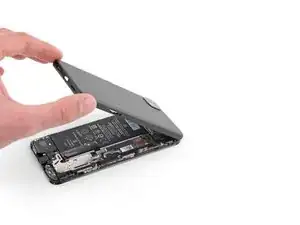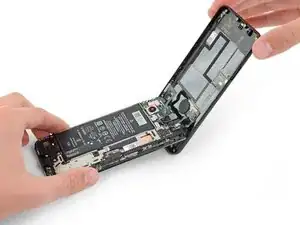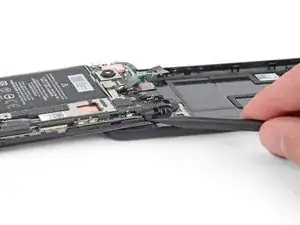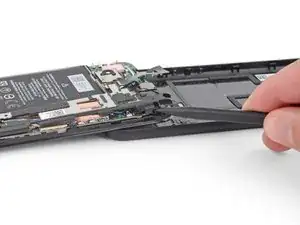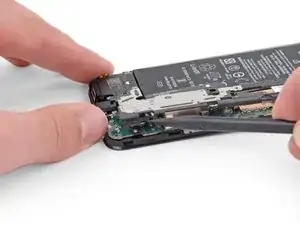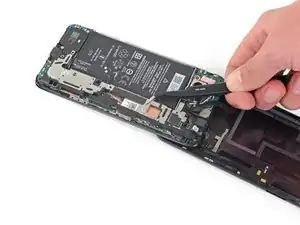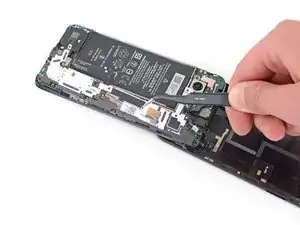
Einleitung

Diese Anleitung wurde von iFixit-Mitarbeitern erstellt und nicht von Google unterstützt. Erfahre hier mehr zu unseren Reparaturanleitungen.

Diese grundständige Anleitung ist nicht zum alleinigen Gebrauch gedacht.

  1. GAtKSCpq6nOLFhJN
    GAtKSCpq6nOLFhJN
    yYyPALgQYGnCFA4X
    qbLJ5OYSRVHREJWu
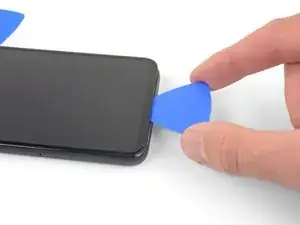
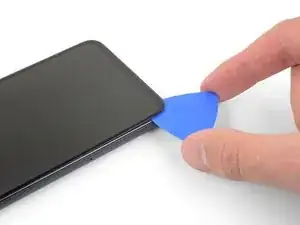
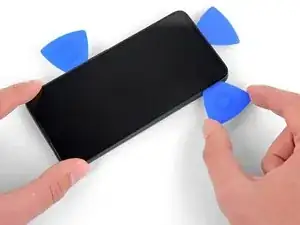
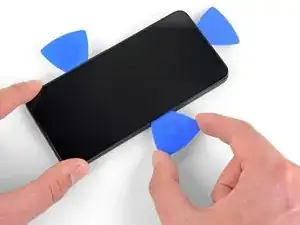
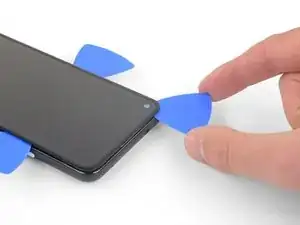
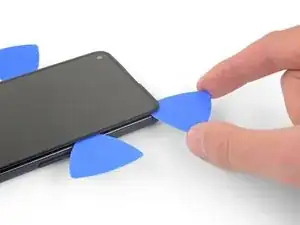
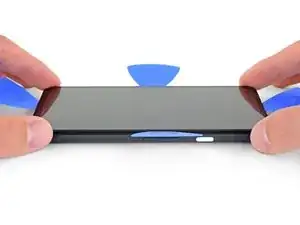
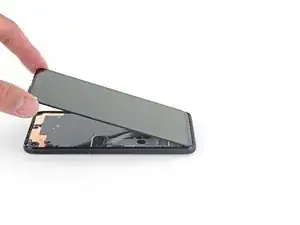
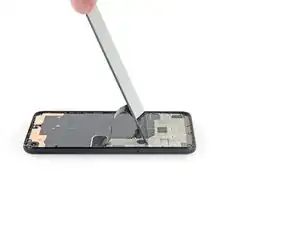
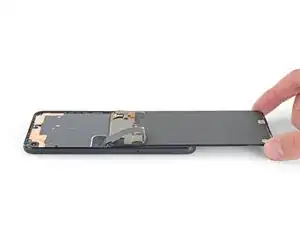
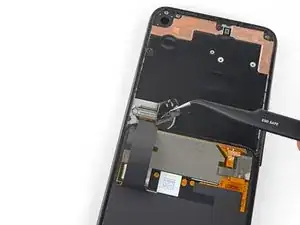
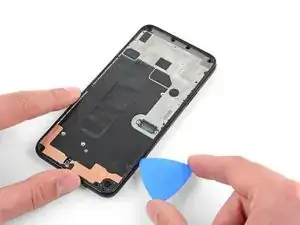
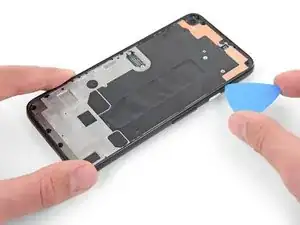
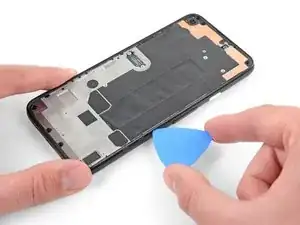
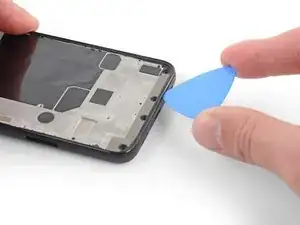
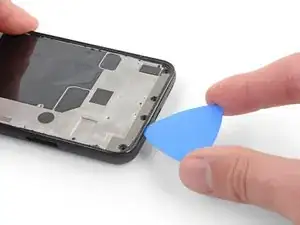
    • Um das Display ausbauen zu können, musst du es nach oben aushebeln. Lies dir die nachfolgenden Hinweise sorgfältig durch, bevor du anfängst.

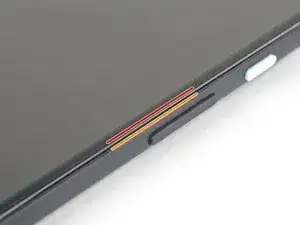
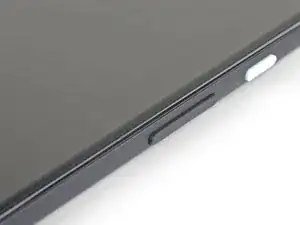
    • Beachte die beiden Nähte an der Kante des Smartphones:

    • Displaynaht: Diese Naht trennt das Display vom restlichen Smartphone. An dieser Stelle muss angesetzt werden.

    • Rahmennaht: hier trifft der Kunststoffrahmen auf die Rückseite. Er ist verschraubt. Hier darfst du nicht hebeln.

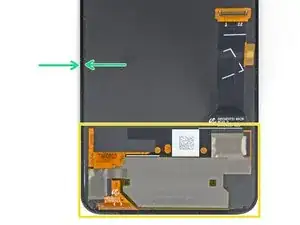
    • Merke dir vor Reparaturbeginn folgende Stellen am Display:

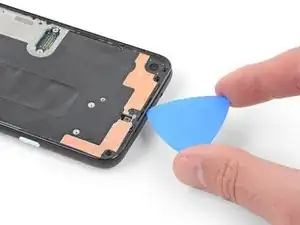
    • Flachbandkabel zum Display: Setze das Öffnungswerkzeug nicht tiefer als angegeben ein, ansonsten riskierst du Beschädigungen am Kabel.

    • Achte auf das orangene Flachbandkabel unter der rechten unteren Displayecke. Es geht leicht kaputt, wenn du mit dem Plektrum hineindrückst. Setze das Plektrum nur so weit wie nötig ein, um den Kleber aufzutrennen.

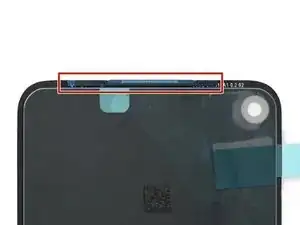
    • Schmaler Kleberand: Wenn du an diesem schmalen Kleberand hebelst, ohne das Plektrum anzuwinkeln, kannst du das OLED-Panel beschädigen.

    Coll down guys and gals.

    1) go below the Display and not between the backcover/middle (see the other comments)

    2) just take care about the flex/display cable position (which is iirc about on the middle i.e. 2nd 3rd from the bottom ON THE LEFT side dear OP)

    Everything else is just separting the glued on Display from the Phone.

    See the other comments

    Aleksandar Dejanovic -
    Cool down guys and gals.

    1) go below the Display and not between the backcover/middle (see the other comments)

    2) just take care about the flex/display cable position (which is iirc about on the middle i.e. 2nd 3rd from the bottom ON THE LEFT side dear OP)

    Everything else is just separting the glued on Display from the Phone.

    See the other comments

    Aleksandar Dejanovic -
    I've measured it: The cable starts arround 1.4-1.6 cm from the lower half from the bottom on the left side.

    So You can cut the bottom left corner and of course the upper left one but for safety's sake, watch out for the camera.

    You can go up to 5cm down from the upper left side till You're near the cable.

    Aleksandar Dejanovic -

    When you say left side, is this your left when the phone screen is facing you?

    jaunie -

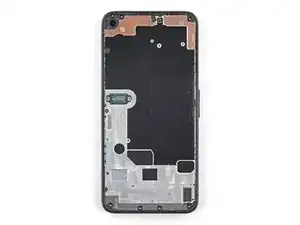
    The third image her shows the back of the screen, not the body of the phone

    blueslondon -

    I wanted to add yet another warning: Be extremely careful in the lower left edge of the screen!

    I tried to be gentle, and inserted the pick very little, but still, after reassembly, my screen remained black (while the rest of the device continued working – if you have USB debugging enabled, you can still use it using the scrcpy tool). There was no visible damage; I suspect that I damaged the ribbon cable in the lower left in an invisible way.

    A new screen fixed the problem. Still, this increased the cost of repair by ~$100. I think the guide should highlight the danger even more. Please be careful – one guide on YouTube I found afterwards avoids inserting the pick in the lower left corner entirely, and just "wiggles it free".

    blinry -

  2. q2iVFP1DNesqap1L
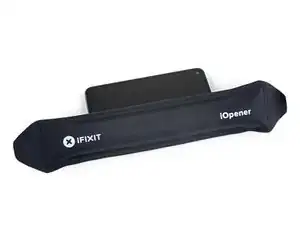
    • Erwärme den rechten Displayrand eine Minute lang mit einem erwärmten iOpener, um den Klebstoff aufzuweichen.

    • Optional kann hierfür auch ein Haartrockner, eine Heißluftpistole oder eine Heizplatte verwendet werden. Hierbei muss jedoch darauf geachtet werden, dass das Smartphone nicht überhitzt wird. Sowohl das Display als auch der interne Akku sind anfällig für Hitzeschäden.

    I did the boiling water method. 3 min in water worked fine. I applied to right side and left side for 90 seconds

    Gabriel Basilio Brito -

    EN : Heat is definitely not the best way here. I have tried the iOpener and my hot air station to no avail.

    Best way is to use a plastic dropper and apply a few drops of isopropyl alcohol. The dropper is definitely the most useful tool of the battery fix kit to remove all the adhesive precisely and without damaging anything.

    FR : Chauffer n'est clairement pas la meilleure méthode ici. J'ai essayé l'iOpener et ma station à air chaud en vain.

    La meilleure méthode est d'utiliser une pipette en plastique et d'appliquer quelques gouttes d'alcool isopropylique. La pipette est clairement l'outil le plus utile du fix kit batterie pour enlever précisément tout l'adhésif sans rien endommager.

    Gerome_C -

    2. Dissolving the adhesive: the i-opener makes a pretty good neck-warmer but I found it useless as a way to dissolve the adhesive; I tried 8 times before giving up and going to a heat gun. (It doesn't help the documentation has only a few sentences on how to do this most critical step.)

    2a. You need a procedure to confirm the adhesive has dissolved other than pulling on the suction cup and likely causing damage to the screen.

    2b. Recommendation: Get rid of the i-opener and instead provide full details on how to safely use a heat gun, hair dryer or heating pad to dissolve the adhesive on all 4 sides. Also show how to safely confirm all the adhesive dissolved

    RCS_3 -

    if you're using the ifixit kit, i recommend pre-heating the pixel 4a in an oven, at 80°c or until it is hot to the touch, then apply the i-opener
    you don't want to go too hot, just enough for the i-opener to not lose heat warming the phone

    jérôme fournier -

  3. EJEIf4Z1AEo3AMWC
    EJEIf4Z1AEo3AMWC
    ScoSymvuqCnKNDcG
    QDwEliHCNFRvCaNt
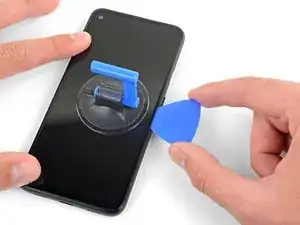
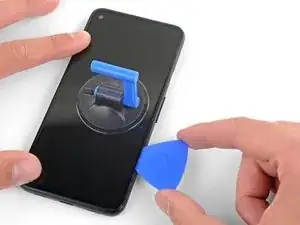
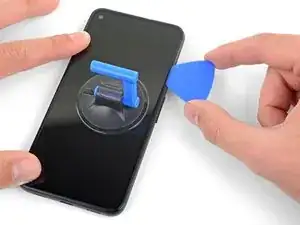
    • Sollte dein Display stark gebrochen sein, kann durch ein Überkleben des Displays mit durchsichtigem Paketband der Saugheber besser halten. Alternativ kann entweder mit Panzertape ein Griff geklebt oder der Saugheber mit Sekundenkleber auf das Display geklebt werden.

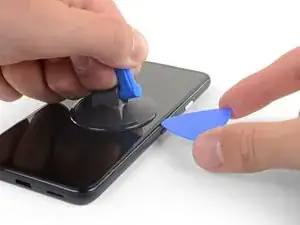
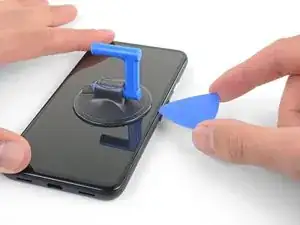
    • Platziere einen Saugheber so weit wie möglich an den rechten Bildschirmkante.

    • Hebe den Saugheber mit einer starken, gleichmäßigen Kraft an.

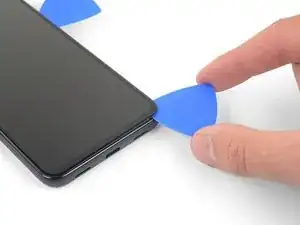
    • Setze die Spitze eines Plektrums nicht weiter als 1 mm in die Bildschirmnaht ein.

    It's pretty easy. Insert it just below the screen between the Display and the Display “holder” or mold.

    Aleksandar Dejanovic -

    I highly recommend not using the mediator that is too thick and too rigid, as the screen is super fragile. Instead, I used a piece of X-ray film. It's thinner, more flexible, and sharper, making it easier to cut through the adhesive along the screen.

    Virak Nou -

    I followed your advice and it's working great, i just cut some small piece of a X-ray film I had and after some heating it's easy to cut the adhesive, I just used the mediator to hold it opened

    David Fleury -

    thank you, great advice 👍

    Martin “mbg” Boehlau-Godau -

    You definitely DO NOT want to insert the opening pick any further than 1mm. Measure 1mm on the pick and mark it. Put some sort of clamp if you have to to prevent going any deeper than that 1mm.

    Kevin -

    EN : I bought the anti-clamp for this step because I was scared to break my screen but I finally ended up using the suction cup delivered in the battery fix kit which is way more simple to use and it's easier to see when you lift the screen.

    Place the suction cup exactly as shown then apply a few drops of isopropyl alcohol into the screen seam next to the suction cup. Once the adhesive is soaked with alcohol, you should be able to lift the screen with the suction cup really easily. Then insert the opening pick or a thin plastic card under the screen.

    Gerome_C -

    FR : J'ai acheté l'anti-clamp pour cette étape car j'avais peur de péter mon écran mais finalement j'ai utilisé la ventouse fournie dans le fix kit batterie qui est bien plus simple à utiliser et on voit mieux quand on soulève l'écran.

    Placez la ventouse exactement comme indiqué puis appliquez quelques gouttes d'alcool isopropylique dans la jointure de l'écran juste à côté de la ventouse. Une fois que l'adhésif est imbibé d'alcool, vous devriez pouvoir soulever l'écran avec la ventouse très facilement. Puis insérez le médiator ou une fine carte en plastique sous l'écran.

    Gerome_C -

    3. Removing the screen: Your approach of just dissolving the adhesive on one side then using picks cut out the other 3 sides exposes the screen to excess stress.(again the documentation provides almost no detail on how set the suction or how to hold the phone to avoid screen damage.)

    3a. The picks are too thick, too stiff and result in a lot of pushing and prying. The kit should contain a specific adhesive cutting tool

    RCS_3 -

  4. xDkhtvTPHTrBtHR6
    xDkhtvTPHTrBtHR6
    AgsUneGcTGB3PV2M
    sPMrxeVQOoANkv3i
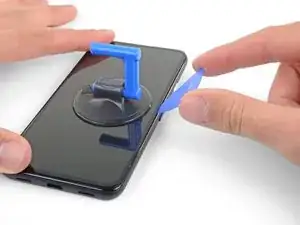
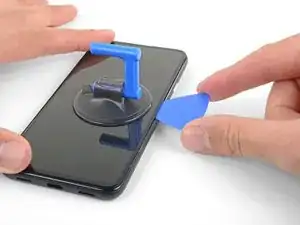
    • Dieser Schritt zeigt, wie das Plektrum eingesetzt wird, ohne das OLED-Panel zu beschädigen. Führe dies durch, bevor du mit dem Durchtrennen des Klebers beginnst.

    • Sobald sich das Plektrum 1 mm weit im Spalt befindet, klappe es nach oben, so dass es einen steilen Winkel bildet.

    • Schiebe das Plektrum vorsichtig in einem steilen Winkel etwa 6 mm in das Smartphone. Das Plektrum sollte unter das OLED-Panel hineinrutschen.

    • Stoppe sofort, wenn du spürst, dass du mit der Spitze auf eine Kante stößt. Das Plektrum drückt möglicherweise gegen die Kante des OLED-Panels. Neige das Plektrum und versuche es erneut.

    This took me a while, I ended up sharpening the tip of the pick with a razor so I could push it through the seam and slicing a few times, heat->sharpen-> slice until I finally got it to move, and once it slid under carefully heated up areas and sliced with ~2mm of the pick.

    Alan Carlson -

    Thanks for this tip, I also shaved down my initial pick and that (plus several rounds of reheating and re-trying) eventually got me there!

    Toby MacNutt -

    This sounds also harder than it is. Push it in 1mm and just lift the other end in a wider angle like 70° degree from the horinzontal position. There “shouldn't” be much you can do wrong. Because except for the Data cable (flex) at a certain position, I can't remeber anything important but isolating tapes that I have scratched.

    It's just the Screen glued to the mold. That's it.

    Aleksandar Dejanovic -

    Oh, and I wonder here where do You all get such thins plectrums? I have also the flat plastic version and the thin plastic cards but none of them were thin enough for this!!

    I ended up using the backside i.e. the dull side of a Razorblade. I didn't saw any alternatives to this. Did You hear this OP?

    Any!!

    Aleksandar Dejanovic -

    the display flex is directly on the bottom of the phone. BE VERY CAREFUL when going around the bottom to not hit the display flex!!!

    FixItAgain -

    Be very, VERY careful when inserting the pick or whatever you're using. That OLED panel is super fragile. When I was replacing the battery, I damaged my screen and had to replace it, as well. The new screen worked, thankfully. I tried to be very careful but somehow still damaged the screen. I couldn't detect any damage to the screen except there was a very small fleck of the iridescent material. That's the only thing I could tell.

    FYI: The phone would boot up into SOME kind of mode. I could feel it vibrate when I held down the power button or used the fingerprint sensor. If you're in that position, it's a good chance a new screen will get your phone up and running. At least, that was the case for me.

    Kevin -

    an iSesamo tool made quick work of this for me.

    nrflaw -

  5. J4QMAiSkZffCSgBV
    J4QMAiSkZffCSgBV
    rCRAZWFOTKgxQUYs
    LeRcwOFGsOG2JHfX
    • Schiebe das Plektrum an der rechten Kante des Displays entlang, um den Kleber zu durchtrennen.

    • Setze das Plektrum nicht weiter als 6 mm ein, da sonst das Flachbandkabel des Bildschirms beschädigt werden kann.

    • Lasse das Plektrum in der oberen rechten Ecke stecken, um zu verhindern, dass sich der Kleber wieder verbindet.

    The display flex is directly on the bottom of the phone. Be very careful when goign around the bottom to not hit the display flex!!!

    FixItAgain -

  6. D42ibC2SikIjDNWv
    D42ibC2SikIjDNWv
    1UDYbsxrgPALt626
    JhcXfCMQ1xAfK4aK
    • Der Bildschirmkleber ist sehr schwach und es sollte keine erneute Wärmeanwendung erforderlich sein. Wenn sich der Bildschirmkleber dennoch nur schwer durchtrennen lässt, kann an der entsprechenden Stelle eine Minute lang Wärme angewendet und ein neuer Versuch gestartet werden.

    • Führe ein weiteres Plektrum schräg in den rechten Rand des Handys ein, wo sich bereits ein Spalt gebildet hat, um eine Beschädigung des OLED-Panels zu vermeiden.

    • Schiebe das Plektrum um die Unterseite des Handys herum, um den Kleber zu durchtrennen.

    • Unter der rechten unteren Displayecke befindet sich ein empfindliches Kabel. Wenn du spürst, dass das Plektrum an irgendetwas stößt, dann ziehe es heraus und probiere es noch einmal. Achte darauf, dass du das Plektrum nach unten schräg hältst und nur soweit wie nötig einschiebst, um den Kleber aufzutrennen (nicht mehr als 2 mm).

    • Lass das Plektrum entlang der Unterkante stecken, um ein erneutes Verkleben zu verhindern.

    Top and bottom edge adhesive were much stronger than this suggests. Corners were very hard to detach. I killed my screen b/c I cracked it at the top. Worked better with heating around whole perimeter like an iPhone.

    Erik Sorensen -

    WARNING: Be very careful prying the bottom left and right corners! In fact do not insert anything there because there is only a 0.8mm clearance between the screen and the edge, and there's a 0.5mm space between the screen and front glass where if you insert a pick between the screen will crack and break! I had to replace the screen after only doing a battery repair...

    bloc -

    Unfortunately I did not properly read the comments here. So for the unafraid people like me:

    DO NOT insert something into the bottom right! Especially not like it is shown in the image at this location!

    Instead I suggest start releasing the screen from right, then left side, then top and as the last step release the bottom, but start with the left corner. Do not pry too much and use a bit more heat as suggested.

    There is a small image of this critical right corner in Step 16 (the part at the top is the display and the left corner at the top is the critical right corner here). You'll see the orange cable in the corner which is easy to damage...

    Peter -

    N’allez pas en bas au début faite le haut d’abord j’ai tuer m’on écran

    Jironi -

    I can second the warnings - especially at the lower corners the OLED screen is extremely sensitive to breaking - as has happened in my attempt when inserting the pick 2 mm.

    Patrick Bohn -

    The display flex is directly on the bottom of the phone. Be very careful when goign around the bottom to not hit the display flex!!!

    FixItAgain -

    Unfortunately despite being very delicate on the bottom right corner I ripped off a tiny bit of the digitizer cable and that resulted in a not working screen... went from spending 50€ for a battery replacement to a 150€ total expense battery + screen... :-( My advice is to not even pry the bottom corner, pry all around, then apply heat carefully until the screen is detaching.

    Andrea -

    Don't listen to the advice that you don't need to reheat. The bottom corners are very strong and you absolutely don't want to go in more than 1 mm to avoid cutting the display flex. Proceed as follows:

    1. Heat and get a pick into the right side (more than 1 mm is never needed, in my case the picks all stayed angled upwards while I did the cutting)

    2. Put another pick in right away in the same spot

    3. Immediately heat the top corner

    4. Move one of the picks towards the top corner cutting all adhesive and let it rest there

    5. Heat the bottom right corner

    6. Move the other pick to the bottom right corner cutting adhesive (not more than 1 mm, make sure to angle the pick sideways!!)

    7. Put another pick in on the right side and move it to the bottom too

    8. Heat the bottom and bottom-left corner

    9. Very carefully move the first bottom pick around the corner and cut everything on the bottom side

    10. Don't insert any new picks on the bottom, always go around the corners with an existing pick

    11. Go around the bottom-left corner

    12. Insert a new pick on the left side once there is a gap and cut the rest

    dragonbane -

    Do not even try to insert anything on the right corner. I pulled screen upwards fine without touching that corner. Just heat both sides and insert picks everywhere but that corner. Although be extra careful with 5 cm from top to bottom on the left side, there is also a cable there, although not that easy to brake as the one on the right bottom corner. I managed to replace battery successfully like that

    Gabriel Basilio Brito -

    I broke the display because I didn't read this comments.

    Don't slide into the bottom left and right corners!

    Thomas Schönberger -

    I wanted to add yet another warning: Be extremely careful in the lower left edge of the screen!

    I tried to be gentle, and inserted the pick very little, but still, after reassembly, my screen remained black (while the rest of the device continued working – if you have USB debugging enabled, you can still use it using the scrcpy tool). There was no visible damage; I suspect that I damaged the ribbon cable in the lower left in an invisible way.

    A new screen fixed the problem. Still, this increased the cost of repair by ~$100. I think the guide should highlight the danger even more. Please be careful – one guide on YouTube I found afterwards avoids inserting the pick in the lower left corner entirely, and just "wiggles it free".

    blinry -

    EN : Do not apply heat, just buy a bottle of isopropyl alcohol. Corners are indeed harder to unglue so apply a few more drops of alcohol and it should be easy.

    FR : Ne chauffez pas, achetez une bouteille d'alcool isopropylique. Les coins sont effectivement plus durs à décoller donc appliquez un peu plus d'alcool et ça devrait être facile.

    Gerome_C -

    I also broke my screen at this stage. EUR 50 and 2 hours lost

    Andreas Vesalius -

    Appreciate the guide, but the adhesive was way stronger than described. I can live with some heat damage, but following this as written led to a cracked screen that no longer functions at all. For me, the corners were especially tough. Multiple reheatings seem much more appropriate, especially since it’s nearly impossible to apply strong, steady force with one hand while doing something that requires surgical precision with the other.

    "The screen adhesive is very weak and you should not need to re-apply heat." Might be worth revisiting that part. I feel it is very misleading.

    On another note:

    To me, it's Kafkaesque how the iOpener instructions are filled with stern warnings—don’t puncture it, don’t reheat before 10 minutes—but then completely handwave the one thing that actually matters: the microwave wattage. ChatGPT tells me this is a U.S. food thing. Still, as an EU citizen, it feels like a weird disconnect from iFixit's usual standard, where everything else is treated with an extreme level of detail.

    459below -

  7. iEnPlXUXUHTZJnpL
    iEnPlXUXUHTZJnpL
    UNTnxRjUZoDHXT4R
    YScDDT4gpOFJOE6j
    • Setze ein weiters Plektrum in die Unterkante des Handys in einem Winkel ein, in dem sich bereits ein Spalt gebildet hat, um eine Beschädigung des OLED-Panels zu vermeiden.

    • Verwende das Plektrum, um die linke Kante des Handys zu durchtrennen.

    • Wenn sich der Bildschirmkleber schwer durchtrennen lässt, erhitze die linke Kante eine Minute lang und versuche es erneut.

    • Lass das Plektrum entlang der linken Kante des Handys stecken, um ein erneutes Verkleben zu verhindern.

    The display flex is directly on the bottom of the phone. Be very careful when goign around the bottom to not hit the display flex!!!

    FixItAgain -

  8. GXSjo5fueaLsoYd5
    GXSjo5fueaLsoYd5
    4mouCGVN3ej3XoXQ
    wLsO4lDvkSNucC6V
    • Der Ohrhörer-Lautsprecher am oberen Displayrand ist mit einem Gitter geschützt. Wenn du kein Ersatzgitter hast, dann beschädige oder verliere dieses Teil nicht.

    • Setze ein weiters Plektrum in verbleibende Seite des Handys in einem Winkel ein, in dem sich bereits ein Spalt gebildet hat, um eine Beschädigung des OLED-Panels zu vermeiden.

    • Schiebe das Spektrum um die Oberkante des Handys herum, um den Kleber zu durchtrennen.

    • Wenn sich der Bildschirmkleber schwer durchtrennen lässt, erhitze die obere Kante eine Minute lang und versuche es erneut.

    The display flex is directly on the bottom of the phone. Be very careful when goign around the bottom to not hit the display flex!!!

    FixItAgain -

  9. BPFrToKqDD62NEeM
    BPFrToKqDD62NEeM
    GlHaHCFlb2AFZhlL
    • Wenn der Kleber rund um das Handy durchtrennt ist, kann das Display an der rechten Kante des Handys, wie ein Buch, geöffnet werden.

    • Entferne das Display noch nicht.

    • Verwende ein Plektrum um etwaige Klebstoffrückstände durchzutrennen.

    When I was doing this I found the corners especially the bottom right corner was very glued on!! There are very sensitive cables here and I found part of the old screen's cables (it might not matter if you're replacing the entire screen anyways) were glued onto the phone frame. I came really close to tearing mine, but I saw another review about reapplying heat to get this part loose.

    Matt Staff -

  10. oUNIGJd3OLSZrEwr
    oUNIGJd3OLSZrEwr
    mlcnfSNcaxRYbOAl
    5IuM1hZd6gUKkGSC
    • Hebe das Display an der Oberkante an und klappe es über die Unterkante, bis es mit der Glasseite nach unten abgelegt werden kann.

    • Sei vorsichtig, dass das angeschlossene Flachbandkabel nicht überstrapaziert wird.

    FR : Précision : La nappe a un bout d'adhésif sur la structure du téléphone, il faut bien faire attention de le décoller. Je viens de tuer la nappe de mon écran qui était fonctionnel...

    EN : Advice : The ribbon cable is fixed to the structure with a small piece of adhesive. It should be remove prior to anything else. I just killed the ribbon cable of my perfectly used to work screen...

    Arnaud Parrot -

    On reassembly: this is where you peel off the colored part of the adhesive strips, and make sure to put your speaker mesh (if it's not attached to the screen) back in place. It should rest flat-side-down on the frame over the two horizontal indents in the frame edge, at least it should if I did it right ;)

    Toby MacNutt -

    If you are afraid of putting stress on the cable by laying the screen down you can just proceed to next steps while grabbing the screen. I did it like that

    Gabriel Basilio Brito -

  11. QDuLoSjuQaZgqGZP
    • Mittels einer Pinzette wird nun das schwarze Klebeband entfernt, das den Bildschirmstecker verdeckt.

    • Sofern es in einem guten Zustand ist, kann es beim Zusammenbau wieder verklebt werden. Ansonsten ersetze es durch ein Stück Isolierband.

    How critical is the tape that covers this connector? I realized upon sealing back up my device that I forgot to re-install it. I imagine it mostly is there to prevent dust and moisture ingress?

    Alex Cook -

    Did anything bad happen with yours? I just did the same thing now

    Jeff Hyypio -

    Interestingly this tape was missing in my phone. Maybe that explains some of the display issues I occasionally had, like a thin green line on the right side of the screen which could be "pushed" away.

    Fabian Seyfried -

    I think I ripped off the cable because it is undistinguishable from the tape! How screwed am I?

    Marius Schummer -

    Don't bother trying to save the tape. More hassle than it is worth. Just replace with electrical tape

    dragonbane -

  12. 6x5ufTbvB5Q5XCb1
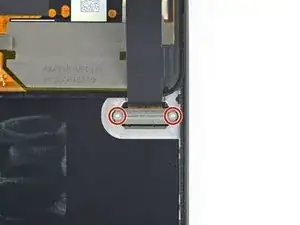
    • Verwende einen T3-Torx-Schraubendreher, um die beiden 2,1 mm Schrauben zu entfernen, mit denen die Halterung des Bildschirmanschlusses befestigt ist.

    • Halte während der gesamten Reparatur die Schrauben gut geordnet und achte darauf, dass jede an ihren ursprünglichen Platz zurück kommt.

    A T4 driver worked for me here.

    Gabe Maayan -

    It is definitely a T4.

    Jarl Friis -

    Funny ... For me, it was T3. The screws must vary across different phones

    Helmut Sporgersi -

    T3 worked for me also

    dragonbane -

    Just to say that I've needed a T4 Torx screwdriver too, not the T3 that came with the kit I got (not the iFixIt kit though). Worth getting one in advance just in case as I had to pause my battery replacement to wait for one to be delivered

    Fiona -

  13. V1CYECKe4EvEHu1J
    • Mit einer Pinzette kann die Halterung des Bildschirmanschlusses abgenommen werden.

    • Bewahre dieses Bauteil gut auf, du benötigst es beim Zusammenbau.

  14. eSlgWVRJgapeowxZ
    eSlgWVRJgapeowxZ
    LtTmQU1tTfjruuhd
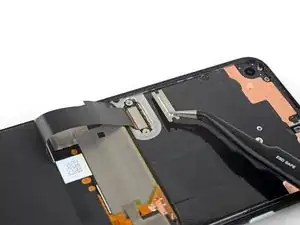
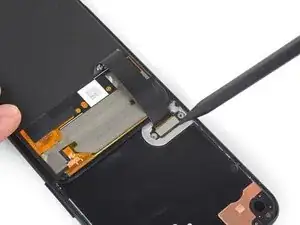
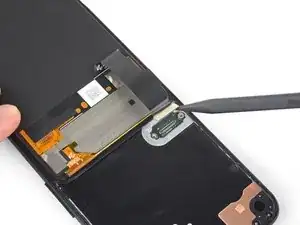
    • Verwende die Spitze eines Spudgers, um das Display-Flachbandkabel hochzuhebeln und abzutrennen.

    • Um Druckstecker wie diesen hier wieder zu verbinden, richte ihn zunächst sorgfältig aus. Drücke erst eine Seite herunter, bis sie einrastet, und dann die andere. Drücke den Stecker auf keinen Fall in der Mitte herunter. Wenn er nicht richtig ausgerichtet ist, können sich die Stifte verbiegen, was zu permanenten Schäden führen kann.

    No, why the tip? Use the other flat side that doesn't concetrate all the power on one point and Youre doing a propper job.

    Aleksandar Dejanovic -

    Only the tip is needed to lift a bit one of the sides and it will pop out. No pressure/power!

    Steve Stavropoulos -

  15. tOeTcJhTXCIkF2Q6
    tOeTcJhTXCIkF2Q6
    TIKvK6PBwOD5fTsM
    IALFopZMpCkuI1AD
    • Entferne das Display.

    • So wird das neue Display eingebaut:

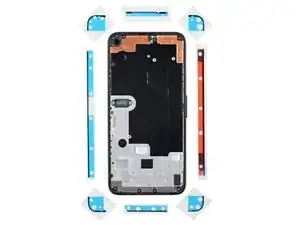
    • Überprüfe, ob das neue Display mit einem Gewebe über dem Lautsprecher und Klebestreifen an der Oberkante ausgestattet ist.

    • Wenn ja, benötigst du die Klebestreifen an der Oberkante nicht.

    • Wenn nein, entferne die große durchsichtige Schutzfolie vom Klebestreifen an der Oberkante und bringe ihn am Display (nicht am Rahmen) an. Achte darauf, dass der größere Ausschnitt für das Gewebe des Lautsprechers passt.

    • Folge dieser Anleitung, um vorgestanzte Klebestreifen zu anzubringen.

    • Das dritte Bild zeigt, wie die Klebestreifen platziert werden.

    • Beim ersten Neustart nach der Reparatur wird das Display eine Kalibriersequenz durchlaufen. Berühre das Display dabei nicht, der Touchscreen könnte nicht richtig kalibriert werden, was zu einer schlechten Funktion führen kann.

    This step seems to imply that a screen replacement is necessary when replacing the charging port. Is the charging port replaceable without replacing the screen? I understand great care must be taken not to damage the original screen in the procedure, but can it be reinstalled?

    David-Alexandre Tremblay -

    Yes, it can be reinstalled.

    Sam Omiotek -

    How long does the calibration process typically take? What does this process look like?

    phelpsbc -

    Just a heads up: If you are like me and you have accidentally turned on your Pixel 4a at some point while trying to pry the screen, don't worry too much. I was able to just connect my display with the device on. Nothing will happen until you reboot, and then the screen will initialize.

    Alex Cook -

    It would help to add that the new screen is reattached after adding glue to phone body, not the screen. With the iFixit screen adhesive pieces, a guide to which piece goes where would help also. For that I used this picture: Google Pixel 4a Display Adhesive - Genuine. Yet that is not enough as there is a cover for (speaker?) which is not clear how to apply that.

    markjville -

    The repair kit comes with Google Pixel 4a Display Adhesive - Genuine but there is no guide on how to apply that adhesive. I sent an email, but Ifixit won't make an instruction page for this.

    Mark -

    To explain how the adhesive sold by iFixit works, the actual adhesive is the black strip which is held between two pieces of plastic. Line up the pieces with the clear plastic side down. Note that some pieces may be stuck in the box they came in, the plastic is staticky. I recommend that before attaching the new screen you put each piece in place. Remove the clear plastic and place the pieces in place with the colored plastic facing up. The goal is to have the black adhesive strip on the little ledge between the edge and the depression inside the phone. It's the place where you hopefully spent time cleaning out the original adhesive. Place the corners first, then the edges. Press them into place carefully. Before removing the colored plastic attach the phone screen cable and secure it. REMEMBER TO PLACE THE ELECTRICAL TAPE OVER THE CONNECTOR (I forgot to). Then remove the colored plastic, leaving behind the adhesive, and push the screen into place.

    Karzyn -

    Of note: the seal peace at the top goes under the speaker screen, and the seal looks at first like it is reversed. To install that one accurately adhere it to the Screen itself not the body of the phone. align it where there is a see through circle along the seam and a hole in the adhesive. the sealant should run below the speaker screen. When readhering the screen to the body, remove the plastic guides around the body, then last the seal on the screen and align and install.

    USAF MX -

    Super, c'est vraiment à la portée de tout le monde, il faut juste un peu de patience et d'audace.

    Je viens de réussir le remplacement de mon écran et c'est impec !

    Il n'y a que sur la première partie, où il faut insérer le médiateur, que ça a été compliqué pour moi. Impossible de l'insérer du côté des boutons (à droite donc), par contre quand je me suis décidée à tester en passant par l'autre côté, c'est venu tout seul.

    Aussi il m'a fallu un certain temps pour comprendre que sur les adhésifs, seul le trait noir colle, et c'est donc à lui qu'il faut faire attention.

    Pensez à vérifier que l'écran est fonctionnel avant de le recoller, à mon premier essai la nappe n'était pas bien insérée et j'ai du recommencer l'insertion. Voila, prendre son temps et vérifier que tout va bien à chaque étape et c'est très facile. J'ai mis un peu moins d'une heure.

    Caroline Leleu -

    I have no idea what to do with the speaker cover mesh. It is on the display I ordered from fix it, but there is blue plastic tape over it, too, so in order for a speaker to work I'd expect the blue sticky tape needs to be removed, but it nowhere says anything about it.

    deadrom -

    After I clipped the screen in place, I realized that I had forgotten to reattach the screen bracket from step 14. Do you think this is dangerous? Can anyone assess this? In any case, the smartphone turns on and actually makes a good impression.

    Many thanks in advance for your assessment!

    Kind regards

    Tom

    Timon Roosen -

    If you're talking about the strip with two screws that holds the screen connector in place. It's not dangerous to forget it, BUT in a short time the connector will come off to remind you of your forgetfulness!!

    Récréatif -

    Just some advice before you install the screen regarding the earphone grille/mesh at the top.

    Something I experienced, was that the speaker grille did not end up being seated quite right when the phone display was stuck down. It is slightly bent, and the top edge is stuck out at a slight angle - it is quite sharp and does not take much to catch a finger on it, when the phone is out of a protective case.

    I think this was because I laid the screen in, starting from the top and with it up at quite a steep angle, then working from top to bottom. I would suggest that when setting the new display within the device, that you align the bottom edge first instead.

    I am not going to risk lifting the new display to try and re-seat this grille properly, the display cost me a bloody fortune (around 58% of the phone's original price) and I am not risking breaking it over something as minor as that.

    nb. I definitely removed all the coloured plastic protective pieces before installing the new screen into the phone.

    Andrew -

    Just put everything together near perfectly re-using the existing screen so I want to share my experience:

    1. This picture shows the correct lineup of the adhesive pieces. Every piece is unique including the corners: https://guide-images.cdn.ifixit.com/igi/...

    2. I tried to save the speaker mesh, but it fell off so I had to use the new part

    3. After removing the plastic cover from the mesh piece you have a slightly sticky surface. Make sure to attach the mesh in that direction on the INSIDE side of the screen. Line it up properly and it should stick nicely over the cutout

    4. Immediately after attach the top adhesive piece from the picture to secure the mesh. Remove the big plastic cover first and stick it onto the screen and the mesh piece in that direction. Note the lineup from this picture: https://guide-images.cdn.ifixit.com/igi/... (the cutout on the adhesive has a perfect match on the display frame)

    5. Attach everything else to the phone frame and not the display

    Continued

    dragonbane -

    Continued

    6. Make sure to line up all the pieces first based on the picture. Every piece is unique, e.g. each corner has a unique hole and cutout pattern. This is important to get right or you will have the sides overlapping with the corners later. Also the left side piece has the big cutout to allow you to work the display connector without having to remove the adhesive cover too early

    7. Always remember that the actual adhesive is the black part and you want it as perfect on the frame as possible. Always attach with the clear side down leaving the strong colored side up

    8. Use the tweezers and get the adhesive on from one end to the other carefully. Touching the black adhesive will create a mess fast as does having to retry

    9. Reattach the display fully and do a dry test before removing the adhesive covers

    10. Gently hold the display up and use the tweezers to remove all adhesive covers

    11. Flip the screen around and first attach on the bottom before doing the top

    12. Let it rest over night putting some books on

    dragonbane -

    Three other notes:

    1. If you just replace the display it will already come with the mesh and the top adhesive piece pre-installed so you can skip that part. Just don't forget to remove the adhesive cover before sticking the screen on

    2. It's EXTREMELY important to properly clean the display and frame first. A lot of adhesive especially remains on the display if you re-use it. Only use plastic tools and be very careful with pressure. Use 90%+ alcohol with some Q-tips to finish the job, but not too much. No alcohol should ever come into contact with a camera lense

    3. Use the flat side of the spudger to go over the black adhesive pieces after first attaching them to make sure they are properly sticking to the surface

    dragonbane -

    The adhesive kit is terrible. Now looking for where to buy some liquid glue to finish this job. Screen and kit are fine, it's just the adhesive strips that are terrible.

    sandalwoodsh -

    Just buy B-7000 from Amazon. Don't waste time with the adhesive kit

    Gabriel Basilio Brito -

    important note: don't pull the colored covers off the adhesive immediately! You want to get the ribbon cable and its cover reattached first. Then hold the screen hovering over the base with one hand and gently ease the tabs/covers off your adhesive with the other.

    Toby MacNutt -

    I changed a battery a month ago, so I had to disassemble and reassemble the old screen.

    When you've never done these operations, it really requires a lot of observation, being quite manual and being very methodical. You have to follow the instructions to the letter, meticulously read all the comments. A few videos on the internet also help. But in the end, you can do it quite well.

    I just changed a screen on another Pixel, it was already much easier and faster!!!

    Récréatif -

  16. MUThkCHXP1YOjvTO
    MUThkCHXP1YOjvTO
    sqkNnIBQYWorWeJJ
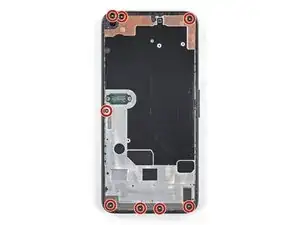
    • Entferne die acht 4,3 mm Torx T3 Schrauben, mit denen die Rückseite am Mittelrahmen befestigt ist.

  17. WlP2DuWIIuwaviZC
    WlP2DuWIIuwaviZC
    ANVOUjTrn1dWyUdi
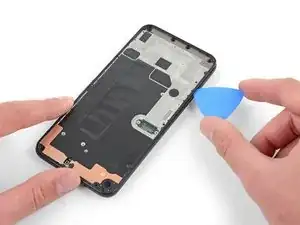
    • Setze ein Plektrum in die Naht zwischen dem Mittelrahmen und der Rückseite ein.

    • Schiebe das Plektrum an der Unterkante des Smartphones entlang, so dass sich die Kunststoffrasten lösen, mit denen die Rückseite am Mittelrahmen befestigt ist.

    It wasn't clear to me from the picture, but don't try to pry the midframe piece up from the back cover. Pry the vertical edge of the back cover just a little out from the edge of the midframe. This releases the clip rather than fighting the clip, and the midframe will pop up from the back cover.

    GeorgeR -

    Be very careful at the top edge of the cover where the headphones jack is located! The plastic is very thin at the top of the opening. I was not careful, and cracked the cover near the opening. Not the end of the world, but perhaps you will be more lucky now that you know about this pitfall!

    Andrey Fedorov -

    Schritt 18, Achtung ! - mit dem Plektrum muss senkrecht von der Mittelwand gegen den Rand der Rückabdeckung gehebelt werden und auch so weitergeführt werden. Wenn das Plektrum wie gezeichnet etwas unter dem Mittelrahmen geführt wird, können sehr empfindliche Kontaktfeder zerstört werden - Totalausfall. Ich habe einen Kontakt mit einer Leitung überbrücken müssen. Jeder Praktiker wird das Plektrum senkrecht ansetzen.
    Dem iOpener ist der Kleber auch nicht zu lösen, ein Fön muss benutzt werden.

    s 3 -

    EN : The retaining clips are pretty hard to release on the bottom. Start from the left corner underneath the Sim card tray then go all the way up and all around the phone then finish with the bottom part shown on the picture.

    FR : Les clips de maintien sont durs à libérer sur le bas. Commencez par le coin gauche juste sous le tiroir Sim puis remontez et faites tout le tour du téléphone puis terminez par la partie basse indiquée sur la photo.

    Gerome_C -

    Für diesen Vorgang eignet sich am besten der Fingernagel. Am besten, wie schon oben erwähnt, in einer Ecke ansetzen.

    (Ich habe bei 3 Pixel 4 a die Batterie gewechselt.)

    Walter -

  18. PVWCcCnXgIsp4JJa
    PVWCcCnXgIsp4JJa
    GCfIwDIjE6BjWYoe
    • Schiebe das Plektrum an der linken Kante entlang, so dass sich die Kunststoffrasten lösen, mit denen die Rückseite am Mittelrahmen befestigt ist.

  19. mU4CLMhfFknuPl5n
    mU4CLMhfFknuPl5n
    RTIMpbsbyoSe2Asy
    fWvmYQjydvs5PYN5
    • Schiebe das Plektrum an der Oberkante und der rechten Seitenkante des Smartphones entlang, so dass sich die restlichen Kunststoffrasten lösen.

  20. MdboONmZoQ2iEelX
    MdboONmZoQ2iEelX
    g6BT63mabF3ZYWF1
    p1BgRe1I2kektn43
    • Fasse die Rückseite des Smartphones an der Unterkante an und schwenke sie vorsichtig um die Oberkante herum, so dass sie auf ihrer eigenen Rückseite liegt.

    • Lege die Rückseite auf die Arbeitsfläche. Lasse den Mittelrahmen leicht darauf liegen. Achte darauf, dass die angeschlossenen Flachbandkabel nicht zu stark belastet werden.

    I can't stress enough (no pun intended!) the need for NOT stressing these cables and connectors more than absolutely necessary! Having successfully completed the entire battery replacement and then reconnecting the fingerprint sensor connector, that cable suddenly snapped in half, probably fatiguing from too much flexing. The phone still works of course, but without a fingerprint sensor. In my opinion, this was the most crucial part of the disassembly/reassembly.

    Andris Vizulis -

  21. f2OM6kEyPrhaWyuj
    f2OM6kEyPrhaWyuj
    NASStAIlBwtiLIcK
    • Entferne die sieben Torx T3 Schrauben, mit denen die Halterung der Hauptplatine befestigt ist:

    • Drei schwarze 2,9 mm lange Schrauben

    • Drei 2 mm lange Schrauben

    • Eine 4,1 mm lange Schraube

  22. DegASyYRvxWHvR4I
    DegASyYRvxWHvR4I
    uLZFNBvv3Wah3QHw
    C3ytMmW5sIktGCKx
    • Lasse die Halterung der Hauptplatine mit Hilfe der Spudgerspitze in der oberen rechten Ecke und der unteren rechten Ecke der Hauptplatine ausrasten.

    on mine, the fingerprint sensor cable was lightly adherent to the bracket and I almost tore it when the bracket popped up. may want to add something about freeing this up before removing the bracket.

    Erik Sorensen -

    Similar to Erik, my fingerprint sensor cable was adhered to the bracket and mine did tear. I didn't use the fingerprint sensor, so hopefully this doesn't affect anything else with the phone. Now I know to read the comments! X_X

    Jason Birchard -

    I found the clip at the top of the bracket very hard to unclip, so much so that it was bending the end of my spudger. In the end I was successful with a spare SIM removal tool instead of a spudger, but in the same manner as pictured in the first 2 photos.

    Adam G -

    I had the same issues: The cable was attached to the bracket and I had to be very careful in pushing the bracket to the side and reach under it with the spudger to detach the fingerprint cable. And I also found the top clip of the bracket hard to unclip. It worked when I started with the lower one and then pushed the bracket to the side a bit. It seemed to be glued on the top corner.

    Fabian Seyfried -

    My fingerprint sensor cable was also glued to the bracket, but it seems like a sturdy cable so was not easily damaged

    blueslondon -

    Ok this was really bad for me I did not understand how the clip was oriented and tried to pull it up lightly first and then strongly, it finally came off but I bent and broke the bridge just a bit, and most importantly the RFID or fingerprint sensor cable (the circle in the back). I don't use it and nothing more was harmed managed to put everything back in place but

    Beware of the clips, you have to pull them TOWARDS you, then the bridge will pop-up, don't apply strength upwards before unclicking the 2 clicks towards you (horizontal plane)

    rkj -

    This is also what worked for me. I put the lid over the rest of the board, to protect the cable (after reading the comments) and used the tweezers to carefully pull the piece towards me and then lifted it up.

    Javier Carrasco Melo -

    This cable also ripped for me as the motherboard bracket popped up! It was remarkably fragile

    IFuxedIt -

    this is the most frustrating step in the entire guide. i used tweezers and pushed to the left of the upper bracket to free it. no upward force is required to free it. be careful

    Logan Tristan -

    My spudger tip was bending trying to release the bracket - I used a 1mm flathead screwdriver instead, from just below the clip, and it popped up beautifully and with no force. Cables all intact!

    Toby MacNutt -

    The fingerprint sensor cable is the smaller one and it is indeed glued to the top of the motherboard bracket. First free it with the spudger before proceeding.

    Always remove the bottom-left clip first as it reduces force.

    I should also note that if you hate re-attaching ribbon cables like me and want to ensure the fingerprint sensor cable won't break then it is enough to only remove the bottom-left clip, gently lift the motherboard up and to the side and use the spudger to detach the battery cable. Steps 26 and 27 can be skipped and you simply keep the back frame attached. Do Steps 28-30 before unscrewing the mid frame for easier pulling on the battery adhesives. After the battery cable is free flip the back cover again, then drop the IPA in if needed to free the battery fully.

    Just be careful with pressure. After installing the new battery lift the motherboard up again and re-attach the battery cable which isn't too bad. Then clip the motherboard back into place and proceed.

    Fingerprint sensor cable saved!

    dragonbane -

    Free the smaller cable first. If you do this there is no risk of breaking fingerprint sensor. You will know what to do when you see it. After freeing cable you can pull the metal stuff upwards safely with any force you want. The risk is gone

    Gabriel Basilio Brito -

    Like for many others, this step didn't work well for me. The instructions should really clearly state that you need to pull towards the outside to unclip the motherboard bracket.This is what the clip on the upper right of the motherboard bracket looks like in profile. Also, my spudger tip bent and almost broke. I had to use a small screwdriver to be able to apply enough force to unclip.

    Art -

    Inordinately complicated and a severe design fault. Thank God they did not design a car battery.

    Hugh Williamson-Noble -

    Thanks to all the comments! Unglued my fingerprint cable before following @rkj tip on pulling the bracket towards you and it popped out like a charm. ifixit should highlight the comments or something if they have a lot of interaction going like this cause this probably saved me from a headache from an other wise smooth replacement.

    dabird -

    EN : I strongly advise you to do steps 26 and 27 before doing this step. Don't touch the retaining clip shown on the picture, leave it for the end. Gently lift the bracket from the opposite side and release the 2 ribbon cables. My fingerprint sensor cable was also glued to motherboard bracket so be careful. Then remove the back cover. You can now easily remove the motherboard bracket.

    FR : Je recommande fortement de faire les étapes 26 et 27 avant cette étape. Ne touchez pas le clip de maintien montré en photo, gardez-le pour la fin. Soulevez délicatement le cache côté opposé et libérez les 2 nappes. La nappe de mon lecteur d'empreintes était également collée au cache de la carte mère donc faites attention. Puis retirez la coque arrière. Maintenant vous pouvez facilement retirer le cache de la carte mère.

    Gerome_C -

  23. I42ZwXCYPXHynfaW
    I42ZwXCYPXHynfaW
    qnwPLChOx3ADH6Nx
    vFJtFHFQmbfCFAgU
    • Entferne die Halterung der Hauptplatine mit einer Pinzette.

    The cable for fingerprint sensor was slightly glued which I gently removed by using the flat side of the spudger

    Nove -

  24. xWvhsg16pjLhCOr3
    xWvhsg16pjLhCOr3
    Ac2MJU2Ts1AinPlR
    • Heble den Akkustecker mit dem flachen Ende des Spudgers hoch und trenne ihn ab.

Abschluss

Um dein Gerät wieder zusammenbauen folge, den Schritten in umgekehrter Reihenfolge.

Sam Omiotek

Mitglied seit: 25/02/19

87355 Reputation

0 Kommentare