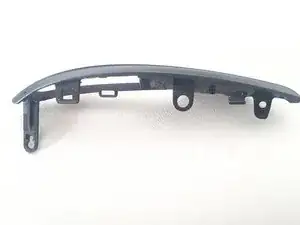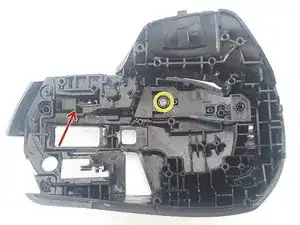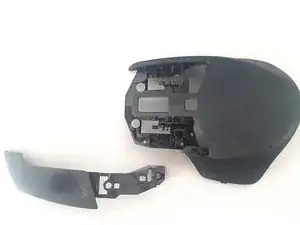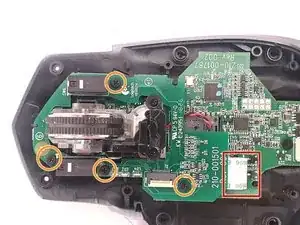
Einleitung

  1. 1KYGFBXEjBCNtXCW
    1KYGFBXEjBCNtXCW
    ArY2SMUF4KIBfKAK
    dQ3AhFsLE5mqyIZA
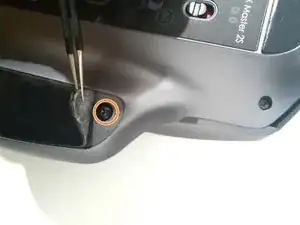
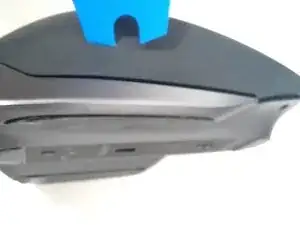
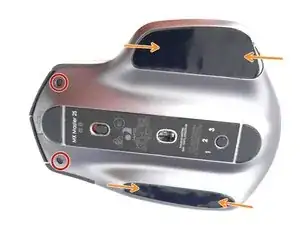
    • Stelle sicher, dass die Maus ausgeschaltet ist. Dann drehe sie um, um die sechs Schrauben auf der Unterseite zu erreichen.

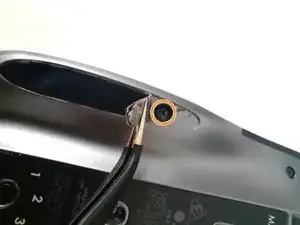
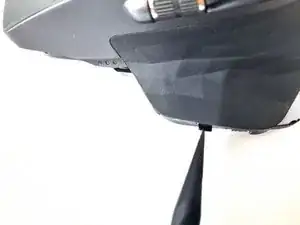
    • Beachte, dass du die Sticker zumindest ein Stück weit an jedem Ende anheben musst, um die Schrauben zu erreichen. In dieser Anleitung werden sie nicht komplett entfernt, sondern nur an jedem Ende angehoben.

    • Entferne die zwei T5-Schrauben an der Vorderseite.

    • Und die vier Kreuzschlitzschrauben unter den Stickern, zwei auf jeder Seite.

    • Werden die Sticker mit Vorsicht behandelt und sind nicht zu stark abgenutzt, können sie ohne Probleme wiederverwendet werden.

    if the problem is that the scroll wheel spins freely, the button next to it controls that.

    Rob Miller -

    The stickers have two layers. To avoid de-laminating them, stick a sharp, flat object underneath the edge of the sticker and try to carefully pry up all of the material at once.

    Maddison Hellstrom -

    Yes, this is a great comment. I accidentally separated the two layers and I had to glue them back together on one side. You want to peel up both layers at once and not separate them, ideally.

    David Richardson -

  2. dndD3uYMC2WXFPVa
    dndD3uYMC2WXFPVa
    LJ2V3wgROmR2HeBf
    huMX12mV14IGu5um
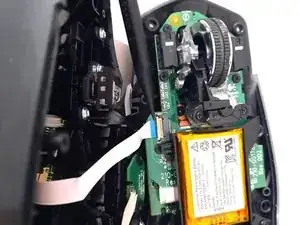
    • Um die beiden Teile der Maus voneinander zu trennen, verwende am besten eine Karte oder das iFixit Öffnungswerkzeug, hauptsächlich im vorderen Bereich und an der Seite, die keine Tasten hat. Dann im hinteren Bereich und zuletzt an der Seite mit der Seitentaste. Sei vorsichtig wenn du diese beiden anhebst, denn sie erfordern leichte Bewegung.

    • Beachte, dass die beiden Teile innen durch einen Flachbandstecker verbunden sind. Sie lassen sich nicht sofort voneinander lösen.

    • Trenne die Teile vorsichtig von einander.

    • Löse die Steckverbindung.

    the ribbon connector clamp flips up 90 degrees from pcb

    Rob Miller -

    This comment was super helpful, thank you Rob! Just pry the little white piece up very gently to free up the ribbon.

    Pete Richardson -

    you don't need a tool, my thumbnail easily separated the two big parts that form the external shell without causing any damage

    Dave Woodhead -

  3. xplUjZxTYXZYSi2W
    xplUjZxTYXZYSi2W
    WewIlNGNSKVuWCOT
    jmiHWtJW1mLEdUhL
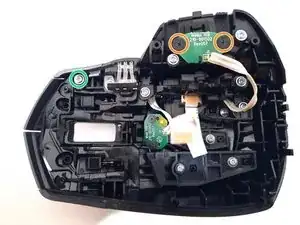
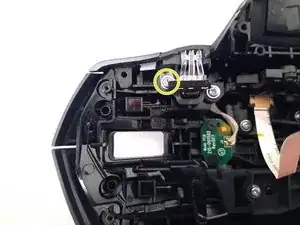
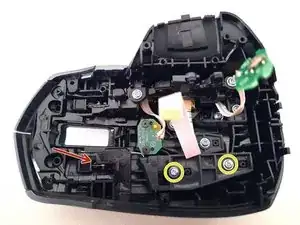
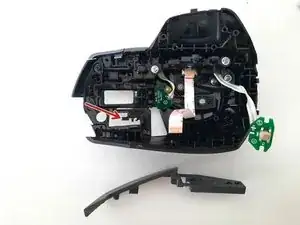
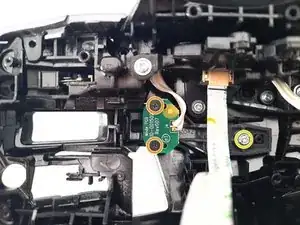
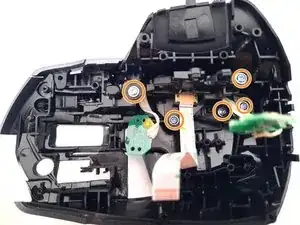
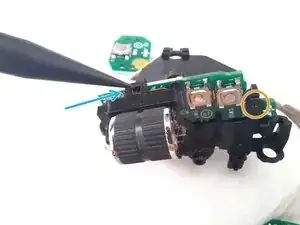
    • Entferne die schwarzen Schrauben von der Knopfplatte.

    • Löse zusätzlich die Schraube, die das obere Gehäuse und die Seitenabdeckung hält.

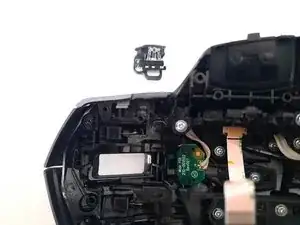
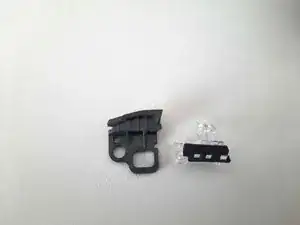
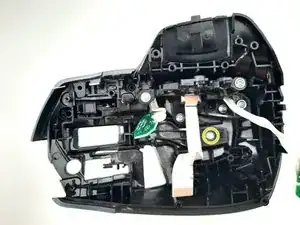
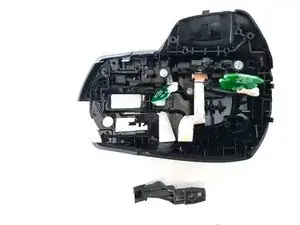
    • Entferne den Knopfmechanismus.

    • Auf der Oberseite befinden sich zwei Arten von Schrauben, für beide sind Kreuzschlitzschraubendreher erforderlich. Die vier schwarzen halten die elektronischen Platinen und der Rest (silberfarben) hält alle Kunststoffteile.

    When reassembling, don't tighten the silver screws too much. The way the upper case fits into the lower case, this button may end up held down. On my system (macOS, no Logi software), this caused the cursor to not work at all

    Mike -

    I'm also on Mac OS (Ventura on M1 Studio) and tried both with and without Logi software. I had the same common fault that the cursor stopped tracking at all. Had the mouse maybe 5 years and use it solidly 40 hours a week at work. Was gutted when it appeared to have died. Found this tutorial and I'm back in business, mouse works now. I only followed up to this early stage of the exercise, and removed the thumb button widget altogether, never used that functionally anyway. The Logi ergonomics of the thumb rest are pretty much why I invested in this mouse, but never got into using it for thumb clicks.

    Dave Woodhead -

  4. OjWyDnDynlHsNOkt
    OjWyDnDynlHsNOkt
    MNF2BnkVQQAonHii
    e4esQINY6KFV1KZB
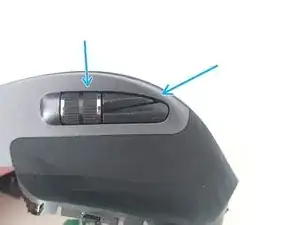
    • Entferne die Schraube, die das Teil hält. Gehe dabei vorsichtig vor.

  5. Klofrbnbs1VwmKfX
    Klofrbnbs1VwmKfX
    LpeiEnfMyR3PVgQA
    vOgOgnLUgkPtVOUK
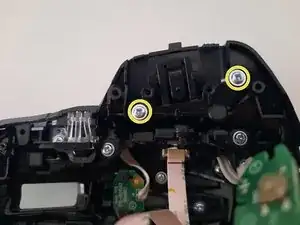
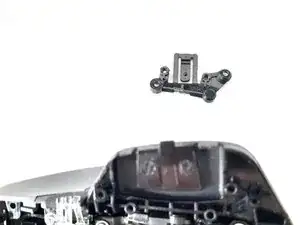
    • Löse die beiden Schrauben, die die Taste halten.

    • Beim Entfernen der Schrauben die Taste vorsichtig nach vorne ziehen.

    • Sei vorsichtig mit der Feder, die die Taste unterstützt. Es besteht keine Notwendigkeit, die Feder zu entfernen. Du kannst dies aber tun, wenn du die Taste entnimmst.

  6. KkTFIWdvytEFBWSZ
    KkTFIWdvytEFBWSZ
    QhRtgGpsRqQPLsw3
    OpY1rPVN2DqSsUAV
    • Entferne die schwarzen Schrauben von der Knopfplatte.

    • Entferne die Schraube, die den Knopf hält.

    • Entferne den Kunststoffknopf vorsichtig.

  7. SkIfKlFyggIHRva5
    SkIfKlFyggIHRva5
    wS1HFsdNHa6kxYL4
    GX1GtHeIPTPUuhvi
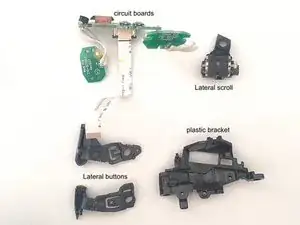
    • Entferne die Schrauben, die den Scrollmechanismus und zwei Seitentasten halten. Wir haben außerdem die meisten Schrauben der Rechtsklick-Taste entfernt.

    • Drücke vorsichtig von außen auf das Mausrad und hebe das Teil von innen hoch. Hierfür kannst du einen Plastikhebel verwenden, zwingend nötig ist das nicht. Lass dir Zeit und gib Acht, dass du die Kabel und den Mechanismus nicht beschädigst.

  8. 2idUDnePHflKoxAA
    2idUDnePHflKoxAA
    NInhakYjIjEETdf2
    3iNIxjjaxOVrSfMP
    • Entferne die Schrauben, die die Tasten und das Mausrad halten.

    • Mithilfe eines Hebels oder Plastikkeils kannst du das Mausrad weiter auseinanderbauen.

    • Entferne dann die Schraube, die die Leiterplatte hält.

  9. bMCdjOQhCXMltYYQ
    bMCdjOQhCXMltYYQ
    c1fNQb1GX3uV6aoV
    XcwWXrBnPGXmsDYL
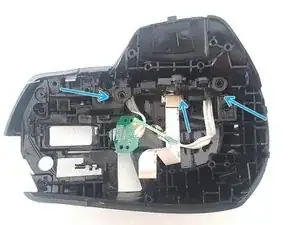
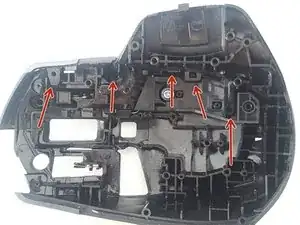
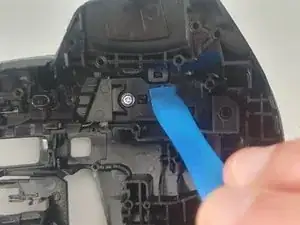
    • Die seitliche Abdeckung ist mit mehreren Haken am Gehäuse befestigt. Sieh dir die Bilder unten an und nutze Spudger oder das iFixit Opening Tool, um sie zu lösen. Du kannst die rechte Maustaste zeitgleich entfernen, das Vorgehen wirst du im nächsten Schritt sehen.

  10. J1ZR1AUVIA5EyTnN
    J1ZR1AUVIA5EyTnN
    XgqNZudoj3kABX4c
    • Entferne die Schraube die die Taste hält.

    • Drücke vorsichtig den Knopf nach vorne, wenn du die Schraube entfernst.

    • Denk an die Feder, genau wie bei der rechten Maustaste.

  11. gsJjM5lUgN6VE4yT
    gsJjM5lUgN6VE4yT
    fXnMjSKlHoXnHQxM
    NUBpC2Vc5Be615Yn
    • Löse die drei Schrauben des Akkuhalters und zieh den Stecker vom Motherboard.

    • Entferne die Schrauben von einer der beiden Leiterplatten.

    • Sei vorsichtig mit dem Flachbandkabel, das die beiden Platinen verbindet. Entferne es vorsichtig mithilfe eines Spudgers oder eines ähnlichen Hilfsmittels, ohne es zu beschädigen.

  12. hVtR21HBXv2W3jH4
    hVtR21HBXv2W3jH4
    S2xW2bi4tFW5h3jE
    HiuNaZfSm3LGexFK
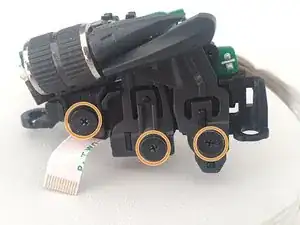
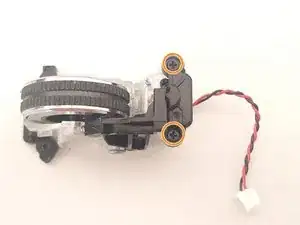
    • Der ganze Mechanismus wird nur von zwei Schrauben und dem Verbindungskabel, das zu einem kleinen Motor führt, gehalten. Pass beim Entfernen auf die kleine Feder auf, die sich unten an dem Mechanismus befindet.

    • Entferne die zwei Schrauben und löse das Kabel.

    Donde puedo conseguir el rodillo de este raton, lo he buscado por eBay y por Aliexpress y no lo encuentro

    joseluischongkoon -

  13. EDAPeBLkrN5bQovr
    EDAPeBLkrN5bQovr
    jLIVCAgrAjjHBwrC
    tLcV5nHY4AZIxJAh
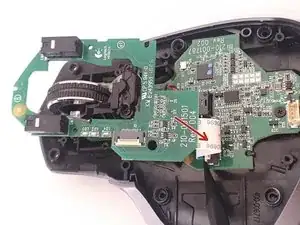
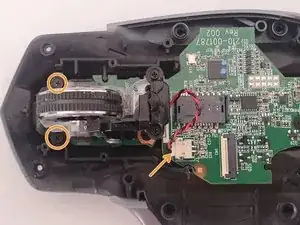
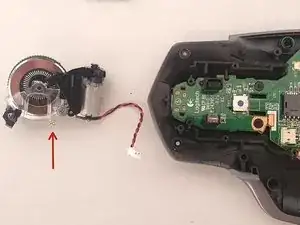
    • Entferne die zwei Schrauben, mit denen die Motorabdeckung befestigt ist, und entferne dann vorsichtig die Abdeckung.

    • Entferne die Schraube, die das Kunststoffteil hält. Hierfür musst du vorsichtig die kleine Feder entfernen, die es mit dem durchsichtigen Teil verbindet, auf dem das Mausrad sitzt.

    • Beachte den Riemen, der den Motor unterstützt, sowie die Feder am Plastikteil.

    • Zerlege den Rotor- oder Motorkopf durch vorsichtiges Aufhebeln mit dem iFixit Öffnungswerkzeug oder einem anderen Gerät. Achte auf die genaue Stelle, an der er montiert war, denn er passt nur an dieser einen Position.

    The last picture showing that spring is too blurry, and the spring popped off before I could see where it was supposed to be. Now I can't figure how to add it back since it doesn't seem like it does anything

    Mike -

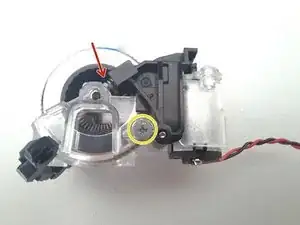
    Hi Mike! Look at the 1st picture in the step 14. With a red arrow, that is the first spring (or strap, I don't know what's is the name for that), It's a support for the "rotor motor cover" (step 13, 3rd picture).

    A 2nd spring (step 14, 3rd picture) is a support (or "shock absorber" maybe) for the scroll wheel, It's is located inside the black plastic piece.

    Victor Crespo -

    As a followup to my previous comment. The spring is the only piece left from the reassembly, and my scroll wheel works just fine

    Mike -

  14. MvgoUpupiLFMxbdD
    MvgoUpupiLFMxbdD
    In3SukigUdaVKtj5
    BCwRVWHfYosSiY3s
    • Der rote Pfeil zeigt auf den Riemen aus dem vorherigen Schritt, achte während des Ausbaus auf ihn.

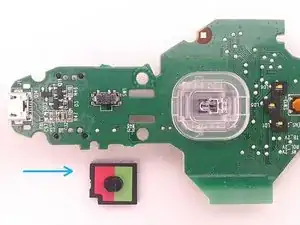
    • Der blaue Pfeil zeigt auf die Gummihalterung, die den Motor befestigt. Beim Entfernen des Motors wird sie wahrscheinlich ebenfalls herauskommen. Die Halterung ist sehr einfach wieder einzubauen, lege sie dazu in die Position, in der sie vor dem Ausbau des Motors war. Dabei hilft der Spudger oder die Pinzette.

    • Entferne die beiden Schrauben, mit denen der Motor befestigt ist, er ist nun komplett lose.

  15. NgYFNNLBUNve5cBB
    NgYFNNLBUNve5cBB
    cTKUh3QA5BFZxDgl
    sOJPvleKClowuhyP
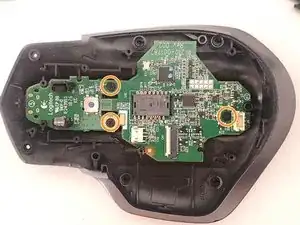
    • Löse die drei Schrauben, mit denen das Motherboard befestigt ist.

    • Entnehme die Einschalttaste (Power Button) und merke dir, in welcher Position er war.

Abschluss

Um das Gerät wieder zusammenzubauen, folge den Anweisungen einfach in umgekehrter Reihenfolge.

Victor Crespo

Mitglied seit: 20/07/15

1934 Reputation

39 Kommentare

I’m not sure I see any reason why anyone would to this and risk it being ruined. In other words, what are the potential benefits? Cleaning?

John Smith -

Yup cleaning that scroll wheel, and maybe even the switches if your really dirty. 15 min made my mouse new again

drawsmatthew -

Hello!! It is a spectacular product, with its mistakes (nothing is perfect ;)). The fundamental objective of this guide is simply to answer the question How does it work, what is inside? It can serve as a guide to clean it (either both scrolls or the button contacts), change the battery, etc. Everything that can contribute to extend its useful life much more.

Victor Crespo -

Read the name of the site

Fabrizio Schwarz -

There is a very clear example of why one would need to do this. Certain 2s's, including my own, have a fundamental flaw. At some point, the pressing of the thumb-button, the one located below where the thumb is positioned, gradually results in the button getting stuck. For some reason, this results in the mouse movement not registering.

To resolve this issue, you can loosen a screw located button, but this can only be done when the mouse is disassembled, as it is contained within the mouse itself.

Yize H. -
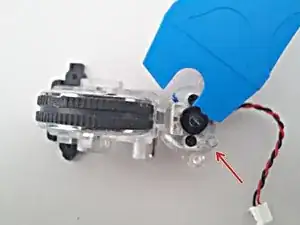
My mouse was out of warranty, and had a manufacturing defect (bad soldering) which could be easily fixed. It gave the mouse a new chance.

David Debreczeni -
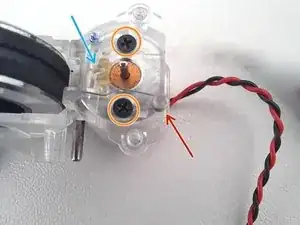
Used this guide to clean my scroll wheel, took me 15 min, super easy. Didn’t need to remove anything, just opened it up and disconnected the 1 ribbon cable from the top half.

I used some clear tap folded on itself and ran it through the scroll wheel a few times. Only a bit of dust came out but the difference is crazy, its totally free spinning now.

Stop convincing yourself your scroll wheel is fine, open it up, clean it out and its even better.

Thanks iFixit

drawsmatthew -
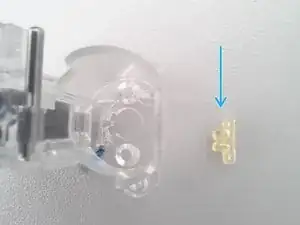
It’s actually a REALLY good mouse

Jacob Fenn -

Very helpful since I need to replace the Li-on battery.

RonE -

Can be used without the lithium-ion battery, just like a normal wired mouse

Victor Crespo -

Great guide Victor. Thanks for mentioning the fact that you can use the mouse without battery - I was wondering about this since I was worried about long term use.

Fabrizio Schwarz -

Thanks you!!!

Victor Crespo -

Perfect! Mine had the base button not working, or perhaps not clicking anymore. I already have a new one so i'll try this for entertaining purpous and see whats wrong with it!

Réda Taoussi -

Thanks! the gesture button kept sticking so I needed to clean it out and it works now. I struggled at first though since the pictures only showed 4 screws. I didn't realize there were 6 until I re-read it..

poochyena -

Hello everyone! Some tricks to repair the led? My mouse is all operative but the movement led is apparently dead..

martino_toderi -

Great guide. Helped me when base button got stuck in 'cliked' position making the whole mouse unusable. Fixed in 15 minutes.

Paweł -

owners kitten caught its first mouse - turned out to be an excpensive one used this to dissemble and glue the RMB to the prongs where it came off it is now setting for 24hrs with chemical metal but the instructions were top notch !

Paul Haggett -

Excellent guide but I would have appreciated driver sizes since they are not all the same. And kudos to Logitech; this version seems so much more serviceable than the original MX Master.

John Mangos -

Hi @mangosjohn, the drivers used in this guide are listed at the top: Phillips #0 Screwdriver, Phillips #00 Screwdriver, and T5 Torx Screwdriver.

Amber Taus -

Thank you @amber. I had drivers for each step in mind since similar looking screws needed a different bit, but I admittedly did not see the list at the top either.

John Mangos -

Both this mouse from eBay.

Anyone have any idea why the left button behaves as the right button?

I can't seem to find what is the issue with it.

Adrian -

Hi.

Did you verify this problem by trying the following?

1. Installing and config the button with Logitech Logi Option+ Downloads - MX Master Wireless Mouse – Logitech Support + Download

2. Checking the native mouse settings in the operating system (Windows, Mac or Linux).

3. Test the mouse (see the menu, you can test each button independently) Mouse Test - Check Mouse Button, DPI, Sensor, and Double Click (clickspeedtest.io)

Victor Crespo -

Thanks so much for this guide! I spilled bubble tea on my mouse and decided I'd proactively take it apart and give it a wash (soap and water for the non electronic parts, isopropyl alcohol for the electronic parts), as even if the electronics didn't get ruined from the spill, the sugar made it very yuck to use. This is my first time taking apart an electronic device, and this guide made it a relatively simple process. Surprisingly satisfying too! I managed to lose a screw and ended up with two extra screws, but I suppose that can't be helped given that I spilled a bunch of the screws onto the floor at least two times. Hopefully this mouse will keep on working for many years yet. Thanks again, it was super helpful.

Jenny Huang -

You're welcome! I'm glad to hear that the guide was helpful to you in taking apart and cleaning your mouse. It can be a bit daunting to take apart an electronic device for the first time, but it sounds like you did a great job. It's definitely satisfying to fix something yourself and make it like new again. As for the lost screw and extra screws, those things happen even to the most experienced tinkerers! Hopefully, your mouse will continue to work well for you for years to come. You're welcome! I'm glad to hear that the guide was helpful to you in taking apart and cleaning your mouse. It can be a bit daunting to take apart an electronic device for the first time, but it sounds like you did a great job. It's definitely satisfying to fix something yourself and make it like new again. As for the lost screw and extra screws, those things happen even to the most experienced tinkerers! Hopefully, your mouse will continue to work well for you for years to come.

Victor Crespo -

Okay, I want to know what the part number is for the secondary scroll and back and forward buttons for the MX Master S2. Haven't been able to locate that part just yet. I need to replace it because it is doing the double click thing on both buttons.

Remo Blockade -

Thanks for sharing this. Could you tell me where to place the spring in the upper left corner on picture 3 from step 14?

Pieter De Wit -

Hi, thanks! See Picture 1 from step 14: The red arrow shows you where the spring goes, notice that the tips point to the left in the image.

All best!

Victor Crespo -

Excellent guide, comme Yize H. - 5 juil. 2023 le laser de mouvement ne fonctionnait plus car le bouton de gestes sous le pouce (thumb-button) était collé/bloqué , après ouverture et derrage , ma souris qui a 3 ans fonctionne à nouveau.

Mickaël MICONNET -

Confirming that loosening the thumb button screws also helped it stop randomly triggering and opening the Alt+Tab menu, or making the pointer stop moving while all the buttons still work.

One thing worth mentioning is that the bottom stickers have 2 layers and it's possible to peel off only the top one, which leaves the adhesive still on the mouse and does not provide access to the screws. Make sure you peel off the entire sticker from the bottom on the first try, otherwise the stickers might not adhere perfectly together again.

Rodrigo López Dato -

Thank you for this guide. My side button got stuck in, preventing my mouse cursor from moving for some reason. Disassembling and re-assembling the mouse solved my problem. Here's to 6 more trouble-free years. I love this mouse!

Jared S. -

Incredible unreliable product! Thank you so much for the description!

Béci Roboz -

@johnsmith48822 I needed this because after only having had this mouse for a day, my kid bent one of the buttons so that if felt like cheap crap. Had to take it open and bend it back. Very helpful guide.

Albert Coffee -

Hello, can someone help me =(((

I have trouble with Step 13 "Disassembling the scroll mechanism" when I don't know how to reinstall the spring of the plastic part, when I disassembled I didn't pay attention to it but it was attached, please help me.

Hiếu Đạt -

Hello, which spring are you referring to? In the 2nd photo of step 13, there is a red arrow pointing to it. It's quite simple; each plastic part has a support for the spring. I recommend placing it first in the dark part and then adjusting it in the transparent part. You can see in the last image of point 14 that the spring is quite tight in the dark plastic. If you are referring to the spring that assists the motor rotor, take a look at the 1st image in point 14. It appears to be fitting well in its place. Best of luck!

Victor Crespo -

Thanks a lot it worked for me, could able to fix my mouse by cleaning it.

Harivandan Swami -

My scroll wheel was behaving erratically, it would randomly register up and down scrolls at the same time, no matter which direction I was scrolling to. This guide helped with removing the first screws underneath the pads. After that it was pretty easy without the guide too. First I couldn't find anything inside that could cause the erratic behaviour, then I looked underneath the motherboard, and the hall sensor had horrible solder joints (nothing like the ones shown on the photo in this guide, they were big blobs of cold soldering and burnt PCB - photo below). I have replaced the joints adding flux, desoldering with the help of a wick, then re-solder and it fixed the mouse wheel and now it's like new. This mouse was out of warranty and was set to be thrown away so I didn't care if I messed it up. This was my first attempt at fixing a mouse. I have just recently learned how to solder, I am a beginner, it was perfect for practicing :)

Logitech MX Master 2s Mouse Factory solder joints causing the scrolling error

David Debreczeni -

Just wanted to thanks the author of this post as it allowed me to take the mouse apart, cleaning it, and give it a new life. Furthermore, the tip from Mr Yize to loosen the screw of the side button really helped as my mouse also got stuck as I was putting it back together.

Antonio Priore -

Thanks for this! I was able to solve the thumb button problem in just five minutes. The only thing I’d add is that when you try to remove the bottom stickers, use something that can reach the plastic. I used my nail, and it only peeled off the top layer, so now it’s a bit loose.

Lucio Calvimonte -

@Yize H. You described exactly what happened to my device and your tip of loosening the thumb-button-screw repaired my mouse.
Thank you very much good sir.
Und vielen Dank für die Ersteller/Mitwirkenden dieses Beitrags. Sauber gemacht!

Lucas S. -