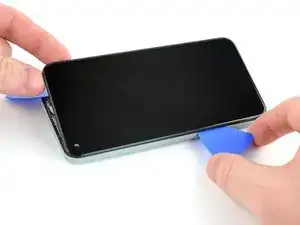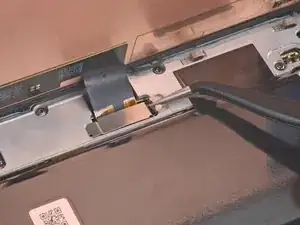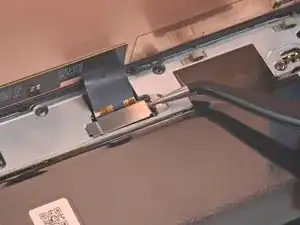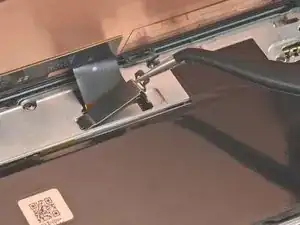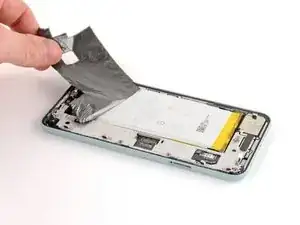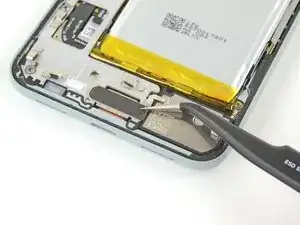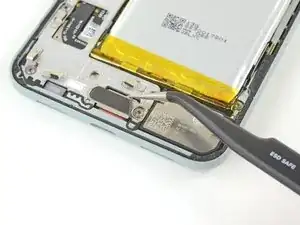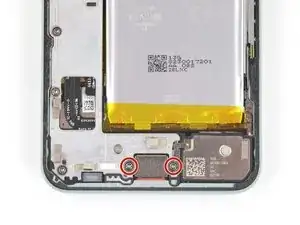
Einleitung

Diese Anleitung wurde von iFixit-Mitarbeitern erstellt und nicht von Google unterstützt. Erfahre hier mehr zu unseren Reparaturanleitungen.

Dies ist nur eine grundständige Anleitung! Sie ist nicht zum alleinigen Gebrauch gedacht.

  1. QQGLSFPODbK54uDM
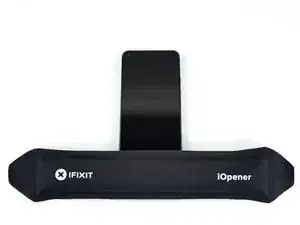
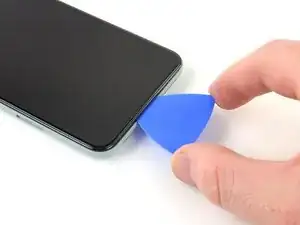
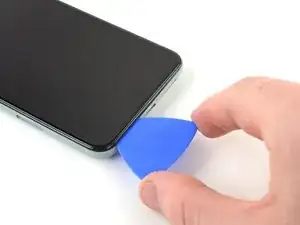
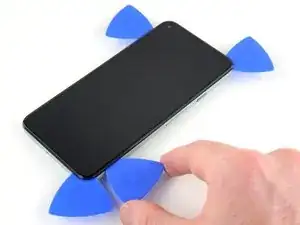
    • Erwärme den unteren Displayrand eine Minute lang mit einem erwärmten iOpener.

    • Optional kann hierfür auch ein Haartrockner, eine Heißluftpistole oder eine Heizplatte verwendet werden. Hierbei muss jedoch darauf geachtet werden, dass das Smartphone nicht überhitzt wird. Sowohl das Display als auch der interne Akku sind anfällig für Hitzeschäden.

    It would be helpful to know for how long ally the heated pad

    Yuri Deglin -

    Agreed, my friend from the past.

    Albert Einstein -

    If you click on the "iOpener" link, it tells you to heat it up for 30 seconds, and if you're using a microwave with a carousel, make sure it moves freely.

    Azurina Schalk-Smith -

    How long do you think it would take with a hair dryer?

    Gen L. -

    Don't have a microwave, so I boiled the kettle, left the iOpener in for 5 minutes and it was a good temperature to go. Doesn't need to be that hot to be effective

    Rick -
    i damaged my digitizer using a hair dryer ugh

    marco -
  2. XB15jHbG4YWAkvHj
    XB15jHbG4YWAkvHj
    idLGWGUERlrSUErg
    FsdxJwViyOclRRRc
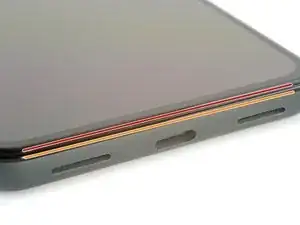
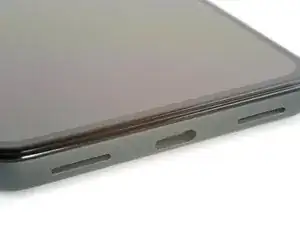
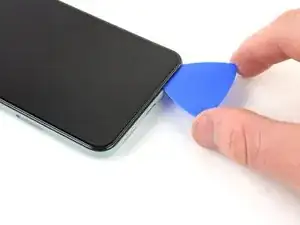
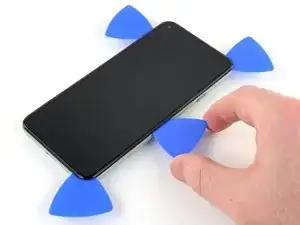
    • Schaue dir folgende Hinweise an, während sich der Kleber löst:

    • Displaynaht: diese Naht trennt das Display vom restlichen Smartphone. In dieser Naht darfst du nicht hebeln.

    • Blendennaht: Das ist die Naht zwischen der Blende, die als Schutz um das Display verläuft, und dem Rahmen. Die Blende ist durch Kunststoffrasten befestigt. Hier kannst du mit deinem Werkzeug hebeln.

    Please remove the image of the pick in the bottom of the phone in Step 2. This led me to place a pick there BEFORE step 5 which damaged my digitizer. Now I have to replace the entire screen as a result.

    Alternatively, add the image from step 5 with the suction cup in place, or just draw an arrow digitally to the seam you're referring to in step 2. Or call "Step 2" "Important Note" instead of a step.

    David Smith -

    Wow, I'm glad I read this first. I too assumed this step was about inserting the pick, but wasn't sure because it wasn't clearly written that way.

    Agreed with the "important note" idea, along with combining this with step 5 where the context is actually relevant.

    Marco Carag -

    Just made this same mistake and the photo is still there... there goes another $180...

    Carlos Moreno -

  3. 23sHH3BUSbtCbtOh
    23sHH3BUSbtCbtOh
    wIVYR4w6CPIbpvc1
    Pi3qHdWqZra6AUCg
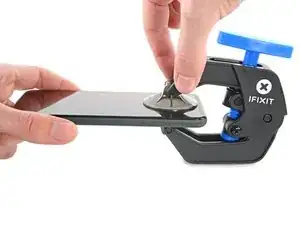
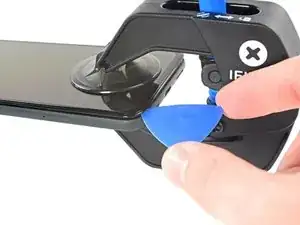
    • Wir haben die Anti-Clamp entwickelt, um das Öffnen von Geräten zu erleichtern. Die nächsten beiden Schritte zeigen, wie sie verwendet wird. Wenn du sie nicht benutzen willst, überspringe die nächsten zwei Schritte und folge einer anderen Methode.

    • Genaue Anweisungen für die Anti-Clamp findest du hier.

    • Drücke den blauen Griff zum Scharnier hin, um den Öffnungsmodus auszustellen.

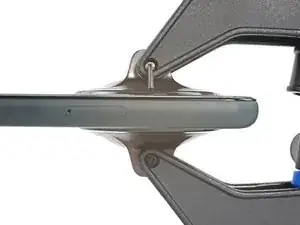
    • Bringe die Saugheber nahe an der Unterkante des Displays an, einen auf der Vorderseite, den anderen auf der Rückseite.

    • Drücke die Saugheber auf den Oberflächen fest.

    • Wenn die Saugheber nicht gut auf den Flächen haften, dann klebe Paketband darüber.

  4. LHErCKT1C5tQ23UD
    LHErCKT1C5tQ23UD
    ffUX41QYpsWEufib
    WJrFDynE3AHciwdH
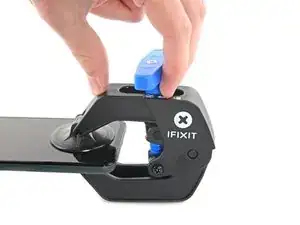
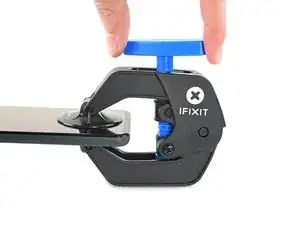
    • Drücke den blauen Griff vom Scharnier weg in die Stellung für den Öffnungsmodus.

    • Drehe den Griff im Uhrzeigersinn, bis du merkst, dass sich die Saugheber dehnen.

    • Achte darauf, dass sich die Saugheber weiterhin gegenüber stehen. Wenn sie sich nicht mehr gegenüber stehen, dann löse die Saugheber ein wenig ab und schiebe sie in die richtige Position.

    • Warte eine Minute, damit sich der Kleber allmählich ablösen kann und ein Spalt entsteht.

    • Wenn der Spalt groß genug ist, dann setze ein Plektrum unter das Display und seine Schutzblende ein.

    • Wenn es nicht gelingt, mit der Anti-Clamp einen ausreichend großen Spalt zu erzeugen, dann erwärme die Stelle nochmals und drehe den Griff eine halbe Umdrehung im Uhrzeigersinn weiter.

    • Drehe den Griff jeweils nicht mehr als eine halbe Umdrehung weiter und warte jedes Mal eine Minute lang. Gib der Anti-Clamp Zeit, ihre Arbeit zu erledigen.

    • Überspringe den nächsten Schritt.

  5. Z6keo3lUlisS6PiX
    Z6keo3lUlisS6PiX
    r3JOcDoYsjpYSPFJ
    TNkpv1vbVMDOwwPO
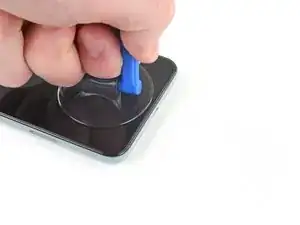
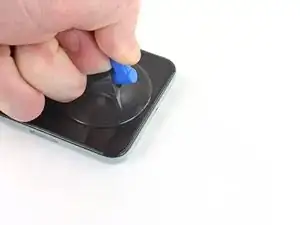
    • Bringe einen Saugheber so nahe wie möglich an der erhitzten Kante an.

    • Wenn das Display bei dir stark gesplittert ist, dann folge dieser Anleitung, um es mit Klebeband zu überkleben. Wenn alles nicht hilft, dann benutze Sekundenkleber, um den Saugheber am zerbrochenen Display zu befestigen.

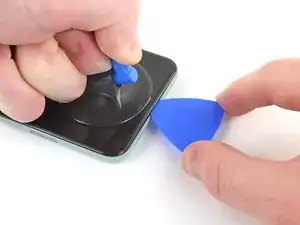
    • Ziehe fest und gleichmäßig am Saugheber, bis ein Spalt entstanden ist.

    • Je nach Alter deines Gerätes kann dies ziemlich schwer sein. Erwärme es gegebenenfalls nochmal und probiere es erneut.

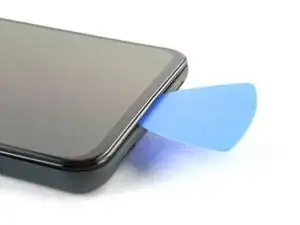
    • Setze ein Plektrum in den Spalt ein.

    "Insert the opening pick into the gap." NOT the gap under the glass, the second gap... If not you will probably break your screen, at least I did. Especially important if your pixel 5 shipped with the screen gap :(

    Alex Beaven (Nevbox) -

  6. JR3ablPZImMYsdPw
    JR3ablPZImMYsdPw
    16NeY1RIgBr4ALBD
    eHki2SVKH3c4LedP
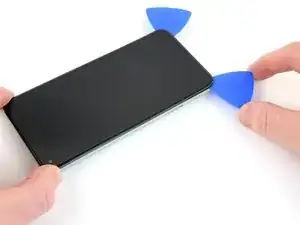
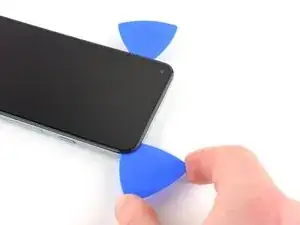
    • Schiebe das Plektrum an der Unterkante vor und zurück, um den Kleber am Display aufzutrennen.

    • Lasse das Plektrum in der unteren rechten Ecke stecken, damit sich der Kleber nicht wieder verbinden kann.

  7. YYBV6DBqqFtaUCfr
  8. PkwPMyUxTWxYtfMG
    PkwPMyUxTWxYtfMG
    t1IgSk2tcCpnLXL1
    m4ZVwT1q3UtyNBso
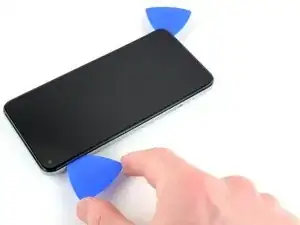
    • Setze ein weiteres Plektrum in die untere linke Ecke des Displays ein.

    • Schiebe das Plektrum um die untere linke Ecke herum.

    • Setze das Plektrum nicht tiefer als 6 mm ein, du könntest sonst das Flachbandkabel zum Display in der Mitte der linken Seitenkante beschädigen.

    • Schiebe das Plektrum weiter in Richtung Frontkamera, um den Kleber an der linken Kante aufzuschneiden.

    • Lasse das Plektrum stecken, damit sich der Kleber nicht wieder verbinden kann.

    I suggest placing an orientation sticker on the screen so you don't lose track of where that delicate ribbon cable is. I gently bent one, immediately after doing a successful one, resulting in a costly screen replacement. It's important to know that it's incredibly delicate.

    Edward McClung -

    I bent one of the picks at the end up 90 degrees with the tweezers to a depth of 3/16" and it worked beautifully. Left it on that side to remember where it was important.

    James Bennett -

  9. oEPA4kQQ5fVdHWvt
    oEPA4kQQ5fVdHWvt
    XhJQ6tagwvAhEmpG
    RKsZYcUGPiGcP3sF
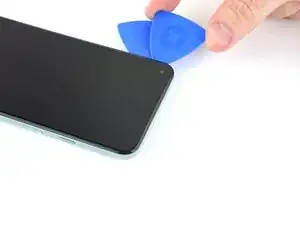
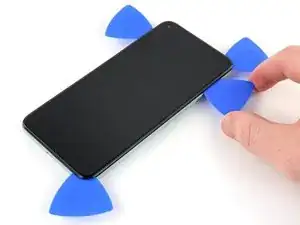
    • Setze ein weiteres Plektrum in die obere linke Ecke des Displays ein.

    • Schiebe das Plektrum um die Frontkamera herum und an der Oberkante des Smartphones entlang.

    • Wenn sich der Kleber nicht leicht auftrennen lässt, dann erwärme die betreffende Stelle eine Minute lang und versuche es erneut.

    • Schiebe das Plektrum zur oberen rechten Ecke hin und lasse es stecken.

  10. 1QnGhC4UIh3IUk1d
    1QnGhC4UIh3IUk1d
    HkkaPbXOq1RfD2hL
    eAIALPreGV2eXEBQ
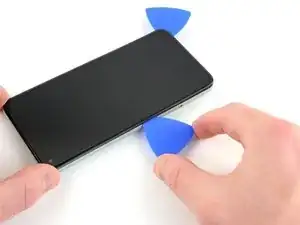
    • Setze ein Plektrum in die untere rechte Ecke des Displays ein.

    • Schiebe das Plektrum an der rechten Kante entlang nach oben, um den restlichen Kleber aufzuschneiden.

    • Eventuell musst du noch einmal mit einem Plektrum an allen Kanten entlangfahren, damit alle Klebestellen sicher aufgeschnitten sind. Der Kleber ist in den Ecken am dicksten aufgetragen.

  11. lNM4JsPdVK4M1MxG
    lNM4JsPdVK4M1MxG
    O1oOFnIGMGbAJoAG
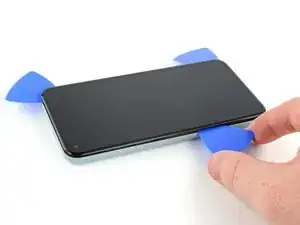
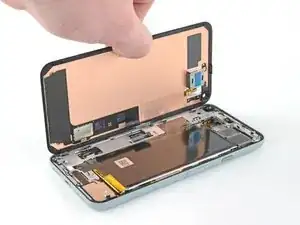
    • Hebe das Display mit dem Plektrum in der oberen linken Ecke ein paar Millimeter hoch. Dadurch wird verhindert, dass die Rasten wieder am Gehäuse einschnappen.

    • Klappe das Display von der rechten Seite her wie ein Buch auf.

    • Klappe das Display nicht mehr als 90° auf, damit das Flachbandkabel zum Display nicht beschädigt wird.

  12. Fy2oOr21rAtW4q2W
    Fy2oOr21rAtW4q2W
    OVUGNVxv23M3tSAM
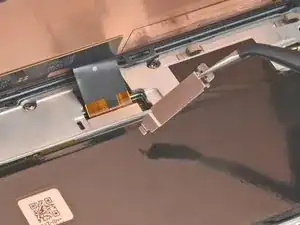
    • Die Abdeckung am Displaystecker sichert das Flachbandkabel zum Display. Fasse sie mit einer Pinzette an.

    • Schiebe die Raste zum Entsichern in Richtung des Steckers.

    I found it easier to use the spudger here rather than the tweezers (which have sharp ends that could damage something if you happen to slip).

    tristanwaddington -

    some 5a models will have a screw instead of clip , here's a photo https://imgur.com/a/9dZG5pQ


    Daniel Gonzales -

    You commented on the guide for the Pixel 5, not the 5a: Google Pixel 5a

    Pixel -

    I just fought with this part using the tweezers for several attempts, and then with the spudger it came right out when I applied force towards the center of the left edge.

    Michael Gundlach -

  13. YHjY6XJvlJjJ5tLY
    YHjY6XJvlJjJ5tLY
    bWD4NvY5CfksGydP
    • Entferne die Abdeckung des Displaysteckers.

    • Bewahre dieses Bauteil gut auf, du benötigst es beim Zusammenbau.

  14. cCDA2hvJgjXGYnJM
    cCDA2hvJgjXGYnJM
    3tLAI2OIwSxJUEYL
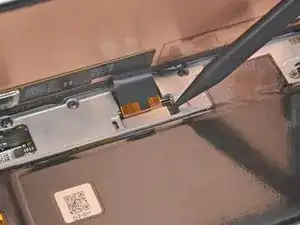
    • Heble das Flachbandkabel zum Display mit der Spudgerspitze nach oben und trenne es ab.

    • Um Druckstecker wie diesen hier wieder zu verbinden, richte ihn zunächst sorgfältig aus. Drücke erst eine Seite herunter, bis sie einrastet, und dann die andere. Drücke den Stecker auf keinen Fall in der Mitte herunter. Wenn er nicht richtig ausgerichtet ist, können sich die Kontakte verbiegen und dauerhaft beschädigt werden.

    The curved ends of the blue iFixit Opening Tool helped me reseat the connector when installing the new screen.

    tristanwaddington -

    Jesus no wonder the Chinese factory workers kill themselves, this thing is brutal

    Holy Moly -

    So hard to get this thing reseated to test the screen, even before putting the adheasive round the phone edge to finish the job. What made it particularly hard was that the flex cable on mine seemed very short compared to video's i've seen online.

    Jake Boddington -

    Reattaching this press connector was the worst! By the time I had done all the steps below and then in reverse, I was ready to be DONE. Be careful, patient and gentle.

    I too wanted to test my screen before the final adhesives and when I finally got the connection done and tested my screen, I HATED that I had to undo the connection to attached the adhesive.

    If using the Pixel 5 display adhesive that comes in the battery repair kit, there are actually two sets of blue protective covers. One that helps align the adhesive to the frame. Once that is removed, there is a very thin blue cover on the adhesive itself - that does split in two pieces. So, all this said, I could have attached the adhesive before testing the screen and would have been able to leave the adhesive strip with the blue protective cover in place if I needed to make any adjustments before sealing the screen to the frame.

    Kristi Hvidbjerg -

    So I was reassembling everything after changing the battery.

    Now my only step left is to reconnect the display. However by doing so and trying to turn it on the screen doesn't work... I feel the haptics, but the display is no longer responsive. Please help.

    Paolo Cunanan -

  15. RbDUQWECHGVnGIqR
    • Die Rückseite des Displays ist sehr empfindlich. Sie kann selbst durch kleinste Kratzer oder eine winzige Macke beschädigt werden.

    • Damit das Display nicht beschädigt wird:

    • Fasse das Display nur an den Kanten an.

    • Wenn du das Display auf die Arbeitsfläche ablegst, achte darauf, dass kein Fremdkörper die Rückseite berührt. Am besten legst du das Display auf ein sauberes, weiches und fusselfreies Tuch.

  16. ZMAy1r2nNBMo5WNf
    ZMAy1r2nNBMo5WNf
    t5oZvVG2wXnsOAxs
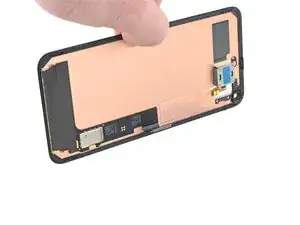
    • Entferne das Display.

    • Entferne alle Kleberreste mit einer Pinzette vom Gehäuse.

    • Wenn du das Display mit Isopropylalkohol reinigst, dann achte darauf, dass keine Spritzer davon unabsichtlich auf andere Bauteile gelangen, sonst könnte sich ihre Verklebung lösen.

    • Überprüfe beim Zusammenbau die Vertiefung für die Frontkamera im Ersatzdisplay. Wenn noch Schutzfolien aufgeklebt sind, dann entferne sie.

    • Folge dieser Anleitung, wenn du das Display mit vorgestanzten Klebestreifen befestigen willst.

    • Wenn du doppelseitiges Klebeband wie Tesa verwendest, folge dieser Anleitung.

    • Beim ersten Neustart nach der Reparatur wird das Display eine Kalibriersequenz durchlaufen. Berühre das Display dabei nicht, der Touchscreen könnte nicht richtig kalibriert werden, was zu einer schlechten Funktion führen kann.

    Where from we can buy the screen. Thanks

    Ajay Sharma -

    the screen does not fit

    Joel Kelly -

    After reconnecting the screen, is it necessary to remove a screen protector (if installed) for the a proper screen calibration?

    Maxx -

    Yes. Remove the screen protector when installing the screen.

    Marcel McKenzie -

    Remaining adhesive - very little actually pulled up in strips, most had to be gently scraped up. The 90% alcohol was a must to help soften the adhesive that remained. I did not get all of it off.

    The custom cut adhesive guide was very helpful. I did use the iOpener to heat up the edges after I installed the screen to help create the best seal. I believe this also helped deal with the old adhesive I hadn't been able to remove and allowed for a secure, tight fit of my screen to the frame.

    Kristi Hvidbjerg -

    The screen is great and the instructions were mostly clear. However, I missed the part in the instructions that said "If you replaced the screen, check the screen's front-facing camera hole and remove any protective liners covering it.". I only just now noticed that.. so maybe make it bold or something?

    kevin -

  17. JjAfOqeYvPL5Q1AO
    JjAfOqeYvPL5Q1AO
    wLheS56raJwteEcq
    mjgDKNJOCZiBdShT
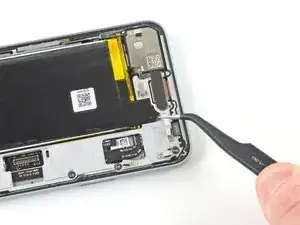
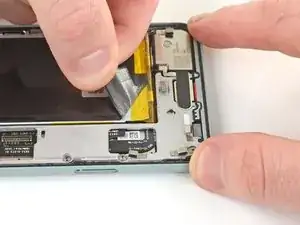
    • Hebe das Graphitband mit einer Pinzette hoch, bis es du es mit den Fingern greifen kannst.

    • Stich den Akku nicht an und verbiege ihn nicht, er könnte gefährliche Chemikalien verlieren oder in Brand geraten.

    • Löse das Graphitband ab.

    On reassembly, I missed the graphite tape installation. Will this be an issue?

    Gene Harriman -

    I believe graphite tape is used for heat dissipation to help keep the phone cool and not overheat so I would say it's an important component. If you can reinstall then do as heat will affect the operation of the device and impact the battery and internal components.

    Marcel McKenzie -

    Luckily the kit came with graphite tape replacement as I accidentally tore through mine when using the sharp tweezers. Here I recommend using the crocodile tweezers as these aren't as sharp and have a bigger surface area to grip.

    Marcel McKenzie -

    If you're dumb like me you won't find the crocodile tweezers until you look under the tools tray. I slid my tray out of its box right onto the work surface, so I never noticed the tweezers underneath.

    Michael Gundlach -

  18. tfXQmjGhSOU33UD2
    tfXQmjGhSOU33UD2
    1jrdoV3IGxUvBHwp
    • Löse die Graphitschicht von der Ladeplatte mit einer Pinzette ab.

    • Wenn es dir gelingt, die Graphitplatte unbeschadet abzulösen, kannst du sie beim Zusammenbau wieder verwenden.

    Would have been much more helpful to start off by saying to be careful removing this piece so you can reuse.

    Also would have been helpful to say that the kit comes with a new one, so don't worry about saving it.

    lupa -

    I found the sharp tweezers accidentally cut through the graphite tape and graphite pad. Use the crododile tweezers instead of the pointed ones to avoid ripping the tape.

    Marcel McKenzie -

    To clarify what lupa said: the kit does in fact come with a new graphite pad for the charging plate cover. It took me a while to find it, finally found it underneath my parts tray on the table somehow so it may slide around inside the shipping box.

    Michael Gundlach -

    I forgot to put back the graphite thermal pad when reassembling it. Now it is all glued back together and it is working like a charm. Should I worry? 🤔

    Ivan Penkov -

  19. 1eBqEykKCjSnXjba
    • Entferne die beiden 4,6 mm langen Torx T3 Schrauben, mit denen die Abdeckung der Ladeplatte am Mittelrahmen befestigt ist.

    • Halte während der gesamten Reparatur die Schrauben gut geordnet und achte darauf, dass jede an ihren ursprünglichen Platz zurück kommt.

  20. MRXQwTZ2RrfesIYE
    MRXQwTZ2RrfesIYE
    vxTHHVZE22vHJCO2
    • Entferne die Abdeckung der Ladeplatte mit einer Pinzette.

    • Bewahre dieses Bauteil gut auf, du benötigst es beim Zusammenbau.

    Using the repair part tray to hold stuff that's needed later worked well for me

    Rick -

  21. oR3xLWXumQOWvDOi
    • Entferne die acht 4,6 mm langen Torx T3 Schrauben, mit denen der Mittelrahmen befestigt ist.

  22. JPgBZLYKgs1THrXW
    JPgBZLYKgs1THrXW
    EPgFFlgRcP264jrI
    nFXAFwvFhDLKAJcn
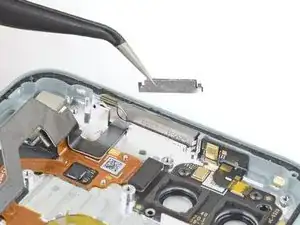
    • Hebe die rechte Seite des Mittelrahmens mit der Pinzette hoch.

    • Entferne den Mittelrahmen.

    • Der Abstandshalter oben im Smartphone fällt beim Ausbau des Mittelrahmens meistens heraus. Bewahre diesen Abstandshalter gut bis zum Wiederzusammenbau auf. Die Bilder dazu findest du in der Anleitung zum Austausch der Hauptplatine.

    Removing the midframe may cause a metal-foam spacer above the light sensor to pop out. After placing in the midframe on re-assembly, you can use the tweezers to squeeze the spacer back in between the midframe and the metal divider near the top of the phone.

    Dumpy Sheep -

    There is a picture of this spacer at https://www.ifixit.com/Guide/Google+Pixe.... To replace it, first replace the midframe. Then, before screwing the midframe back down, use the tweezers to pinch the space together, compressing the foam in the middle, and slide it into place.

    soren -

    In step 21 (and step 23) the photo showing the spacer shows the cover over the rear camera and apparently the camera itself removed. But this is not required and nor is it instructed in this guide. Confusing for photo to not match what I'm looking at.

    Gregg Lee -

    FYI My model Pixel 5 SKU: GA01316-UK does not have a spacer.

    Marcel McKenzie -

    I was very careful and looking specifically for this when removing the screen however it is just an empty cavity with nothing there. I guess it differs based on different PIxel 5 models?

    Marcel McKenzie -

  23. wYIZd3UBYiJOIH6B
    wYIZd3UBYiJOIH6B
    mTkFMKoNFSJlHdsA
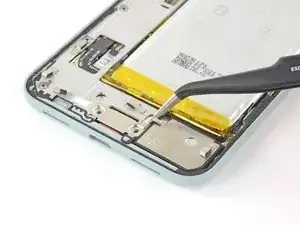
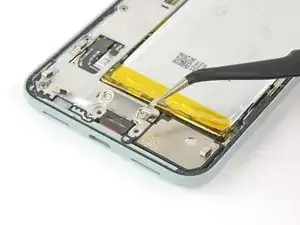
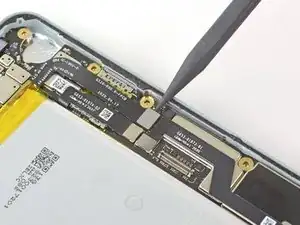
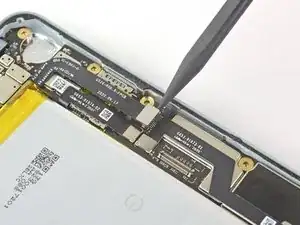
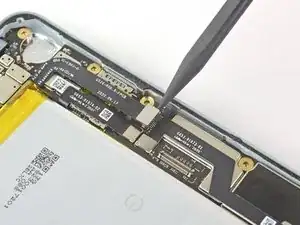
    • Heble den Akkustecker mit der Spudgerspitze gerade nach oben und löse ihn von der Hauptplatine ab.

Abschluss

Um dein Gerät wieder zusammenbauen, folge den Schritten in umgekehrter Reihenfolge.

Robert Boyd

Mitglied seit: 01/02/21

30168 Reputation

0 Kommentare