Einleitung

Diese Anleitung wurde von iFixit-Mitarbeiter:innen verfasst und ist keine offizielle Reparaturanleitung von Google. Hier erfährst du mehr über unsere Qualitätsstandards.

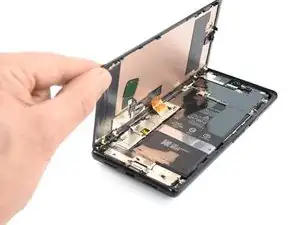
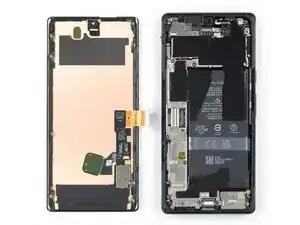
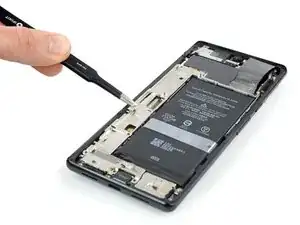
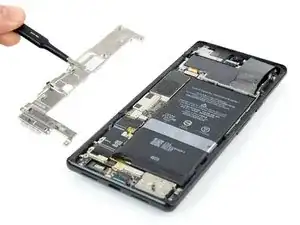
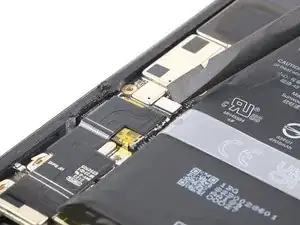
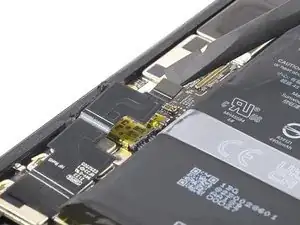
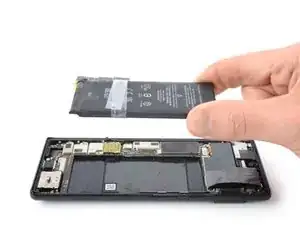
Die Anleitung zeigt, wie du einen abgenutzten oder kaputten Akku in deinem Google Pixel 6 Pro ersetzen kannst.

Ist der Akku angeschwollen, ergreife entsprechende Vorsichtsmaßnahmen .

Entlade zu deiner Sicherheit den Akku auf unter 25 %, bevor du dein Gerät zerlegst . Dadurch wird das Risiko eines gefährlichen Brands verringert, falls der Akku während der Reparatur versehentlich beschädigt wird.

Achtung: Das Pixel 6 enthält Laser der Klasse 1. Wenn du es auseinandernimmst, könntest du unsichtbarer Infrarotstrahlung ausgesetzt sein.

Ob dein Gerät nach der Reparatur noch wasserdicht ist, hängt davon ab, wie gut du es beim Zusammenbau versiegelst. Die IP-Zertifizierung wirst du jedoch verlieren.

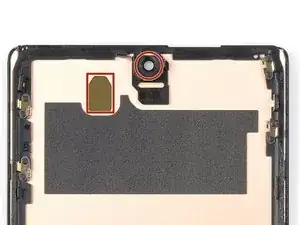
Du benötigst Ersatzkleber, um die Komponenten beim Zusammenbau des Geräts wieder zu befestigen.

  1. xGqbgqkw2hRaUsBS
    xGqbgqkw2hRaUsBS
    Ao5wAxq1e3NqOvXb
    • Bevor du mit der Reparatur beginnst, entlade den Akku auf unter 25%. Ein geladener Akku kann in Brand geraten oder sogar explodieren, wenn er während der Reparatur versehentlich angestochen wird.

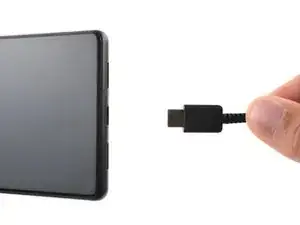
    • Schalte das Smartphone aus und entferne alle angeschlossenen Kabel.

    Please, how can I turn it off when screen is broken?

    Thubbe -

  2. pYtLJZEF5B2LvWeB
    pYtLJZEF5B2LvWeB
    ItQqxYGiYbWkJIa4
    xF2lQOYnyyUbHaO2
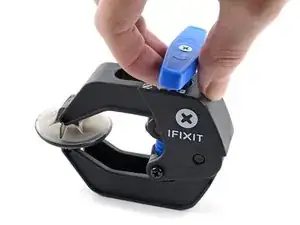
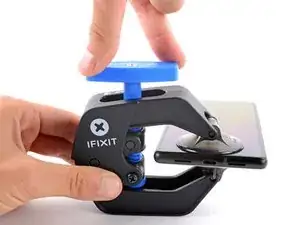
    • Die nächsten drei Schritte zeigen die Benutzung der Anti-Clamp. Wenn du sie nicht verwenden willst, überspringe die nächsten drei Schritte und folge einer anderen Methode.

    • Genaue Anweisungen, wie die Anti-Clamp benutzt wird, findest du hier.

    • Wenn das Display zerbrochen ist, dann klebe eine Lage von durchsichtigem Paketband darüber, damit die Saugheber besser haften können.

    • Drücke den blauen Griff zurück, damit die Arme der Anti-Clamp frei beweglich werden.

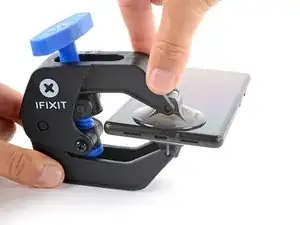
    • Schiebe die Arme über die linke oder rechte Kante des Smartphones.

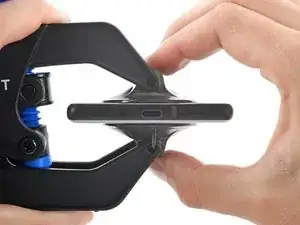
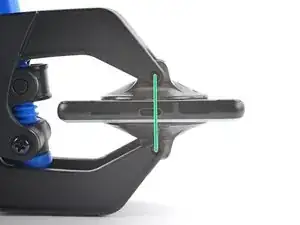
    • Bringe die Saugheber direkt an der Unterkante des Smartphones an, einen auf der Vorderseite, den anderen auf der Rückseite.

    • Drücke die Saugheber zusammen, damit sie sich auf den Oberflächen festsaugen.

    • Wenn die Saugheber nicht gut haften, dann klebe Paketband über die Oberfläche des Gerätes, damit sie griffiger wird.

  3. 2oNcHoB45uGaxEFB
    2oNcHoB45uGaxEFB
    Uk6q5idSq5oJrUgA
    I4KLIVS3OOLFsZCT
    • Drücke den blauen Griff nach vorne, um die Arme zuverriegeln.

    • Drehe den Griff eine volle Umdrehung im Uhrzeigersinn oder bis die Saugheber beginnen sich zu dehnen.

    • Achte darauf, dass sich die Saugheber weiterhin gegenüber stehen. Wenn sie sich nicht mehr gegenüber stehen, dann löse die Saugheber ein wenig ab und schiebe sie in die richtige Position.

  4. ky3IJRvEhk2KGagK
    ky3IJRvEhk2KGagK
    UiBlY6aXuTlMcmtn
    d12VohF6CPjwXSB1
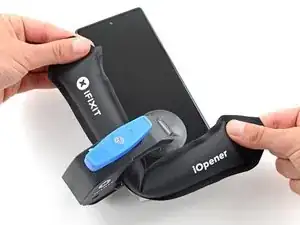
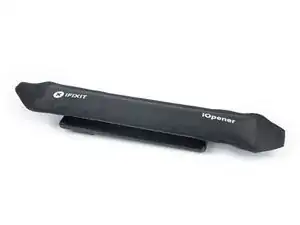
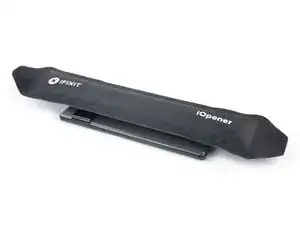
    • Erwärme einen iOpener und führe ihn durch die Arme der Anti-Clamp.

    • Du kannst auch einen Haartrockner oder ein Heißluftgebläse verwenden. Zuviel Hitze kann aber das Display und/oder den Akku beschädigen, sei also vorsichtig.

    • Forme den iOpener so um, dass er über der Unterkante des Smartphones liegt.

    • Warte eine Minute, damit sich der Kleber allmählich ablösen und ein Spalt entstehen kann.

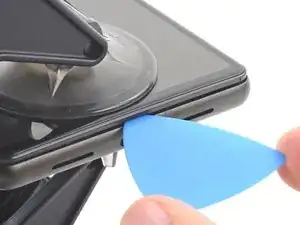
    • Wenn der Spalt groß genug ist, dann setze ein Plektrum unter den Displayrahmen ein.

    • Wenn es nicht gelingt, mit der Anti-Clamp einen ausreichenden Spalt zu erzeugen, dann erwärme die Stelle nochmals und drehe den Griff eine halbe Umdrehung im Uhrzeigersinn weiter.

    • Drehe den Griff jeweils nicht mehr als eine halbe Umdrehung weiter und warte jedes Mal eine Minute lang. Gib der Anti-Clamp Zeit, ihre Arbeit zu erledigen.

    • Überspringe die nächsten zwei Schritte .

  5. AJglnb3TZlAVMd2O
    • Erwärme das Display mit einem erwärmten iOpener mindestens 3 Minuten lang, um den Klebstoff darunter zu aufzuweichen.

    • Du kannst stattdessen auch einen Haartrockner, eine Heißluftpistole oder eine Heizplatte nutzen, achte jedoch darauf, das Gerät nicht zu überhitzen.

    Do you think that removing the SIM card, also will be a wise step? I'm pretty sure that heating the SIM card is not a good idea.

    Emil Teofanov -

    The SIM is probably no more sensitive than the rest of the phone.

    ScottMcNay -

    What does "be sure to have replacement adhesives for both the rear glass and the screen." I only had one it didn't mention another one?

    alberte -

    I didn't have the replacement adhesive for rear glass nor the 2 sided tape they talk about when putting it back together. It's Sunday, so I don't expect an answer. I decided to go ahead and work up until that point

    StlrFan -

  6. 5qT1kECvRkyOwMdj
    5qT1kECvRkyOwMdj
    yNlUPqlWLhUnqwEa
    622Y1IVXYBVVFD2s
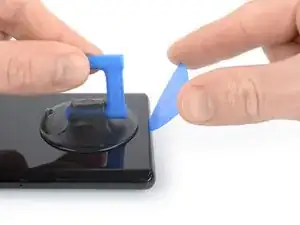
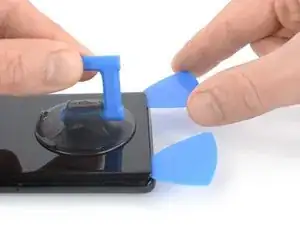
    • Sobald sich das Display warm anfühlt, setze den Saugheber an der Unterkante des Displays an.

    • Wenn dein Display stark gesprungen ist, kannst du es mit durchsichtigem Klebeband abkleben, damit der Saugheber haften bleibt. Alternativ kann anstelle des Saughebers auch ein sehr starkes Klebeband verwendet werden. Wenn alles andere fehlschlägt, kannst du den Saugheber mit Sekundenkleber am Bildschirm befestigen.

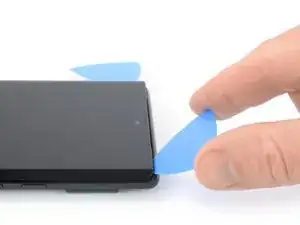
    • Hebe das Display inklusive seines Sicherheitsrahmens mit dem Saugheber an, um einen kleinen Spalt zwischen dem Display und dem restlichen Gerät zu schaffen.

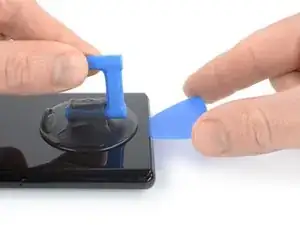
    • Nimm ein Plektrum und setze es in den Spalt ein.

    • Stelle sicher, dass du das Plektrum in der richtigen Position einsetzt, um zu verhindern, dass du das Display von seinem Sicherheitsrahmens abtrennst.

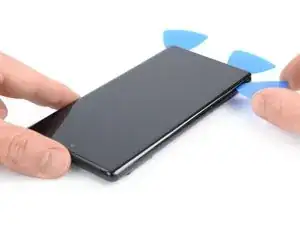
    • Ziehe das Plektrum in die untere linke Ecke des Displays, um den Klebstoff durchzuschneiden.

    • Lasse das Plektrum stecken, um zu verhindern, dass sich der Kleber wieder verbinden kann.

  7. 3iBpMQeeYQZd1N6W
    3iBpMQeeYQZd1N6W
    EF4cafwMyVbQyFeA
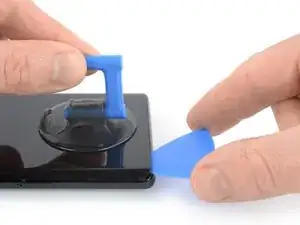
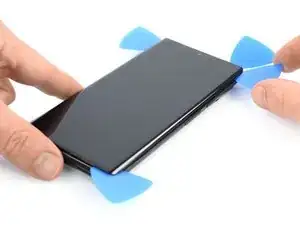
    • Setze ein zweites Plektrum an der unteren Kante ein und schiebe es zur rechten unteren Ecke der Displays, um den Klebstoff durchzutrennen.

    • Lasse das Plektrum stecken, um zu verhindern, dass sich der Klebstoff wieder verbindet.

  8. H2V6FPgYSgyNiaXT
    H2V6FPgYSgyNiaXT
    3kcnIWolap1s53OI
    15PB5ccyfLlKWefn
    • Das Display wird, zusätzlich zum Klebstoff, auch durch kleine Plastikstifte gehalten. Wenn das Plektrum während der Entfernung des Displays stockt, bedeutet dies, dass du dein Werkzeug zu tief unter das Display eingeführt hast. Setze nur die Spitze des Plektrums (~3-4 mm) ein, wenn du den Displaykleber durchtrennst.

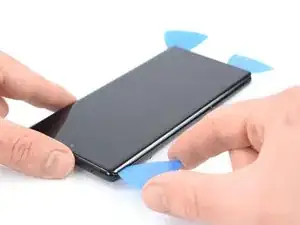
    • Schiebe ein drittes Plektrum unter die untere linke Ecke des Displays ein.

    • Ziehe nun das Plektrum entlang der linken Kante des Displays, um den Klebstoff zu durchtrennen.

    • Lass das Plektrum in der oberen linken Ecke stecken, um zu verhindern, dass sich der Klebstoff wieder verbindet.

  9. qWybciuriiWRatwM
    qWybciuriiWRatwM
    jIYEmbfvICMX6LXF
    • Wenn es schwierig wird, den Kleber zu durchtrennen, ist er höchstwahrscheinlich abgekühlt. Benutze deinen iOpener oder eine Heißluftpistole, um den Klebstoff erneut 1-2 Minuten lang zu erhitzen.

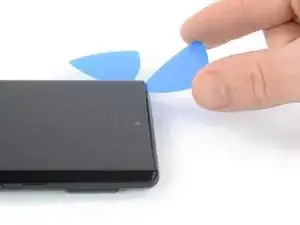
    • Wenn du den Klebstoff nahe der Frontkamera durchtrennst, setze nur die Spitze des Plektrums (~2-3mm) ein, um zu verhindern, dass die Kamera beschädigt oder verschmiert wird.

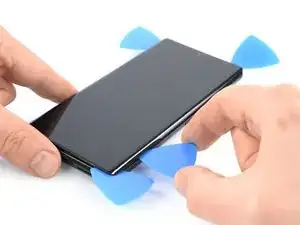
    • Setze ein viertes Plektrum an der oberen linken Ecke des Displays ein.

    • Ziehe das Plektrum entlang der oberen Kante des Displays, um den Klebstoff zu durchtrennen.

    • Lasse das Plektrum in der oberen rechten Ecke des Bildschirms, um zu verhindern, dass sich der Klebstoff wieder verbindet.

  10. 3u2GucwUJXcX36ik
    3u2GucwUJXcX36ik
    WSpdGRMJq215fHVl
    • Setze ein fünftes Plektrum ein und schiebe es an der rechten Seite entlang, um den restlichen Klebstoff zu durchtrennen.

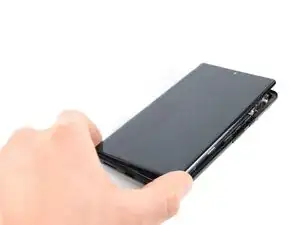
    • Versuche noch nicht, das Display ganz abzunehmen, es ist noch mit dem restlichen Smartphone verbunden.

  11. kRiqlurRKwtCBmRE
    kRiqlurRKwtCBmRE
    PtmBApHIHu6ANKT3
    fJXI1KaKDwVhdnnH
    • Vermeide es, das Displaykabel während des folgenden Schritts zu sehr zu belasten.

    • Klappe das Display vorsichtig zur linken Seite des Smartphones, so wie du ein Buch öffnen würdest.

    I don't know if it's an earlier or later design, but I am combining 2 phones (1 crushed glass but operational into the casing of one that quit functioning but has good glass) and on both, the ribbon cable for the LCD is a tiny bit too short to fold out flat like this. If you are working on one like mine, extreme care must be taken while holding the LCD up while simultaneously trying to plug the cable back into that very small recessed socket. Almost like you need 3 hands or robot fingers...

    Stephen P. Thurman -

    I also felt that the cable was too short to fully open like a book, however it is possible that the hinge side of my screen was still pressed in to the adhesive and I did not properly open the screen or I was being overly cautious. Be careful on first approach either way.

    Nick Harris -

    I luckily had a T2 torx that fit the screw on my phone. Be sure you have one handy in case yours is like mine.

    Daniel P deLaureal -

  12. aDmeySbuHVHuNPqR
    • Beim Pixel 6 Pro werden Torx Plus Schrauben verwendet, aber ein Standard -Torx-Bit funktioniert. Du musst fest und gleichmäßig nach unten auf die Schraube drücken, damit ihr Kopf nicht beschädigt wird.

    • Benutze einen Torx T3 Schraubendreher, um die 2 mm lange 3IP Torx Plus Schraube zu entfernen, mit der die Metallhalterung des Displaykabels befestigt ist.

    • Halte während der gesamten Reparatur die Schrauben gut geordnet und achte darauf, dass jede an ihren ursprünglichen Platz zurück kommt.

    I don't know if it's an earlier or later design, but I am combining 2 phones (1 crushed glass but operational into the casing of one that quit functioning but has good glass), and on both, the metal holder plate shown here is simply spring connected and that 2mm screw is instead slightly off to the side as part of the aluminum bracket's screws.

    Stephen P. Thurman -

    Does anyone know the exact dimensions/specifications of this screw? I've misplaced mine and need to find a replacement.

    Alternatively, what are the chances the display cable might come loose if I install the display bracket without screwing it in? I would expect there's not too much clearance between the bracket and the display, so it should still mostly hold in place once the display is installed.

    Chris Gutkowski -

  13. TXCDyVZdVyVArY4w
    TXCDyVZdVyVArY4w
    Wfb1v1Wns3GQc6eP
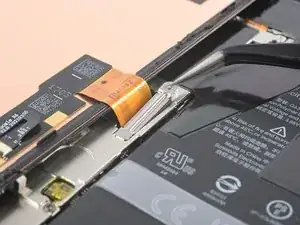
    • Benutze eine Pinzette, um die Metallhalterung zu entfernen, die sich über dem Displaykabelstecker befindet.

    • Bewahre dieses Bauteil gut auf, du benötigst es beim Zusammenbau.

  14. XAfcloCj3jgvnZXD
    XAfcloCj3jgvnZXD
    KmYqCLHysrBxjLya
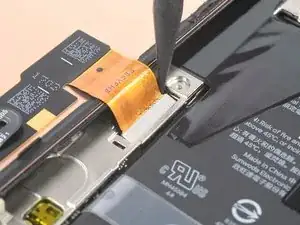
    • Benutze einen Spudger, um das Flexkabel des Displays abzutrennen, indem du den Stecker gerade nach oben aus seinem Anschluss hebelst.

    Reconnecting the display port cable was the longest part of my first repair. It helped when I carefully folded the ribbon connector at each end to get the most length out of it and bent it into the proper shape to hover just right over the small port. I lightly bent the cable back at the base and at the connector end.

    This connector feels delicate, so it definitely made me take my time and be cautious. The snap is unmistakable, but be careful afterward as you're on a short leash again. I folded the new screen closed like a book and snapped it into place easily.

    Nick Harris -

  15. INVorsuqOFuxktMv
    • Die Rückseite des Displays ist sehr empfindlich. Sie kann selbst durch kleinste Kratzer oder eine winzige Macke beschädigt werden.

    • Fasse das Display nur an den Kanten an.

    • Damit das Display nicht beschädigt wird:

    • Wenn du das Display auf die Arbeitsfläche ablegst, achte darauf, dass kein Fremdkörper die Rückseite berührt. Am besten legst du das Display auf ein sauberes, weiches und fusselfreies Tuch.

  16. EuFbD1VbsDijAW6O
    EuFbD1VbsDijAW6O
    G5DD2VBjEP55pQSD
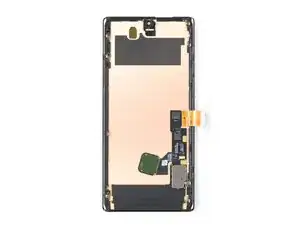
    • Entferne das Display.

    • Beim Zusammenbau:

    • Wenn du das Display ausgetauscht hast, dann kontrolliere die Öffnung für die Frontkamera und den Ausschnitt für den Sensor. Entferne alle noch vorhandenen Schutzfolien.

    • Vergiss nicht die Halterung des Displaykabels zu befestigen.

    • Jetzt ist eine gute Gelegenheit, um das Smartphone ausgiebig zu testen, bevor du es wieder zuklebst. Schließe das Display zeitweise an, schalte das Gerät ein und überprüfe, ob alles funktioniert. Bevor du weiterarbeitest, musst du das Smartphone wieder ausschalten und das Display abtrennen.

    • Wenn du beim Zusammenbau eine vorgestanzte Klebefolie benutzt, folge dieser Anleitung.

    • Wenn du beim Zusammenbau fertig zugeschnittene Klebestreifen benutzt, folge dieser Anleitung.

    • Wenn du ein neues Display eingebaut hast, führe eine Kalibrierung deines Fingerabdrucksensors durch.

    Before reassembly, clean around the edge of where the screen was, to remove any debris that may have been captured.

    ScottMcNay -

    After reassembly, the fingerprint sensor appears to be a common issue with new screens:

    * Go to https://pixelrepair.withgoogle.com/udfps on a computer.

    * If using Windows, click the help link to install the USB software. After installing, restart the computer and return to https://pixelrepair.withgoogle.com/udfps.

    * Follow the steps given to install the fingerprint calibration software.

    * Restart the phone.

    ScottMcNay -

    "Be sure to remove all adhesive liners from your replacement screen. Check the selfie camera recess and make sure you've removed the liner there."

    A photo with blue highlight square would've been helpful here...also it's very easy to miss this instruction as you'd be on the adhesive page...

    alberte -

    I did take the selfie camera liner this is a bad problem

    Austin Curtis -

    This is very true. I only realized after turning on my phone the next day that the film blocking the front camera is still there. I had to re-open the screen to remove that black film, which was not obvious at all. I only opened the upper half to remove the film, hopefully the adhesive is not compromised too much...

    Esmerando Escoto -

    All went well except for the adhesive. It was simply too small so when Iaid it down it was fine on one side as well as the top and bottom, but the other side required me to pull it over. As it is quite sticky, it bunched up. I cut out part of it and used my own double-sided tape to secure part of it. Otherwise, it was great. Thanks to those who made special note of the cover on the selfie camera window, and the procedure to set up the new fingerprint scanner.

    Arnold Bosman -

    They do not highlight the part that needs to be removed from the new screen, this should be added as the part looks and feels like it is a part of the new screen and removing it could break the new screen. So make sure you remove the selfie screen camera cover even if it looks and feels like there is not one there, it's there.

    Nick Harris -

    I ordered Google Pixel 6 pro- fix kit in IFIXIT. I followed the steps mentioned in the repair guide. During repair the finger print symbol is blinking in the screen. I thought it would get set when i do re calibration as mentioned in repair guide but it did not worked. It displays " Can´t use finger print sensor Visit a repair provider or g.co/pixel/fingerprintunlock". Does anyone have same problem??

    Surendra Reddy Velagala -

    You have to go to that link and you can re calibrate the new finger print scanner by logging into your account and approving it.

    dot Ducky -

    New Finger Print Reader

    Boot into fast boot and connect your pixel to your pc
    On your PC go to pixelrepair.withgoogle.com/udfps
    Follow the Prompts

    dot Ducky -

    Replacement process went smoothly. I reattached the screen after seating the connector. No sign its working. Just black blank screen. However text and notification sounds still coming through. Even receiving calls. etc on que. I know the phone works, just not the screen.

    I figure maybe I didnt seat the connector all the way so I break the adhesive liner (figuring I'll buy another and apply again) and this time I clip in the connector for sure. Still nothing on the screen.


    What can I do? Is the screen defective? 

    If phone is working should I see the display after the connector is seated but the phone still open? Or does the screen need to be seated all the way in the case to turn on? The screen does not display anything in either state by the way...

    As an aside, your instructions are so detailed until the point where the screen needs to connect and seat. It would helpful to get more pointers for this final step...

    Chobby -

    It's so frustrating that paper instructions are not included considering I'm about to pull the screen off my phone. It's also very frustrating that I have to load and read multiple sub instructions in the middle of the main instructions, just include all instructions in one booklet and include the booklet in the kit.

    Jeremiah Miller -

  17. WpZWj6icjSxAbAjl
    • Lege einen erwärmten iOpener mindestens zwei Minuten lang auf das Rückseitenglas, um den Kleber der Graphitschicht auf dem Akku aufzuweichen. Du kannst auch ein Heißluftgebläse benutzen.

    • Erwärme den Akku nicht direkt. Er ist hitzeempfindlich und kann leicht in Brand geraten.

    This seems contradictory: the step basically says to heat the graphite film through the battery (from below) instead of heating the graphite film itself, and then says "don't heat the battery directly". Sounds like a thermometer test is needed.

    ScottMcNay -

  18. XQ34V2HxmFcIFxps
    XQ34V2HxmFcIFxps
    ebSoHCMCQpNprpXO
    46TVRtJXCUKoENW2
    • Achte darauf, dass du den Akku mit deinem Werkzeug nicht verformst oder anstichst. Ein verformter oder beschädigter Akku kann gefährliche Chemikalien verlieren oder in Brand geraten.

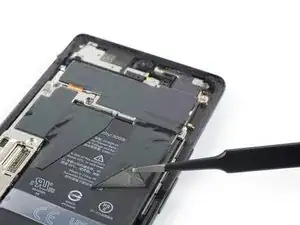
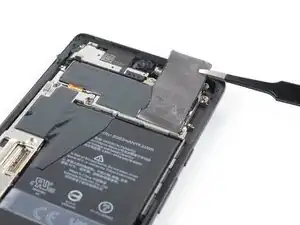
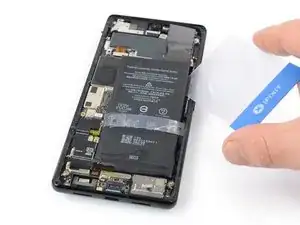
    • Löse die schwarze Graphitschicht vorsichtig mit einer stumpfen Pinzette oder dem Fingernagel von der Unterkante des Akkus und der Abschirmung der Hauptplatine ab.

    • Entferne die Graphitschicht.

    The film delaminates easily, so be careful.

    If you are using an iFixit replacement battery, it comes with replacement graphite film for the bottom and left.

    ScottMcNay -

    so do you need this film?? if it is damaged, can you use some sort of tape, or does it have to be this graphite film?

    Michael Carton -

  19. xoRTPRBHxXAOgwAr
    xoRTPRBHxXAOgwAr
    IyPruuVBkutxAO2Y
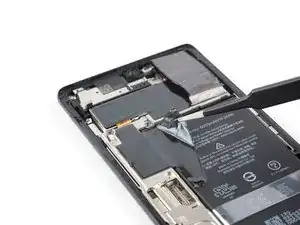
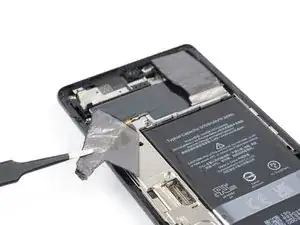
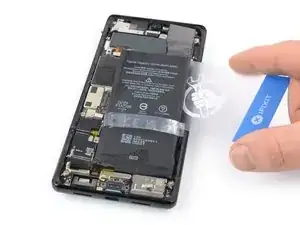
    • Wenn du nur den Akku austauschen willst, genügt es, den unteren Teil der Graphitschicht vom Akku abzulösen. Wenn du die Rückkamera ausbauen willst, musst du sie komplett entfernen. Wenn du aber nur den Ohrhörer-Lautsprecher oder die Frontkamera ausbauen willst, kannst du sie einfach kleben lassen.

    • Löse die schwarze Graphitschicht vorsichtig mit einer stumpfen Pinzette oder dem Fingernagel von der rechten oberen Ecke des Akkus ab.

    • Klappe die Graphitschicht in Richtung der Selfie-Kamera, um Zugang zum Akku zu erhalten.

    バッテリーとカメラユニットの間に隙間があります。そこからピンセットを差し込んでグラファイトフィルムを剥がすのが最も安全ですね。

    AKINORI HARADA -

    It should be highlighted that this graphite film does not have a replacement and so should only be peeled back. I know it says peel vs. remove in the title, but going through people (myself as an example) might not read the title portion.

    genericuser256 -

  20. mlyeiL45HPTc2SA3
    mlyeiL45HPTc2SA3
    2SSQPBUhM2hEkwGG
    H3p3xOcypbyOk3vG
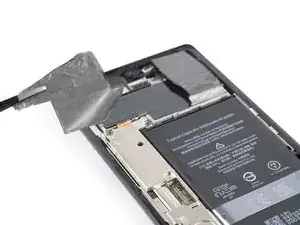
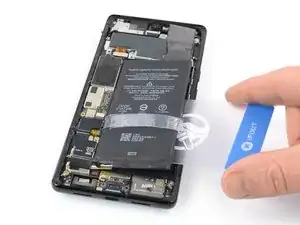
    • Wenn sich die Graphitschicht nicht leicht ablösen lässt, ist sie wahrscheinlich zu stark abgekühlt. Erwärme die Rückglasabdeckung nochmals 1 - 2 Minuten lang mit dem iOpener oder dem Heißluftgebläse.

    • Löse die schwarze Graphitschicht vorsichtig mit einer stumpfen Pinzette oder dem Fingernagel von der linken Kante des Akkus und der Abschirmung der Hauptplatine ab.

  21. T2BAXKWhYhCCiW6u
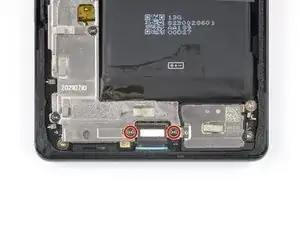
    • Entferne die beiden 5,1 mm langen 3IP Torx Plus Schrauben, mit denen die Metallhalterung der Ladebuchse befestigt ist.

    Use the Torx T3...

    (slight reminder that it's the same bit as used already)

    ScottMcNay -

  22. yiXJM4vL2JoJGTew
    yiXJM4vL2JoJGTew
    FiVm5ePKqGtJtPQD
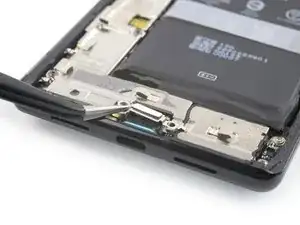
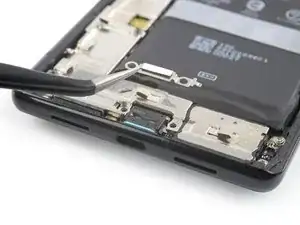
    • Entferne die Halterung der Ladebuchse mit einer Pinzette.

    • Bewahre dieses Bauteil gut auf, du benötigst es beim Zusammenbau.

  23. gChpoe3YKVNaxbs4
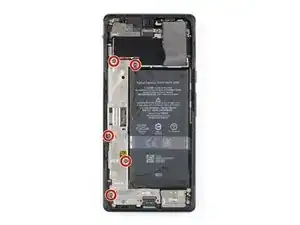
    • Entferne die fünf 5,1 mm langen 3IP Torx Plus Schrauben, mit denen die Halterung der Hauptplatine befestigt ist.

    Use the Torx T3...

    (slight reminder that it's the same bit as used already)

    ScottMcNay -

  24. ZLNTsMhLERmFkeOR
    ZLNTsMhLERmFkeOR
    cWsuyCJhAR2XxWeW
    • Entferne die Abdeckung der Hauptplatine vorsichtig mit einer Pinzette oder deinen Fingern.

  25. TteCBEMfTPiR4AdC
    TteCBEMfTPiR4AdC
    2JqOlv3Keowg2Hm2
    • Heble den Akkustecker senkrecht mit dem Spudger aus seinem Anschluss nach oben und trenne das Akkukabel ab.

    On some models, there is another cable, which crosses the battery (which accounts for the odd diagonal shape of the upper-left graphite film), which also needs to be removed.

    ScottMcNay -

  26. POWGEAMnbJbpFIqI
    POWGEAMnbJbpFIqI
    GWE4q1FPE55nwPE5
    • Der Akku ist nur im oberen und unteren Bereich verklebt, nicht in der Mitte. Der durchsichtige Plastikstreifen um die Mitte des Akkus ist während des Ausbaus des Akkus nicht besonders nützlich. Du kannst ihn auch gerne entfernen, damit es leichter geht, wenn die Klebeverbindung unter dem Akku gelöst ist.

    • Kippe das Smartphone etwa in einem Winkel von 45°.

    • Das sorgt dafür, dass der Isopropylalkohol im nächsten Schritt gleichmäßig verläuft. Du kannst das Handy mit einer Hand halten und mit der anderen Hand den Alkohol einbringen, oder den Saugheber am Rückseitenglas befestigen und als Standfuß benutzen.

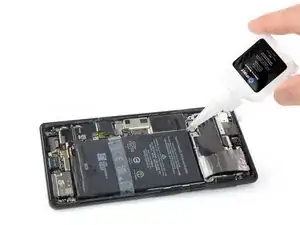
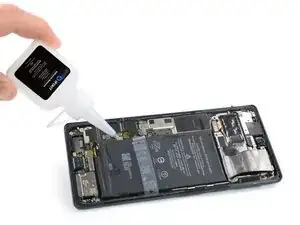
    • Tröpfle etwas hochkonzentrierten Isopropylalkohol (mindestens 90%ig) in den Spalt zwischen Hauptplatine und der oberen und der linken Ecke des Akkus.

    At least in Germany, the battery replacement kit does not come with the isopropyl alcohol included, only a pipette is included. Perhaps for legal reasons, not sure. I had a bottle at hand but that might not be the case for everyone.

    Patrick -

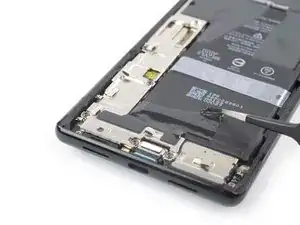
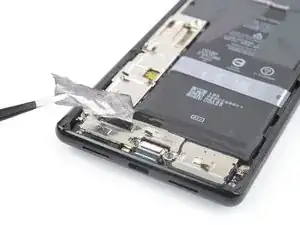
    I had no alcohol to remove the glue, so I proceeded as follows:

    - Heat the back of the phone under the glued area of the battery

    - Pull the flaps on the plastic strip alternatively and move the strip like a blade under the glued area to remove the battery.

    - It came off without a problem.
    MarkkoDev -
  27. JfETdLHncWNDJx1D
    JfETdLHncWNDJx1D
    SirCJYP1LK4jBm2Q
    1esXSrHYoFgDaeUD
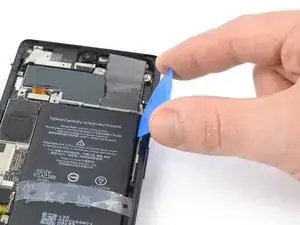
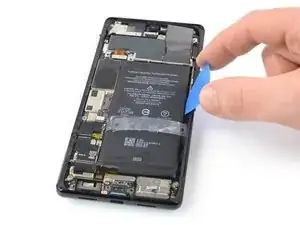
    • Setze ein Plektrum in den Spalt zwischen der oberen rechten Ecke des Akkus und der Mittelrahmen ein.

    • Kippe das Plektrum zum Abhebeln des Akkus nach unten. Vergrößere den Spalt zwischen Akku und Mittelrahmen so weit , dass du eine Plastikkarte einsetzen kannst.

  28. ALEQSHKCnFdPenSw
    ALEQSHKCnFdPenSw
    X6Io34syArRO463x
    • Arbeite dich mit dem Plektrum an der rechten Kante des Akkus nach unten und vergrößerte den Spalt so weit, dass du eine Plastikkarte einsetzen kannst.

    Typo: "Work you".

    ScottMcNay -
  29. TbN2uGxHGqMcymDJ
    TbN2uGxHGqMcymDJ
    uwO31UoKHHHxXn3w
    yaH1OxHZy2Pa111A
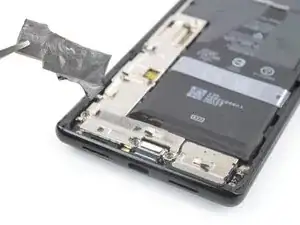
    • Wenn es dir nicht gelingt, den Akku alleine mit Hilfe von Isopropylalkohol abzulösen, kannst du ihn noch zusätzlich erwärmen. Bereite in diesem Fall einen iOpener vor und lege ihn mindestens zwei Minuten lang auf das Rückseitenglas, um den Kleber unter dem Akku aufzuweichen.

    • Setze eine Kunststoffkarte unter die rechten Kante des Akkus ein.

    • Schiebe die Karte unter der rechten Kante des Akkus entlang und löse ihn vom Mittelrahmen ab.

    • Heble den Akku mit der Kunststoffkarte hoch.

  30. fsGC3NRjPt3kpno5
    fsGC3NRjPt3kpno5
    AceHYqHM3dNWuqUh
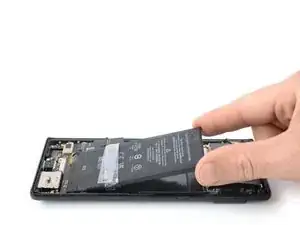
    • Löse den Akku vom restlichen Kleber ab

    • Entferne den Akku.

    • Baue einen verformten oder beschädigten Akku nicht wieder ein, das ist ein Sicherheitsrisiko.

    • Befestige den neuen Akku mit vorgestanzten Klebestreifen oder doppelseitigem Klebeband. Damit er gut sitzt, befestige das Klebeband zunächst an den ursprünglichen Stellen im Handy, nicht direkt am Akku. Drücke dann den Akku gut fest.

    • Verbinde den Akku während des Zusammenbaus zeitweise mit der Hauptplatine, damit er richtig platziert wird. Trenne den Akku anschließend wieder ab.

Abschluss

Wenn möglich, schalte dein Gerät ein und teste die Reparatur, bevor du neuen Klebstoff aufträgst und das Gerät wieder verschließt.

Vergleiche dein neues Ersatzteil mit dem Originalteil. Möglicherweise musst du vor dem Einbau die verbleibenden Komponenten übertragen oder die Klebestreifen vom neuen Teil entfernen.

Befolge diese Anweisungen in umgekehrter Reihenfolge, um dein Gerät wieder zusammenzubauen.

Um eine optimale Leistung zu erzielen, solltest du den neu installierten Akku kalibrieren, nachdem du diese Reparatur beendet hast.

Das Gerät ist mit einem eingebauten Diagnosetest ausgestattet. Hier siehst du, wie du das Pixel Diagnostic Tool starten kannst.

Bring deinen Elektroschrott bitte zu einer fachgerechten Entsorgungsstelle.

Die Reparatur hat nicht wie geplant geklappt? Versuche es mit grundsätzlichen Lösungen oder frage in unserem Forum um Hilfe.

Dominik Schnabelrauch

Mitglied seit: 23/11/16

235812 Reputation

13 Kommentare

White flickering screen after battery replacement. I checked all the connections and it seemed that they were all right.

Svitlana Kennedy -

Same AF, got to take it back apart and try to reconnect my screen

James Hatch -

I found an important and critical piece missing in this guide. In steps 6 through 10 your goal is to get the screen separate from the phone chassis. While they do mention to be sensitive around the front camera the guide doesn't mention that you also need to be sensitive around the left-side center of the phone as well. This is where the screen cable connects to the motherboard. I wouldn't even put a pick or tool anywhere near that area. I didn't put too much pressure or anything but it looks like I somehow hit that cable while removing the screen. I don't see any damage to the cable or the screen but when I turn the phone on my screen now outputs several always on bright pink and green lines running through it indicating something went wrong here. So I went from replacing the battery to having to replace the screen too. Between the cost of the new battery and a new screen it probably would've been cheaper to just buy another used Pixel 6 Pro.

Dan -

Sorry, I have a question, did you change the screen?

RICCC -

I went through this process successfully; Several notes;
1. As Dan Mentions, careful of the screen cable, but also be careful of the alignment pins top left and bottom right of the screen - they block the insertion of the pry picks.
2. A hair dryer (750W) on low speed, high heat, works a charm and is much faster and easier than the iOpener.

3. There's an additional wiring ribbon cutting across the battery from top middle to left-middle. It can be easily disconnected, but it isn't shown on the pictures, nor mentioned in the instructions.

4. When you've reconnected the screen wiring ribbon, it says "Don't touch the screen as it needs to calibrate." Mine did nothing. It just turned on and presented the login screen. I used my fingerprint and the device worked. So I powered off and proceeded to affix the screen to the adhesives.

5. Once everything was assembled, I powered on and the finger print reader stopped working (was undetectable). There is a solution to this, but it really should be in this Guide.

Marc Aniballi -

@5. And what is the solution to the finger print reader not working? Could you please just link to it?
Update, it's mentioned in the respective comment: https://de.ifixit.com/Anleitung/Google+P...

quak -

Was replacing the screen, decided I might as well replace the battery while I was at it. That seems to be working fine (including fingerprint sensor) but now the loudspeaker sounds like it's underwater. Not sure how that happened. 😞

Andrew -

I actually just ran into the same issue! I've ordered another set of adhesive and replacement graphite stickers. Going to see if I can figure out what's up.

Kyle -

Now after popping the new screen off, I seem to have damaged the new screen and the speaker is just hosed. I think I've botched this whole project. :(

Kyle -

I Was able to do this but the hardest parts for me was getting the new glue to stick in the right spot particularly on the top. For me it kept wanting to stick to the upper part of the frame lip and not where it's supposed to go. I also struggled with getting the display connector put back on but this was my first repair and it wasn't too bad.

One important thing this guide does NOT mention however is you need to disconnect the 5G UWB antenna (I think) and bend the cable up and out of the way. it comes in off the top of the device and cuts across the battery at an angle to connect to the motherboard right on top of the battery connector.

William Peck -

Hi, I just tried this and ended up with pink and green strips on the screen. I think nobody wants that feeling after trying to replace the battery. I consider myself being handy and I was really careful not breaking things and read all comments in advance! But it still happened :/ sux.......also why can I not attach pictures?

cajon -

Oh no! I'm sorry to hear that. Have your tired reseating the display connector to see if that fixes the lines? Otherwise...it would mean that the screen is broken.

Alex Diaz-Kokaisl -

I finished this repair successfully. To put it more precisely, I now have a new battery and a working phone. "Success" is open to interpretation. This is not an easy job and I'm a DIYer to the core. I could quibble with some of the directions but there's no point in that. With anything you do for the first time, you're going to make mistakes. I made several but the big and costly one is that I nicked the screen cable and had to buy a new screen. With the overnight delivery fee, that put me an additional $300 into this repair. This is delicate and patient work. I'm sure I would do it better the second time around but how many times is anyone going to do this unless you setup your own repair operation? This consumed many hours of time and a total of $440. You may be more adept at this kind of work than I am. I support the repair concept. Sorry for the mixed message.

Eric J -